App Home iframe apps
App Home is your app's dedicated space in Shopify admin, where it renders its landing page and UI. Merchants use it to navigate to your app's other pages, open modals and workflows, and access your app's data.
Your app renders its UI in an iframe using web components, and communicates with the rest of Shopify admin through App Bridge, a JavaScript SDK. With App Bridge and web components from Shopify's Polaris design system, you can build performant apps using familiar web technologies.
Anchor to Getting startedGetting started
The Polaris web component library for App Home (iframe) apps is versioned. Version 1.1 is the latest stable version. To learn more about the library versioning, as well as what's new in version 1.1, see The Polaris CDN is adopting semantic versioning.
The Polaris web component library for App Home (iframe) apps is versioned. Version 1.1 is the latest stable version. To learn more about the library versioning, as well as what's new in version 1.1, see The Polaris CDN is adopting semantic versioning.
You can build for App Home two ways: iframe-based apps (covered in this reference) and App Home UI extensions. To choose the right option for your use case, see Apps in App Home.
To build your first iframe-based app in App Home, scaffold an app with the Shopify CLI. When prompted for the app type, select Build a React Router app.
The command scaffolds an app with all the Shopify App Bridge and Polaris libraries you need to build for App Home.
Generate scaffold
Anchor to Building your appBuilding your app
You build your app with UI components and Shopify's APIs.
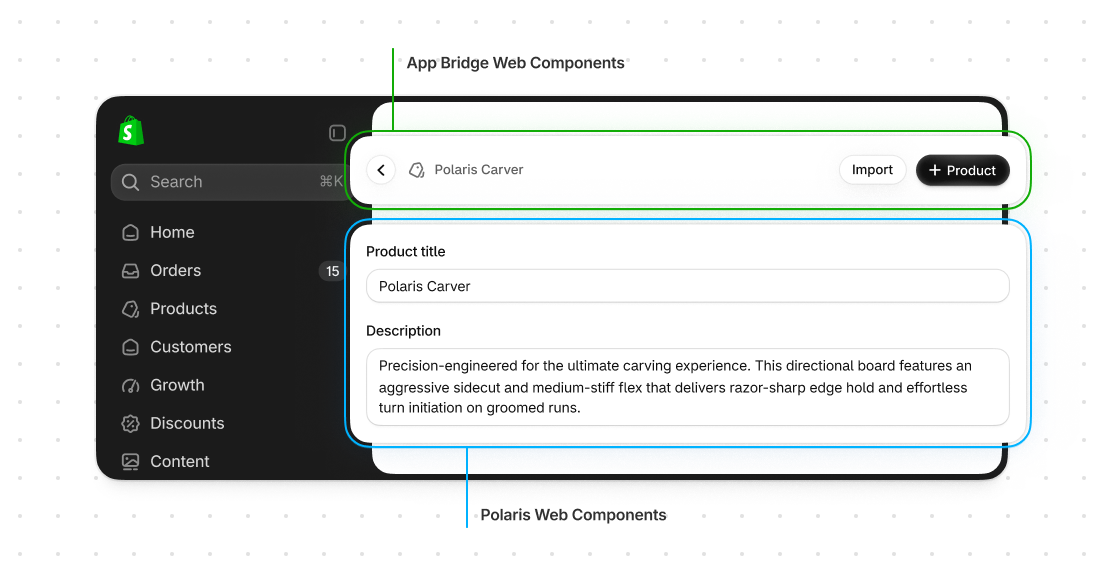
Anchor to Web componentsWeb components
You add UI to your app with web components. Shopify's Polaris library provides components that match the Shopify design system.
Polaris components are built on the Web Components standard, so they work like native HTML elements. Use them in any framework or with vanilla JavaScript, just like a <button> or <input>.
The Polaris web components library is versioned.


Render a page in App Home
Preview
Anchor to APIsAPIs
Your app uses APIs to read data from Shopify admin, launch workflows like creating products or editing orders, and give merchants feedback through toasts and modals. Shopify's App Bridge library exposes these APIs through the shopify global variable.
The App Bridge script authenticates these APIs for you, so there's no additional setup. Apps scaffolded with Shopify CLI already include the script.


Retrive session token to authenticate with your backend
Anchor to App Bridge web componentsApp Bridge web components
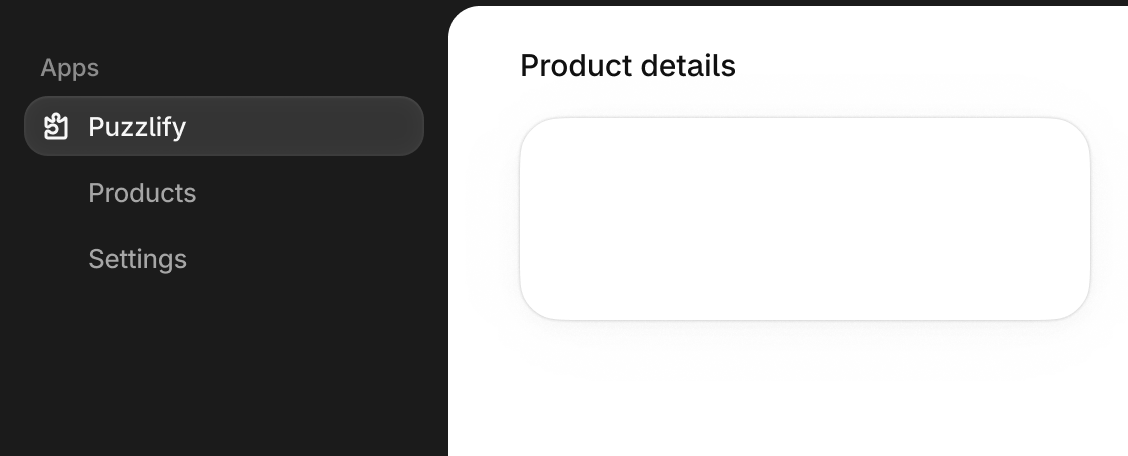
Use App Bridge web components to add UI elements like title bars and navigation menus to Shopify admin outside your app's iframe.
Render a title bar and navigation menu
Anchor to Page patternsPage patterns
Shopify provides page templates for common patterns like landing pages and settings pages, so your app looks and behaves consistently with Shopify admin and meets Built for Shopify standards.
Shopify also provides UI compositions (combinations of Polaris web components and APIs) that you can add to your app's pages for common needs like data tables, empty states, and setup flows.


Anchor to Direct API accessDirect API access
Your app can query the Shopify Admin GraphQL API directly from its front-end code using the standard fetch() API. For your app to make direct calls to the Admin GraphQL API, you need to enable direct API access in your configuration file using the embedded_app_direct_api_access property.
App Bridge automatically authenticates these requests, so you don't need to manage tokens or headers yourself. Use the shopify:admin/api/graphql.json URL to make authenticated requests to the Admin GraphQL API.
Query Shopify data
Anchor to ConfigurationConfiguration
You define your app's configuration in the shopify.app.toml file. This file controls how your app authenticates, what data it can access, and how it integrates with Shopify admin.
Scaffolding your app with Shopify CLI creates a shopify.app.toml file with basic settings. Edit it to give your app permission to access Shopify data and make direct calls to the Admin GraphQL API.
Configure your app
Anchor to Access scopesAccess scopes
Access scopes define what Shopify data your app can read or write with the Admin GraphQL API. Declare the scopes your app needs before querying the API.
Merchants approve these permissions when they install your app, so request only the scopes your app actually needs.


Anchor to Testing and deploymentTesting and deployment
Shopify CLI provides tools to test and deploy your app.
Anchor to Local developmentLocal development
To run your app locally during development, start a dev server using Shopify CLI. This command creates a tunnel so Shopify can reach your local app.
Your app opens in your development store where you can test changes in real time. The CLI watches for file changes and automatically reloads your app.
Start development server
Anchor to DeploymentDeployment
When you're ready to go live, deploy your app to a hosting service like Google Cloud Run, Fly.io, or Render. This is where your app runs and handles requests from Shopify.
Then run the Shopify CLI deploy command to sync your app's configuration and extensions to Shopify so merchants can install it.


