---
title: Icon
description: >-
The `Icon` component displays standardized visual symbols from the POS catalog
to represent actions, statuses, or categories consistently. Use icons to
enhance navigation or provide visual context alongside text in POS interfaces.
Icons help merchants quickly understand interface elements and actions without
relying solely on text labels. Icons are optimized for readability at standard
sizes and automatically scale to maintain visual consistency across different
screen densities and device types.
api_version: 2024-07
api_name: pos-ui-extensions
source_url:
html: >-
https://shopify.dev/docs/api/pos-ui-extensions/2024-07/ui-components/media-and-visuals/icon
md: >-
https://shopify.dev/docs/api/pos-ui-extensions/2024-07/ui-components/media-and-visuals/icon.md
---
# Icon
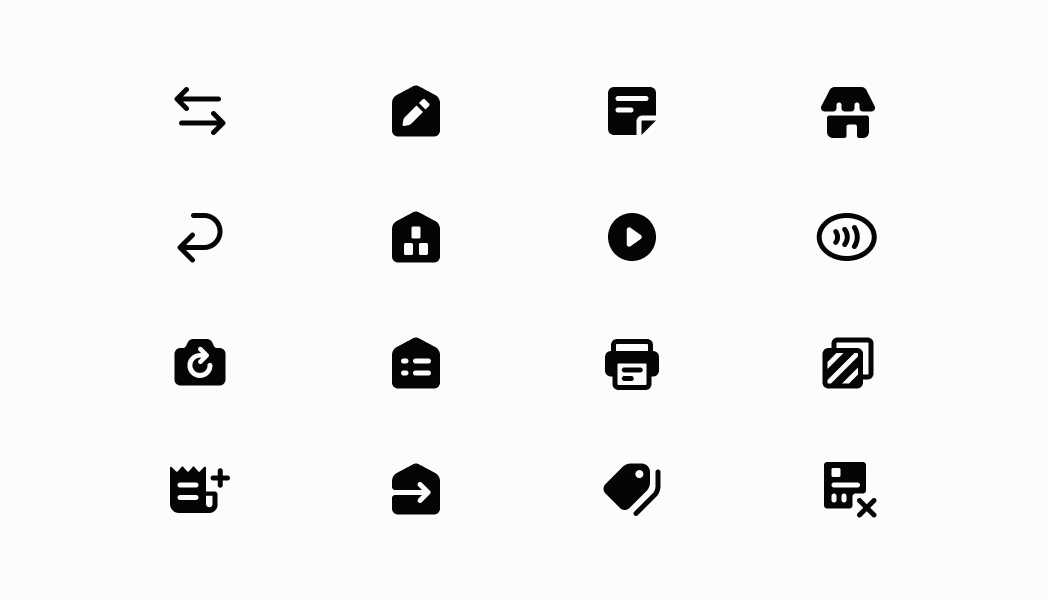
The `Icon` component displays standardized visual symbols from the POS catalog to represent actions, statuses, or categories consistently. Use icons to enhance navigation or provide visual context alongside text in POS interfaces.
Icons help merchants quickly understand interface elements and actions without relying solely on text labels. Icons are optimized for readability at standard sizes and automatically scale to maintain visual consistency across different screen densities and device types.
## Properties
Configure the following properties on the `Icon` component.
* name
IconName
required
A name used to render the icon. Choose from the available icon set including commerce-specific symbols like `'cart'`, `'payment'`, `'search'`, navigation arrows, and system indicators.
* size
IconSize
Default: 'major'
The size of the icon. Use `'minor'` for small icons, `'major'` for standard size (default), `'spot'` for larger emphasis, `'caption'` for tiny text accompaniment, or `'badge'` for small indicators.
### IconName
The name identifier for the icon to display. Choose from the available icon set including commerce operations (\`'cart'\`, \`'products'\`, \`'orders'\`, \`'custom-sale'\`), payment methods (\`'cash'\`, \`'credit-card'\`, \`'gift-card'\`, \`'shopify-payments'\`), navigation elements (\`'arrow'\`, \`'chevron-up'\`, \`'chevron-down'\`, \`'chevron-left'\`, \`'chevron-right'\`), actions (\`'add-customer'\`, \`'search'\`, \`'scan-barcode'\`, \`'refresh'\`), status indicators (\`'checkmark'\`, \`'circle-alert'\`, \`'circle-info'\`, \`'connectivity-warning'\`), and system symbols (\`'settings'\`, \`'help'\`, \`'menu'\`, \`'home'\`).
```ts
'add-customer' | 'analytics' | 'apps' | 'arrow' | 'arrow-left' | 'backspace' | 'card-reader' | 'call' | 'cancel' | 'not-stocked' | 'cash' | 'checkmark' | 'caret-down' | 'checkmark-active' | 'checkmark-inactive' | 'chevron-up' | 'chevron-right' | 'chevron-down' | 'circle-alert' | 'circle-cancel' | 'circle-checkmark' | 'circle-disconnected' | 'circle-info' | 'circle-outline' | 'clock' | 'collections' | 'copy' | 'credit-card' | 'custom-payment' | 'custom-sale' | 'discount' | 'external-link' | 'flag' | 'flip-camera' | 'gallery-view' | 'gift-card' | 'help' | 'hide-keyboard' | 'home' | 'horizontal-dots' | 'keypad' | 'lightning' | 'link' | 'list' | 'list-view' | 'lock' | 'mail' | 'available-at-other-locations' | 'menu' | 'minus' | 'mobile' | 'note-report' | 'drawer' | 'orders' | 'shopify-payments' | 'play-button' | 'plus' | 'products' | 'radio-active' | 'radio-inactive' | 'rearrange' | 'receipt' | 'refresh' | 'register' | 'retrieve-cart' | 'image-placeholder' | 'save-cart' | 'scan-barcode' | 'search' | 'send' | 'settings' | 'shipment' | 'split-payment' | 'sort' | 'staff' | 'star' | 'unordered-list' | 'connectivity-warning' | 'internet' | 'delivery' | 'shop-pay'
```
### IconSize
The size of the icon to display. Controls the icon's dimensions and visual prominence in the interface. - \`'minor'\` - Small size for compact spaces, secondary actions, or inline elements - \`'major'\` - Standard size for primary buttons and prominent UI elements (default) - \`'spot'\` - Larger size for featured content, empty states, or emphasis areas - \`'caption'\` - Tiny size for accompanying small text or dense information displays - \`'badge'\` - Minimal size for notification badges, indicators, or status markers
```ts
'minor' | 'major' | 'spot' | 'caption' | 'badge'
```
### Examples
* #### Show icons
##### Description
Show icons from the POS catalog to represent actions or statuses consistently. This example demonstrates rendering icons that enhance navigation, provide visual context alongside text, and maintain visual consistency across the interface with automatic scaling for different screen densities.
##### React
```tsx
import React from 'react';
import {
Icon,
Screen,
ScrollView,
Navigator,
reactExtension,
} from '@shopify/ui-extensions-react/point-of-sale';
const SmartGridModal = () => {
return (
);
};
export default reactExtension('pos.home.modal.render', () => (
));
```
##### TS
```ts
import {
Navigator,
Screen,
ScrollView,
Icon,
IconName,
IconSize,
extension,
} from '@shopify/ui-extensions/point-of-sale';
export default extension('pos.home.modal.render', (root, api) => {
const iconsData: {name: IconName; size: IconSize}[] = [
{name: 'call', size: 'minor'},
{name: 'card-reader', size: 'major'},
{name: 'circle-cancel', size: 'spot'},
{name: 'orders', size: 'caption'},
{name: 'star', size: 'badge'},
];
const scrollView = root.createComponent(ScrollView);
iconsData.forEach((iconData) => {
const icon = root.createComponent(Icon, {
name: iconData.name,
size: iconData.size,
});
scrollView.append(icon);
});
const screen = root.createComponent(Screen, {
name: 'Icon',
title: 'Icon Example',
});
screen.append(scrollView);
const navigator = root.createComponent(Navigator);
navigator.append(screen);
root.append(navigator);
});
```
## Preview
## Best practices
* **Use appropriate sizes for context:** Match icon sizes to their surrounding content and importance. Use `'s'` for inline text or secondary actions, `'m'` for standard interface elements, `'l'` (default) for primary actions, and `'xl'` for prominent features or headers.
* **Apply consistent tones for semantic meaning:** Use tone consistently across your interface to establish clear visual patterns. Apply `'icon-critical'` for destructive actions like delete, `'icon-warning'` for cautions, `'icon-success'` for confirmations, and `'icon-primary'` for general interface elements.
* **Combine icons with text when appropriate:** While icons enhance visual communication, consider pairing them with text labels, especially for complex or less common actions.
## Limitations
* Icons are purely decorative and don't support click events or interactive behaviors.
* The available icon set is predefined and limited to POS-specific symbols—custom icons or external icon libraries aren't supported.
* Icon appearance and styling are controlled by the POS design system—custom colors, styles, or modifications beyond the provided properties are not available.