---
title: List
description: >-
The `List` component displays structured data in rows with rich content
including labels, subtitles, badges, images, and interactive elements. Use it
to present organized information with consistent formatting and user
interaction capabilities.
List items no longer have dividers as of POS version 10.0.0.
api_version: 2024-07
api_name: pos-ui-extensions
source_url:
html: >-
https://shopify.dev/docs/api/pos-ui-extensions/2024-07/ui-components/layout-and-structure/list
md: >-
https://shopify.dev/docs/api/pos-ui-extensions/2024-07/ui-components/layout-and-structure/list.md
---
# List
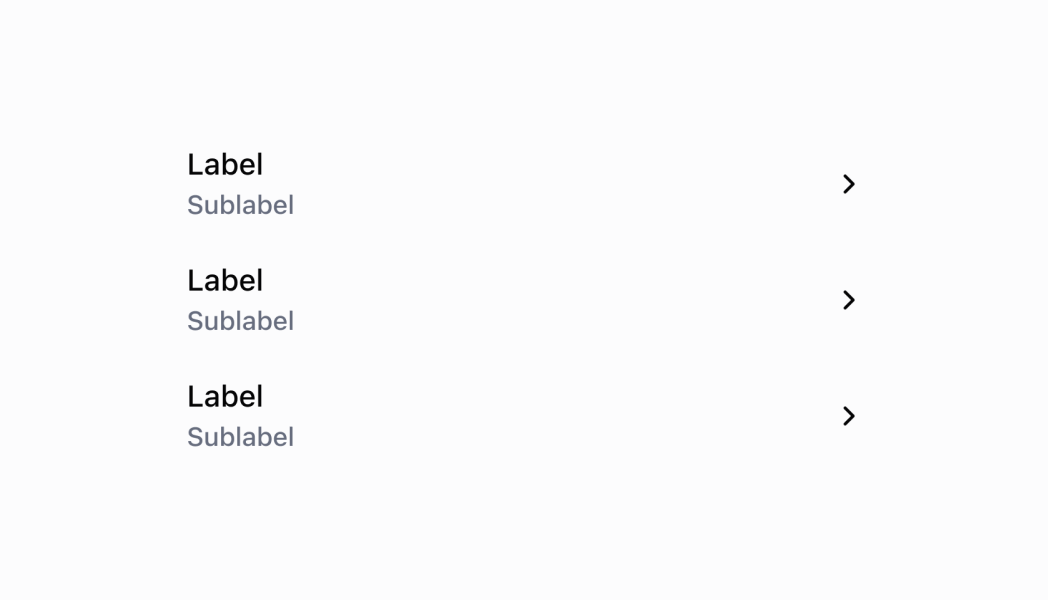
The `List` component displays structured data in rows with rich content including labels, subtitles, badges, images, and interactive elements. Use it to present organized information with consistent formatting and user interaction capabilities.
List items no longer have dividers as of POS version 10.0.0.
## Properties
Configure the following properties on the `List` component.
* data
ListRow\[]
required
An array of ListRow objects that define the content and structure of each row in the list.
* imageDisplayStrategy
'automatic' | 'always' | 'never'
Default: \`automatic\`
The logic for displaying images or placeholders:
* `automatic`: Displays images or placeholders only when it detects that a ListRow has an image source value.
* `always`: Displays images or placeholders for all rows, even when image sources are undefined or empty.
* `never`: Hides all images and placeholders, creating a text-only list layout.
* isLoadingMore
boolean
A boolean indicating whether more data is being loaded. Set to `true` when paginating and fetching additional data for the list.
* listHeaderComponent
RemoteFragment
A header component displayed at the top of the list for additional context or controls.
* onEndReached
() => void
A callback function executed when the user reaches the end of the list. Use this to trigger requests for loading additional data.
* title
string
A large display title shown at the top of the list.
### ListRow
Defines the structure and content options for individual rows within the \`List\` component.
* id
The unique identifier for the list item used for tracking and interaction handling.
```ts
string
```
* leftSide
The content configuration for the left side of the row, including label, subtitles, badges, and optional image.
```ts
ListRowLeftSide
```
* onPress
A callback function executed when the user taps the row.
```ts
() => void
```
* rightSide
The content configuration for the right side of the row, including optional label, chevron, and toggle switch.
```ts
ListRowRightSide
```
```ts
export interface ListRow {
/**
* The unique identifier for the list item used for tracking and interaction handling.
*/
id: string;
/**
* The content configuration for the left side of the row, including label, subtitles, badges, and optional image.
*/
leftSide: ListRowLeftSide;
/**
* The content configuration for the right side of the row, including optional label, chevron, and toggle switch.
*/
rightSide?: ListRowRightSide;
/**
* A callback function executed when the user taps the row.
*/
onPress?: () => void;
}
```
### ListRowLeftSide
Defines the content and styling options for the left side of list rows.
* badge
```ts
BadgeProps
```
* badges
An array of colored badges displayed underneath the title and subtitles for additional status or category information.
```ts
BadgeProps[]
```
* image
An image configuration object for displaying images on the far left side of the row with optional badge overlay.
```ts
{ source?: string; badge?: number; }
```
* label
The main label text displayed prominently on the left side of the row.
```ts
string
```
* subtitle
An array of up to three subtitles displayed beneath the main label. Each subtitle can be a string or an object with content and color properties.
```ts
[ListRowSubtitle, ListRowSubtitle?, ListRowSubtitle?]
```
```ts
export interface ListRowLeftSide {
/**
* The main label text displayed prominently on the left side of the row.
*/
label: string;
/**
* An array of up to three subtitles displayed beneath the main label. Each subtitle can be a string or an object with content and color properties.
*/
subtitle?: [ListRowSubtitle, ListRowSubtitle?, ListRowSubtitle?];
/**
* @deprecated
* badge will be removed in version 2.0.0 in favor of badges.
* Please migrate to using badges as soon as possible.
*/
badge?: BadgeProps;
/**
* An array of colored badges displayed underneath the title and subtitles for additional status or category information.
*/
badges?: BadgeProps[];
/**
* An image configuration object for displaying images on the far left side of the row with optional badge overlay.
*/
image?: {
/**
* A URL to an image to be displayed on the far left side of the row.
*/
source?: string;
/**
* A numeric badge displayed on the top right corner of the image, typically used for counts or quantities.
*/
badge?: number;
};
}
```
### BadgeProps
* status
Displays a circular status indicator alongside the badge text. Available options: - \`'empty'\` - Shows an empty circle indicator - \`'partial'\` - Shows a partially filled circle indicator - \`'complete'\` - Shows a completely filled circle indicator
```ts
BadgeStatus
```
* text
The text content displayed within the badge. Keep this concise and descriptive to clearly communicate status or category information. Examples include "Paid," "Pending," "Out of Stock," or "VIP Customer."
```ts
string
```
* variant
Controls the visual styling and semantic meaning of the badge. Available options: - \`'neutral'\` - Gray styling for general status information that doesn't require emphasis. Use for general status updates and standard information. - \`'critical'\` - Red styling for errors, failures, and urgent issues requiring immediate action. Use for urgent issues that need immediate merchant attention. - \`'warning'\` - Orange styling for important notices that require merchant awareness. Use for situations that need attention but aren't critical. - \`'success'\` - Green styling for positive states, completed actions, and successful operations. Use for positive outcomes and successful processes. - \`'highlight'\` - Bright styling for featured content, promotions, or emphasized information. Use for featured content that should stand out.
```ts
BadgeVariant
```
```ts
export interface BadgeProps {
/**
* The text content displayed within the badge. Keep this concise and descriptive to clearly communicate status or category information. Examples include "Paid," "Pending," "Out of Stock," or "VIP Customer."
*/
text: string;
/**
* Controls the visual styling and semantic meaning of the badge. Available options:
* - `'neutral'` - Gray styling for general status information that doesn't require emphasis. Use for general status updates and standard information.
* - `'critical'` - Red styling for errors, failures, and urgent issues requiring immediate action. Use for urgent issues that need immediate merchant attention.
* - `'warning'` - Orange styling for important notices that require merchant awareness. Use for situations that need attention but aren't critical.
* - `'success'` - Green styling for positive states, completed actions, and successful operations. Use for positive outcomes and successful processes.
* - `'highlight'` - Bright styling for featured content, promotions, or emphasized information. Use for featured content that should stand out.
*/
variant: BadgeVariant;
/**
* Displays a circular status indicator alongside the badge text. Available options:
* - `'empty'` - Shows an empty circle indicator
* - `'partial'` - Shows a partially filled circle indicator
* - `'complete'` - Shows a completely filled circle indicator
*
* @deprecated No longer supported as of POS 10.0.0.
*/
status?: BadgeStatus;
}
```
### BadgeStatus
```ts
'empty' | 'partial' | 'complete'
```
### BadgeVariant
```ts
'neutral' | 'critical' | 'warning' | 'success' | 'highlight'
```
### ListRowSubtitle
```ts
string | SubtitleType
```
### SubtitleType
* color
The semantic color of the subtitle text that conveys meaning and intent through visual styling.
```ts
ColorType
```
* content
The text content to display as a subtitle beneath the main label.
```ts
string
```
```ts
export interface SubtitleType {
/**
* The text content to display as a subtitle beneath the main label.
*/
content: string;
/**
* The semantic color of the subtitle text that conveys meaning and intent through visual styling.
*/
color?: ColorType;
}
```
### ColorType
Defines the semantic color options for text elements. Each color conveys specific meaning and intent through visual styling. Available colors: - \`TextNeutral\`: A neutral text color for general content that doesn't convey specific semantic meaning. - \`TextSubdued\`: A subdued text color for secondary information, captions, or content that should be less prominent. - \`TextDisabled\`: A disabled text color for inactive or unavailable content that users can't interact with. - \`TextWarning\`: A warning text color for cautionary messages or content that requires user attention. - \`TextCritical\`: A critical text color for errors, failures, or destructive actions that require immediate attention. - \`TextSuccess\`: A success text color for positive outcomes, confirmations, or completed actions. - \`TextInteractive\`: An interactive text color for clickable elements, links, or content that users can interact with. - \`TextHighlight\`: A highlight text color for emphasized content that needs to stand out or draw special attention.
```ts
'TextNeutral' | 'TextSubdued' | 'TextDisabled' | 'TextWarning' | 'TextCritical' | 'TextSuccess' | 'TextInteractive' | 'TextHighlight'
```
### ListRowRightSide
Defines the content and interaction options for the right side of list rows.
* label
An optional label text displayed on the right side of the row for additional information or values.
```ts
string
```
* showChevron
Controls chevron display. Set to \`true\` when pressing the row navigates to another screen.
```ts
boolean
```
* toggleSwitch
A toggle switch configuration object displayed on the right side of the row for boolean settings or states.
```ts
ToggleSwitch
```
```ts
export interface ListRowRightSide {
/**
* An optional label text displayed on the right side of the row for additional information or values.
*/
label?: string;
/**
* Controls chevron display. Set to `true` when pressing the row navigates to another screen.
*
* @defaultValue `false`
*/
showChevron?: boolean;
/**
* A toggle switch configuration object displayed on the right side of the row for boolean settings or states.
*/
toggleSwitch?: ToggleSwitch;
}
```
### ToggleSwitch
* disabled
Controls whether the toggle switch can be interacted with. When \`true\`, the switch is disabled and users cannot change its state.
```ts
boolean
```
* value
The current state of the toggle switch. When \`true\`, the switch is in the "on" position. When \`false\`, it's in the "off" position.
```ts
boolean
```
```ts
export interface ToggleSwitch {
/**
* The current state of the toggle switch. When `true`, the switch is in the "on" position. When `false`, it's in the "off" position.
*/
value?: boolean;
/**
* Controls whether the toggle switch can be interacted with. When `true`, the switch is disabled and users cannot change its state.
*/
disabled?: boolean;
}
```
### Examples
* #### Show a list of items
##### Description
Present organized information with rich content in a consistent format. This example shows how to create a List with labels, subtitles, badges, images, and interactive elements, ideal for displaying products, orders, customers, or other structured data with tap interactions.
##### React
```tsx
import React, {useState} from 'react';
import {
Navigator,
Screen,
ScrollView,
List,
Text,
Section,
ListRowSubtitle,
reactExtension,
} from '@shopify/ui-extensions-react/point-of-sale';
const SmartGridModal = () => {
const [seeDetails, setSeeDetails] = useState(false);
const listData = [
{
id: 'graphicTees',
leftSide: {
label: 'Graphic Tees',
subtitle: [{content: 'Summer Collection'}, {content: 'Unisex'}] as [
ListRowSubtitle,
ListRowSubtitle?,
],
},
rightSide: {
label: 'Product details',
showChevron: true,
},
onPress: () => setSeeDetails(!seeDetails),
},
{
id: 'denimShorts',
leftSide: {
label: 'Denim Shorts',
subtitle: [{content: 'Summer Collection'}, {content: 'Denim'}] as [
ListRowSubtitle,
ListRowSubtitle?,
],
},
},
];
return (
{seeDetails && (
Our shirts are made with 100% organic cotton!
)}
);
};
export default reactExtension('pos.home.modal.render', () => (
));
```
##### TS
```ts
import {
Navigator,
Screen,
ScrollView,
List,
Text,
Section,
ListRowSubtitle,
extension,
} from '@shopify/ui-extensions/point-of-sale';
export default extension('pos.home.modal.render', (root, api) => {
let showDetails = false;
const scrollView = root.createComponent(ScrollView);
const section = root.createComponent(Section, {
title: 'Our T-shirts',
});
const triggerShowDetails = () => {
showDetails = !showDetails;
if (showDetails) {
scrollView.append(section);
} else {
scrollView.removeChild(section);
}
};
const listData = [
{
id: 'graphicTees',
leftSide: {
label: 'Graphic Tees',
subtitle: [{content: 'Summer Collection'}, {content: 'Unisex'}] as [
ListRowSubtitle,
ListRowSubtitle?,
],
},
rightSide: {
label: 'Product details',
showChevron: true,
},
onPress: () => triggerShowDetails(),
},
{
id: 'denimShorts',
leftSide: {
label: 'Denim Shorts',
subtitle: [{content: 'Summer Collection'}, {content: 'Denim'}] as [
ListRowSubtitle,
ListRowSubtitle?,
],
},
},
];
const list = root.createComponent(List, {
title: 'Products',
data: listData,
});
const textBlock = root.createComponent(
Text,
null,
'Our shirts are made with 100% organic cotton!',
);
section.append(textBlock);
scrollView.append(list);
if (showDetails) {
scrollView.append(section);
}
const screen = root.createComponent(Screen, {
name: 'TextArea',
title: 'Text Area Example',
});
screen.append(scrollView);
const navigator = root.createComponent(Navigator);
navigator.append(screen);
root.append(navigator);
});
```
## Preview
## Best practices
* **Use images strategically with appropriate display strategies:** Choose the right image display strategy based on your content. Use `'automatic'` for mixed content, `'always'` when consistent image areas improve layout, and `'never'` for text-heavy lists where images would be distracting.
* **Implement efficient pagination with onEndReached:** Use the `onEndReached` callback to implement smooth pagination that doesn't disrupt the user experience. Set `isLoadingMore` appropriately to provide visual feedback during data fetching operations.
* **Apply semantic colors for subtitle information:** Use `ColorType` values in subtitles to convey meaning effectively. Apply `TextSuccess` for positive states, `TextCritical` for errors, and `TextSubdued` for less important information.
* **Design meaningful row interactions:** Use `onPress` callbacks for navigation or detail views, and `showChevron` to indicate navigation actions. Reserve toggle switches for immediate state changes that don't require navigation.
* **Optimize for touch interfaces:** Ensure adequate spacing and touch target sizes by leveraging the `List` component's built-in touch optimization.
## Limitations
* List row structure is predefined with specific left and right side layouts—custom row layouts beyond the provided structure aren't supported.
* Image display is limited to the left side of rows with optional badge overlays—complex image layouts or multiple images for each row aren't available.
* Toggle switches and interactive elements are limited to the predefined types—custom interactive components within rows require using `onPress` callbacks and external state management.