---
title: Navigator
description: >-
The `Navigator` component manages navigation between multiple `Screen`
components within a POS UI extension. Use it to create multi-screen workflows
with proper navigation stack management and initial screen configuration.
`Navigator` works with the Navigation API to provide complete navigation
control for complex POS workflows that require multiple views and user
interactions.
`Navigator` components maintain navigation history across app lifecycle events
and supports deep linking to specific screens, enabling merchants to return to
their exact workflow state after interruptions The component supports
gesture-based navigation like swipe-to-go-back on platforms where this is
standard, providing familiar interaction patterns that feel native to each
platform.
api_version: 2024-07
api_name: pos-ui-extensions
source_url:
html: >-
https://shopify.dev/docs/api/pos-ui-extensions/2024-07/ui-components/navigation-and-content/navigator
md: >-
https://shopify.dev/docs/api/pos-ui-extensions/2024-07/ui-components/navigation-and-content/navigator.md
---
# Navigator
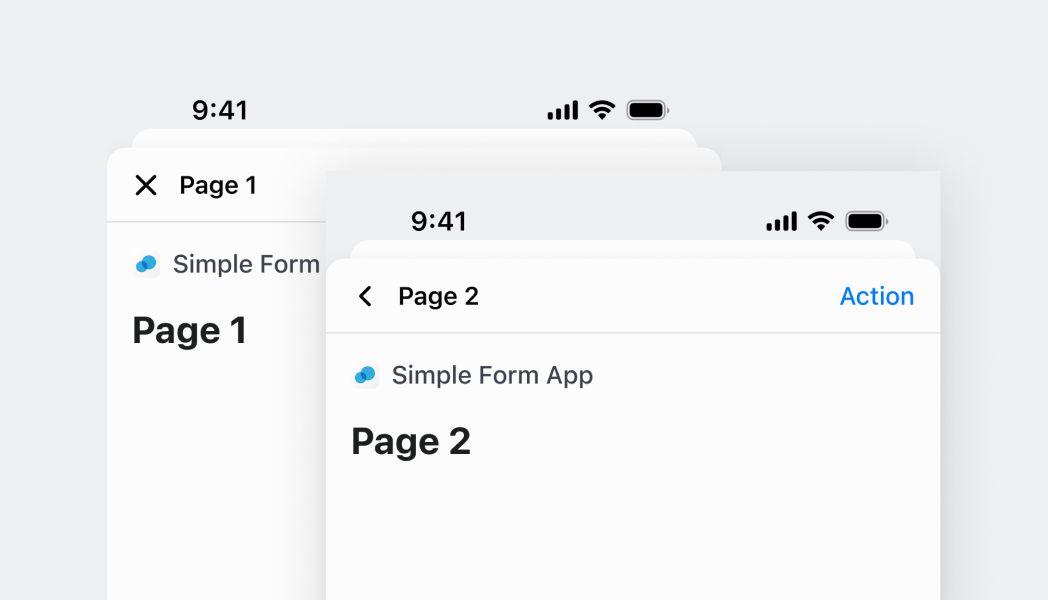
The `Navigator` component manages navigation between multiple `Screen` components within a POS UI extension. Use it to create multi-screen workflows with proper navigation stack management and initial screen configuration.
`Navigator` works with the Navigation API to provide complete navigation control for complex POS workflows that require multiple views and user interactions.
`Navigator` components maintain navigation history across app lifecycle events and supports deep linking to specific screens, enabling merchants to return to their exact workflow state after interruptions The component supports gesture-based navigation like swipe-to-go-back on platforms where this is standard, providing familiar interaction patterns that feel native to each platform.
## Properties
Configure the following properties on the `Navigator` component.
* initialScreenName
string
The name of the initial `Screen` component to display when the Navigator is first rendered. Must match the `name` property of a child `Screen` component.
### Examples
* #### Navigate between multiple screens
##### Description
Create a navigation hierarchy with multiple screens. This example demonstrates setting up a Navigator that manages navigation between screens, enabling multi-step workflows with proper back button behavior and navigation history management.
##### React
```tsx
import React from 'react'
import { Screen, Text, Navigator, reactExtension, Button, useApi } from '@shopify/ui-extensions-react/point-of-sale';
const Modal = () => {
const api = useApi<'pos.home.modal.render'>();
return (
Home screenDetails screen
)
}
export default reactExtension('pos.home.modal.render', () => );
```
##### TS
```ts
import {
extension,
Screen,
Navigator,
Text,
Button,
} from '@shopify/ui-extensions/point-of-sale';
export default extension('pos.home.modal.render', (root, api) => {
const homeScreen = root.createComponent(Screen, {
name: 'Home',
title: 'Home',
});
const homeText = root.createComponent(Text);
homeText.append('Home screen');
homeScreen.append(homeText);
const navigateButton = root.createComponent(Button, {
title: 'Navigate to details',
onPress: () => api.navigation.navigate('Details'),
});
homeScreen.append(navigateButton);
const detailsScreen = root.createComponent(Screen, {
name: 'Details',
title: 'Details',
});
const detailsText = root.createComponent(Text);
detailsText.append('Details screen');
detailsScreen.append(detailsText);
const navigator = root.createComponent(Navigator);
navigator.append(homeScreen);
navigator.append(detailsScreen);
root.append(navigator);
});
```
## Preview
## Best practices
* **Use descriptive screen names for navigation:** Choose clear, unique screen names that accurately represent their content and purpose. These names are used by the Navigation API for programmatic navigation and should be meaningful for code maintainability.
* **Set appropriate initial screens:** Select initial screens that provide the most logical entry point for your workflow. Consider the context in which your extension will be launched and what users will most likely want to see first.
* **Implement proper navigation patterns:** Use the Navigation API methods consistently—`navigate()` for moving forward, `pop()` for going back, and `dismiss()` for closing the extension. This creates predictable navigation behavior that users can understand.
* **Handle screen parameters effectively:** When passing parameters between screens using `navigation.navigate()`, ensure receiving screens properly handle the data through their `onReceiveParams` callbacks. Design parameter structures that are maintainable and type-safe.
* **Consider navigation context and user flow:** Design navigation patterns that make sense within the broader POS workflow. Avoid deep navigation hierarchies that might confuse users or disrupt their primary tasks.
## Limitations
* `Navigator` requires `Screen` components as children—it can't manage navigation for other component types or standalone content.
* Navigation state is managed internally—external navigation state management or complex routing patterns require custom implementation using the Navigation API.
* The component is designed for modal-style navigation within POS UI extensions—it's not suitable for main application navigation or replacing core POS navigation patterns.
## Examples
Learn how to create complex navigation flows with multiple screens, parameter passing, and different presentation styles.
### Examples
* #### Navigate to a screen with data
##### Description
Navigate between screens while passing data through navigation parameters. This example shows how to pass information from one screen to another, enabling contextual workflows where subsequent screens depend on previous user choices or data.
##### React
```tsx
import React, {useState} from 'react';
import {
Screen,
Text,
Navigator,
reactExtension,
Button,
useApi,
} from '@shopify/ui-extensions-react/point-of-sale';
const Modal = () => {
return (
);
};
const HomeScreen = () => {
const api = useApi<'pos.home.modal.render'>();
return (
Home screen
);
};
const DetailsScreen = () => {
const [params, setParams] = useState();
return (
{`Order ID: ${params.orderId}`}
);
};
export default reactExtension('pos.home.modal.render', () => );
```
##### TS
```ts
import {
extension,
Screen,
Navigator,
Text,
Button,
} from '@shopify/ui-extensions/point-of-sale';
export default extension('pos.home.modal.render', (root, api) => {
const homeScreen = root.createComponent(Screen, {
name: 'Home',
title: 'Home',
});
const homeText = root.createComponent(Text);
homeText.append('Home screen');
homeScreen.append(homeText);
const navigateButton = root.createComponent(Button, {
title: 'Navigate to details',
onPress: () => api.navigation.navigate('Details', {orderId: '123'}),
});
homeScreen.append(navigateButton);
const detailsText = root.createComponent(Text);
const detailsScreen = root.createComponent(Screen, {
name: 'Details',
title: 'Details',
onReceiveParams: (params) => {
detailsText.replaceChildren(`Order ID: ${params.orderId}`);
},
});
detailsScreen.append(detailsText);
const navigator = root.createComponent(Navigator);
navigator.append(homeScreen);
navigator.append(detailsScreen);
root.append(navigator);
});
```
* #### Navigate with slide-up presentation
##### Description
Display a screen that slides up from the bottom and overlays the current view. This example demonstrates how to configure screen presentation for temporary tasks or confirmations that appear as an overlay, useful for quick actions or secondary workflows.
##### React
```tsx
import React from 'react'
import { Screen, Text, Navigator, reactExtension, Button, useApi } from '@shopify/ui-extensions-react/point-of-sale';
const Modal = () => {
const api = useApi<'pos.home.modal.render'>();
return (
Home screenDetails screen
)
}
export default reactExtension('pos.home.modal.render', () => );
```
##### TS
```ts
import {
extension,
Screen,
Navigator,
Text,
Button,
} from '@shopify/ui-extensions/point-of-sale';
export default extension('pos.home.modal.render', (root, api) => {
const homeScreen = root.createComponent(Screen, {
name: 'Home',
title: 'Home',
});
const homeText = root.createComponent(Text);
homeText.append('Home screen');
homeScreen.append(homeText);
const navigateButton = root.createComponent(Button, {
title: 'Navigate to details',
onPress: () => api.navigation.navigate('Details'),
});
homeScreen.append(navigateButton);
const detailsScreen = root.createComponent(Screen, {
name: 'Details',
title: 'Details',
presentation: {sheet: true},
});
const detailsText = root.createComponent(Text);
detailsText.append('Details screen');
detailsScreen.append(detailsText);
const navigator = root.createComponent(Navigator);
navigator.append(homeScreen);
navigator.append(detailsScreen);
root.append(navigator);
});
```