---
title: Screen
description: >-
The `Screen` component represents a screen in the navigation stack with full
control over presentation, actions, and navigation lifecycle. Use it to create
navigable screens with titles, loading states, and custom navigation behavior.
The component manages full-screen presentations with proper navigation stack
integration, allowing extensions to push and pop screens as part of the POS
navigation flow. It handles transitions, back button behavior, and safe area
padding automatically, ensuring extensions provide native-feeling navigation
experiences on both iOS and Android devices.
`Screen` components maintain scroll position across navigation operations
where appropriate, allowing merchants to return to their previous location
after viewing details or completing sub-tasks.
api_version: 2024-07
api_name: pos-ui-extensions
source_url:
html: >-
https://shopify.dev/docs/api/pos-ui-extensions/2024-07/ui-components/layout-and-structure/screen
md: >-
https://shopify.dev/docs/api/pos-ui-extensions/2024-07/ui-components/layout-and-structure/screen.md
---
# Screen
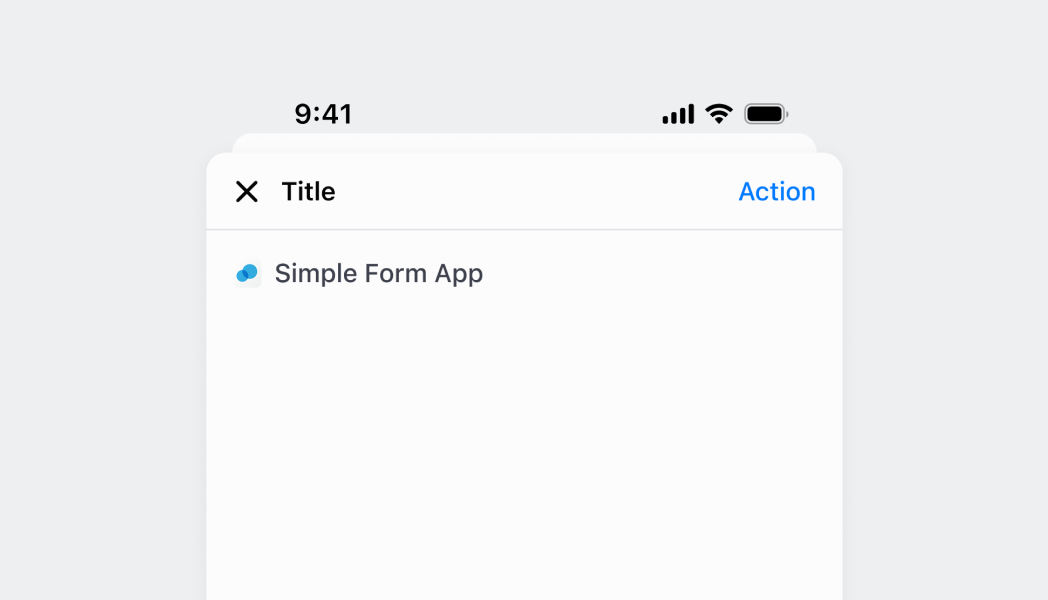
The `Screen` component represents a screen in the navigation stack with full control over presentation, actions, and navigation lifecycle. Use it to create navigable screens with titles, loading states, and custom navigation behavior.
The component manages full-screen presentations with proper navigation stack integration, allowing extensions to push and pop screens as part of the POS navigation flow. It handles transitions, back button behavior, and safe area padding automatically, ensuring extensions provide native-feeling navigation experiences on both iOS and Android devices.
`Screen` components maintain scroll position across navigation operations where appropriate, allowing merchants to return to their previous location after viewing details or completing sub-tasks.
## Properties
Configure the following properties on the `Screen` component.
* name
string
required
The unique identifier used to identify this screen as a destination in the navigation stack.
* title
string
required
The title text of the screen that will be displayed in the UI header.
* isLoading
boolean
A boolean that displays a loading indicator when `true`. Set this during asynchronous tasks and return to `false` when data becomes available.
* onNavigate
() => void
A callback function triggered when the screen is navigated to in the navigation stack.
* onNavigateBack
() => void
A callback function triggered when the user navigates back from this screen. Runs after the screen is unmounted.
* onReceiveParams
(params: any) => void
A callback function triggered when the navigation event completes and the screen receives parameters passed during navigation.
* overrideNavigateBack
() => void
A callback function that allows you to override the default back navigation action. Runs when the screen is mounted.
* presentation
ScreenPresentationProps
The presentation configuration that dictates how the screen will be displayed when navigated to.
* secondaryAction
SecondaryActionProps
The configuration for a secondary action button displayed on the screen header.
### ScreenPresentationProps
Defines the presentation options for how the screen appears when navigated to.
* sheet
Displays the screen from the bottom as a sheet presentation when true during navigation. The text label displayed on the secondary action button in the screen's action bar.
```ts
boolean
```
```ts
export interface ScreenPresentationProps {
/**
* Displays the screen from the bottom as a sheet presentation when true during navigation. The text label displayed on the secondary action button in the screen's action bar.
*/
sheet?: boolean;
}
```
### SecondaryActionProps
Defines the configuration options for secondary action buttons displayed in the screen header.
* isEnabled
Whether the secondary action button can be tapped and is interactive.
```ts
boolean
```
* onPress
A callback function triggered when the secondary action button is pressed by the user.
```ts
() => void
```
* text
The text label displayed on the secondary action button in the screen's action bar.
```ts
string
```
```ts
export interface SecondaryActionProps {
/**
* The text label displayed on the secondary action button in the screen's action bar.
*/
text: string;
/**
* A callback function triggered when the secondary action button is pressed by the user.
*/
onPress: () => void;
/**
* Whether the secondary action button can be tapped and is interactive.
*/
isEnabled?: boolean;
}
```
### Examples
* #### Create a navigable screen
##### Description
Define a screen within a navigation flow with title, actions, and content. This example demonstrates setting up a Screen that integrates with the navigation stack, providing full-screen presentations with proper back button behavior and navigation lifecycle management.
##### React
```tsx
import React from 'react'
import { Screen, Text, Navigator, reactExtension, Button, useApi } from '@shopify/ui-extensions-react/point-of-sale';
const Modal = () => {
const api = useApi<'pos.home.modal.render'>();
return (
Home screenDetails screen
)
}
export default reactExtension('pos.home.modal.render', () => );
```
##### TS
```ts
import {
extension,
Screen,
Navigator,
Text,
Button,
} from '@shopify/ui-extensions/point-of-sale';
export default extension('pos.home.modal.render', (root, api) => {
const homeScreen = root.createComponent(Screen, {
name: 'Home',
title: 'Home',
});
const homeText = root.createComponent(Text);
homeText.append('Home screen');
homeScreen.append(homeText);
const navigateButton = root.createComponent(Button, {
title: 'Navigate to details',
onPress: () => api.navigation.navigate('Details'),
});
homeScreen.append(navigateButton);
const detailsScreen = root.createComponent(Screen, {
name: 'Details',
title: 'Details',
});
const detailsText = root.createComponent(Text);
detailsText.append('Details screen');
detailsScreen.append(detailsText);
const navigator = root.createComponent(Navigator);
navigator.append(homeScreen);
navigator.append(detailsScreen);
root.append(navigator);
});
```
## Preview
## Best practices
* **Implement proper loading states:** Use the `isLoading` property to provide visual feedback during async operations. Set it to `true` when starting data fetching or processing, and `false` when operations complete to maintain user awareness.
* **Handle navigation lifecycle appropriately:** Use `onNavigate` for screen initialization, `onNavigateBack` for cleanup operations, and `onReceiveParams` for handling passed data. Proper lifecycle management ensures smooth transitions and data consistency.
* **Choose appropriate presentation styles:** Use sheet presentation for focused tasks, modal-style interactions, or when you want to maintain context with the previous screen. Reserve standard presentation for primary navigation flows.
* **Design meaningful secondary actions:** When adding secondary actions, use clear, action-oriented text and ensure the action is relevant to the current screen's content. Disable actions when they're not applicable using the `isEnabled` property.
* **Override back navigation judiciously:** Use `overrideNavigateBack` only when you need to prevent data loss or handle unsaved changes. Most screens should use the default back navigation behavior to maintain consistent user expectations.
## Limitations
* Screen components are designed for navigation stack contexts—they can't be used as general layout containers outside of navigation workflows.
* Only one secondary action is supported for each screen to maintain clean header layouts that don't overwhelm the interface.
* Screen presentation and styling are controlled by the POS navigation system—custom screen transitions or styling beyond the provided options aren't supported.
* Navigation parameter handling is limited to the onReceiveParams callback—complex parameter validation or transformation requires custom implementation within the callback.
## Examples
Learn how to create screens with advanced navigation features including parameter passing and modal presentation styles.
### Examples
* #### Navigate to a screen with data
##### Description
Pass data to screens during navigation to create contextual workflows. This example shows how screens can receive parameters during navigation, enabling data flow between screens and conditional rendering based on navigation context.
##### React
```tsx
import React, {useState} from 'react';
import {
Screen,
Text,
Navigator,
reactExtension,
Button,
useApi,
} from '@shopify/ui-extensions-react/point-of-sale';
const Modal = () => {
return (
);
};
const HomeScreen = () => {
const api = useApi<'pos.home.modal.render'>();
return (
Home screen
);
};
const DetailsScreen = () => {
const [params, setParams] = useState();
return (
{`Order ID: ${params.orderId}`}
);
};
export default reactExtension('pos.home.modal.render', () => );
```
##### TS
```ts
import {
extension,
Screen,
Navigator,
Text,
Button,
} from '@shopify/ui-extensions/point-of-sale';
export default extension('pos.home.modal.render', (root, api) => {
const homeScreen = root.createComponent(Screen, {
name: 'Home',
title: 'Home',
});
const homeText = root.createComponent(Text);
homeText.append('Home screen');
homeScreen.append(homeText);
const navigateButton = root.createComponent(Button, {
title: 'Navigate to details',
onPress: () => api.navigation.navigate('Details', {orderId: '123'}),
});
homeScreen.append(navigateButton);
const detailsText = root.createComponent(Text);
const detailsScreen = root.createComponent(Screen, {
name: 'Details',
title: 'Details',
onReceiveParams: (params) => {
detailsText.replaceChildren(`Order ID: ${params.orderId}`);
},
});
detailsScreen.append(detailsText);
const navigator = root.createComponent(Navigator);
navigator.append(homeScreen);
navigator.append(detailsScreen);
root.append(navigator);
});
```
* #### Navigate with slide-up presentation
##### Description
Display a screen that slides up from the bottom and overlays the current view. This example demonstrates how to configure screen presentation for temporary tasks or confirmations that appear as an overlay, useful for quick actions or secondary workflows.
##### React
```tsx
import React from 'react'
import { Screen, Text, Navigator, reactExtension, Button, useApi } from '@shopify/ui-extensions-react/point-of-sale';
const Modal = () => {
const api = useApi<'pos.home.modal.render'>();
return (
Home screenDetails screen
)
}
export default reactExtension('pos.home.modal.render', () => );
```
##### TS
```ts
import {
extension,
Screen,
Navigator,
Text,
Button,
} from '@shopify/ui-extensions/point-of-sale';
export default extension('pos.home.modal.render', (root, api) => {
const homeScreen = root.createComponent(Screen, {
name: 'Home',
title: 'Home',
});
const homeText = root.createComponent(Text);
homeText.append('Home screen');
homeScreen.append(homeText);
const navigateButton = root.createComponent(Button, {
title: 'Navigate to details',
onPress: () => api.navigation.navigate('Details'),
});
homeScreen.append(navigateButton);
const detailsScreen = root.createComponent(Screen, {
name: 'Details',
title: 'Details',
presentation: {sheet: true},
});
const detailsText = root.createComponent(Text);
detailsText.append('Details screen');
detailsScreen.append(detailsText);
const navigator = root.createComponent(Navigator);
navigator.append(homeScreen);
navigator.append(detailsScreen);
root.append(navigator);
});
```