---
title: Build a discount extension
description: >-
Learn how to develop a scaffolded POS UI extension into a simple discount
extension.
api_version: 2024-10
api_name: pos-ui-extensions
source_url:
html: >-
https://shopify.dev/docs/api/pos-ui-extensions/2024-10/example-discount-extension
md: >-
https://shopify.dev/docs/api/pos-ui-extensions/2024-10/example-discount-extension.md
---
# Build a discount extension
Learn how to develop a scaffolded POS UI extension into a simple discount extension.
## Intro
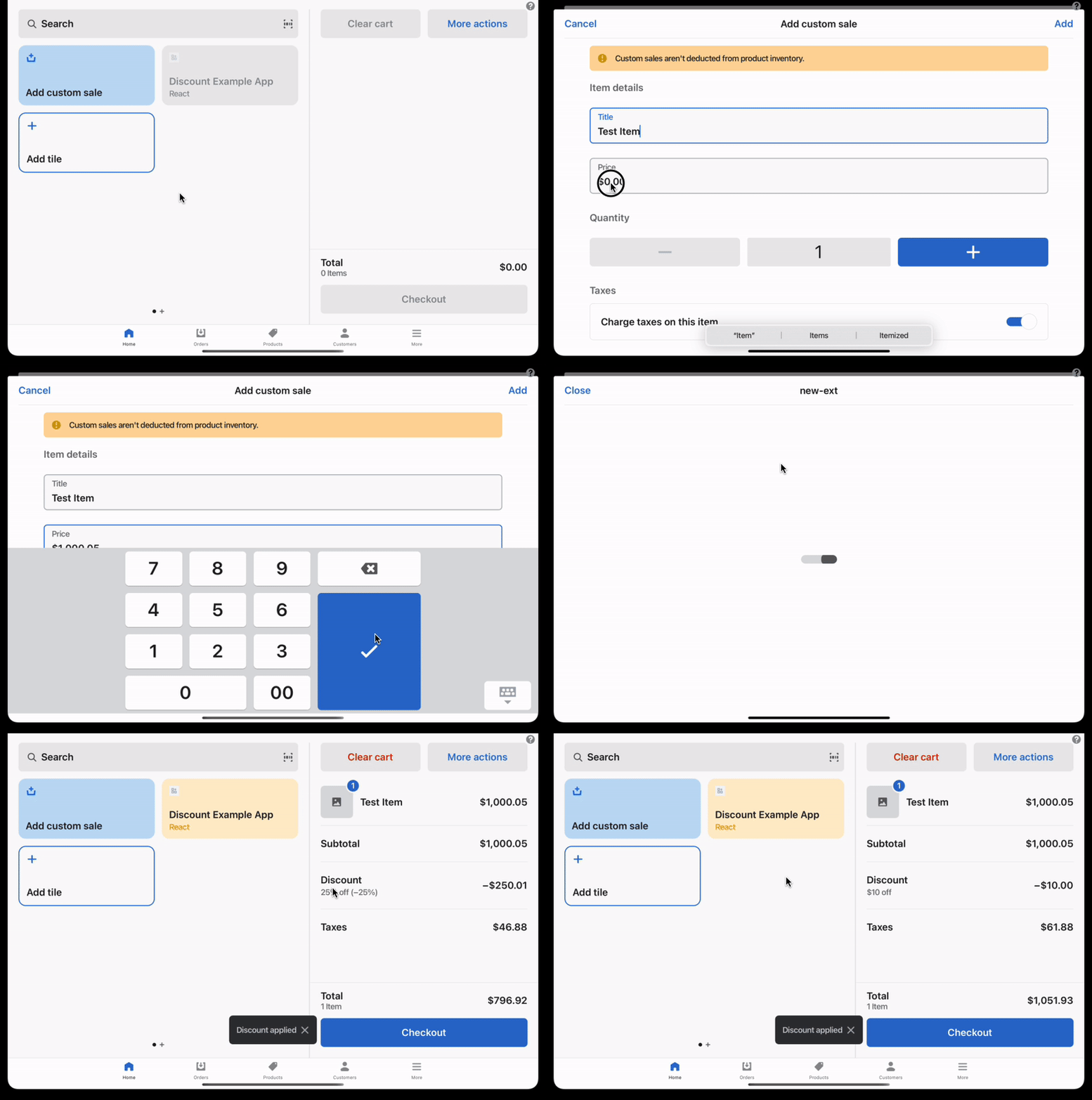
This tutorial shows you how to use the `pos.home.tile.render` and `pos.home.modal.render` [extension targets](https://shopify.dev/docs/api/pos-ui-extensions/targets) to build a simple POS UI extension that quickly applies discounts to items in the cart.
You'll develop the scaffolded extension into a smart grid tile that becomes enabled when the cart reaches a total value. When tapped, the tile opens a modal that presents buttons representing available discounts. When tapped, these buttons apply a discount to the cart and present a toast for notification of success.
## What you'll learn
In this tutorial, you'll learn how to do the following tasks:
* Enable or disable the tile based on cart contents.
* Add buttons to the modal that apply a discount and show a toast when tapped.
* Give your extension a useful description.
* Deploy your extension to Shopify, create a version, and publish.
## Requirements
* You've completed the [Getting started with POS UI extensions](https://shopify.dev/docs/api/pos-ui-extensions/getting-started) guide.
## Sample code
The sample code imports some extension components to build the UI. The tile contains the logic to control its enablement based on the cart subtotal. The modal contains the logic to apply discounts based on button tap.
You can copy and paste the following code into your index file. You can also update your extension's configuration file following the `shopify.extension.toml` example.
The rest of the tutorial walks through this sample code step-by-step.
### Examples
* #### Discount extension
##### Tile (React)
```tsx
import React, { useState } from 'react';
import { Tile, useApi, reactExtension } from '@shopify/ui-extensions-react/point-of-sale';
const SmartGridTile = () => {
const api = useApi<'pos.home.tile.render'>();
const shouldEnable = (subtotal: string): boolean => {
return Number(subtotal) > 100
}
// You can use the initial cart value to set up state
const [enabled, setEnabled] = useState(shouldEnable(api.cart.subscribable.initial.subtotal));
// You can subscribe to changes in the cart to mutate state
api.cart.subscribable.subscribe((cart) => {
setEnabled(shouldEnable(cart.subtotal));
});
return (
);
};
export default reactExtension('pos.home.tile.render', () => {
return
})
```
##### Modal (React)
```tsx
import React from 'react';
import { CartDiscountType } from '@shopify/ui-extensions/point-of-sale'
import { ScrollView, Button, Navigator, Screen, useApi, reactExtension } from '@shopify/ui-extensions-react/point-of-sale';
const SmartGridModal = () => {
const api = useApi<'pos.home.modal.render'>();
const onButtonPress = (type: CartDiscountType, title: string, amount: string) => {
// You can apply a discount through the cart API
api.cart.applyCartDiscount(type, title, amount);
// You can show a toast to notify the user of something
api.toast.show('Discount applied');
}
return (
)
}
export default reactExtension('pos.home.modal.render', () => {
return
})
```
##### Tile (TS)
```ts
import {extension, Tile} from '@shopify/ui-extensions/point-of-sale';
export default extension('pos.home.tile.render', (root, api) => {
const shouldEnable = (subtotal: string): boolean => {
return Number(subtotal) > 100;
};
// You can use the initial cart value to set up state
const tile = root.createComponent(Tile, {
title: 'Discount Example App',
subtitle: 'Javascript',
enabled: shouldEnable(api.cart.subscribable.initial.subtotal),
onPress: api.action.presentModal,
});
// You can subscribe to changes in the cart to mutate state
api.cart.subscribable.subscribe((cart) => {
tile.updateProps({enabled: shouldEnable(cart.subtotal)});
});
root.append(tile);
});
```
##### Modal (TS)
```ts
import {
extension,
Screen,
Button,
CartDiscountType,
ScrollView,
} from '@shopify/ui-extensions/point-of-sale';
export default extension('pos.home.modal.render', (root, api) => {
const onButtonPress = (
type: CartDiscountType,
title: string,
amount: string,
) => {
// You can apply a discount through the cart API
api.cart.applyCartDiscount(type, title, amount);
// You can show a toast to notify the user of something
api.toast.show('Discount applied');
};
let mainScreen = root.createComponent(Screen, {
name: 'Discounts',
title: 'Available Discounts',
});
let scrollView = root.createComponent(ScrollView);
const percentageDiscountButton = root.createComponent(Button, {
title: '25%',
onPress: () => {
onButtonPress('Percentage', '25% off', '25');
},
});
const fixedAmountDiscountButton = root.createComponent(Button, {
title: '$10',
onPress: () => {
onButtonPress('FixedAmount', '$10 off', '10');
},
});
scrollView.append(percentageDiscountButton);
scrollView.append(fixedAmountDiscountButton);
mainScreen.append(scrollView);
root.append(mainScreen);
});
```
## Step 1: Enable or disable the tile based on cart contents
You can enable or disable the tile based on cart contents by accessing its `subscribable`. In the tile code, initialize state based on the `initial` value of the `subscribable`.
### Examples
* #### Enable the tile based on cart contents
##### React
```tsx
const [enabled, setEnabled] = useState(shouldEnable(api.cart.subscribable.initial.subtotal));
```
##### TS
```ts
const tile = root.createComponent(Tile, {
title: 'Discount Example App',
subtitle: 'Javascript',
enabled: shouldEnable(api.cart.subscribable.initial.subtotal),
onPress: api.action.presentModal
});
```
## Step 2: Subscribe to cart changes
In the tile code, subscribe to cart changes and mutate state based on the updated cart.
### Examples
* #### Subscribe to cart changes
##### React
```tsx
api.cart.subscribable.subscribe((cart) => {
setEnabled(shouldEnable(cart.subtotal));
});
```
##### TS
```ts
api.cart.subscribable.subscribe((cart) => {
tile.updateProps({ enabled: shouldEnable(cart.subtotal) });
})
```
## Step 3: Add buttons to the modal that apply a discount and display a toast when tapped
You can add buttons to the modal that trigger some action on press.
Create the buttons on the modal. Note that most components belong in a ScrollView.
### Examples
* #### Add buttons to the modal
##### React
```tsx
```
##### TS
```ts
const percentageDiscountButton = root.createComponent(Button, {
title: '25%',
onPress: () => { onButtonPress('Percentage', '25% off', '25') }
});
const fixedAmountDiscountButton = root.createComponent(Button, {
title: '$10',
onPress: () => { onButtonPress('FixedAmount', '$10 off', '10') }
});
scrollView.appendChild(percentageDiscountButton);
scrollView.appendChild(fixedAmountDiscountButton);
```
## Step 4: Define onPress
Define an `onPress` function to apply the discount and show the toast.
### Examples
* #### Define onPress
##### React
```tsx
onPress={() => onButtonPress('FixedAmount', '$10 off', '10')}
```
##### TS
```ts
const onButtonPress = (type: DiscountType, title: string, amount: string) => {
api.cart.applyCartDiscount(type, title, amount);
api.toast.show('Discount applied');
};
```
## Step 5: Give your extension a useful description
Your extension's description will be visible to the merchant when they discover and add it to their POS. 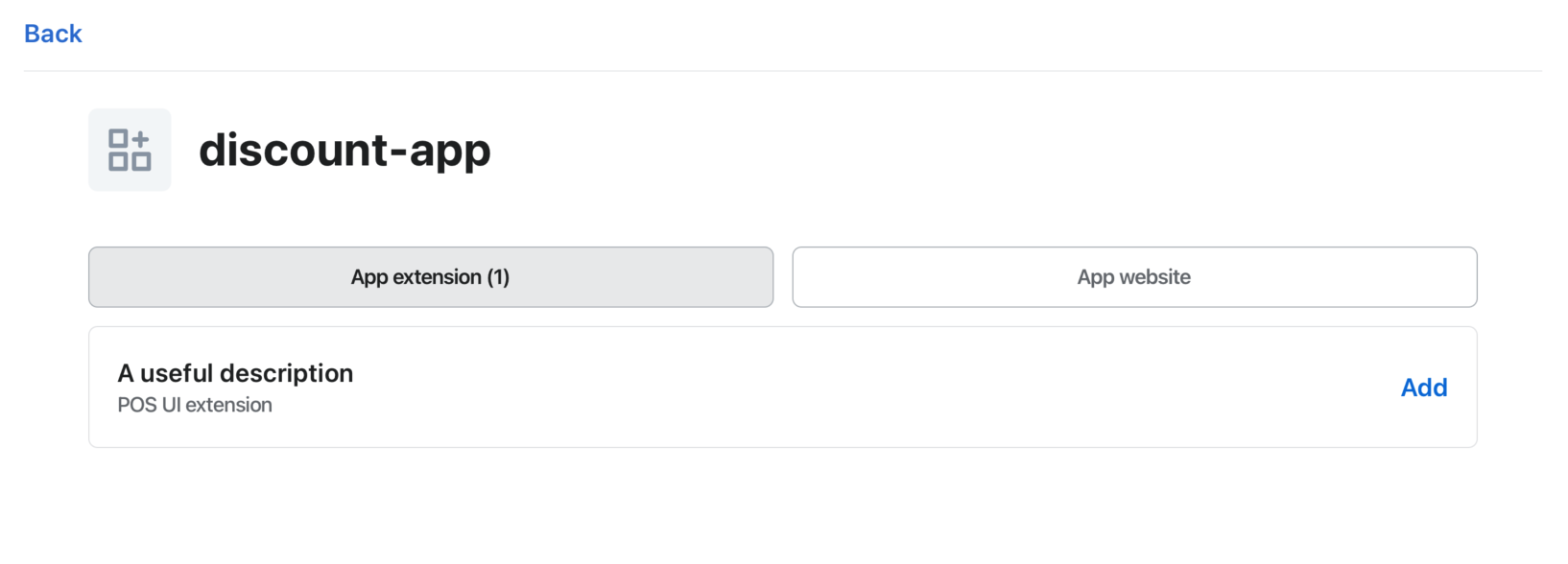 When you generate a POS UI Extension from Shopify CLI, the extension description defaults to the name of the extension. You can update the description in the generated `toml` file (`shopify.extension.toml`).
Note
`name` is an internal value that is visible in the Partner Dashboard as the title of an extension on the page that displays the extensions list.
### Examples
* #### Description configuration
##### shopify.extension.toml
```toml
...
name = "Loyalty discount"
handle = "Loyalty discount"
description = "Add loyalty discount"
...
```
## Step 6: Deploy and release
Refer to [Deploy app extensions](https://shopify.dev/docs/apps/deployment/app-versions) for more information.
## Next steps
* [Debug](https://shopify.dev/docs/apps/pos/ui-extensions/debugging) POS UI Extension.
* Learn more about building with POS UI extensions by exploring the [POS UI extension reference](https://shopify.dev/docs/api/pos-ui-extensions).