Cart details
The cart details screen appears when customers select items in a transaction to modify quantities, apply discounts, or access item-specific tools. This screen provides control over individual products during transaction building.
Anchor to Use casesUse cases
- Item discounts: Apply discounts based on customer loyalty status or product attributes.
- Line item properties: Add custom properties for inventory tracking or special handling.
- Product verification: Launch verification workflows for high-value or restricted items.
- Item modifications: Process returns, exchanges, or adjustments without affecting the entire cart.
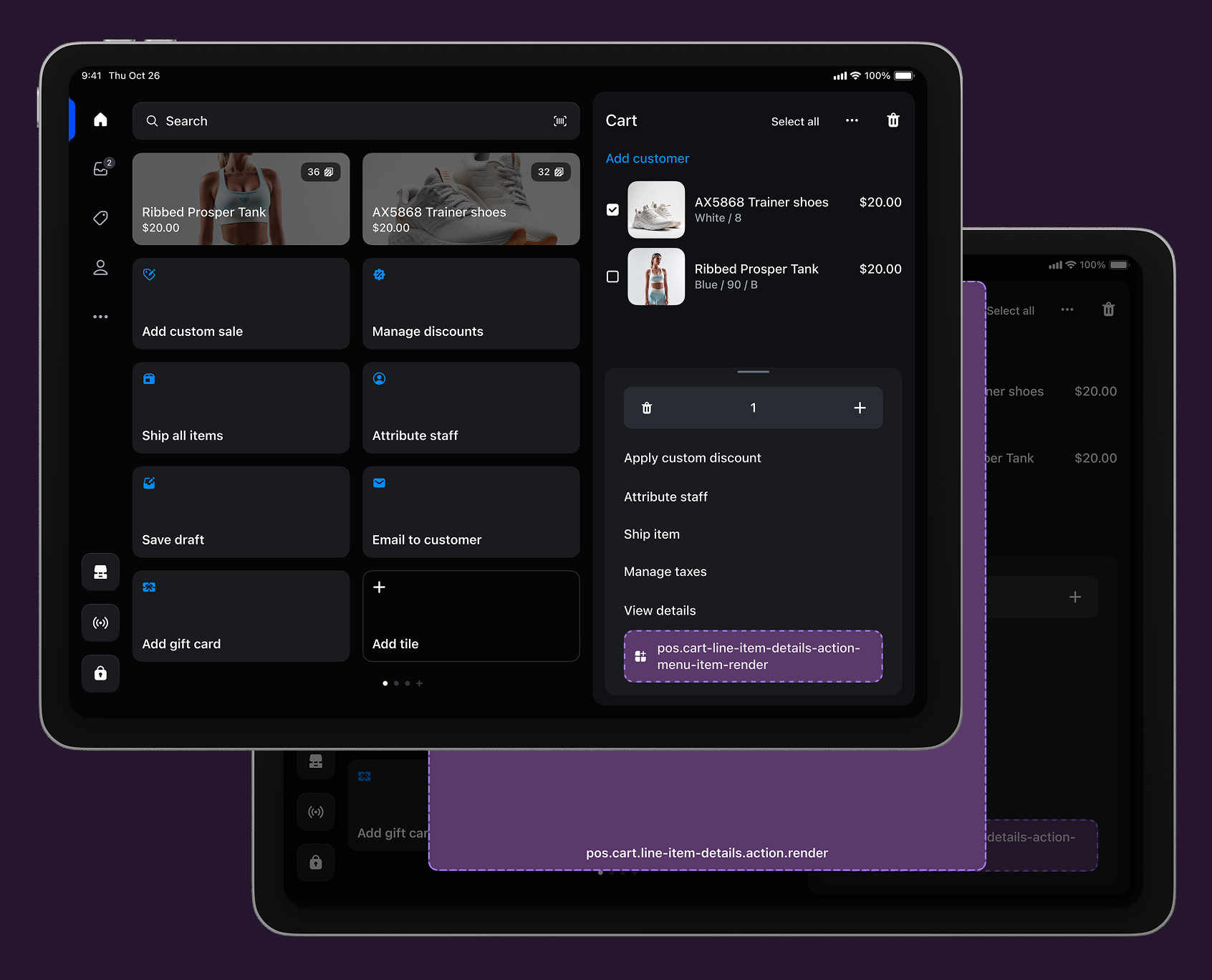
Anchor to Cart details targetsCart details targets
Use these targets for item-specific customizations, cart monitoring, or product configuration tools that improve line item management.
pos.cart.line-item-details.action.menu-item.render
Renders a single interactive button component as a menu item in the cart line item action menu. Use this target for item-specific operations like applying discounts, adding custom properties, or launching verification workflows for individual cart items.
Extensions at this target can access detailed line item information including title, quantity, price, discounts, properties, and product metadata through the Cart Line Item API. Menu items typically invoke shopify.action.presentModal() to launch the companion modal for complete workflows.
jsx
Examples
Create a cart line item action menu item
Description
Add an interactive menu item to the cart line item action menu for item-specific operations. This example shows how to create a menu item that accesses line item data and launches modal workflows for tasks like applying discounts, adding custom properties, or verification workflows.
jsx
import {render} from 'preact';

export default async () => {
  render(<Extension />, document.body);
};

const Extension = () => {
  return (
    <s-button
      onClick={() => shopify.action.presentModal()}
    />
  );
};
Anchor to Cart details action (modal) ,[object Object]Cart details action (modal) target
pos.cart.line-item-details.action.render
Renders a full-screen modal interface launched from cart line item menu items. Use this target for complex line item workflows that require forms, multi-step processes, or detailed information displays beyond what a simple button can provide.
Extensions at this target have access to detailed line item data through the Cart Line Item API and support workflows with multiple screens, navigation, and interactive components.
Supported components
Supported components
jsx
Examples
Create a cart line item action modal
Description
Build a full-screen modal workflow launched from a cart line item action menu item. This example demonstrates creating line item-specific experiences with multi-step processes, forms, and detailed line item data access for operations like customization or verification.
jsx
import {render} from 'preact';

export default async () => {
  render(<Extension />, document.body);
};

const Extension = () => {
  return (
    <s-page heading='Cart Line Item Details'>
      <s-scroll-box>
        <s-text>Cart Line item action extension</s-text>
      </s-scroll-box>
    </s-page>
  );
};
Anchor to Best practicesBest practices
- Update cart line item information in real time: Update displayed cart line item information immediately when changes are made to reflect the current state accurately, like live price updates, updated quantity display, and refreshed discount amounts.
- Show clear action confirmations: Show clear success or error messages that specify which item was affected. Use messages like "Gift wrapping added to Blue Sweater" or "Unable to apply discount: item excluded".
- Ensure cart integration: Ensure that cart line item changes are immediately reflected in the overall cart totals and state, like updated cart totals, refreshed tax calculations, and modified shipping estimates.
- Handle error states gracefully: Communicate item limitations clearly instead of generic error messages. If your extension depends on specific product attributes, inventory status, or business rules, show these constraints through disabled buttons, informative modal messages, or helpful error text that explains what customers need to know about this specific item.
- Use clear labels and reference specific items: Use action-oriented labels that clearly describe what will happen to this line item, and reference the specific item in confirmations. Use "Apply member discount" and "10% discount applied to Blue Sweater (Large)" instead of generic labels like "Discount app" or "Discount applied successfully."
- Show item identification and status: Show clear item identification and current state to confirm action targets and help customers understand availability, like product title and variant, applied discounts, and "Eligible for employee discount."
Anchor to LimitationsLimitations
-
You can only render one button component for each POS UI extension using the action (menu item) target.
-
Cart line item data is read-only through the Cart Line Item API. To modify line items, use the Cart API methods for adding properties, setting discounts, or removing items.