---
title: Getting started with POS UI extensions
description: >-
Learn how to prepare your development environment to start building POS UI
extensions.
source_url:
html: 'https://shopify.dev/docs/apps/build/pos/getting-started'
md: 'https://shopify.dev/docs/apps/build/pos/getting-started.md'
---
# Getting started with POS UI extensions
This tutorial shows you how to create a simple Shopify app using only POS UI extensions. This type of app is called an extension-only app, where all of your code runs in the extension on the merchant's device. To learn more about extension-only apps, and about apps that use code hosted on a server, see [Extension-only and server-hosted apps](https://shopify.dev/docs/apps/build/pos#extension-only-and-server-hosted-apps).
The app you'll build displays a tile on the POS app home screen. When users tap the tile, the app shows a modal with a message displaying the name of the store.
***
## What you'll learn
In this tutorial, you'll learn how to do the following tasks:
* Scaffold an extension for a Shopify POS extension-only app using Shopify CLI.
* Add some basic functionality to the scaffolded extension.
* Test your app in Shopify POS.
***
## Requirements
* Create a [partner account](https://www.shopify.com/partners).
* Create a [dev store](https://shopify.dev/docs/apps/tools/development-stores#create-a-development-store-to-test-your-app).
* Install the latest version of [Shopify CLI](https://shopify.dev/docs/api/shopify-cli).
* Install the [Shopify POS app](https://www.shopify.com/pos/pos-app) on your [Android](https://play.google.com/store/apps/details?id=com.shopify.pos\&hl=en_US) or [iOS](https://apps.apple.com/us/app/shopify-point-of-sale-pos/id686830644) device.
***
## Step 1: Scaffold an extension-only app
Create a framework for building an extension-only app using Shopify CLI. Run the following command in your project directory:
## Terminal
```terminal
shopify app init
```
Shopify CLI will present you with a series of prompts. Respond to the prompts as follows:
* **Get started building your app:** Choose `Build an extension-only app`.
* **Which organization is this work for:** Choose the organization linked to your dev store.
* **Create this project as a new app on Shopify:** Choose `Yes, create it as a new app`.
* **App name:** Enter `my-pos-extension-app`.
When you run `shopify app init` for an extension-only app, Shopify CLI creates an app containing just configuration files and an empty folder for your extension code. This empty app doesn't do anything, but it's needed to attach your extension to.
***
## Step 2: Scaffold a POS UI extension
Create a POS UI extension for your app using Shopify CLI by running the following commands in your project directory:
## Terminal
```terminal
cd my-pos-extension-app
shopify app generate extension
```
When prompted to choose the type of extension, select `POS smart grid`. For the extension name, select the default name (`pos-smart-grid`).
Running this command creates the basic code and configuration files for an app that displays a tile on the POS app's smart grid. This code includes the following files:
* `shopify.extension.toml`: The [configuration file](https://shopify.dev/docs/api/pos-ui-extensions/latest#configuration) that defines your extension's [targets](https://shopify.dev/docs/api/pos-ui-extensions/latest/targets) and their corresponding code modules.
* `Tile.jsx`: Contains the code for the tile that the app creates on the POS smart grid. It renders the tile UI element and contains an `onClick` function to launch a modal when a user taps it.
* `Modal.jsx`: Contains code for the modal that launches when the tile is tapped. It renders the modal and displays the message "Welcome to the Preact extension."
To learn more about targets and UI components, see [Apps in POS](https://shopify.dev/docs/apps/build/pos) and the [POS UI extensions reference](https://shopify.dev/docs/api/pos-ui-extensions).
***
## Step 3: Connect the Shopify app and the extension to your dev store
Before you can install the extension on your mobile device, you need to connect the Shopify app and the extension you created to your dev store.
1. From your app's root directory (`my-pos-extension-app`), run the following command to start a local development server:
## Terminal
```terminal
shopify app dev
```
This command connects your local extension to your dev store and creates a [Cloudflare tunnel](https://developers.cloudflare.com/cloudflare-one/networks/connectors/cloudflare-tunnel/) to serve the extension.
2. When you see the message `Ready, watching for changes in your app`, open the developer console for your dev store by pressing `p` on your keyboard.
***
## Step 4: Install the extension on your mobile device
Install the extension in the POS app so you can test as you update your code.
1. On your mobile device, make sure you're logged into your dev store in the Shopify POS app.
2. In the developer console you opened in the previous step, click your extension's **View mobile** button to generate a QR code.
3. Scan the QR code with your device and tap the link to open the Shopify POS app.
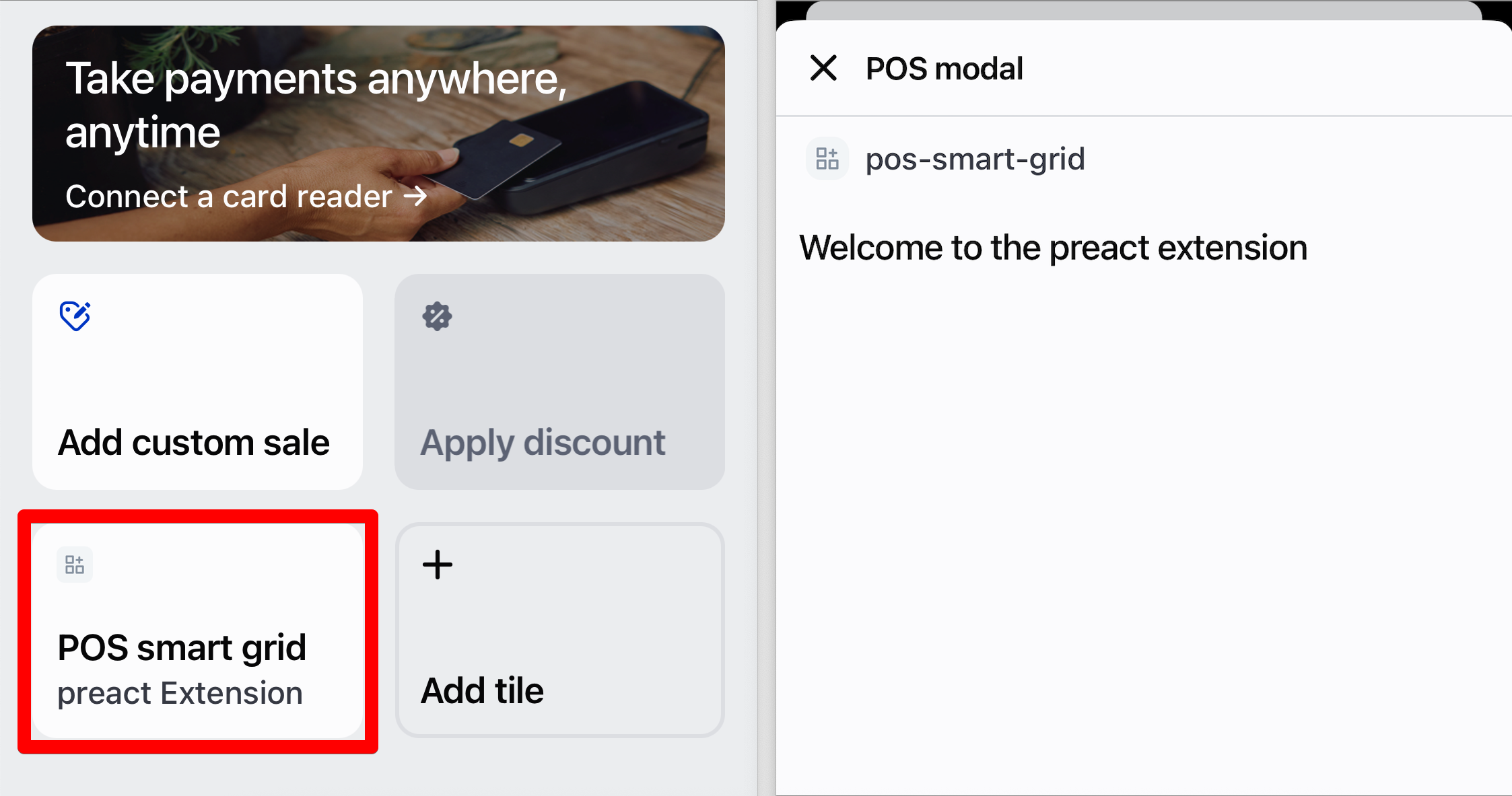
The POS app on your device fetches your extension code from the Cloudflare tunnel URL and runs it inside the app. You should now see a new tile on the smart grid labeled **POS smart grid**. Tapping this tile opens a modal titled **POS modal** with the text “Welcome to the Preact extension.”
***
## Step 5: Update the smart-grid tile code
When you created your extension, Shopify CLI added some placeholder code to a `Tile.jsx` file to render the smart-grid tile.
Update this code to change the headings on the tile:
1. Open the `Tile.jsx` file in your app's `extensions/pos-smart-grid/src` directory.
2. Replace the existing code with the code shown below.
## Tile.jsx code
```js
import {render} from 'preact';
export default async () => {
render(, document.body);
}
function Extension() {
return (
shopify.action.presentModal()}
/>
);
}
```
This new code changes the heading and subheading of the tile from their default values.
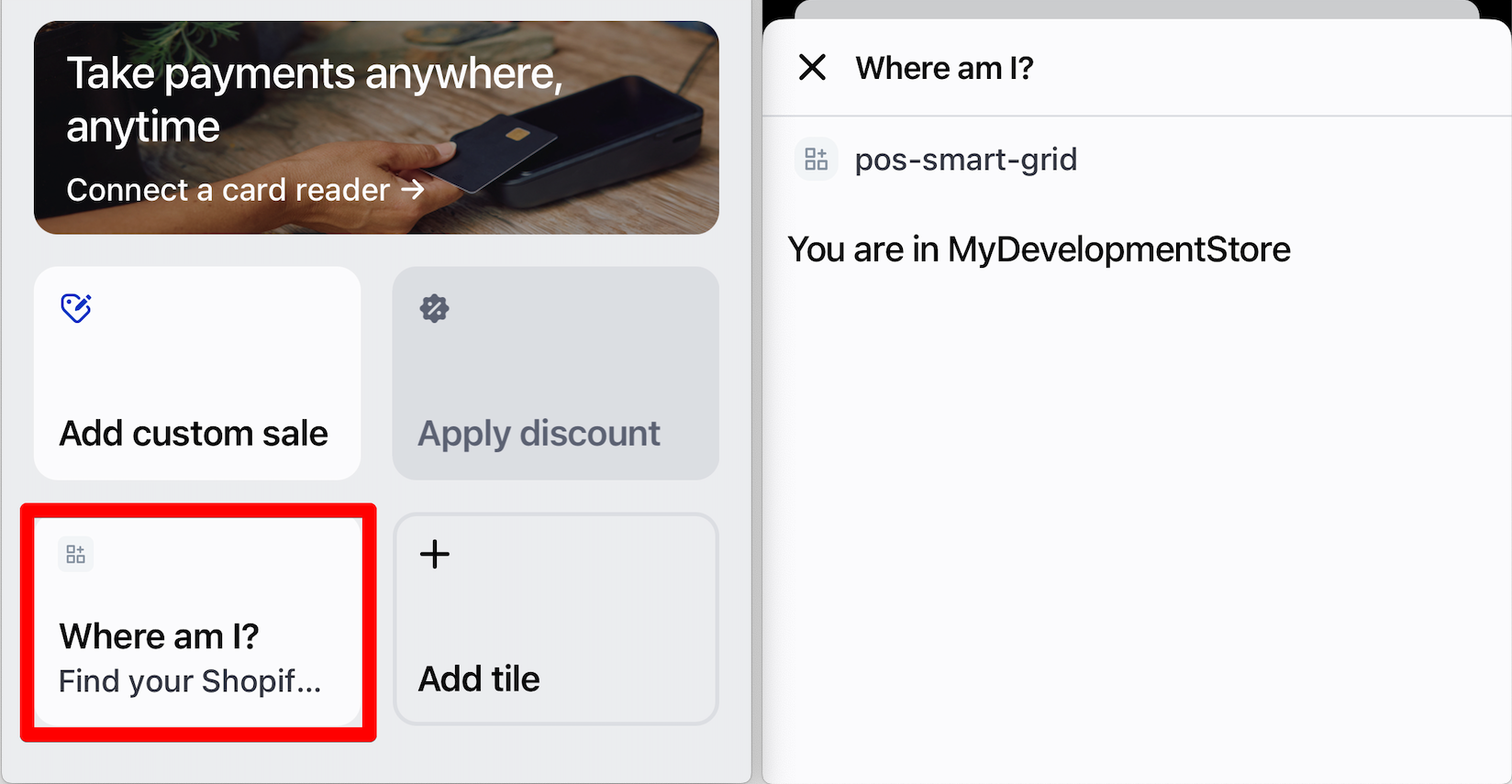
3. Look at the tile on your device. You should see that the heading and subheadings have been updated to read "Where am I?" and "Find your Shopify store."
If you experience issues updating or loading the extension, see the [Troubleshooting](#troubleshooting) section.
***
## Step 6: Update the modal code
When you created your extension, Shopify CLI added some placeholder code to a `Modal.jsx` file to render a modal when the tile is tapped. This code displays the message "Welcome to the preact extension" that you saw when you opened the modal in [Step 4](#step-4-install-the-extension-on-your-mobile-device).
Update this code to retrieve the name of your dev store using the [GraphQL Admin API](https://shopify.dev/docs/api/admin-graphql/) and display it in the modal:
1. Open the `Modal.jsx` file in your app's `extensions/pos-smart-grid/src` directory.
2. Replace the existing code with the following.
## Modal.jsx code
```ts
import {render} from 'preact';
// Import hooks for state management
import {useState, useEffect} from 'preact/hooks';
export default async () => {
render(, document.body);
};
function Extension() {
// Set up states to track loading status of storename
const [isLoading, setIsLoading] = useState(true);
const [storeName, setStoreName] = useState('');
// useEffect runs when the component mounts (modal opens)
useEffect(() => {
async function fetchStoreName() {
try {
// Define the GraphQL query to fetch the storename
const requestBody = {
query: `
query {
shop {
name
}
}
`
};
// Make a POST request to the GraphQL Admin API
const response = await fetch('shopify:admin/api/graphql.json', {
method: 'POST',
headers: {
'Content-Type': 'application/json',
},
body: JSON.stringify(requestBody)
});
const data = await response.json();
// Extract the storename from the GraphQL response structure
setStoreName(data.data.shop.name);
} catch (error) {
// If the API call fails, log the error and show a fallback message
console.error('Failed to fetch store name:', error);
setStoreName('Unknown');
} finally {
// Set loading to false whether the request succeeded or failed
setIsLoading(false);
}
}
// Call the function to fetch the store name
fetchStoreName();
}, []);
return (
{isLoading ? 'Fetching store name...' : `You are in ${storeName}`}
);
}
```
This new code does the following to fetch your store's name from the GraphQL Admin API and display it in the modal:
* Imports hooks for state management.
* Sets up states to track whether the code is fetching data and to store the storename after it's been fetched.
* After rendering the modal component, finds the storename by directly accessing the GraphQL Admin API using `fetch()`.
* In the returned modal, displays "Fetching store name…" until the API call completes, then displays "You are in `${storename}`".
***
## Step 7: Verify your changes
Tap the **Where am I?** tile in your POS app. You should now see a modal that displays a message with your storename:
***
## Troubleshooting
When previewing extensions from your dev store on a mobile device, you might experience the following issues:
* After installing the extension, it disappears from the POS app's home screen.
* When updating your code, changes aren't reflected in the extension on your device.
These issues can occur due to network switches (between WiFI and cellular), Cloudflare Tunnel timeouts, or other interruptions. Additionally, closing the POS app or locking and unlocking your device can cause the app to remove the extension, especially in cases like WebSocket timeouts or when the local dev server stops.
If you encounter issues while following this tutorial, adjust your device settings and reload the extension.
### Device settings
Change the settings on your device so that it doesn't automatically lock, and keep the POS app open after installing the extension.
### Reloading the extension
Reload the extension by following these steps:
1. If you can still see the extension's tile on your device, open the POS Dev Console in the POS app and tap **Remove dev extensions**.
2. In the terminal where your development server is running, press `Control + C` to stop the server.
3. Run `shopify app dev` to restart the server:
4. Press `p` on your keyboard to open the Developer Console.
5. Click **View mobile** to generate a new QR code.
6. Scan the QR code with your device to reload the extension.
***
## Next steps
* If you're testing across multiple teams and won't be running the local dev server, consider using [app previews](https://shopify.dev/docs/apps/build/cli-for-apps/test-apps-locally#develop-and-test-apps-as-a-team).
* Learn how to build a [discount UI extension](https://shopify.dev/docs/apps/build/pos/tutorials/build-discount-extension), [print UI extension](https://shopify.dev/docs/apps/build/pos/tutorials/build-print-extension), or [subscription UI extension](https://shopify.dev/docs/apps/build/pos/tutorials/build-subscription-extension).
* Explore the full [reference section](https://shopify.dev/docs/api/pos-ui-extensions/latest) for targets, target APIs and Polaris web components that you can use for your POS UI extension.
* Learn how to [deploy and release an app extension](https://shopify.dev/docs/apps/deployment/app-versions).
***