---
title: Build a print UI extension
description: >-
  Learn how to build a POS print UI extension that generates, previews, and
  prints custom documents.
source_url:
  html: 'https://shopify.dev/docs/apps/build/pos/tutorials/build-print-extension'
  md: 'https://shopify.dev/docs/apps/build/pos/tutorials/build-print-extension.md'
api_name: pos-ui-extensions
---

# Build a print UI extension

This tutorial shows you how to create a print extension that lets merchants generate and preview documents before printing.

## What you'll learn:

* Create a backend service that serves print-ready documents.
* Build a POS UI extension with preview and print capabilities.
* Implement error handling for a reliable printing experience.
* Test your extension in a development environment.
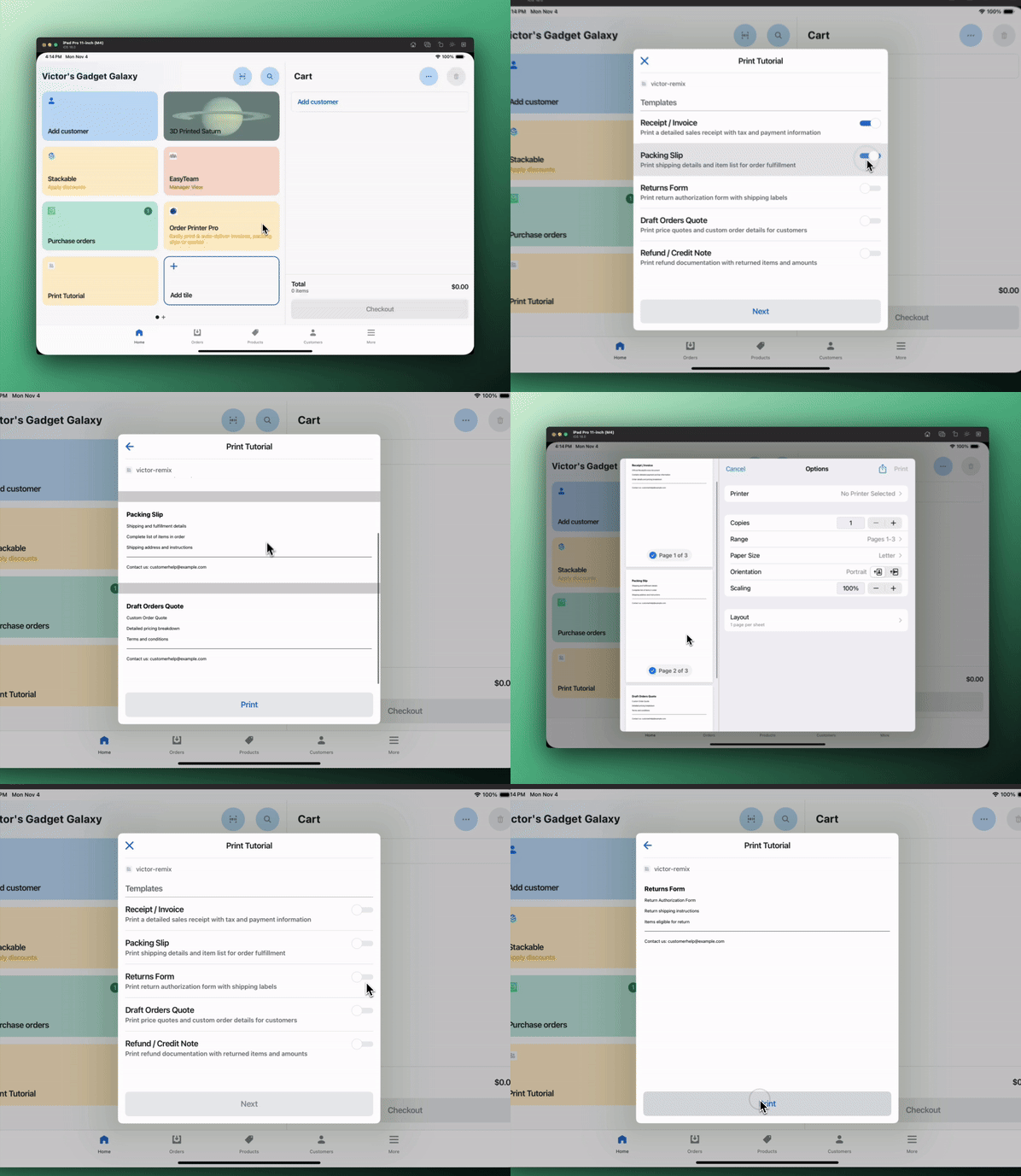
![Print Extension in Action](https://shopify.dev/assets/assets/apps/pos/pos-ui-extensions-print-example-C4NFZVcv.gif)

## Requirements

[Create a Partner account](https://www.shopify.com/partners)

[Create a development store](https://shopify.dev/docs/apps/build/stores/development-stores#create-a-dev-store)

[Scaffold an app](https://shopify.dev/docs/apps/build/scaffold-app)

Scaffold an app that uses the [React Router template](https://github.com/Shopify/shopify-app-template-react-router).

[Generate a POS UI extension](https://shopify.dev/docs/apps/build/pos/getting-started)

Generate a POS UI extension using Shopify CLI.

**Access scopes:**

If you plan to include order, customer, or any other Shopify admin data in your prints, you'll need additional access scopes. This tutorial doesn't include any admin data as the core focus is to build the extension itself, so no additional access scopes are required.

[Learn more about access scopes](https://shopify.dev/docs/api/usage/access-scopes)

## Project

[View on GitHub](https://github.com/Shopify/pos-ui-extensions-tutorials/tree/main/example-pos-ui-extensions--printer--preact)

### Create a route to serve printable documents

First, create a new route file at `app/routes/print.ts` that serves your printable documents. This example uses [React Router](https://reactrouter.com/start/framework/routing#route-modules), but you can adapt the concepts to your preferred framework.

> Need help setting up a React Router server? Check out the [Shopify App React Router documentation](https://shopify.dev/docs/api/shopify-app-react-router).

Let's walk through each part of the implementation:

Set up the route and handle authentication with Shopify.

## /example-pos-ui-extensions--printer--preact/app/routes/print.ts

```typescript
// This example shows how to create a print endpoint for your Shopify app
// This works with both Remix and React Router v7 (which uses Remix's API patterns)
// Place this file in your app's routes folder to create a route at '/print'


import { authenticate } from "../shopify.server";


export async function loader({ request }) {
  const { cors } = await authenticate.admin(request);


  const url = new URL(request.url);
  const printTypes = url.searchParams.get("printTypes")?.split(",") || [];


  const pages = printTypes.map((type) => createPage(type));
  const print = printHTML(pages);


  return cors(
    new Response(print, {
      status: 200,
      headers: {
        "Content-type": "text/html",
      },
    }),
  );
}


// Helper function to create document pages based on type
function createPage(type) {
  const email = "<!--email_off-->customerhelp@example.com<!--/email_off-->";


  // Get document content based on type (invoice, packing slip, etc.)
  const getDocumentInfo = () => {
    switch (type) {
      case "invoice":
        return {
          label: "Receipt / Invoice",
          content: `
            <p>Official Receipt/Invoice document</p>
            <p>Contains detailed payment and tax information</p>
            <p>Order details and pricing breakdown</p>
          `,
        };
      case "packing-slip":
        return {
          label: "Packing Slip",
          content: `
            <p>Shipping and fulfillment details</p>
            <p>Complete list of items in order</p>
            <p>Shipping address and instructions</p>
          `,
        };
      case "returns-form":
        return {
          label: "Returns Form",
          content: `
            <p>Return Authorization Form</p>
            <p>Return shipping instructions</p>
            <p>Items eligible for return</p>
          `,
        };
      case "draft-orders-quote":
        return {
          label: "Draft Orders Quote",
          content: `
            <p>Custom Order Quote</p>
            <p>Detailed pricing breakdown</p>
            <p>Terms and conditions</p>
          `,
        };
      case "refund-credit-note":
        return {
          label: "Refund / Credit Note",
          content: `
            <p>Refund Documentation</p>
            <p>Credit amount details</p>
            <p>Returned items list</p>
          `,
        };
      default:
        return {
          label: type,
          content: `
            <p>Sample document</p>
            <p>This is an example of a printable document.</p>
          `,
        };
    }
  };


  const { label, content } = getDocumentInfo();


  return `<main>
    <div>
      <h1>${label}</h1>
      <div class="content">
        ${content}
        <hr>
        <p>Contact us: ${email}</p>
      </div>
    </div>
  </main>`;
}


// Helper function to generate final HTML with proper styling and page breaks
function printHTML(pages) {
  // Define page break styles for both screen and print
  const pageBreak = `<div class="page-break"></div>`;
  const pageBreakStyles = `
    @media not print {
      .page-break {
        width: 100vw;
        height: 40px;
        background-color: lightgray;
      }
    }
    @media print {
      .page-break {
        page-break-after: always;
      }
    }`;


  const joinedPages = pages.join(pageBreak);
  return `<!DOCTYPE html>
  <html lang="en">
  <head>
    <title>Print Document</title>
    <style>
      body, html {
        margin: 0;
        padding: 0;
        font-family: -apple-system, system-ui, BlinkMacSystemFont, 'Segoe UI', Roboto, sans-serif;
      }
      main {
        padding: 2rem;
      }
      h1 {
        margin: 0 0 1rem 0;
        font-size: 1.5rem;
      }
      .content {
        font-size: 1rem;
        line-height: 1.5;
      }
      hr {
        margin: 1.5rem 0;
        border: none;
        border-top: 1px solid #000;
      }
      ${pageBreakStyles}
    </style>
  </head>
  <body>
    ${joinedPages}
  </body>
  </html>`;
}
```

Process URL parameters to determine which documents to generate.

## /example-pos-ui-extensions--printer--preact/app/routes/print.ts

```typescript
// This example shows how to create a print endpoint for your Shopify app
// This works with both Remix and React Router v7 (which uses Remix's API patterns)
// Place this file in your app's routes folder to create a route at '/print'


import { authenticate } from "../shopify.server";


export async function loader({ request }) {
  const { cors } = await authenticate.admin(request);


  const url = new URL(request.url);
  const printTypes = url.searchParams.get("printTypes")?.split(",") || [];


  const pages = printTypes.map((type) => createPage(type));
  const print = printHTML(pages);


  return cors(
    new Response(print, {
      status: 200,
      headers: {
        "Content-type": "text/html",
      },
    }),
  );
}


// Helper function to create document pages based on type
function createPage(type) {
  const email = "<!--email_off-->customerhelp@example.com<!--/email_off-->";


  // Get document content based on type (invoice, packing slip, etc.)
  const getDocumentInfo = () => {
    switch (type) {
      case "invoice":
        return {
          label: "Receipt / Invoice",
          content: `
            <p>Official Receipt/Invoice document</p>
            <p>Contains detailed payment and tax information</p>
            <p>Order details and pricing breakdown</p>
          `,
        };
      case "packing-slip":
        return {
          label: "Packing Slip",
          content: `
            <p>Shipping and fulfillment details</p>
            <p>Complete list of items in order</p>
            <p>Shipping address and instructions</p>
          `,
        };
      case "returns-form":
        return {
          label: "Returns Form",
          content: `
            <p>Return Authorization Form</p>
            <p>Return shipping instructions</p>
            <p>Items eligible for return</p>
          `,
        };
      case "draft-orders-quote":
        return {
          label: "Draft Orders Quote",
          content: `
            <p>Custom Order Quote</p>
            <p>Detailed pricing breakdown</p>
            <p>Terms and conditions</p>
          `,
        };
      case "refund-credit-note":
        return {
          label: "Refund / Credit Note",
          content: `
            <p>Refund Documentation</p>
            <p>Credit amount details</p>
            <p>Returned items list</p>
          `,
        };
      default:
        return {
          label: type,
          content: `
            <p>Sample document</p>
            <p>This is an example of a printable document.</p>
          `,
        };
    }
  };


  const { label, content } = getDocumentInfo();


  return `<main>
    <div>
      <h1>${label}</h1>
      <div class="content">
        ${content}
        <hr>
        <p>Contact us: ${email}</p>
      </div>
    </div>
  </main>`;
}


// Helper function to generate final HTML with proper styling and page breaks
function printHTML(pages) {
  // Define page break styles for both screen and print
  const pageBreak = `<div class="page-break"></div>`;
  const pageBreakStyles = `
    @media not print {
      .page-break {
        width: 100vw;
        height: 40px;
        background-color: lightgray;
      }
    }
    @media print {
      .page-break {
        page-break-after: always;
      }
    }`;


  const joinedPages = pages.join(pageBreak);
  return `<!DOCTYPE html>
  <html lang="en">
  <head>
    <title>Print Document</title>
    <style>
      body, html {
        margin: 0;
        padding: 0;
        font-family: -apple-system, system-ui, BlinkMacSystemFont, 'Segoe UI', Roboto, sans-serif;
      }
      main {
        padding: 2rem;
      }
      h1 {
        margin: 0 0 1rem 0;
        font-size: 1.5rem;
      }
      .content {
        font-size: 1rem;
        line-height: 1.5;
      }
      hr {
        margin: 1.5rem 0;
        border: none;
        border-top: 1px solid #000;
      }
      ${pageBreakStyles}
    </style>
  </head>
  <body>
    ${joinedPages}
  </body>
  </html>`;
}
```

Generate HTML content with proper styling for each document type.

## /example-pos-ui-extensions--printer--preact/app/routes/print.ts

```typescript
// This example shows how to create a print endpoint for your Shopify app
// This works with both Remix and React Router v7 (which uses Remix's API patterns)
// Place this file in your app's routes folder to create a route at '/print'


import { authenticate } from "../shopify.server";


export async function loader({ request }) {
  const { cors } = await authenticate.admin(request);


  const url = new URL(request.url);
  const printTypes = url.searchParams.get("printTypes")?.split(",") || [];


  const pages = printTypes.map((type) => createPage(type));
  const print = printHTML(pages);


  return cors(
    new Response(print, {
      status: 200,
      headers: {
        "Content-type": "text/html",
      },
    }),
  );
}


// Helper function to create document pages based on type
function createPage(type) {
  const email = "<!--email_off-->customerhelp@example.com<!--/email_off-->";


  // Get document content based on type (invoice, packing slip, etc.)
  const getDocumentInfo = () => {
    switch (type) {
      case "invoice":
        return {
          label: "Receipt / Invoice",
          content: `
            <p>Official Receipt/Invoice document</p>
            <p>Contains detailed payment and tax information</p>
            <p>Order details and pricing breakdown</p>
          `,
        };
      case "packing-slip":
        return {
          label: "Packing Slip",
          content: `
            <p>Shipping and fulfillment details</p>
            <p>Complete list of items in order</p>
            <p>Shipping address and instructions</p>
          `,
        };
      case "returns-form":
        return {
          label: "Returns Form",
          content: `
            <p>Return Authorization Form</p>
            <p>Return shipping instructions</p>
            <p>Items eligible for return</p>
          `,
        };
      case "draft-orders-quote":
        return {
          label: "Draft Orders Quote",
          content: `
            <p>Custom Order Quote</p>
            <p>Detailed pricing breakdown</p>
            <p>Terms and conditions</p>
          `,
        };
      case "refund-credit-note":
        return {
          label: "Refund / Credit Note",
          content: `
            <p>Refund Documentation</p>
            <p>Credit amount details</p>
            <p>Returned items list</p>
          `,
        };
      default:
        return {
          label: type,
          content: `
            <p>Sample document</p>
            <p>This is an example of a printable document.</p>
          `,
        };
    }
  };


  const { label, content } = getDocumentInfo();


  return `<main>
    <div>
      <h1>${label}</h1>
      <div class="content">
        ${content}
        <hr>
        <p>Contact us: ${email}</p>
      </div>
    </div>
  </main>`;
}


// Helper function to generate final HTML with proper styling and page breaks
function printHTML(pages) {
  // Define page break styles for both screen and print
  const pageBreak = `<div class="page-break"></div>`;
  const pageBreakStyles = `
    @media not print {
      .page-break {
        width: 100vw;
        height: 40px;
        background-color: lightgray;
      }
    }
    @media print {
      .page-break {
        page-break-after: always;
      }
    }`;


  const joinedPages = pages.join(pageBreak);
  return `<!DOCTYPE html>
  <html lang="en">
  <head>
    <title>Print Document</title>
    <style>
      body, html {
        margin: 0;
        padding: 0;
        font-family: -apple-system, system-ui, BlinkMacSystemFont, 'Segoe UI', Roboto, sans-serif;
      }
      main {
        padding: 2rem;
      }
      h1 {
        margin: 0 0 1rem 0;
        font-size: 1.5rem;
      }
      .content {
        font-size: 1rem;
        line-height: 1.5;
      }
      hr {
        margin: 1.5rem 0;
        border: none;
        border-top: 1px solid #000;
      }
      ${pageBreakStyles}
    </style>
  </head>
  <body>
    ${joinedPages}
  </body>
  </html>`;
}
```

Return a properly formatted response with CORS headers.

## /example-pos-ui-extensions--printer--preact/app/routes/print.ts

```typescript
// This example shows how to create a print endpoint for your Shopify app
// This works with both Remix and React Router v7 (which uses Remix's API patterns)
// Place this file in your app's routes folder to create a route at '/print'


import { authenticate } from "../shopify.server";


export async function loader({ request }) {
  const { cors } = await authenticate.admin(request);


  const url = new URL(request.url);
  const printTypes = url.searchParams.get("printTypes")?.split(",") || [];


  const pages = printTypes.map((type) => createPage(type));
  const print = printHTML(pages);


  return cors(
    new Response(print, {
      status: 200,
      headers: {
        "Content-type": "text/html",
      },
    }),
  );
}


// Helper function to create document pages based on type
function createPage(type) {
  const email = "<!--email_off-->customerhelp@example.com<!--/email_off-->";


  // Get document content based on type (invoice, packing slip, etc.)
  const getDocumentInfo = () => {
    switch (type) {
      case "invoice":
        return {
          label: "Receipt / Invoice",
          content: `
            <p>Official Receipt/Invoice document</p>
            <p>Contains detailed payment and tax information</p>
            <p>Order details and pricing breakdown</p>
          `,
        };
      case "packing-slip":
        return {
          label: "Packing Slip",
          content: `
            <p>Shipping and fulfillment details</p>
            <p>Complete list of items in order</p>
            <p>Shipping address and instructions</p>
          `,
        };
      case "returns-form":
        return {
          label: "Returns Form",
          content: `
            <p>Return Authorization Form</p>
            <p>Return shipping instructions</p>
            <p>Items eligible for return</p>
          `,
        };
      case "draft-orders-quote":
        return {
          label: "Draft Orders Quote",
          content: `
            <p>Custom Order Quote</p>
            <p>Detailed pricing breakdown</p>
            <p>Terms and conditions</p>
          `,
        };
      case "refund-credit-note":
        return {
          label: "Refund / Credit Note",
          content: `
            <p>Refund Documentation</p>
            <p>Credit amount details</p>
            <p>Returned items list</p>
          `,
        };
      default:
        return {
          label: type,
          content: `
            <p>Sample document</p>
            <p>This is an example of a printable document.</p>
          `,
        };
    }
  };


  const { label, content } = getDocumentInfo();


  return `<main>
    <div>
      <h1>${label}</h1>
      <div class="content">
        ${content}
        <hr>
        <p>Contact us: ${email}</p>
      </div>
    </div>
  </main>`;
}


// Helper function to generate final HTML with proper styling and page breaks
function printHTML(pages) {
  // Define page break styles for both screen and print
  const pageBreak = `<div class="page-break"></div>`;
  const pageBreakStyles = `
    @media not print {
      .page-break {
        width: 100vw;
        height: 40px;
        background-color: lightgray;
      }
    }
    @media print {
      .page-break {
        page-break-after: always;
      }
    }`;


  const joinedPages = pages.join(pageBreak);
  return `<!DOCTYPE html>
  <html lang="en">
  <head>
    <title>Print Document</title>
    <style>
      body, html {
        margin: 0;
        padding: 0;
        font-family: -apple-system, system-ui, BlinkMacSystemFont, 'Segoe UI', Roboto, sans-serif;
      }
      main {
        padding: 2rem;
      }
      h1 {
        margin: 0 0 1rem 0;
        font-size: 1.5rem;
      }
      .content {
        font-size: 1rem;
        line-height: 1.5;
      }
      hr {
        margin: 1.5rem 0;
        border: none;
        border-top: 1px solid #000;
      }
      ${pageBreakStyles}
    </style>
  </head>
  <body>
    ${joinedPages}
  </body>
  </html>`;
}
```

**Print document requirements:**

* Use only static HTML and CSS - JavaScript won't execute in print documents.
* Include all styles in the `<head>` section or inline.
* Use `@media print` CSS rules for print-specific styling.
* Ensure proper CORS headers are set for POS access.

**Page breaks:**

When returning multiple documents, use CSS page breaks to ensure proper printing:

```css
@media print {
  .page-break {
    page-break-after: always;
  }
}
```

**Email obfuscation:**

When using Cloudflare tunnels for development, wrap email addresses in HTML comments to prevent obfuscation:

`<!--email_off-->example@email.com<!--/email_off-->`

[Learn more about email obfuscation](https://developers.cloudflare.com/waf/tools/scrape-shield/email-address-obfuscation/#prevent-cloudflare-from-obfuscating-email)

### Build the extension tile

Build a tile component on the POS smart grid that launches your extension.

### Build the extension modal

Next, you'll build a modal component where users interact with your app. You'll add the functionality that implements the printing workflow.

Initialize the loading and document list state.

## /example-pos-ui-extensions--printer--preact/extensions/print-tutorial/src/PrintModal.jsx

```jsx
import {render} from 'preact';
import {useState} from 'preact/hooks';


export default async () => {
  render(<Extension />, document.body);
};


function Extension() {
  const [isLoading, setIsLoading] = useState(false);
  const [documents, setDocuments] = useState([
    {
      id: 'invoice',
      label: 'Receipt / Invoice',
      subtitle:
        'Print a detailed sales receipt with tax and payment information',
      selected: true,
    },
    {
      id: 'packing-slip',
      label: 'Packing Slip',
      subtitle: 'Print shipping details and item list for order fulfillment',
      selected: false,
    },
    {
      id: 'returns-form',
      label: 'Returns Form',
      subtitle: 'Print return authorization form with shipping labels',
      selected: false,
    },
    {
      id: 'draft-orders-quote',
      label: 'Draft Orders Quote',
      subtitle: 'Print price quotes and custom order details for customers',
      selected: false,
    },
    {
      id: 'refund-credit-note',
      label: 'Refund / Credit Note',
      subtitle: 'Print refund documentation with returned items and amounts',
      selected: false,
    },
  ]);


  const handleSelectionChange = (event) => {
    const selectedIds = event.currentTarget.values;
    setDocuments((prevDocs) =>
      prevDocs.map((doc) => ({
        ...doc,
        selected: selectedIds.includes(doc.id),
      })),
    );
  };


  const handleNext = () => {
    const selectedDocs = documents.filter((doc) => doc.selected);
    if (selectedDocs.length) {
      const selectedIds = selectedDocs.map((doc) => doc.id);
      navigation.navigate('preview', {
        state: {selectedIds},
      });
    }
  };


  const handlePrint = async () => {
    const {selectedIds} = state || {};
    if (!selectedIds?.length) return;


    const params = new URLSearchParams({
      printTypes: selectedIds.join(','),
    });
    const src = `/print?${params.toString()}`;


    setIsLoading(true);
    try {
      await shopify.print.print(src);
    } catch (error) {
      console.error('Print failed:', error);
    } finally {
      setIsLoading(false);
    }
  };


  const url = navigation.currentEntry.url;
  const state = navigation.currentEntry.getState();


  // Preview screen
  if (url?.includes('preview')) {
    const {selectedIds} = state || {};
    const params = new URLSearchParams({
      printTypes: selectedIds?.join(',') || '',
    });
    const src = `/print?${params.toString()}`;


    return (
      <s-page heading="Print Tutorial">
        {src && (
          <s-box padding="base">
            <s-text>Print preview URL: {src}</s-text>
            {/* Note: DocumentPreview component is coming soon*/}
            {/* For now, showing the URL that would be printed */}
          </s-box>
        )}
        <s-stack direction="block" gap="small" padding="small">
          <s-button
            disabled={isLoading || !selectedIds?.length}
            loading={isLoading}
            onClick={handlePrint}
            variant="primary"
          >
            Print
          </s-button>
          <s-button
            onClick={() => navigation.back()}
            variant="secondary"
          >
            Back
          </s-button>
        </s-stack>
      </s-page>
    );
  }


  // Document selection screen
  return (
    <s-page heading="Print Tutorial">
      <s-scroll-box padding="base">
        <s-section heading="Templates">
          <s-choice-list
            multiple
            values={documents.filter((doc) => doc.selected).map((doc) => doc.id)}
            onChange={handleSelectionChange}
          >
            {documents.map((doc) => (
              <s-choice key={doc.id} value={doc.id}>
                <s-stack direction="block" gap="small">
                  <s-heading>{doc.label}</s-heading>
                  <s-text>{doc.subtitle}</s-text>
                </s-stack>
              </s-choice>
            ))}
          </s-choice-list>
        </s-section>
      </s-scroll-box>


      <s-stack direction="inline" gap="small" padding="small">
        <s-button
          disabled={!documents.some((doc) => doc.selected)}
          onClick={handleNext}
          variant="primary"
        >
          Next
        </s-button>
      </s-stack>
    </s-page>
  );
}
```

Set up document selection with a choice list component.

## /example-pos-ui-extensions--printer--preact/extensions/print-tutorial/src/PrintModal.jsx

```jsx
import {render} from 'preact';
import {useState} from 'preact/hooks';


export default async () => {
  render(<Extension />, document.body);
};


function Extension() {
  const [isLoading, setIsLoading] = useState(false);
  const [documents, setDocuments] = useState([
    {
      id: 'invoice',
      label: 'Receipt / Invoice',
      subtitle:
        'Print a detailed sales receipt with tax and payment information',
      selected: true,
    },
    {
      id: 'packing-slip',
      label: 'Packing Slip',
      subtitle: 'Print shipping details and item list for order fulfillment',
      selected: false,
    },
    {
      id: 'returns-form',
      label: 'Returns Form',
      subtitle: 'Print return authorization form with shipping labels',
      selected: false,
    },
    {
      id: 'draft-orders-quote',
      label: 'Draft Orders Quote',
      subtitle: 'Print price quotes and custom order details for customers',
      selected: false,
    },
    {
      id: 'refund-credit-note',
      label: 'Refund / Credit Note',
      subtitle: 'Print refund documentation with returned items and amounts',
      selected: false,
    },
  ]);


  const handleSelectionChange = (event) => {
    const selectedIds = event.currentTarget.values;
    setDocuments((prevDocs) =>
      prevDocs.map((doc) => ({
        ...doc,
        selected: selectedIds.includes(doc.id),
      })),
    );
  };


  const handleNext = () => {
    const selectedDocs = documents.filter((doc) => doc.selected);
    if (selectedDocs.length) {
      const selectedIds = selectedDocs.map((doc) => doc.id);
      navigation.navigate('preview', {
        state: {selectedIds},
      });
    }
  };


  const handlePrint = async () => {
    const {selectedIds} = state || {};
    if (!selectedIds?.length) return;


    const params = new URLSearchParams({
      printTypes: selectedIds.join(','),
    });
    const src = `/print?${params.toString()}`;


    setIsLoading(true);
    try {
      await shopify.print.print(src);
    } catch (error) {
      console.error('Print failed:', error);
    } finally {
      setIsLoading(false);
    }
  };


  const url = navigation.currentEntry.url;
  const state = navigation.currentEntry.getState();


  // Preview screen
  if (url?.includes('preview')) {
    const {selectedIds} = state || {};
    const params = new URLSearchParams({
      printTypes: selectedIds?.join(',') || '',
    });
    const src = `/print?${params.toString()}`;


    return (
      <s-page heading="Print Tutorial">
        {src && (
          <s-box padding="base">
            <s-text>Print preview URL: {src}</s-text>
            {/* Note: DocumentPreview component is coming soon*/}
            {/* For now, showing the URL that would be printed */}
          </s-box>
        )}
        <s-stack direction="block" gap="small" padding="small">
          <s-button
            disabled={isLoading || !selectedIds?.length}
            loading={isLoading}
            onClick={handlePrint}
            variant="primary"
          >
            Print
          </s-button>
          <s-button
            onClick={() => navigation.back()}
            variant="secondary"
          >
            Back
          </s-button>
        </s-stack>
      </s-page>
    );
  }


  // Document selection screen
  return (
    <s-page heading="Print Tutorial">
      <s-scroll-box padding="base">
        <s-section heading="Templates">
          <s-choice-list
            multiple
            values={documents.filter((doc) => doc.selected).map((doc) => doc.id)}
            onChange={handleSelectionChange}
          >
            {documents.map((doc) => (
              <s-choice key={doc.id} value={doc.id}>
                <s-stack direction="block" gap="small">
                  <s-heading>{doc.label}</s-heading>
                  <s-text>{doc.subtitle}</s-text>
                </s-stack>
              </s-choice>
            ))}
          </s-choice-list>
        </s-section>
      </s-scroll-box>


      <s-stack direction="inline" gap="small" padding="small">
        <s-button
          disabled={!documents.some((doc) => doc.selected)}
          onClick={handleNext}
          variant="primary"
        >
          Next
        </s-button>
      </s-stack>
    </s-page>
  );
}
```

Handle document selection and URL updates.

## /example-pos-ui-extensions--printer--preact/extensions/print-tutorial/src/PrintModal.jsx

```jsx
import {render} from 'preact';
import {useState} from 'preact/hooks';


export default async () => {
  render(<Extension />, document.body);
};


function Extension() {
  const [isLoading, setIsLoading] = useState(false);
  const [documents, setDocuments] = useState([
    {
      id: 'invoice',
      label: 'Receipt / Invoice',
      subtitle:
        'Print a detailed sales receipt with tax and payment information',
      selected: true,
    },
    {
      id: 'packing-slip',
      label: 'Packing Slip',
      subtitle: 'Print shipping details and item list for order fulfillment',
      selected: false,
    },
    {
      id: 'returns-form',
      label: 'Returns Form',
      subtitle: 'Print return authorization form with shipping labels',
      selected: false,
    },
    {
      id: 'draft-orders-quote',
      label: 'Draft Orders Quote',
      subtitle: 'Print price quotes and custom order details for customers',
      selected: false,
    },
    {
      id: 'refund-credit-note',
      label: 'Refund / Credit Note',
      subtitle: 'Print refund documentation with returned items and amounts',
      selected: false,
    },
  ]);


  const handleSelectionChange = (event) => {
    const selectedIds = event.currentTarget.values;
    setDocuments((prevDocs) =>
      prevDocs.map((doc) => ({
        ...doc,
        selected: selectedIds.includes(doc.id),
      })),
    );
  };


  const handleNext = () => {
    const selectedDocs = documents.filter((doc) => doc.selected);
    if (selectedDocs.length) {
      const selectedIds = selectedDocs.map((doc) => doc.id);
      navigation.navigate('preview', {
        state: {selectedIds},
      });
    }
  };


  const handlePrint = async () => {
    const {selectedIds} = state || {};
    if (!selectedIds?.length) return;


    const params = new URLSearchParams({
      printTypes: selectedIds.join(','),
    });
    const src = `/print?${params.toString()}`;


    setIsLoading(true);
    try {
      await shopify.print.print(src);
    } catch (error) {
      console.error('Print failed:', error);
    } finally {
      setIsLoading(false);
    }
  };


  const url = navigation.currentEntry.url;
  const state = navigation.currentEntry.getState();


  // Preview screen
  if (url?.includes('preview')) {
    const {selectedIds} = state || {};
    const params = new URLSearchParams({
      printTypes: selectedIds?.join(',') || '',
    });
    const src = `/print?${params.toString()}`;


    return (
      <s-page heading="Print Tutorial">
        {src && (
          <s-box padding="base">
            <s-text>Print preview URL: {src}</s-text>
            {/* Note: DocumentPreview component is coming soon*/}
            {/* For now, showing the URL that would be printed */}
          </s-box>
        )}
        <s-stack direction="block" gap="small" padding="small">
          <s-button
            disabled={isLoading || !selectedIds?.length}
            loading={isLoading}
            onClick={handlePrint}
            variant="primary"
          >
            Print
          </s-button>
          <s-button
            onClick={() => navigation.back()}
            variant="secondary"
          >
            Back
          </s-button>
        </s-stack>
      </s-page>
    );
  }


  // Document selection screen
  return (
    <s-page heading="Print Tutorial">
      <s-scroll-box padding="base">
        <s-section heading="Templates">
          <s-choice-list
            multiple
            values={documents.filter((doc) => doc.selected).map((doc) => doc.id)}
            onChange={handleSelectionChange}
          >
            {documents.map((doc) => (
              <s-choice key={doc.id} value={doc.id}>
                <s-stack direction="block" gap="small">
                  <s-heading>{doc.label}</s-heading>
                  <s-text>{doc.subtitle}</s-text>
                </s-stack>
              </s-choice>
            ))}
          </s-choice-list>
        </s-section>
      </s-scroll-box>


      <s-stack direction="inline" gap="small" padding="small">
        <s-button
          disabled={!documents.some((doc) => doc.selected)}
          onClick={handleNext}
          variant="primary"
        >
          Next
        </s-button>
      </s-stack>
    </s-page>
  );
}
```

Implement print functionality with error handling.

## /example-pos-ui-extensions--printer--preact/extensions/print-tutorial/src/PrintModal.jsx

```jsx
import {render} from 'preact';
import {useState} from 'preact/hooks';


export default async () => {
  render(<Extension />, document.body);
};


function Extension() {
  const [isLoading, setIsLoading] = useState(false);
  const [documents, setDocuments] = useState([
    {
      id: 'invoice',
      label: 'Receipt / Invoice',
      subtitle:
        'Print a detailed sales receipt with tax and payment information',
      selected: true,
    },
    {
      id: 'packing-slip',
      label: 'Packing Slip',
      subtitle: 'Print shipping details and item list for order fulfillment',
      selected: false,
    },
    {
      id: 'returns-form',
      label: 'Returns Form',
      subtitle: 'Print return authorization form with shipping labels',
      selected: false,
    },
    {
      id: 'draft-orders-quote',
      label: 'Draft Orders Quote',
      subtitle: 'Print price quotes and custom order details for customers',
      selected: false,
    },
    {
      id: 'refund-credit-note',
      label: 'Refund / Credit Note',
      subtitle: 'Print refund documentation with returned items and amounts',
      selected: false,
    },
  ]);


  const handleSelectionChange = (event) => {
    const selectedIds = event.currentTarget.values;
    setDocuments((prevDocs) =>
      prevDocs.map((doc) => ({
        ...doc,
        selected: selectedIds.includes(doc.id),
      })),
    );
  };


  const handleNext = () => {
    const selectedDocs = documents.filter((doc) => doc.selected);
    if (selectedDocs.length) {
      const selectedIds = selectedDocs.map((doc) => doc.id);
      navigation.navigate('preview', {
        state: {selectedIds},
      });
    }
  };


  const handlePrint = async () => {
    const {selectedIds} = state || {};
    if (!selectedIds?.length) return;


    const params = new URLSearchParams({
      printTypes: selectedIds.join(','),
    });
    const src = `/print?${params.toString()}`;


    setIsLoading(true);
    try {
      await shopify.print.print(src);
    } catch (error) {
      console.error('Print failed:', error);
    } finally {
      setIsLoading(false);
    }
  };


  const url = navigation.currentEntry.url;
  const state = navigation.currentEntry.getState();


  // Preview screen
  if (url?.includes('preview')) {
    const {selectedIds} = state || {};
    const params = new URLSearchParams({
      printTypes: selectedIds?.join(',') || '',
    });
    const src = `/print?${params.toString()}`;


    return (
      <s-page heading="Print Tutorial">
        {src && (
          <s-box padding="base">
            <s-text>Print preview URL: {src}</s-text>
            {/* Note: DocumentPreview component is coming soon*/}
            {/* For now, showing the URL that would be printed */}
          </s-box>
        )}
        <s-stack direction="block" gap="small" padding="small">
          <s-button
            disabled={isLoading || !selectedIds?.length}
            loading={isLoading}
            onClick={handlePrint}
            variant="primary"
          >
            Print
          </s-button>
          <s-button
            onClick={() => navigation.back()}
            variant="secondary"
          >
            Back
          </s-button>
        </s-stack>
      </s-page>
    );
  }


  // Document selection screen
  return (
    <s-page heading="Print Tutorial">
      <s-scroll-box padding="base">
        <s-section heading="Templates">
          <s-choice-list
            multiple
            values={documents.filter((doc) => doc.selected).map((doc) => doc.id)}
            onChange={handleSelectionChange}
          >
            {documents.map((doc) => (
              <s-choice key={doc.id} value={doc.id}>
                <s-stack direction="block" gap="small">
                  <s-heading>{doc.label}</s-heading>
                  <s-text>{doc.subtitle}</s-text>
                </s-stack>
              </s-choice>
            ))}
          </s-choice-list>
        </s-section>
      </s-scroll-box>


      <s-stack direction="inline" gap="small" padding="small">
        <s-button
          disabled={!documents.some((doc) => doc.selected)}
          onClick={handleNext}
          variant="primary"
        >
          Next
        </s-button>
      </s-stack>
    </s-page>
  );
}
```

**Key components:**

* The tile component uses `shopify.action.presentModal()` to open the modal.
* The choice list component with checkboxes for document selection.
* Clicking **Print** calls `shopify.print.print(src)`, which displays the print preview.
* Loading states and error handling ensure a smooth user experience.

### Configure your extension

Configure your extension with the necessary permissions and settings in the `shopify.extension.toml` file:

### Testing your extension

To test your print extension:

Navigate to your app directory:

```bash
cd <directory>
```

Start your development server:

```bash
shopify app dev
```

Press `p` to open the Dev Console.

In the extension list for your app, click on the **Mobile** preview link to view a QR code for previewing your extension in POS.

* [Learn more about how to test your extension](https://shopify.dev/docs/apps/build/pos/getting-started#step-2-run-the-local-extension-in-your-development-store)

Click the **Print Tutorial** tile.

Select a template, press **next**, and then **print**.

Congratulations! You've built a print extension that generates, previews, and prints custom documents.

**Testing tip:**

Use your browser's developer tools to monitor network requests and check for any CORS or authentication issues.

### Deploy and release

Refer to [Deploy app extensions](https://shopify.dev/docs/apps/deployment/app-versions) for more information.

## /example-pos-ui-extensions--printer--preact/app/routes/print.ts

```typescript
// This example shows how to create a print endpoint for your Shopify app
// This works with both Remix and React Router v7 (which uses Remix's API patterns)
// Place this file in your app's routes folder to create a route at '/print'


import { authenticate } from "../shopify.server";


export async function loader({ request }) {
  const { cors } = await authenticate.admin(request);


  const url = new URL(request.url);
  const printTypes = url.searchParams.get("printTypes")?.split(",") || [];


  const pages = printTypes.map((type) => createPage(type));
  const print = printHTML(pages);


  return cors(
    new Response(print, {
      status: 200,
      headers: {
        "Content-type": "text/html",
      },
    }),
  );
}


// Helper function to create document pages based on type
function createPage(type) {
  const email = "<!--email_off-->customerhelp@example.com<!--/email_off-->";


  // Get document content based on type (invoice, packing slip, etc.)
  const getDocumentInfo = () => {
    switch (type) {
      case "invoice":
        return {
          label: "Receipt / Invoice",
          content: `
            <p>Official Receipt/Invoice document</p>
            <p>Contains detailed payment and tax information</p>
            <p>Order details and pricing breakdown</p>
          `,
        };
      case "packing-slip":
        return {
          label: "Packing Slip",
          content: `
            <p>Shipping and fulfillment details</p>
            <p>Complete list of items in order</p>
            <p>Shipping address and instructions</p>
          `,
        };
      case "returns-form":
        return {
          label: "Returns Form",
          content: `
            <p>Return Authorization Form</p>
            <p>Return shipping instructions</p>
            <p>Items eligible for return</p>
          `,
        };
      case "draft-orders-quote":
        return {
          label: "Draft Orders Quote",
          content: `
            <p>Custom Order Quote</p>
            <p>Detailed pricing breakdown</p>
            <p>Terms and conditions</p>
          `,
        };
      case "refund-credit-note":
        return {
          label: "Refund / Credit Note",
          content: `
            <p>Refund Documentation</p>
            <p>Credit amount details</p>
            <p>Returned items list</p>
          `,
        };
      default:
        return {
          label: type,
          content: `
            <p>Sample document</p>
            <p>This is an example of a printable document.</p>
          `,
        };
    }
  };


  const { label, content } = getDocumentInfo();


  return `<main>
    <div>
      <h1>${label}</h1>
      <div class="content">
        ${content}
        <hr>
        <p>Contact us: ${email}</p>
      </div>
    </div>
  </main>`;
}


// Helper function to generate final HTML with proper styling and page breaks
function printHTML(pages) {
  // Define page break styles for both screen and print
  const pageBreak = `<div class="page-break"></div>`;
  const pageBreakStyles = `
    @media not print {
      .page-break {
        width: 100vw;
        height: 40px;
        background-color: lightgray;
      }
    }
    @media print {
      .page-break {
        page-break-after: always;
      }
    }`;


  const joinedPages = pages.join(pageBreak);
  return `<!DOCTYPE html>
  <html lang="en">
  <head>
    <title>Print Document</title>
    <style>
      body, html {
        margin: 0;
        padding: 0;
        font-family: -apple-system, system-ui, BlinkMacSystemFont, 'Segoe UI', Roboto, sans-serif;
      }
      main {
        padding: 2rem;
      }
      h1 {
        margin: 0 0 1rem 0;
        font-size: 1.5rem;
      }
      .content {
        font-size: 1rem;
        line-height: 1.5;
      }
      hr {
        margin: 1.5rem 0;
        border: none;
        border-top: 1px solid #000;
      }
      ${pageBreakStyles}
    </style>
  </head>
  <body>
    ${joinedPages}
  </body>
  </html>`;
}
```

## /example-pos-ui-extensions--printer--preact/extensions/print-tutorial/src/PrintTile.jsx

```jsx
import {render} from 'preact';


export default async () => {
  render(<Extension />, document.body);
}


function Extension() {
  return (
    <s-tile
      heading="Print Tutorial"
      onClick={() => shopify.action.presentModal()}
    />
  );
}
```

## /example-pos-ui-extensions--printer--preact/extensions/print-tutorial/src/PrintModal.jsx

```jsx
import {render} from 'preact';
import {useState} from 'preact/hooks';


export default async () => {
  render(<Extension />, document.body);
};


function Extension() {
  const [isLoading, setIsLoading] = useState(false);
  const [documents, setDocuments] = useState([
    {
      id: 'invoice',
      label: 'Receipt / Invoice',
      subtitle:
        'Print a detailed sales receipt with tax and payment information',
      selected: true,
    },
    {
      id: 'packing-slip',
      label: 'Packing Slip',
      subtitle: 'Print shipping details and item list for order fulfillment',
      selected: false,
    },
    {
      id: 'returns-form',
      label: 'Returns Form',
      subtitle: 'Print return authorization form with shipping labels',
      selected: false,
    },
    {
      id: 'draft-orders-quote',
      label: 'Draft Orders Quote',
      subtitle: 'Print price quotes and custom order details for customers',
      selected: false,
    },
    {
      id: 'refund-credit-note',
      label: 'Refund / Credit Note',
      subtitle: 'Print refund documentation with returned items and amounts',
      selected: false,
    },
  ]);


  const handleSelectionChange = (event) => {
    const selectedIds = event.currentTarget.values;
    setDocuments((prevDocs) =>
      prevDocs.map((doc) => ({
        ...doc,
        selected: selectedIds.includes(doc.id),
      })),
    );
  };


  const handleNext = () => {
    const selectedDocs = documents.filter((doc) => doc.selected);
    if (selectedDocs.length) {
      const selectedIds = selectedDocs.map((doc) => doc.id);
      navigation.navigate('preview', {
        state: {selectedIds},
      });
    }
  };


  const handlePrint = async () => {
    const {selectedIds} = state || {};
    if (!selectedIds?.length) return;


    const params = new URLSearchParams({
      printTypes: selectedIds.join(','),
    });
    const src = `/print?${params.toString()}`;


    setIsLoading(true);
    try {
      await shopify.print.print(src);
    } catch (error) {
      console.error('Print failed:', error);
    } finally {
      setIsLoading(false);
    }
  };


  const url = navigation.currentEntry.url;
  const state = navigation.currentEntry.getState();


  // Preview screen
  if (url?.includes('preview')) {
    const {selectedIds} = state || {};
    const params = new URLSearchParams({
      printTypes: selectedIds?.join(',') || '',
    });
    const src = `/print?${params.toString()}`;


    return (
      <s-page heading="Print Tutorial">
        {src && (
          <s-box padding="base">
            <s-text>Print preview URL: {src}</s-text>
            {/* Note: DocumentPreview component is coming soon*/}
            {/* For now, showing the URL that would be printed */}
          </s-box>
        )}
        <s-stack direction="block" gap="small" padding="small">
          <s-button
            disabled={isLoading || !selectedIds?.length}
            loading={isLoading}
            onClick={handlePrint}
            variant="primary"
          >
            Print
          </s-button>
          <s-button
            onClick={() => navigation.back()}
            variant="secondary"
          >
            Back
          </s-button>
        </s-stack>
      </s-page>
    );
  }


  // Document selection screen
  return (
    <s-page heading="Print Tutorial">
      <s-scroll-box padding="base">
        <s-section heading="Templates">
          <s-choice-list
            multiple
            values={documents.filter((doc) => doc.selected).map((doc) => doc.id)}
            onChange={handleSelectionChange}
          >
            {documents.map((doc) => (
              <s-choice key={doc.id} value={doc.id}>
                <s-stack direction="block" gap="small">
                  <s-heading>{doc.label}</s-heading>
                  <s-text>{doc.subtitle}</s-text>
                </s-stack>
              </s-choice>
            ))}
          </s-choice-list>
        </s-section>
      </s-scroll-box>


      <s-stack direction="inline" gap="small" padding="small">
        <s-button
          disabled={!documents.some((doc) => doc.selected)}
          onClick={handleNext}
          variant="primary"
        >
          Next
        </s-button>
      </s-stack>
    </s-page>
  );
}
```

## /example-pos-ui-extensions--printer--preact/extensions/print-tutorial/shopify.extension.toml

```toml
api_version = "2025-10"


[[extensions]]
type = "ui_extension"
name = "Print Tutorial"
uid = "ccf7edf4-a12d-b60a-9d4a-1cb8691864d6ec6a83e2"
handle = "print-tutorial"
description = "POS UI extension print tutorial"


# module: file that contains your extension’s source code
# target: location where your extension appears in POS
[[extensions.targeting]]
module = "./src/PrintTile.jsx"
target = "pos.home.tile.render"


[[extensions.targeting]]
module = "./src/PrintModal.jsx"
target = "pos.home.modal.render"
```

### Learn more

[Learn more about POS UI extensions\
\
](https://shopify.dev/docs/api/pos-ui-extensions)[Print API documentation\
\
](https://shopify.dev/docs/api/pos-ui-extensions/apis/print-api)
