Build a subscription UI extension
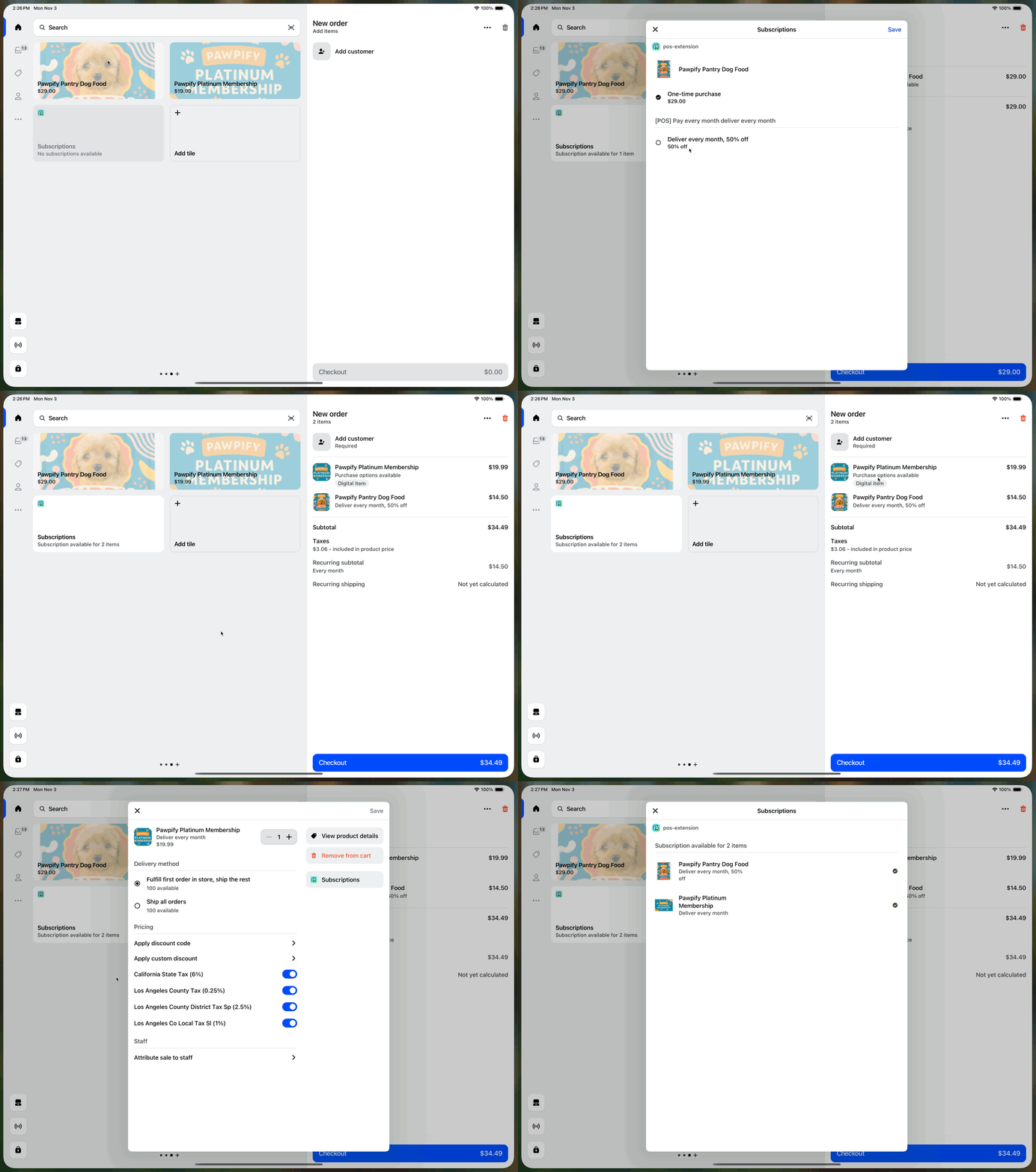
This tutorial shows you how to build a POS UI extension that enables subscription selling plans for products in the cart. You'll create an extension that allows merchants to offer recurring purchases directly from Shopify POS, turning one-time buyers into subscribers.
Anchor to What you'll learnWhat you'll learn
In this tutorial, you'll learn how to do the following tasks:
- Query the GraphQL Admin API for subscription selling plan data from within Shopify POS.
- Build a tile that shows subscription-eligible items.
- Create a modal interface for selecting subscription options.
- Display pricing information and savings for subscriptions.
- Use the Cart API to apply and remove selling plans from line items.
Requirements
Scaffold an app
Scaffold an app using Shopify CLI. This tutorial is compatible with the extension-only template.
Set up a development store with:
- Shopify POS sales channel installed.
- Products with subscription selling plans configured, published to the Shopify POS sales channel.
- Shopify Payments enabled.
- See additional store configuration requirements.
Set up a development store with::
- Shopify POS sales channel installed.
- Products with subscription selling plans configured, published to the Shopify POS sales channel.
- Shopify Payments enabled.
- See additional store configuration requirements.
Generate a POS UI extension
Generate a POS UI extension (minimum version: 2025-10) using the Shopify CLI. When prompted for a type of extension, select POS smart grid to generate Tile.jsx and Modal.jsx files.
Project
Anchor to Update the tile based on cart contentUpdate the tile based on cart content
In Tile.jsx, subscribe to cart changes and update the tile state based on whether the cart contains items eligible for selling plans.
POS UI extensions version 2025-10 introduced properties to indicate whether a product has selling plan groups and the currently applied selling plan.
interface LineItem {
uuid: string;
productId: number;
hasSellingPlanGroups?: boolean; // Product has available selling plans.
sellingPlan?: SellingPlan; // Currently applied selling plan.
}
Important
These new fields and methods are available only if you're using:
- POS UI extensions version 2025-10: Older APIs don't expose this field.
- Shopify POS 10.15+: Using selling plan-related APIs and fields in older versions results in blocked checkouts. We recommend using the Session API (
shopify.session.currentSession.posVersion) to handle the UI differently if your extension is running in an unsupported version.
Important:
These new fields and methods are available only if you're using:
- POS UI extensions version 2025-10: Older APIs don't expose this field.
- Shopify POS 10.15+: Using selling plan-related APIs and fields in older versions results in blocked checkouts. We recommend using the Session API (
shopify.session.currentSession.posVersion) to handle the UI differently if your extension is running in an unsupported version.
Subscribe to cart changes to detect when line items eligible for selling plans are added to the cart.
Enable or disable the tile based on the number of line items eligible for selling plans.
Anchor to Fetch selling plans using Direct Access APIFetch selling plans using Direct Access API
You can make GraphQL Admin API requests directly from your extension using Direct Access API to retrieve selling plans for products in the cart.
Create a function that fetches selling plans for a given variant.
Info
- You'll need the
read_productsaccess scope in yourshopify.app.tomlfile to query variant data. - This example shows the basic implementation. Your production app should handle error scenarios and pagination.
Info:
- You'll need the
read_productsaccess scope in yourshopify.app.tomlfile to query variant data. - This example shows the basic implementation. Your production app should handle error scenarios and pagination.
Warning
- Shopify POS currently only supports subscription selling plans, so you must filter your selling plans by
category === 'SUBSCRIPTION'. - Shopify POS currently doesn't support subscription-only products.
Warning:
- Shopify POS currently only supports subscription selling plans, so you must filter your selling plans by
category === 'SUBSCRIPTION'. - Shopify POS currently doesn't support subscription-only products.
Anchor to Display selling plansDisplay selling plans
In Modal.jsx, display the available selling plans for products in the cart, allowing merchants to select subscription options.
Navigate to Modal.jsx and add code to display selling plans for a given variant.
For simplicity, this example uses only the first selling plan item in the cart. Your production app should allow selling plan selection for all eligible items in the cart.
Anchor to Assign a selling plan to a line itemAssign a selling plan to a line item
In this step, you'll use the Cart API fields introduced in POS UI extensions version 2025-10 to apply a selling plan to a line item when a merchant selects a subscription option.
Create a function that assigns a selling plan to the item.
The Cart API offers two methods for selling plan management:
// Apply a selling plan to a line item.
shopify.cart.addLineItemSellingPlan({
lineItemUuid: 'line-item-uuid',
sellingPlanId: 123456,
sellingPlanName: 'Monthly Subscription - 10% off'
});
// Remove a selling plan from a line item.
shopify.cart.removeLineItemSellingPlan('line-item-uuid');
This example handles only selling plan selection. To remove a selling plan, use the removeLineItemSellingPlan method. Refer to addLineItemSellingPlan and removeLineItemSellingPlan.
Anchor to (Optional) Add to other action targets(Optional) Add to other action targets
You can extend the subscription functionality to other action targets in your extension. This example uses the line item details action menu item and its corresponding action.
Create new files for the line item details action menu item and action: MenuItem.jsx and Action.jsx.
Add new targets to your extension configuration TOML file and reference the new files as modules.
In MenuItem.jsx, enable the line item details action menu item when the cart line item is eligible for selling plans.
In Action.jsx, fetch selling plans for the item, display them, and handle selling plan selection.
Anchor to Add a description for your extensionAdd a description for your extension
In Shopify POS, a description helps merchants discover and add your extension. This description is used as the label for your extension in Shopify POS.
When you generate a POS UI extension from Shopify CLI, the extension description defaults to the name of the extension. You can update the description in the generated TOML file (shopify.extension.toml).
Anchor to Test and deployTest and deploy
Test your extension with real selling plan data in your development store. Verify the following:
- Products with subscription selling plans appear correctly.
- Selling plans can be applied and removed from line items.
- Edge cases are handled properly (for example, products without selling plans, or API errors).
For more information, refer to Deploy app extensions.
Troubleshooting
Troubleshooting
Anchor to Selling plans not appearingSelling plans not appearing
If selling plan items aren't showing up, complete the following checks:
- Verify that products have active selling plan groups.
- Verify that products have been published to the Shopify POS sales channel.
- Confirm that the variant ID is correct in your query.
Anchor to Can't apply selling plan to cartCan't apply selling plan to cart
Common causes:
- The selling plan ID might be incorrect.
- The product might not be eligible for the selected plan.
Check the browser console for specific error messages.
Anchor to Learn moreLearn more


Was this page helpful?