---
title: Create a custom Liquid block for nested cart lines
description: >-
Learn how to create nested cart lines for extended warranties using the Cart
AJAX API and metafields
source_url:
html: >-
https://shopify.dev/docs/apps/build/product-merchandising/nested-cart-lines/tutorial
md: >-
https://shopify.dev/docs/apps/build/product-merchandising/nested-cart-lines/tutorial.md
---
# Create a custom Liquid block for nested cart lines
This tutorial covers how to create nested cart lines for extended warranties using the Cart AJAX API and metafields with a custom Liquid block.
***
## 1.Create variant metafield definition for extended warranties
First, you'll need to create a metafield definition that maps a product to their available extended warranty options.
Create a metafield definition named `extended_warranty` on the product object and set the metafield type to a list of product variants.
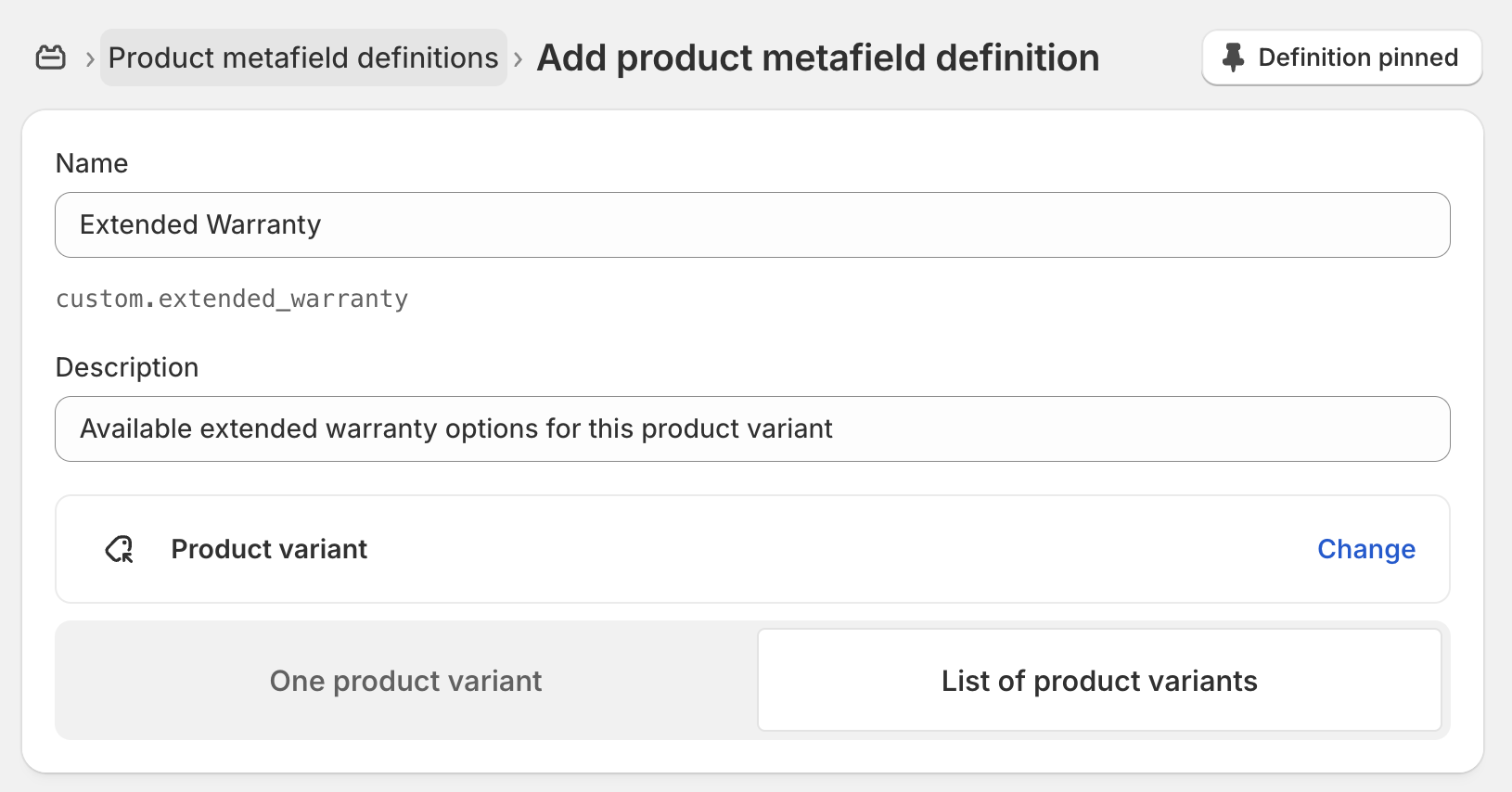
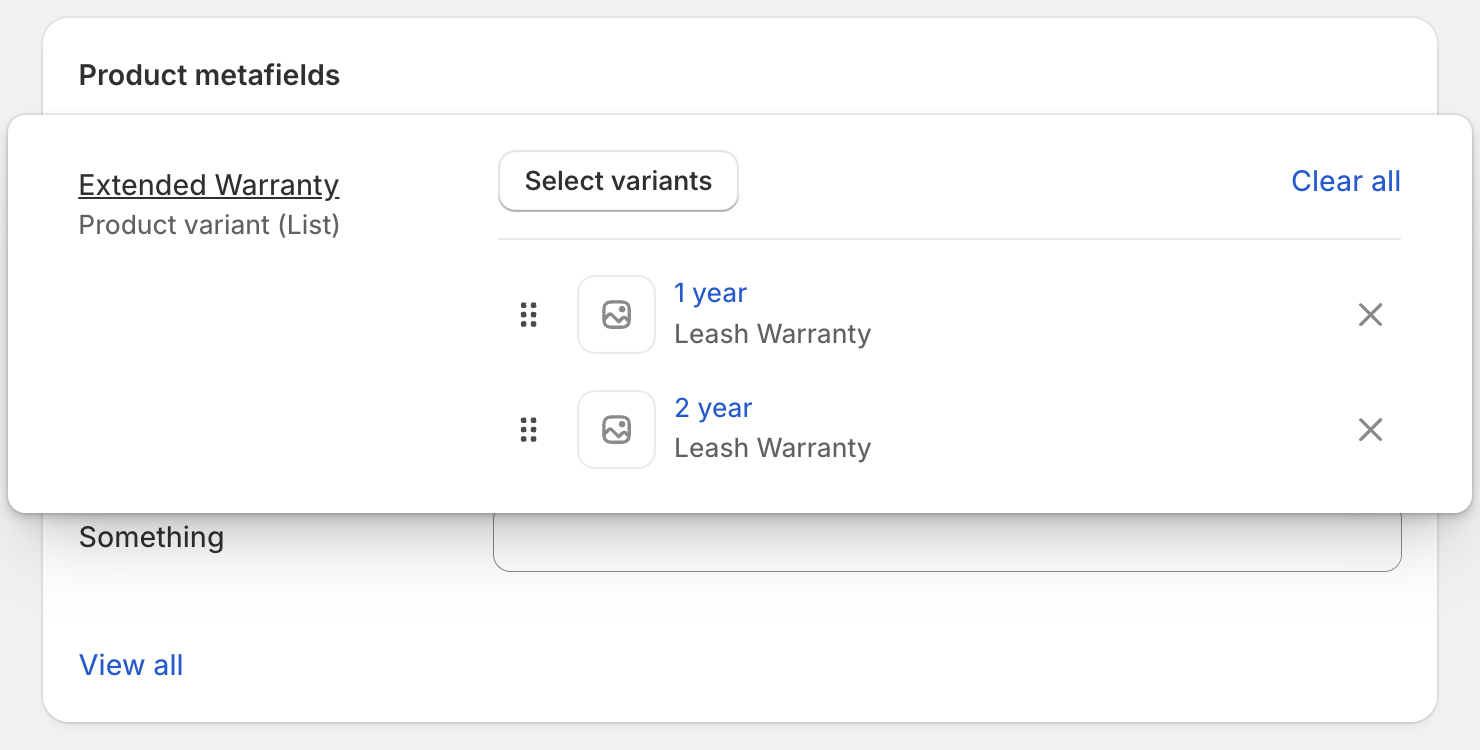
This metafield will store references to warranty product variants that can be offered for each product variant. This can be configured in the Shopify admin product details page.
***
## 2.Custom Liquid block for creating nested cart line
Next, you'll create custom Liquid block that reads the extended warranty metafield and displays the available warranty options to customers.
On your theme editor, add a custom Liquid block on the product details page.
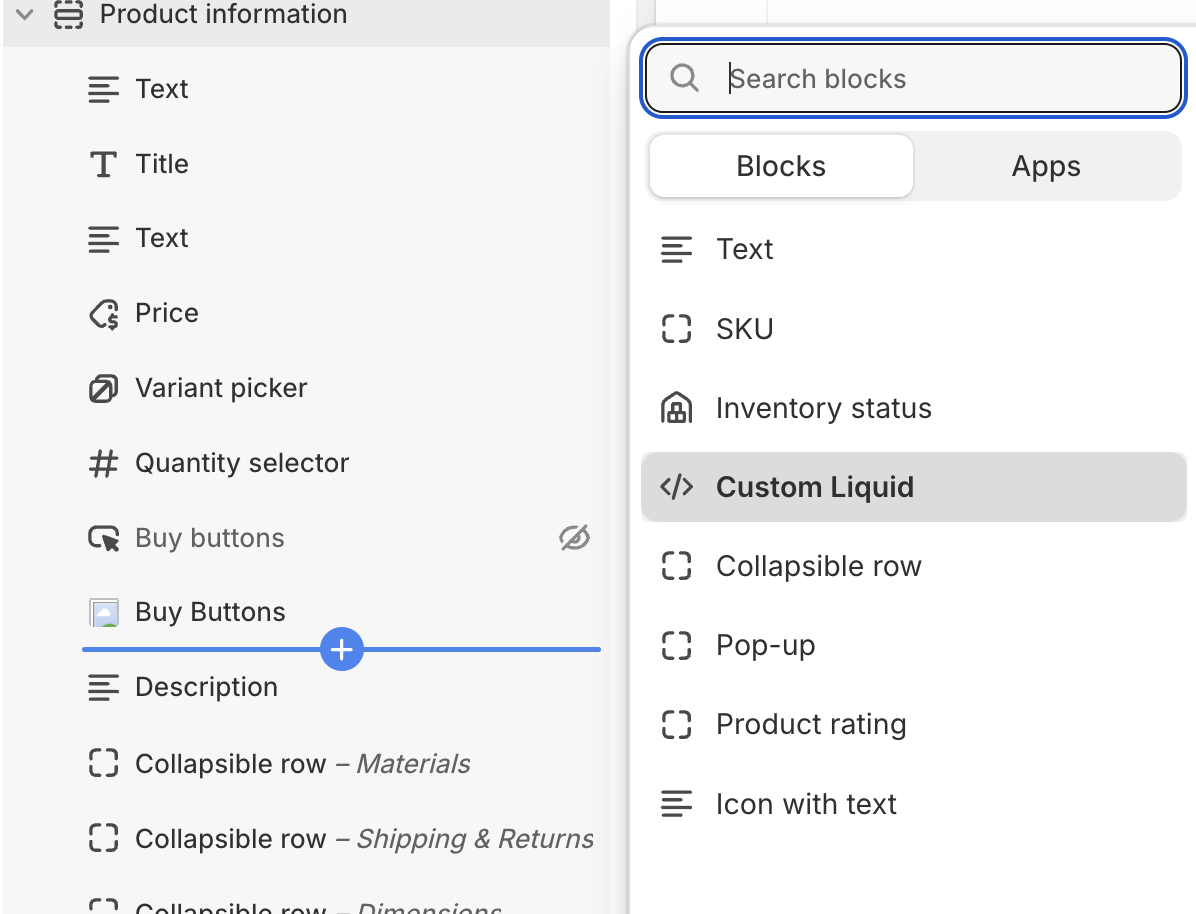
Paste the following snippet:
## Custom Liquid block
```liquid
{% assign current_variant = product.selected_or_first_available_variant %}
{% assign warranties = product.metafields.custom.extended_warranty.value %}
Protect Your Purchase
{% for warranty in warranties %}
{% else %}
No warranty options available
{% endfor %}
```
Once saved, the block will be rendered on the product details page and the "Add to Cart" button will enable multiple product variants to be added to the cart, with selected variants containing a reference to the parent cart line.
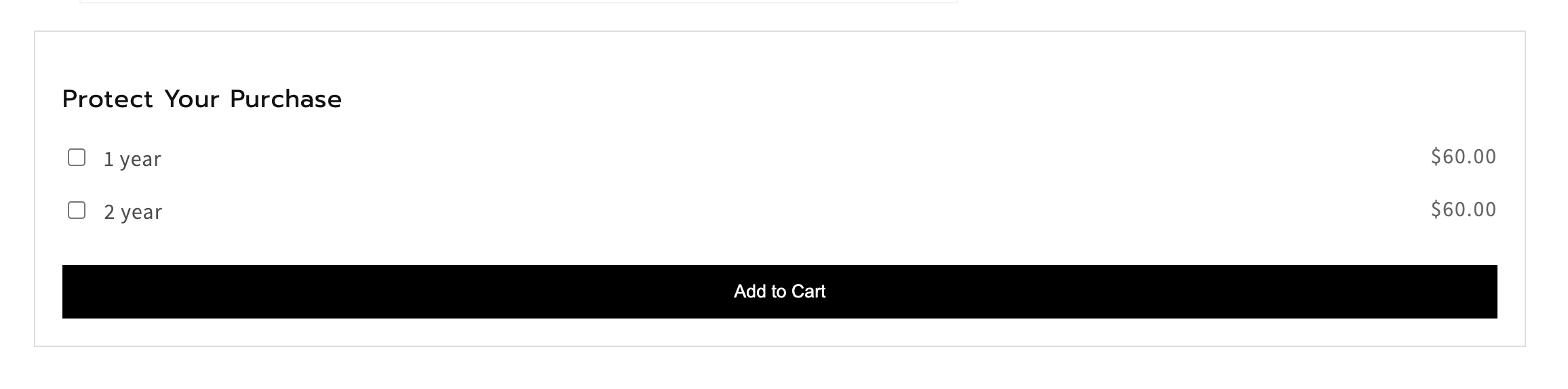
When added to the cart, nested cart lines will have distinct representation on Checkout.
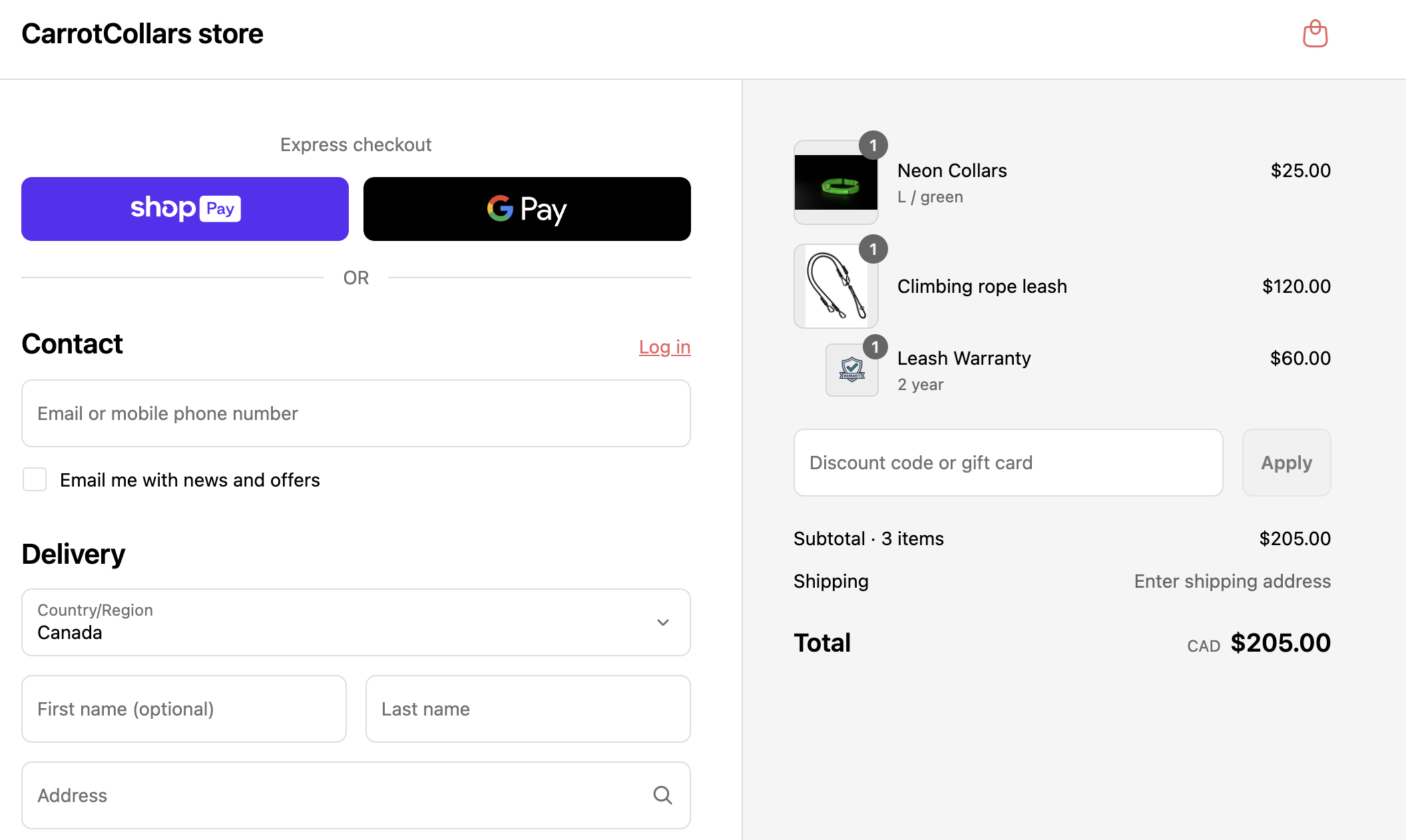
**Note:**
If you want to build validation to ensure that only eligible products were nested, the [Cart and Checkout Validation Function](https://shopify.dev/docs/api/functions/latest/cart-and-checkout-validation) can be leveraged.
***
## 3.Defining nesting rules
You can use custom data like custom data like [product reference lists](https://help.shopify.com/en/manual/custom-data/metafields/metafield-definitions/metafield-lists) to define nesting rules. Depending on the use case, you can either:
* List all the products (or variants) a specific product (or variant) can be nested under.
* List all the products (or variants) that can be nested under a specific product (or variant).
This data can be read by:
* Themes in order to display the right products.
* Cart validation functions in order to validate the data before nesting the product under another one in the cart.
**Note:**
It is important to validate the cart using functions in order to ensure someone trying to manipulate the storefront using the cart API directly can't bypass the rules defined by the merchant through the app. Same goes for quantity and line splitting rules.
In this example, checkout and cart validation function has been deployed with an app for checking allowed nested cart lines. A metafield, `nestable_products` contains a list of allowed products that can be nested.
## Example Cart Validation function
## run.graphql
```graphql
query RunInput {
cart {
lines {
id
quantity
lineRelationship {
parent {
id
quantity
merchandise {
...MerchandiseFields
}
}
}
merchandise {
...MerchandiseFields
}
}
}
}
fragment MerchandiseFields on Merchandise {
... on ProductVariant {
id
metafield(key: "nestable_variants") {
value
type
jsonValue
}
title
product {
id
title
metafield(key: "nestable_products", namespace: "custom") {
value
type
jsonValue
}
}
}
}
```
## run.ts
```typescript
import type {
RunInput,
CartValidationsGenerateRunResult,
ValidationError,
MerchandiseFields,
} from "../generated/api";
type ExtractMerchandise = T extends { id: string }
? T
: never;
type Merchandise = ExtractMerchandise;
function performValidationChecks(lineMerch: Merchandise, parentMerch: Merchandise): boolean {
const childProductId = lineMerch.product?.id;
// This is a metafield that contains an array of product ids that are compatible with the parent product
const compatibleChildProducts = parentMerch.product?.metafield?.jsonValue;
// Check if the child product is in the list of compatible child products
return compatibleChildProducts?.includes(childProductId) ?? false;
}
export function cartValidationsGenerateRun(input: RunInput): CartValidationsGenerateRunResult {
const errors: ValidationError[] = [];
for (const line of input.cart.lines) {
const parent = line.lineRelationship?.parent;
if (!parent) continue;
const lineMerch = line.merchandise;
const parentMerch = parent.merchandise;
const isValid = performValidationChecks(lineMerch, parentMerch);
if (!isValid) {
errors.push({
message: `Parent ${parentMerch.title} is not compatible with child ${lineMerch.title}`,
target: "$.cart",
});
}
}
const operations = [
{
validationAdd: {
errors,
},
},
];
return { operations };
};
```
***