Set up iframe protection
Apps on the Shopify App Store must set the proper Content Security Policy frame-ancestors directive to avoid clickjacking attacks. If the Content Security Policy frame-ancestors directive is missing or set incorrectly when you submit your app to the Shopify App Store, then your app might be rejected. You'll be required to address this before re-submitting your app for review.
To learn more about clickjacking, refer to Portswigger's Web Academy or OWASP Clickjacking. To learn more about the frame-ancestors directive, refer to MDN Web Docs.
To learn more about clickjacking, refer to Portswigger's Web Academy or OWASP Clickjacking. To learn more about the frame-ancestors directive, refer to MDN Web Docs.
Anchor to Apps rendered in the Shopify adminApps rendered in the Shopify admin
If your app is rendered in the Shopify admin, then you need to make sure that your app is only frameable by the authenticated shop domain. Set the frame-ancestors directive dynamically based on the current shop domain and the Shopify admin domain. Setting this directive guarantees that your app can be framed only within the shop admin.
For example, if the shop shopify-dev.myshopify.com installs your app, then the response headers from your app when being rendered by this shop will contain the following frame-ancestors declaration:
You can include other declarations in your Content-Security-Policy header besides frame-ancestors.
The frame-ancestors declaration must be different for every shop, and these headers must be present in any routes that render HTML content.
The frame-ancestors declaration must be different for every shop, and these headers must be present in any routes that render HTML content.
Anchor to Standalone appsStandalone apps
If your app isn't rendered in the Shopify admin, we recommend setting the frame-ancestors directive to 'none' in order to disallow framing.
Anchor to TroubleshootingTroubleshooting
Apps can fail to meet the iframe protection requirement in the following ways:
-
The app isn't rendered in the Shopify admin, but is configured as if it is
-
The app is rendered in the Shopify admin, but isn't following the expected
frame-ancestorsguidelinesThe following scenarios explain how to correct these issues.
Anchor to The app shouldn't be rendered in the Shopify admin, but is configured to beThe app shouldn't be rendered in the Shopify admin, but is configured to be
If your app isn't rendered in the Shopify admin, then it shouldn't be configured to be.
Anchor to Configure via the CLIConfigure via the CLI
If you're managing your app with Shopify CLI, you can set the embedded configuration in your shopify.app.toml file:
-
Open your
shopify.app.tomlfile in the root of your app directory. -
Set the
embeddedproperty tofalse:embedded = false -
To make your app configuration changes live, release a new app version with
shopify app deploy. Learn more about app configuration.
Anchor to Configure via the Dev DashboardConfigure via the Dev Dashboard
If you're managing your app with Dev Dashboard, you can set the embedded configuration in the UI:
- Log in to your Dev Dashboard.
- Click Apps.
- Select your app from the list.
- Click Versions, then Create a version.
- In the URLs section, ensure the Embed app in Shopify admin option is not selected.
- Click Release and enter an optional version name and message.
- Click Release again to confirm the release of a new version.
Anchor to The app is rendered in the Shopify admin, but isn't following the expected ,[object Object], guidelinesThe app is rendered in the Shopify admin, but isn't following the expected frame-ancestors guidelines
frame-ancestors guidelinesThis scenario uses the following example values:
-
Fraud Filteras the app -
cambridgetestshop-staging.myshopify.comas the shopTo validate whether
Fraud Filterimplements the expected headers, follow these steps:
-
Log in to the
cambridgetestshop-stagingshop. -
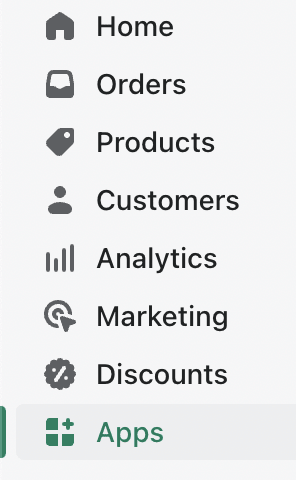
Click Apps.
-
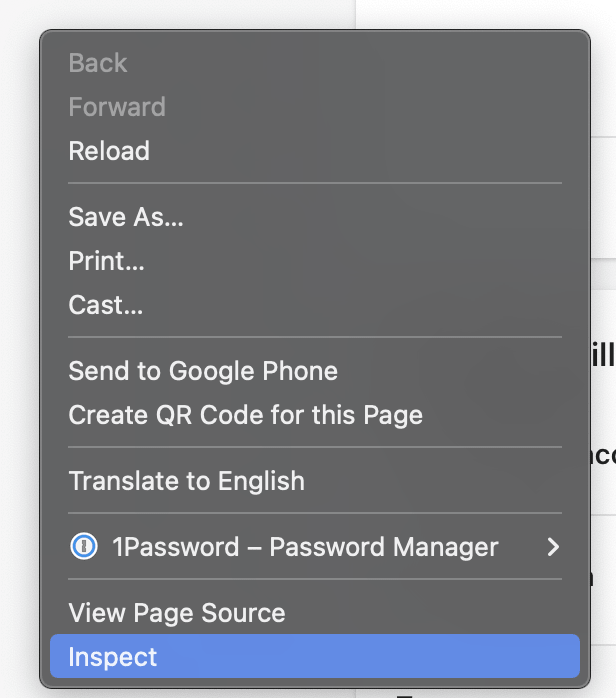
Right-click anywhere on the page and select Inspect.
-
Select the Network tab.

-
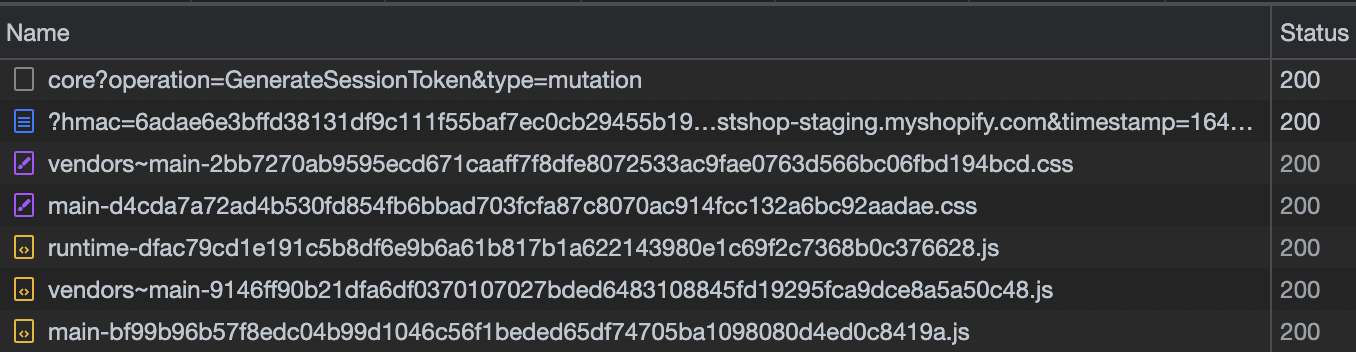
Load your app by clicking on its name. The content of the Network tab will start to change.

-
Click Doc in the Network tab to filter requests for documents.

-
Click the document to load a panel with more details.
- If there's more than one document, then select the last one in the list.

-
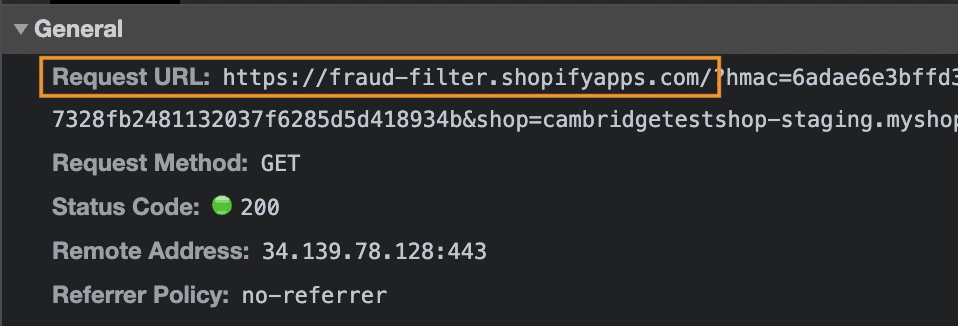
Check the Request URL. The URL should be from the app's domain. In this scenario, the Request URL is from the Fraud Filter app domain.
-
Check that the "frame-ancestors" directive is included in the "Content-Security-Policy" header.
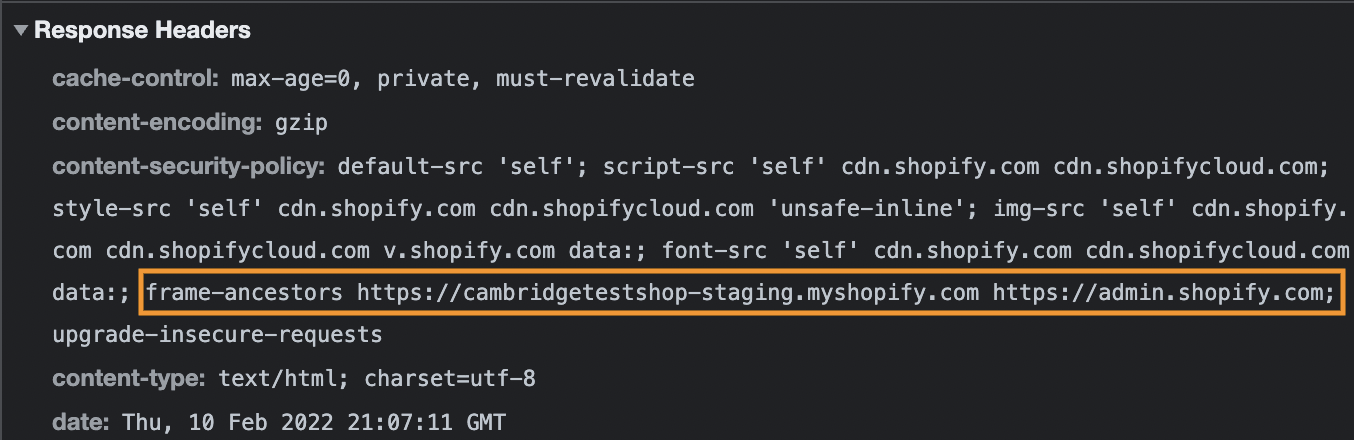
In this scenario, the directive is correctly included for the cambridgetestshop-staging.myshopify.com shop.