Use extensions to surface app data
Use an app extension to expose data in your app to Sidekick. By providing your app's data in an app extension, Sidekick can search your app's data to get tailored results. Merchants can get value from your app just by working with Sidekick, while also staying in their flow.
Anchor to Use case example in this guideUse case example in this guide
This guide shows you how to allow Sidekick to search your app's data. You can use this example to build your own app extension for search, and other tasks.
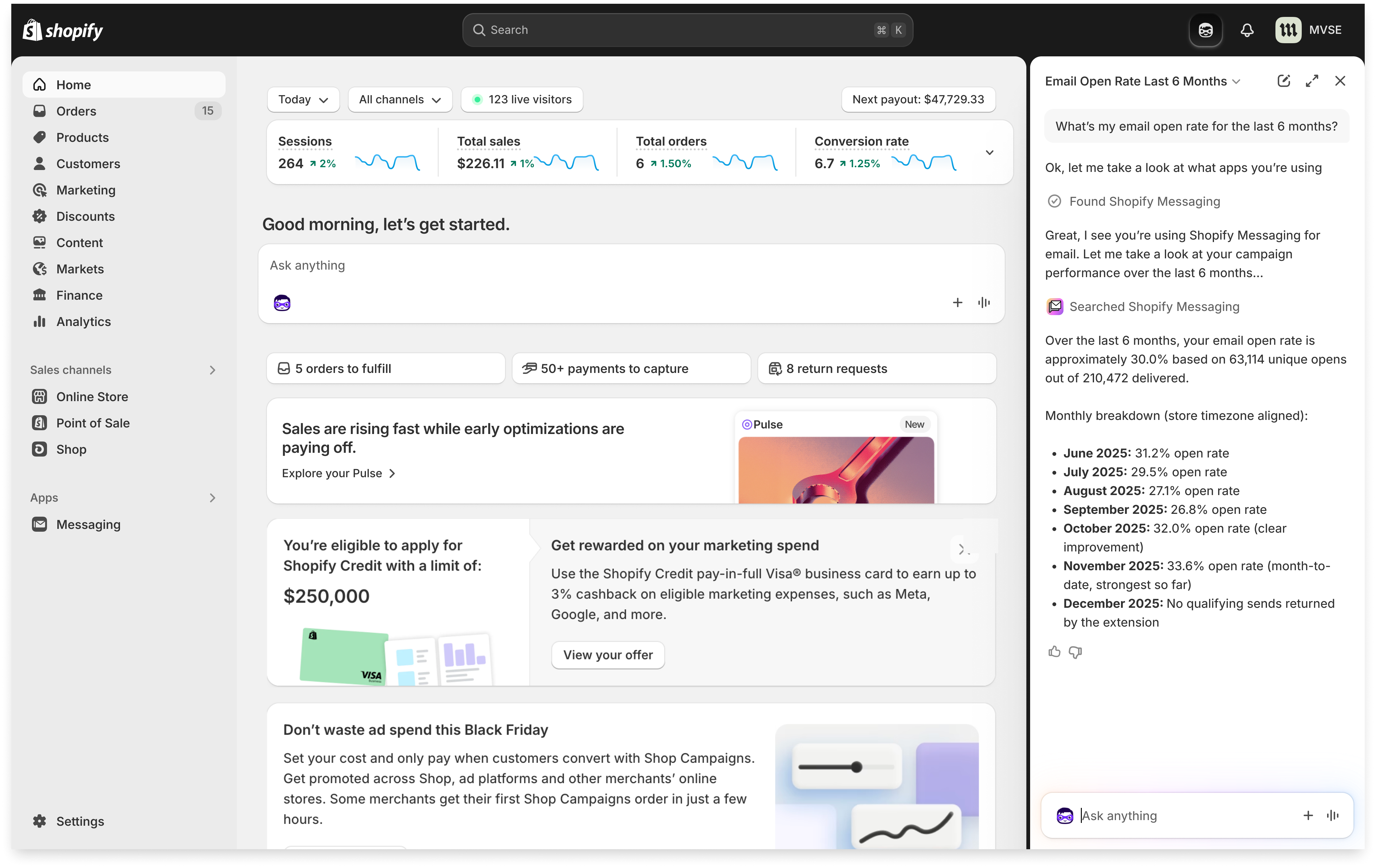
In this example, a merchant can ask Sidekick to find the best performing subject lines in their email campaigns. Sidekick searches using the app extension in the email app, then returns the best options. Clicking on an option invokes the email app, navigated right to the correct result.
Anchor to RequirementsRequirements
- Create an app.
- For App Home, use the latest version of App Bridge.
- Authenticate with Shopify managed install and token exchange, not the legacy OAuth install flow. See Authentication.
- Add an
extensions_summaryto yourshopify.app.toml. This is required for all apps with Sidekick-eligible extensions. - Shopify CLI 3.90.0 or later. Run
shopify versionto check your installed version. - Add
https://extensions.shopifycdn.comto your app's CORS allowlist so your backend accepts requests from the Sidekick sandbox.
Anchor to Allow Sidekick to use your app's dataAllow Sidekick to use your app's data
Existing MCP servers can't be reused directly with Sidekick. Tools must run in Shopify's sandbox and use Shopify authentication. The tools schema follows MCP-like patterns but is Shopify-specific — statically indexing tools is what keeps Sidekick fast.
Existing MCP servers can't be reused directly with Sidekick. Tools must run in Shopify's sandbox and use Shopify authentication. The tools schema follows MCP-like patterns but is Shopify-specific — statically indexing tools is what keeps Sidekick fast.
In this example, a merchant can ask Sidekick to find the best performing subject lines in their email campaigns. Sidekick searches using the app extension in the email app, then returns the best options. Clicking on an option invokes the email app, navigated right to the correct result.
This app extension is headless, can be run at any point from anywhere, and can be called programmatically for Shopify search in the admin.
Anchor to Create an app extensionCreate an app extension
Use shopify-cli to create an app extension.
Terminal
This will create a UI extension in the extensions folder.
App tools folder structure
Anchor to Configure your app extensionConfigure your app extension
Customize your app's extension in shopify.extension.toml to include a description. Optionally, you can link to instructions for how Sidekick should use your app extension.
extensions/tools/shopify.extension.toml
admin.app.tools.data is a special target that is not tied to a Shopify resource and executes headlessly.
The description field in shopify.extension.toml is required — you'll get a validation error if you leave it blank. Sidekick uses this field to determine when your extension is relevant to a merchant's question. A vague description like "Search extension for your app" won't give Sidekick enough context to invoke your extension reliably. Instead, be specific about the domain and tasks your extension covers. See Writing effective extension descriptions for detailed guidance and examples.
admin.app.tools.data is a special target that is not tied to a Shopify resource and executes headlessly.
The description field in shopify.extension.toml is required — you'll get a validation error if you leave it blank. Sidekick uses this field to determine when your extension is relevant to a merchant's question. A vague description like "Search extension for your app" won't give Sidekick enough context to invoke your extension reliably. Instead, be specific about the domain and tasks your extension covers. See Writing effective extension descriptions for detailed guidance and examples.
The description field has a 256-token limit. The instructions.md file has a 2,048-token limit.
The description field has a 256-token limit. The instructions.md file has a 2,048-token limit.
Anchor to Write your JavaScript moduleWrite your Java
When your app's extension is invoked, your JavaScript will be called automatically in Shopify's sandboxed browser environment. Tools run client-side. The sandbox provides access to Direct API for making GraphQL queries, and App Authentication for fetching data from your app's backend — see Authentication for token handling details.
Tools must return JSON. Sidekick doesn't currently render custom UI from extension responses, so use resource links to connect results to actions. Aim for tool responses under 1 second; extensions that consistently exceed this threshold may be skipped by Sidekick.
Your app extension must only be used for retrieving data from your app. If you need to perform actions in your app, use an app extension and see resource links for more information. If you need to link to pages inside your embedded app, use an app protocol URL.
extensions/tools/src/index.js
Your app extension must return a response of 4,000 tokens or less. Responses that exceed either limit will be rejected.
Responses should be returned within 1 second. Extensions that consistently exceed this threshold may be skipped by Sidekick.
Your app extension must return a response of 4,000 tokens or less. Responses that exceed either limit will be rejected.
Responses should be returned within 1 second. Extensions that consistently exceed this threshold may be skipped by Sidekick.
Anchor to Write your tools schemaWrite your tools schema
Declare your schema in the JSON file referenced in shopify.extension.toml.
./tools.json
Each tool name can be up to 64 characters. Each tool description can be up to 512 characters. You can register a maximum of 20 tools for each app, shared across all extensions (data and action).
Each tool name can be up to 64 characters. Each tool description can be up to 512 characters. You can register a maximum of 20 tools for each app, shared across all extensions (data and action).
Anchor to Write instructions for using the app extensionWrite instructions for using the app extension
Define instructions for how Sidekick should use your app extension in a instructions.md file.
instructions.md is optional, but is highly recommended for providing context and guidance to Sidekick about your app extension.
instructions.md is optional, but is highly recommended for providing context and guidance to Sidekick about your app extension.
./instructions.md
Anchor to Putting it all togetherPutting it all together
After following this tutorial, your extensions folder structure should look like this:
Folder structure
Anchor to Data output with resource linksData output with resource links
Sidekick is optimized for results that are returned in Model Context Protocol's Resource Links format. Using the Resource Links format ensures Sidekick will know how to invoke your app's actions on the data returned by your extension. For a worked example connecting a search tool's resource link output to an action-link extension's intent, see End-to-end example: search, open, and edit an email campaign.
Your tool should return a results array containing one or more resource link objects. Each resource link must include the following fields:
| Field | Required | Description |
|---|---|---|
type | Yes | The resource link type identifier. Must be "resource_link". |
uri | Yes | A URI that uniquely identifies the resource in your app. For example, gid://application/email/123. The gid:// prefix is required if you want Sidekick to strip the GID and substitute the bare tail identifier into a mapTo: "param" URL placeholder. See How placeholder substitution works. |
name | Yes | A human-readable label for the resource. |
mimeType | Yes | The content type of the resource. For example, application/email. Must match the type declared in your app's intent configuration. This is how Sidekick connects a search result to the correct action. |
_meta | No | An object containing summary data about the resource. Use this to include key details that Sidekick can reason about without needing a separate fetch. |
The mimeType value in your resource link must match the type field in your intent's shopify.extension.toml configuration. This is what allows Sidekick to connect a data result to the right app action. For example, if your intent declares type = "application/email", your resource links should use mimeType: "application/email".
The mimeType value in your resource link must match the type field in your intent's shopify.extension.toml configuration. This is what allows Sidekick to connect a data result to the right app action. For example, if your intent declares type = "application/email", your resource links should use mimeType: "application/email".
_meta for summary data_meta is the canonical place to attach the summary data the model needs to reason about a result. It matches the MCP Resource Links shape and is what Sidekick's tooling and other tutorials look for. Use it instead of inventing parallel field names like metadata or details.
_meta for summary data: _meta is the canonical place to attach the summary data the model needs to reason about a result. It matches the MCP Resource Links shape and is what Sidekick's tooling and other tutorials look for. Use it instead of inventing parallel field names like metadata or details.
Anchor to Basic exampleBasic example
Use the uri field to link directly to a specific resource in your app.
Example search campaign tool results
Anchor to Include summary data with ,[object Object]Include summary data with _meta
_metaYou can include summary data in the _meta field to give Sidekick context it can reason about immediately, without making additional requests. We recommend this hybrid approach when the model needs to answer questions about the data (for example, filtering by status or reporting on dates) while still providing clickable resource links.
Example results with summary data
Anchor to Best practices for resource linksBest practices for resource links
Follow these guidelines to get the best results from Sidekick when returning resource links.
Keep _meta concise. Only include the fields the model is most likely to need, such as status, dates, or key metrics. Large nested structures consume tokens quickly — if a response exceeds the 4,000-token limit (approximately 16,000 characters), it will be rejected and the merchant won't see any results.
Let the resource link handle full detail. The uri points to the complete resource in your app. Use _meta for a summary that helps the model answer the merchant's question, and let the merchant click through for everything else.
Match mimeType to your intent type. If mimeType doesn't match the type in your intent configuration, Sidekick won't be able to connect the search result to the correct action. For example, if your intent declares type = "application/email", every resource link for that intent should use mimeType: "application/email".
Use stable URIs. The uri value should be a stable identifier that won't change over time (for example, a GID). Sidekick may reference these URIs in follow-up actions, so they need to resolve consistently.
Anchor to Data output with embedded app linksData output with embedded app links
Sidekick can link to pages in your embedded app when your tool returns results with URLs that use the app: protocol. Shopify constructs the base URL for your app and navigates directly to your embedded app.
Embedded app links are a different result shape from a resource link: use a url field (not uri), and the resource-link type, name, and mimeType fields don't apply. Sidekick resolves any URL value that uses the app: protocol against your embedded app's base URL.
Example embedded app link
Anchor to AuthenticationAuthentication
Requests from a Sidekick tool to your app backend carry an ID token, which your backend exchanges for an access token using token exchange. Shopify recommends scaffolding your app with Shopify CLI, which sets it up with Shopify managed installation for installs and scope grants, and an app template that performs the token exchange for you. The legacy OAuth install flow doesn't work for Sidekick tools.
Tools run in Shopify's sandboxed browser environment and use Shopify's existing sandbox authentication for outbound fetch calls. For requests to your app's configured auth domain (or its subdomains), Shopify automatically attaches an Authorization header. For requests to any other domain, call auth.idToken() and attach the bearer token yourself.
If you scaffolded with the React Router app template, your server calls authenticate.admin(request), which validates the ID token, performs the token exchange, and returns an authenticated admin client. Those requests are cross-origin, so pair authenticate.admin() with the returned cors helper to include the required headers:
If you aren't using Shopify's app templates or packages, see Authenticate an embedded app without a template to implement the exchange yourself. For more detail on how tools authenticate, see App authentication.
Anchor to Develop and test your extensionDevelop and test your extension
Sidekick extensions run differently than some other extension types. Follow these steps to run and test your extension locally. For a step-by-step round-trip checklist that combines a data extension with an action-link extension, see Verify the round trip locally in the app actions guide.
Anchor to Run your extension locallyRun your extension locally
Start your local dev server to make your extension available in Sidekick:
Terminal
Install your app on your dev store, then open the Shopify admin and navigate to your store.
p commandThe p shortcut from the Shopify CLI isn't yet supported for Sidekick extensions. Open your dev store directly in your browser instead.
p command: The p shortcut from the Shopify CLI isn't yet supported for Sidekick extensions. Open your dev store directly in your browser instead.
You should see your extension in the dev panel. Click the preview link for the admin.app.tools.data target to open Sidekick, then ask a question that would invoke your tool.
Anchor to Debug your extensionDebug your extension
Tools execute client-side in the browser sandbox, so logs and errors appear in your browser's developer console. Changes you make reload automatically, so you can ask Sidekick to run the tools again.