Build a subscription contract
A subscription contract is the agreement between a customer and a merchant over a specific term for recurring purchases over a set or undefined period of time.
This guide shows you how to submit a complete desired state to subscriptionContractCreateCalculate, review Shopify's calculated result, and commit it as an active subscription contract. It includes examples for "Subscribe and save" and prepaid subscriptions.
The SubscriptionContractCalculation API is available in GraphQL Admin API version 2026-10 and later. If your app uses the SubscriptionDraft API, refer to the legacy contract creation guide.
The SubscriptionContractCalculation API is available in GraphQL Admin API version 2026-10 and later. If your app uses the SubscriptionDraft API, refer to the legacy contract creation guide.
Anchor to RequirementsRequirements
- Most subscriptions, pre-order and try before you buy apps need to request API access through the Partner Dashboard. We give API access to apps that are designed according to our principles for subscriptions, pre-order and TBYB apps.
- Public apps that use subscriptions, pre-order or TBYB need to meet specific requirements to be published on the Shopify App Store.
- Custom apps created in the Shopify admin can't use subscriptions, pre-order or TBYB because these apps can't use extensions or request access to protected scopes. If you're building a solution for a single store, then create your custom app in the Dev Dashboard.
- Most subscriptions, pre-order and try before you buy apps need to request API access through the Partner Dashboard. We give API access to apps that are designed according to our principles for subscriptions, pre-order and TBYB apps.
- Public apps that use subscriptions, pre-order or TBYB need to meet specific requirements to be published on the Shopify App Store.
- Custom apps created in the Shopify admin can't use subscriptions, pre-order or TBYB because these apps can't use extensions or request access to protected scopes. If you're building a solution for a single store, then create your custom app in the Dev Dashboard.
- Your app can make authenticated requests to the GraphQL Admin API.
- Your app has the
read_own_subscription_contractsandwrite_own_subscription_contractsaccess scopes. Learn how to configure your access scopes using Shopify CLI. - You've created products and product variants in your development store.
- Use the GraphQL Admin API version
2026-10or later. - Familiarize yourself with subscription contracts.
- Identify the customer, product variants, delivery method, and customer payment method for the contract.
- Use an existing customer payment method that's vaulted for subscriptions or a card on file. Customers can also add a payment method in customer accounts. Subscribe to the
customer_payment_methods/createwebhook topic to receive new payment method events.
You can create and commit a contract without a payment method by passing paymentMethod: { none: true }. To create an order for that contract, pass paymentProcessingPolicy: SKIP_PAYMENT_AND_CREATE_UNPAID_ORDER to the billing-attempt mutation. Otherwise, add a valid payment method before billing.
You can create and commit a contract without a payment method by passing paymentMethod: { none: true }. To create an order for that contract, pass paymentProcessingPolicy: SKIP_PAYMENT_AND_CREATE_UNPAID_ORDER to the billing-attempt mutation. Otherwise, add a valid payment method before billing.
Anchor to How contract calculation worksHow contract calculation works
Contract creation uses an asynchronous calculate and commit flow:
- Submit the complete desired contract state.
- Poll the calculation or wait for a webhook. Shopify emits
subscription_contract_calculations/succeedwhen a calculation succeeds andsubscription_contract_calculations/failwhen it fails or is voided. - Review the calculated contract, projected totals, warnings, or errors.
- Commit a successful calculation.
The calculated result is an immutable snapshot. Committing creates an active contract. The create input doesn't accept a status. After committing, use subscriptionContractPause, subscriptionContractCancel, subscriptionContractExpire, or subscriptionContractFail to change the contract status.
Anchor to Step 1: Calculate the contractStep 1: Calculate the contract
Call subscriptionContractCreateCalculate with the complete desired state for the contract. The input includes at least one line, the customer and currency, billing and delivery policies, delivery and payment methods, and arrays for discounts and custom attributes. Set the required withMerchandiseCustomizations field to true to run merchandise transformations — both fixed bundle expansion from a stored definition and Shopify Functions that customize merchandise, such as cart transforms — or false to bypass them. For how each value affects bundles, refer to Edit subscription contracts with bundles.
Depending on your selling strategy, you might create a "Subscribe and save" or a prepaid subscription.
Anchor to Subscribe and save subscriptionsSubscribe and save subscriptions
For a subscription that's billed each delivery period, set the billing cadence and omit multiFulfillment from the delivery policy. The following example bills and delivers monthly:
POST https://{shop}.myshopify.com/admin/api/2026-10/graphql.json
GraphQL mutation
JSON response
Anchor to Prepaid subscriptionsPrepaid subscriptions
For a prepaid subscription, bill less frequently than you deliver. Use multiFulfillment to define the delivery cadence and the number of fulfillments in each billing cycle. The billing cadence must be a whole-number multiple of the delivery cadence. The following example bills every three months and delivers monthly:
POST https://{shop}.myshopify.com/admin/api/2026-10/graphql.json
GraphQL mutation
JSON response
If the mutation returns a user error, then correct the input before polling. Shopify doesn't create an asynchronous calculation when input validation fails.
Anchor to Step 2: Poll for the calculation resultStep 2: Poll for the calculation result
The calculate mutation returns a pending calculation. Poll for the result and review it before committing.
Contract calculations run asynchronously. Most calculations finish in less than three seconds, but Functions and external services can increase processing time. Use the calculation ID returned by the calculate mutation to query subscriptionContractCalculation:
POST https://{shop}.myshopify.com/admin/api/2026-10/graphql.json
GraphQL query
Variables
Pending response
The query returns one of the following types:
| Type | Meaning | Action |
|---|---|---|
SubscriptionContractCalculationPending | Shopify initiated or is processing the calculation. | Continue polling. |
SubscriptionContractCalculationSuccess | The calculated contract is ready to review and commit. | Review the result before committing. |
SubscriptionContractCalculationFailure | The calculation failed (processed with errors) or Shopify voided it (never processed, for example, because of an infrastructure issue). | If it failed, read errors and correct the input before calculating again. If it was voided, errors is empty and there's nothing to fix in the input, so retry the calculation. |
Wait two seconds before the first poll, poll every second, and stop after 30 seconds. If the calculation is still pending, then retry later or wait for a webhook instead of increasing the polling frequency.
Anchor to Review the calculated contractReview the calculated contract
Before committing, inspect the following fields on SubscriptionContractCalculationSuccess:
calculatedContract: The complete contract snapshot that the commit applies.projectedOrderTotals: The projected merchandise, delivery, discount, tax, and total amounts.warnings: Existing-data or compatibility problems that don't prevent the calculation from succeeding.
A successful calculation is immutable. If you need to change the input, then start a new calculation and commit only the result that you want to make active.
A successful calculation can contain warnings. Review them before committing because they can identify disabled currencies, delivery configuration problems, or other existing contract data that Shopify preserved instead of blocking the update.
A successful calculation can contain warnings. Review them before committing because they can identify disabled currencies, delivery configuration problems, or other existing contract data that Shopify preserved instead of blocking the update.
Anchor to Use webhooks instead of pollingUse webhooks instead of polling
For event-driven processing, subscribe to the following webhook topics:
| Topic | Description |
|---|---|
subscription_contract_calculations/succeed | The calculation succeeded and is ready to review and commit. |
subscription_contract_calculations/fail | The calculation failed or Shopify voided it. A failed calculation has errors to query; a voided one has empty errors, so retry it. |
Create a webhook subscription with webhookSubscriptionCreate:
POST https://{shop}.myshopify.com/admin/api/2026-10/graphql.json
GraphQL mutation
Webhook payload
Use admin_graphql_api_id to query the completed calculation. Webhook delivery doesn't commit the result automatically.
Anchor to Step 3: Commit the calculationStep 3: Commit the calculation
After the calculation succeeds and you've reviewed the result, call subscriptionContractCalculationCommit. The commit makes the calculated contract active for billing:
POST https://{shop}.myshopify.com/admin/api/2026-10/graphql.json
GraphQL mutation
JSON response
Handle commit user errors by code:
| Code | Meaning | Action |
|---|---|---|
NOT_READY_TO_COMMIT | The calculation hasn't succeeded yet. | Continue polling before retrying the commit. |
CALCULATION_NOT_FOUND | The calculation ID doesn't exist or isn't available to the app. | Verify the ID and app access. |
STALE_CONTRACT | The contract changed after this calculation started. | Query the latest contract state and calculate again. |
INVALID | Shopify can't commit the calculation. | Use field and message to correct the request. |
You can safely retry polling and commit requests. Retrying a calculate mutation creates a new calculation, so retain the ID for the result that you intend to commit. Retrying a commit for an already committed calculation returns the committed result.
Anchor to View subscription contract detailsView subscription contract details
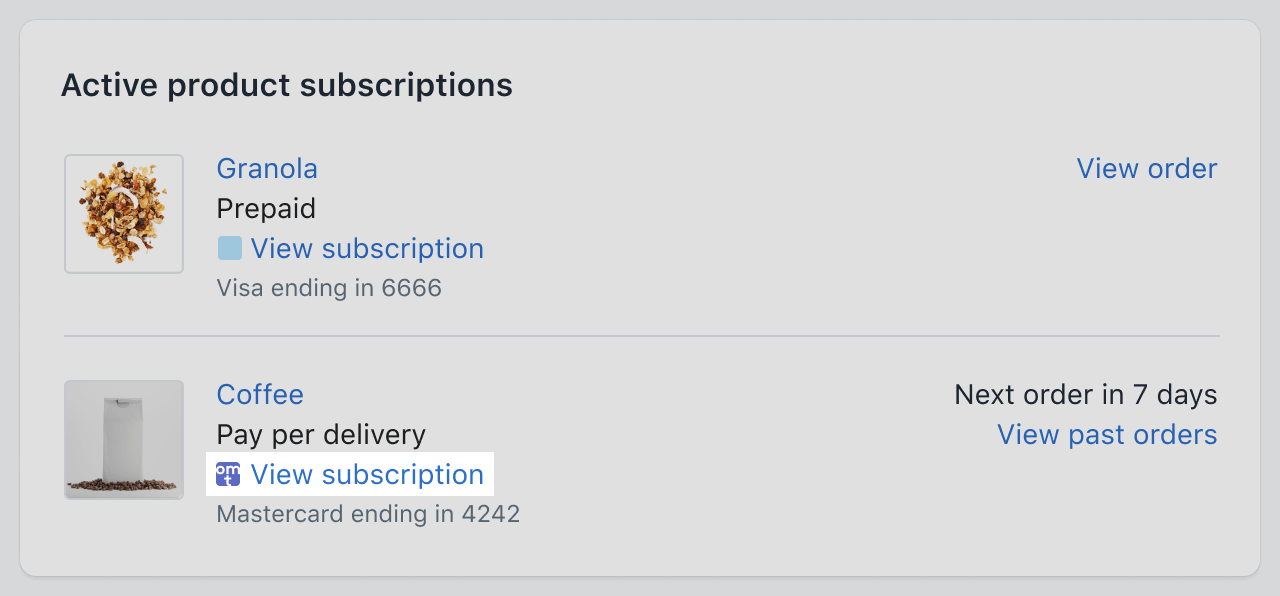
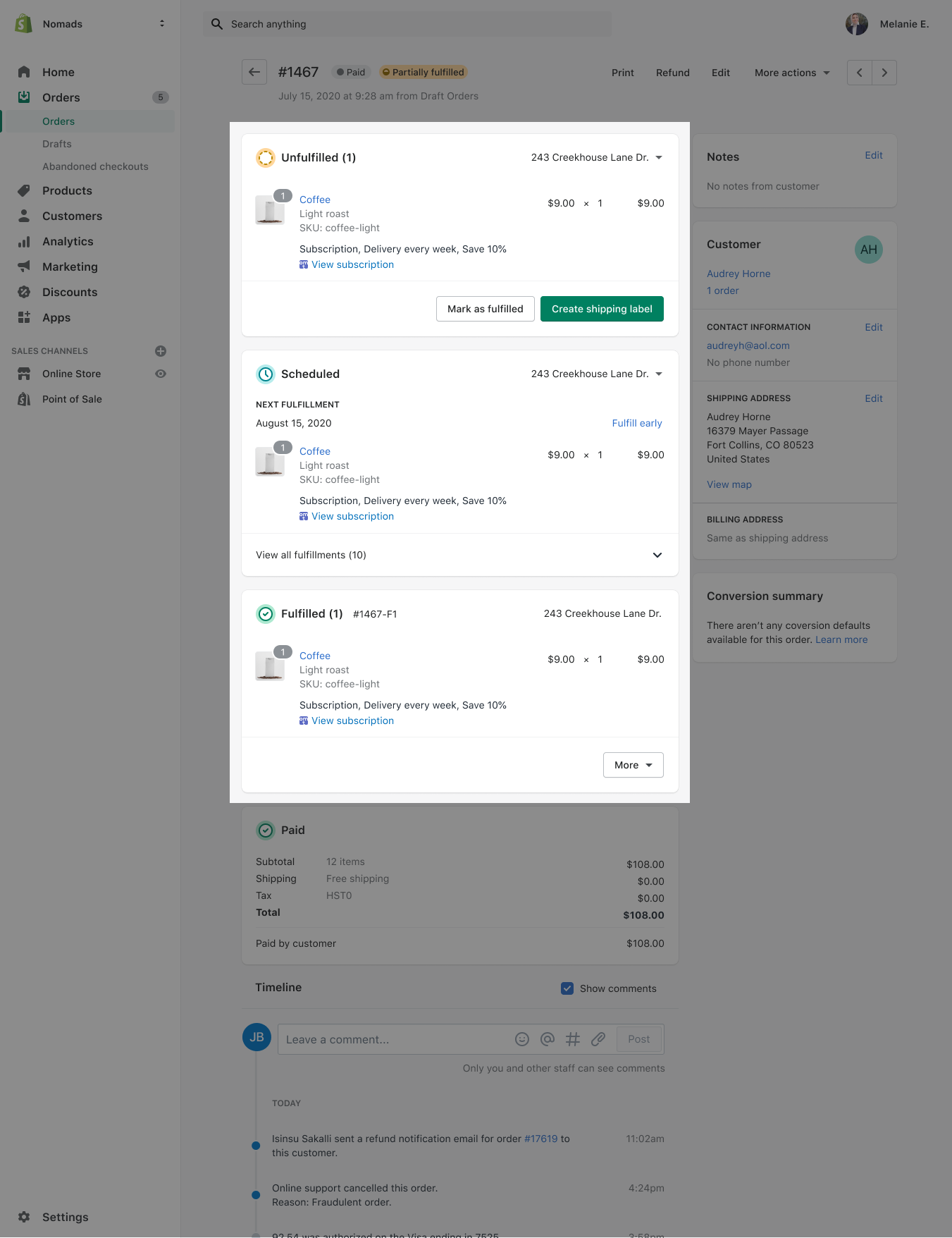
The View subscription button on the customer subscriptions card and the order subscriptions card allows merchants to navigate to the app and view the subscription contract details.
Anchor to Customers page in the Shopify adminCustomers page in the Shopify admin
Anchor to Order page in the Shopify adminOrder page in the Shopify admin
Anchor to Redirecting to the subscription contract within the appRedirecting to the subscription contract within the app
To redirect merchants to the relevant subscription contract, the app needs to implement a specific endpoint. After it's implemented, the endpoint redirects to the subscription contract page within the app for the subscription defined by subscription_contract_id.
You can customize the View subscription link by managing the Subscription link app extension from your app through the Shopify CLI.
To learn how to create and manage a subscription link extension from the Shopify CLI, refer to Start building subscription link extensions.
If you don't customize the View subscription link, then the link is hardcoded. The hardcoded link has the following format:
{app_application_url}/subscriptions?customer_id={customer_id}&hmac={hmac}&id={subscription_contract_id}&shop={myshopify_domain}
Anchor to Step 4: Create a billing attemptStep 4: Create a billing attempt
To bill a subscription contract and create an order, apps need to create a billing attempt. A subscription is renewed when an app makes a billing attempt.
A billing attempt represents an attempt at executing a billing cycle and charging the customer payment method for a subscription contract. A billing attempt executes a contract based on the billing cycle at the origin time if provided. Otherwise, the billing attempt is created for the current billing cycle by default. You can also create a billing attempt on a specific billing cycle.
Anchor to StatusesStatuses
A billing attempt starts in a pending status. After it has been processed, it either transitions to successful or failed, both of which are terminal states:
-
If the billing attempt is successful, then an order is created.
-
If the billing attempt fails, then it means that the transaction has failed.
If an action is pending on the part of the customer in regards to 3D Secure, then a 3D Secure challenge can occur before the billing attempt transitions to a terminal state.
A billing attempt can fail if Shopify's fraud analysis service has flagged a subscription contract's origin order. Before you create a billing attempt, check the order risk assessment of the contract's origin order.
A billing attempt can fail if Shopify's fraud analysis service has flagged a subscription contract's origin order. Before you create a billing attempt, check the order risk assessment of the contract's origin order.
Anchor to Example callExample call
To create a billing attempt, specify the following inputs in the subscriptionBillingAttemptCreate mutation:
-
subscriptionContractId: The ID of the subscription contract. -
subscriptionBillingAttemptInputidempotencyKey: A unique key generated by the client to avoid duplicate payments.originTime: An optional field that changes the way fulfillment intervals are calculated. If nothing is provided, fulfillment is calculated using the date that the billing attempt was successful. Otherwise, fulfillment is calculated using the providedoriginTimevalue. The UTC offset oforiginTimeshould match the shop'stimezoneOffset.
Billing attempts are processed asynchronously, so the resulting order isn't available right away. Fetch the billing attempt and check its
state.SubscriptionBillingAttemptPendingStatemeans the attempt is still processing,SubscriptionBillingAttemptSuccessStatecontains the order,SubscriptionBillingAttemptFailedStatecontains the error, andSubscriptionBillingAttemptActionRequiredStatemeans the customer needs to complete a 3D Secure challenge. The challenge URL is in thenextActionUrlfield of itsaction.
If you have adopted Subscriptions Billing Cycle APIs, you can create orders by charging a billing cycle directly. This approach enables more precise management of billing cycles by directly linking order creation to the specific cycle being billed.
If you have adopted Subscriptions Billing Cycle APIs, you can create orders by charging a billing cycle directly. This approach enables more precise management of billing cycles by directly linking order creation to the specific cycle being billed.
POST https://{shop}.myshopify.com/admin/api/{api_version}/graphql.json
GraphQL query
JSON response
Because the order isn't ready immediately, you can query the subscriptionBillingAttempt to get the resulting order information.
POST https://{shop}.myshopify.com/admin/api/{api_version}/graphql.json
GraphQL query
JSON response
Anchor to About 3D SecureAbout 3D Secure
Shopify handles 3D Secure authentication by emailing the customer when the financial institution requires a challenge. This flow is demonstrated in the diagram below:
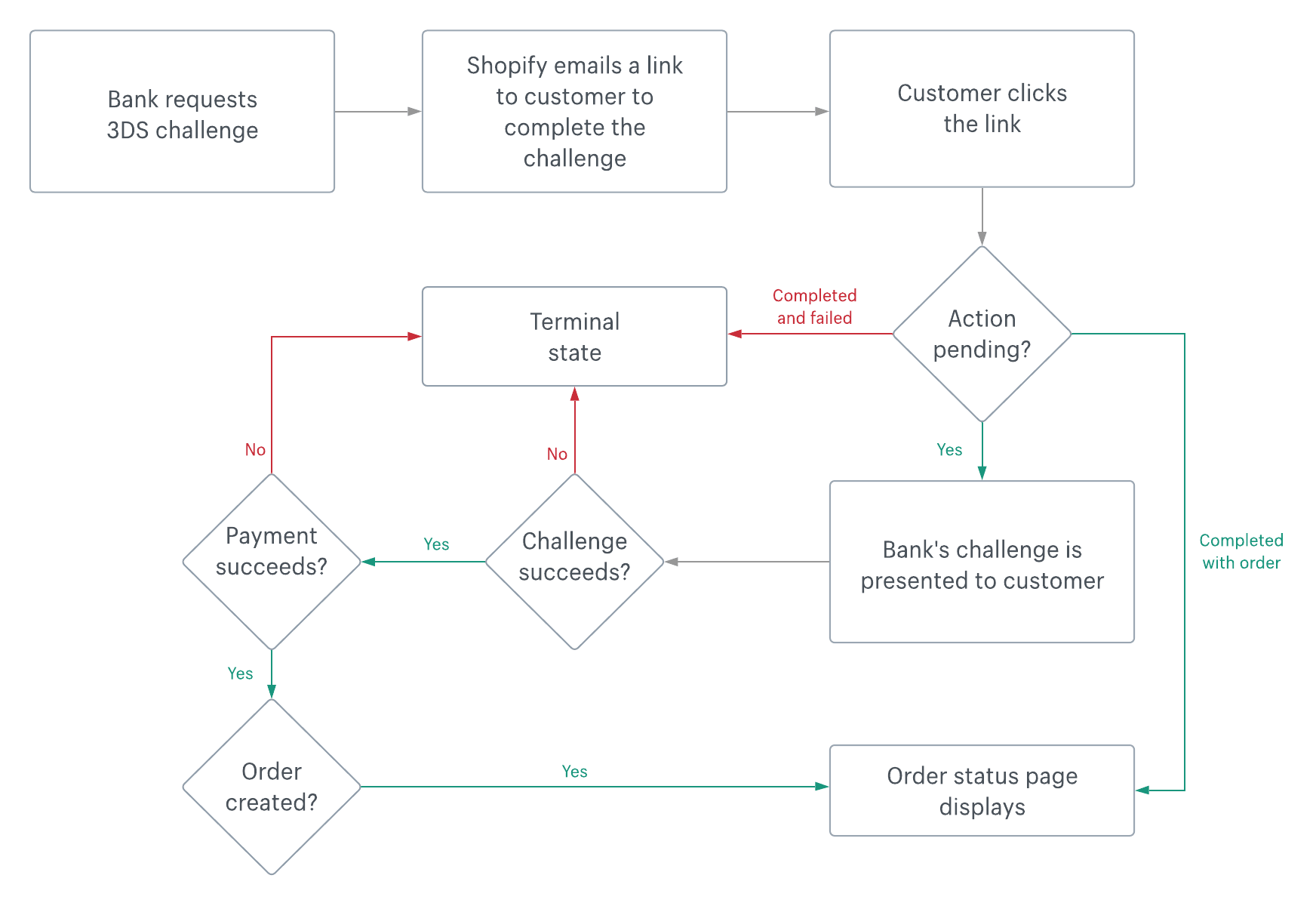
You can poll the subscriptionBillingAttempt query until state is SubscriptionBillingAttemptActionRequiredState. The challenge URL is in action.nextActionUrl. The challenge status is OFF_SESSION_REJECTED until the customer opens the challenge, and ON_SESSION_CHALLENGED after that.
The subscription_billing_attempts/success and subscription_billing_attempts/failure webhooks aren't triggered until the challenge is completed. If the customer doesn't complete the challenge, then your app won't be notified.
The subscription_billing_attempts/success and subscription_billing_attempts/failure webhooks aren't triggered until the challenge is completed. If the customer doesn't complete the challenge, then your app won't be notified.
POST https://{shop}.myshopify.com/admin/api/{api_version}/graphql.json
GraphQL query
JSON response
Anchor to About re-billing failed payment attemptsAbout re-billing failed payment attempts
It's up to apps to attempt re-billing for failed payment attempts. We expose many signals to help you make the right decision about when to re-bill failed payment attempts and how often.
- Only rebill payment attempts that failed with error codes that make sense to retry, such as
INSUFFICIENT_FUNDS. - Avoid re-billing failed payments with the same customer payment method more than 30 times in 35 days. These requests will be failed and the payment method will be revoked.
You can keep track of how Shopify correlates failed payments by using the paymentSessionId and paymentGroupId fields. Retrying billing for the same contract identity results in billing attempts with the same paymentGroupId. You can use this to track all failed, or the final successful, billing attempt linked to a final order. All billing attempts that kept their payment details identical share the same paymentSessionId. When surfacing merchants' payment success metrics, make sure that only the last billing attempt in a group that shares the same paymentSessionId and paymentGroupId is counted, because all the billing attempts in that group were retries of one another.
Anchor to Inventory trackingInventory tracking
Similar to creating a new order through checkout, the availability of inventory is checked during the billing attempt process. Merchants can adjust inventory tracking so that they can continue to sell product variants when out of stock. They can also adjust inventory tracking to prevent selling product variants when out of stock.
If one or more of a subscription's product variants are out of stock (and aren't configured to continue selling), then the billing attempt moves to a failed state with either an insufficient inventory or an inventory location error.
Anchor to Next stepsNext steps
- Learn how to update a subscription contract.
- Learn how to manage billing cycles.
- Use the legacy
SubscriptionDraftcreation guide while maintaining an older integration.