Handle offsite payments
Some payment providers redirect buyers outside your app to complete a transaction, either to a web page or an external banking app. To bring buyers back to your app, configure Universal Links (iOS) and App Links (Android) on your storefront domain.
Anchor to RequirementsRequirements
- Checkout Kit installed in your app.
- A custom domain connected to your storefront. Universal Links and App Links aren't available on
*.myshopify.comdomains. - HTTPS enabled on the custom domain.
- A custom app with Storefront API access.
- Xcode to configure Associated Domains for iOS.
- Optional: Android Studio to verify App Links with the App Links Assistant.
Anchor to Step 1: Configure your storefrontStep 1: Configure your storefront
Set up your storefront to generate the .well-known files that iOS and Android use to verify your app owns the domain.
- Go to your app's configuration in the Shopify admin.
- Click the name of your app.
- Click API Integrations.
- In the Storefront API integration section, click Configure.
- Configure link handling for your platforms:
- iOS: Expand the iOS Buy SDK configuration section, enter your Apple App ID, and select Use iOS universal links.
- Android: Expand the Android Buy SDK configuration section and provide your Android application ID and SHA256 fingerprint certificate values from the Play Store.
This generates two .well-known JSON files on your custom domain:
apple-app-site-associationfor iOSassetlinks.jsonfor Android
.well-known/apple-app-site-association (iOS)
.well-known/assetlinks.json (Android)
The /* catch-all in apple-app-site-association tells iOS to open any URL from your domain in your app, except paths excluded by NOT rules. The handle_all_urls relation in assetlinks.json does the same for Android. iOS periodically re-fetches these files. Android verifies them at install time and on app updates.
This affects all links from your domain:
- Email links: Links in emails (such as abandoned carts) open in your app.
- Shared links: Web links from your domain open in your app unless excluded.
- Web view links: Links opened in a web view don't trigger the app unless you configure the web view to handle them.
- Excluded paths: (iOS only) URLs with a
NOTclause open in the browser.
Anchor to Step 2: Enable linking in your appStep 2: Enable linking in your app
Anchor to Configure Universal Links for iOSConfigure Universal Links for i
Add an entitlements file that specifies the domains your app handles:
- Open your project in Xcode.
- Select your app target, then click Signing & Capabilities.
- Click + Capability and add Associated Domains.
- Add each domain in the format
applinks:example.com:
Example.entitlements
Anchor to Configure App Links for AndroidConfigure App Links for Android
Add an intent filter for your domain to AndroidManifest.xml, then handle incoming intents in your activity:
AndroidManifest.xml
Anchor to Configure linking for React NativeConfigure linking for React Native
React Native apps need both platform configurations. Apply the iOS steps to App.entitlements and the Android steps to AndroidManifest.xml.
Anchor to Step 3: Route incoming URLsStep 3: Route incoming URLs
Update your app's entry point to route incoming URLs:
/checkoutURLs go to Checkout Kit./cartURLs open your cart screen.- Unrecognized URLs fall back to the mobile browser so buyers can complete their purchase.
Swift (SwiftUI)
// App.swift

import SwiftUI
import ShopifyCheckoutSheetKit

@main
struct MyApp: App {
  var body: some Scene {
    WindowGroup {
      ContentView()
        .onOpenURL { url in
          handleUniversalLink(url: url)
        }
    }
  }

  private func handleUniversalLink(url: URL) {
    let storefrontUrl = StorefrontURL(from: url)

    switch true {
      case storefrontUrl.isCheckout() && !storefrontUrl.isThankYouPage():
        presentCheckout(url)
      case storefrontUrl.isCart():
        navigateToCart()
      default:
        if UIApplication.shared.canOpenURL(url) {
          UIApplication.shared.open(url)
        }
    }
  }
}

struct ContentView: View {
  var body: some View {
    Text("Hello, World!")
  }
}

public struct StorefrontURL {
  public let url: URL

  init(from url: URL) {
    self.url = url
  }

  public func isThankYouPage() -> Bool {
    return url.path.range(of: "/thank[-_]you", options: .regularExpression) != nil
  }

  public func isCheckout() -> Bool {
    return url.path.contains("/checkouts/")
  }

  public func isCart() -> Bool {
    return url.path.contains("/cart")
  }
}
Swift (UIKit)
// AppDelegate.swift

import UIKit
import ShopifyCheckoutSheetKit

@UIApplicationMain
class AppDelegate: UIResponder, UIApplicationDelegate {
  var window: UIWindow?

  func application(
    _ application: UIApplication,
    continue userActivity: NSUserActivity,
    restorationHandler: @escaping ([UIUserActivityRestoring]?) -> Void) -> Bool {
    if userActivity.activityType == NSUserActivityTypeBrowsingWeb,
      let url = userActivity.webpageURL {
        handleUniversalLink(url: url)
        return true
      }

      return false
    }

  private func handleUniversalLink(url: URL) {
    let storefrontUrl = StorefrontURL(from: url)

    switch true {
      case storefrontUrl.isCheckout() && !storefrontUrl.isThankYouPage():
        presentCheckout(url)
      case storefrontUrl.isCart():
        navigateToCart()
      default:
        if UIApplication.shared.canOpenURL(url) {
          UIApplication.shared.open(url)
        }
    }
  }
}

public struct StorefrontURL {
  public let url: URL

  init(from url: URL) {
    self.url = url
  }

  public func isThankYouPage() -> Bool {
    return url.path.range(of: "/thank[-_]you", options: .regularExpression) != nil
  }

  public func isCheckout() -> Bool {
    return url.path.contains("/checkouts/")
  }

  public func isCart() -> Bool {
    return url.path.contains("/cart")
  }
}
Kotlin
// MainActivity.kt

class MainActivity : ComponentActivity() {
  override fun onCreate(savedInstanceState: Bundle?) {
    super.onCreate(savedInstanceState)

    setContent {
      App()
    }

    handleIntent(intent)
  }

  override fun onNewIntent(intent: Intent) {
    super.onNewIntent(intent)
    handleIntent(intent)
  }

  private fun handleIntent(intent: Intent) {
    if (intent.action == Intent.ACTION_VIEW) {
      intent.data?.let { uri ->
        when {
          uri.path?.contains("/checkouts/") == true -> {
            // Route checkout URLs to Checkout Kit
            ShopifyCheckoutSheetKit.present(uri.toString(), this, checkoutEventProcessor)
          }
          uri.path == "/cart" -> navigateToCart()
          else -> {
            // Open unrecognized URLs in the browser
            startActivity(Intent(Intent.ACTION_VIEW, uri))
          }
        }
      }
    }
  }

  private fun navigateToCart() {
    // Navigate to the cart screen
  }
}
React Native
// src/App.tsx

import React, { useState, useEffect } from 'react';
import { Linking } from 'react-native';
import { useNavigation, NavigationProp } from '@react-navigation/native';
import { useShopifyCheckoutSheet } from '@shopify/checkout-sheet-kit';

type RootStackParamList = {
  Cart: undefined;
};

const useInitialURL = (): {url: string | null} => {
  const [url, setUrl] = useState<string | null>(null);

  useEffect(() => {
    const getUrlAsync = async () => {
      const initialUrl = await Linking.getInitialURL();

      if (initialUrl !== url) {
        setUrl(initialUrl);
      }
    };

    getUrlAsync();
  }, [url]);

  return {
    url,
  };
};

function Routes() {
  const shopify = useShopifyCheckoutSheet();
  const navigation = useNavigation<NavigationProp<RootStackParamList>>();
  const {url: initialUrl} = useInitialURL();

  useEffect(() => {
    async function handleUniversalLink(url: string) {
      const storefrontUrl = new StorefrontURL(url);

      switch (true) {
        case storefrontUrl.isCheckout() && !storefrontUrl.isThankYouPage():
          shopify.present(url);
          return;
        case storefrontUrl.isCart():
          navigation.navigate('Cart');
          return;
      }

      const canOpenUrl = await Linking.canOpenURL(url);

      if (canOpenUrl) {
        await Linking.openURL(url);
      }
    }

    if (initialUrl) {
      handleUniversalLink(initialUrl);
    }

    const subscription = Linking.addEventListener('url', ({url}) => {
      handleUniversalLink(url);
    });

    return () => {
      subscription.remove();
    };
  }, [initialUrl, shopify, navigation]);

  return (
    // Route components
  );
}

class StorefrontURL {
  readonly url: string;

  constructor(url: string) {
    this.url = url;
  }

  isThankYouPage(): boolean {
    return /thank[-_]you/i.test(this.url);
  }

  isCheckout(): boolean {
    return this.url.includes('/checkouts/');
  }

  isCart() {
    return this.url.includes('/cart');
  }
}
Anchor to Step 4: Test your configurationStep 4: Test your configuration
Anchor to Validate ,[object Object], filesValidate well-known files
well-known filesVerify that your custom domain serves the .well-known files. The response returns valid JSON containing your app ID (iOS) or package name (Android). If you get a 404 or empty response, then check that your custom domain is configured correctly:
iOS
curl https://example.com/.well-known/apple-app-site-association | jq .Android
curl https://example.com/.well-known/assetlinks.json | jq .Anchor to Simulate links in a terminalSimulate links in a terminal
Trigger URLs manually to test linking in a simulator or emulator. Your app opens and routes to the appropriate screen. If the browser opens instead, then check your entitlements (iOS) or intent filters (Android):
iOS
xcrun simctl openurl booted "https://www.example.com/cart"Android
adb shell am start -a android.intent.action.VIEW -d "https://example.com/cart"Anchor to iOS diagnosticsi
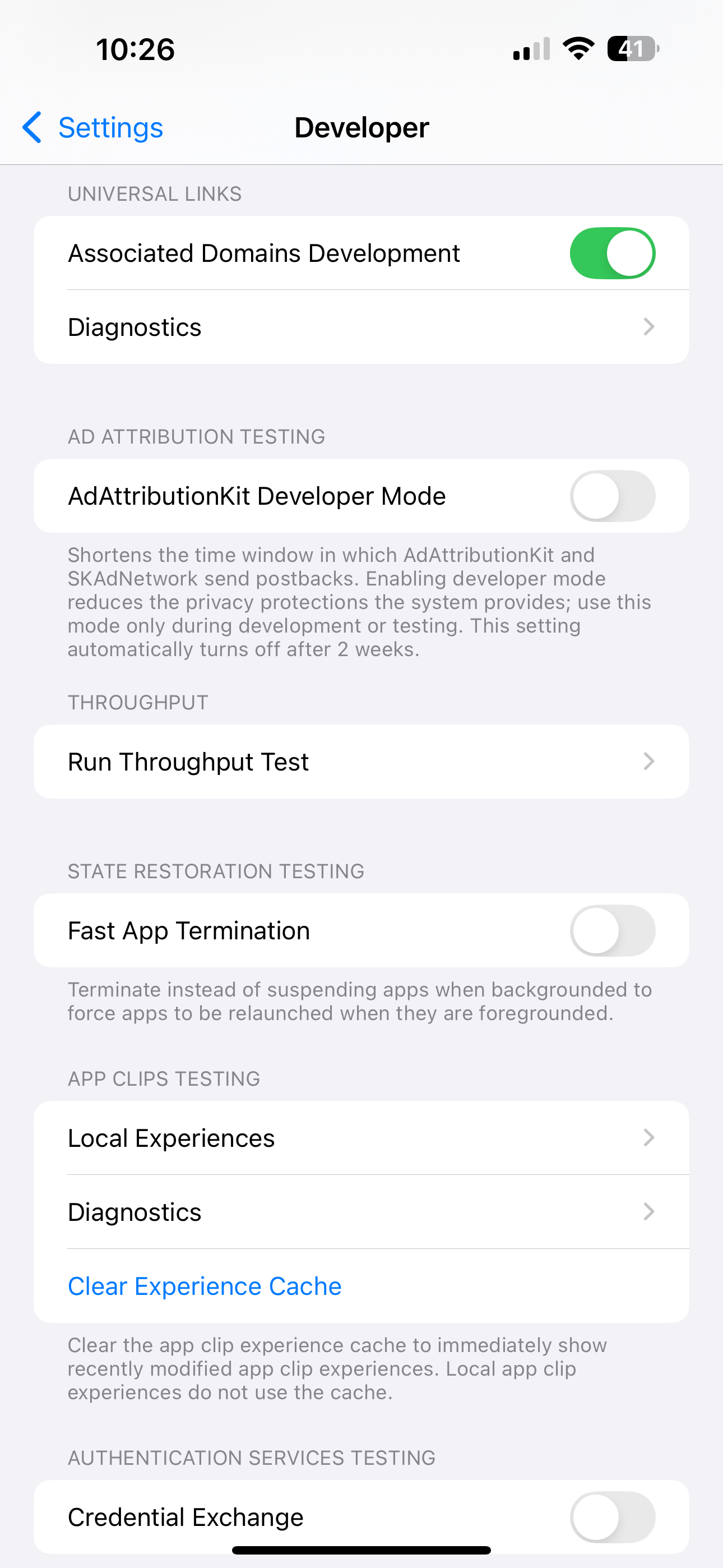
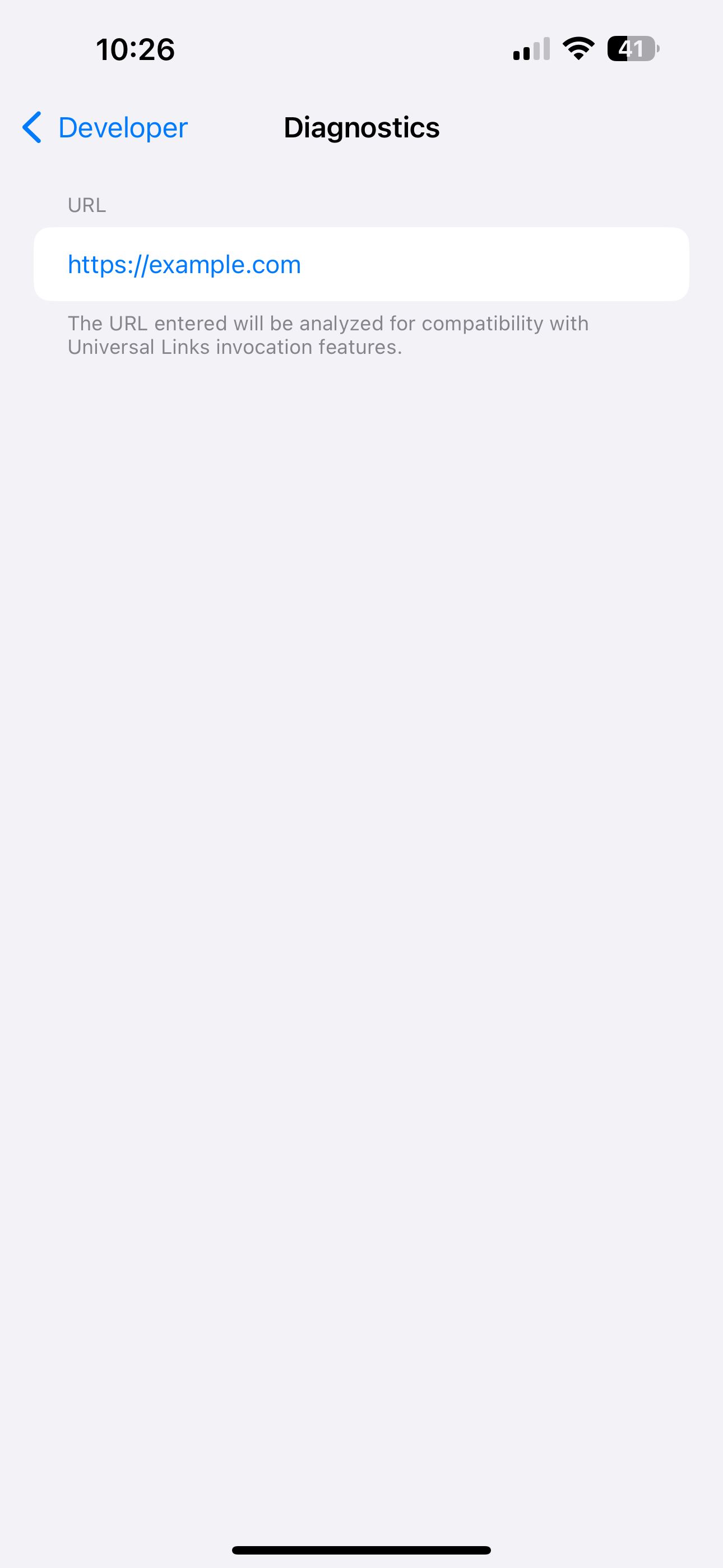
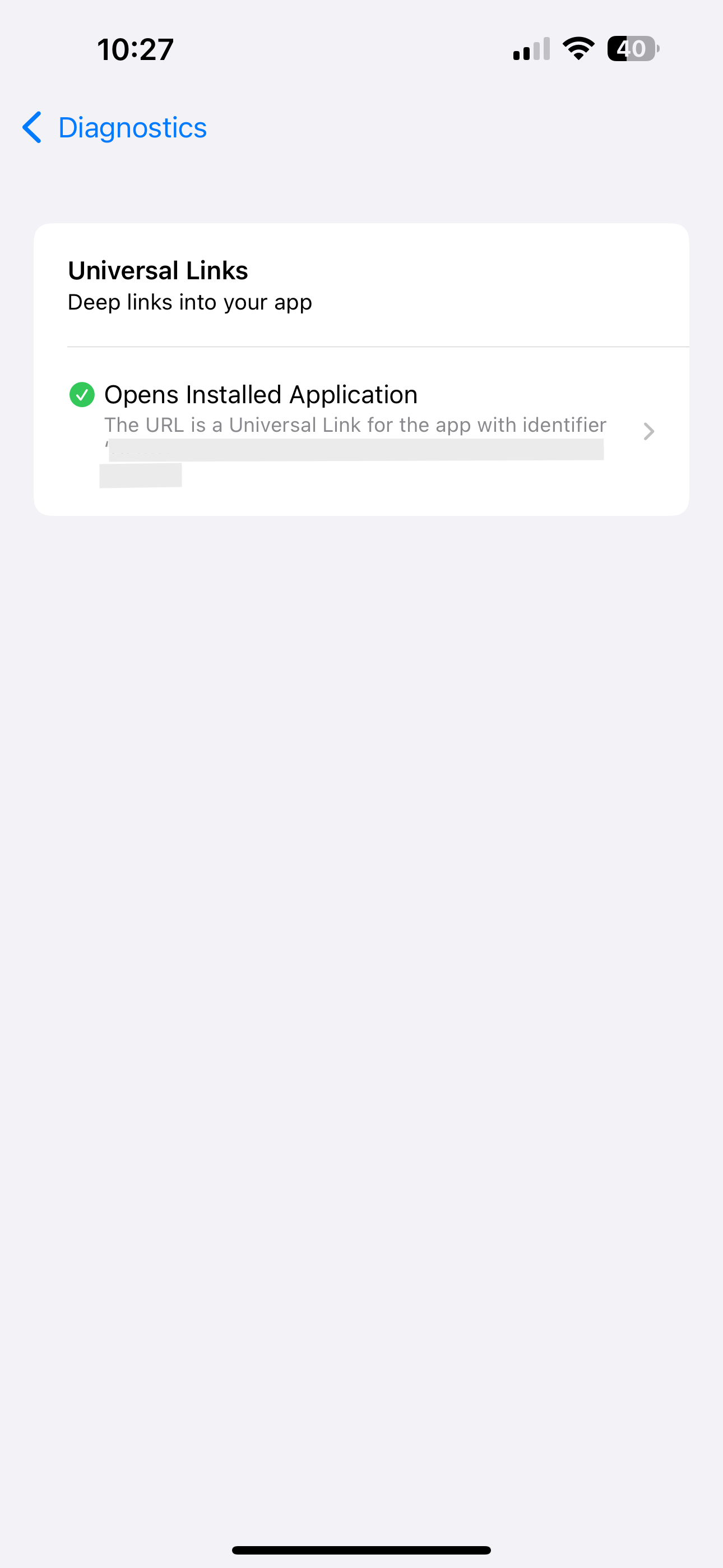
Open Settings on a physical device (not a simulator) and search for Universal Links. Look for your domain in the diagnostics list with a green checkmark. If it shows a warning or doesn't appear, then reinstall the app:
| Settings > Developer | Universal Links > Diagnostics | Link configured |
|---|---|---|
 |  |  |
Anchor to Android diagnosticsAndroid diagnostics
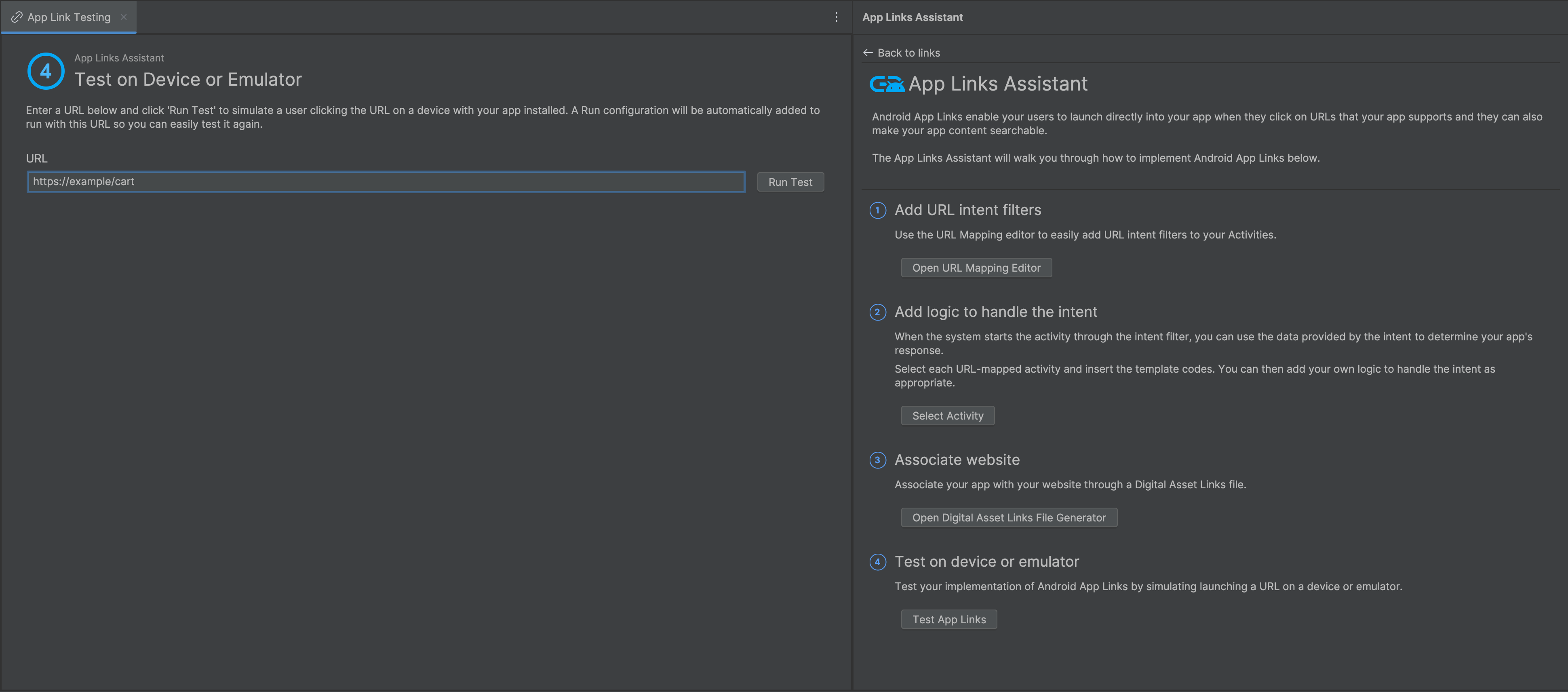
Use the App Links Assistant in Android Studio to verify your app links.