---
title: Handle offsite payments
description: >-
Configure Universal Links and App Links to bring buyers back to your app after
offsite payments.
source_url:
html: 'https://shopify.dev/docs/storefronts/mobile/checkout-kit/offsite-payments'
md: 'https://shopify.dev/docs/storefronts/mobile/checkout-kit/offsite-payments.md'
---
# Handle offsite payments
Some payment providers redirect buyers outside your app to complete a transaction, either to a web page or an external banking app. To bring buyers back to your app, configure Universal Links (iOS) and App Links (Android) on your storefront domain.
***
## Requirements
* [Checkout Kit](https://shopify.dev/docs/storefronts/mobile/checkout-kit) installed in your app.
* A [custom domain](https://admin.shopify.com/settings/domains) connected to your storefront. Universal Links and App Links aren't available on `*.myshopify.com` domains.
* HTTPS enabled on the custom domain.
* A [custom app](https://shopify.dev/docs/apps/build) with [Storefront API access](https://shopify.dev/docs/storefronts/headless/building-with-the-storefront-api/getting-started).
* [Xcode](https://developer.apple.com/xcode/) to configure Associated Domains for iOS.
* Optional: [Android Studio](https://developer.android.com/studio) to verify App Links with the App Links Assistant.
***
## Step 1: Configure your storefront
Set up your storefront to generate the `.well-known` files that iOS and Android use to verify your app owns the domain.
1. Go to your [app's configuration in the Shopify admin](https://admin.shopify.com/settings/apps/development).
2. Click the name of your app.
3. Click **API Integrations**.
4. In the **Storefront API integration** section, click **Configure**.
5. Configure link handling for your platforms:
* **iOS**: Expand the **iOS Buy SDK configuration** section, enter your Apple App ID, and select **Use iOS universal links**.
* **Android**: Expand the **Android Buy SDK configuration** section and provide your Android application ID and SHA256 fingerprint certificate values from the Play Store.
This generates two `.well-known` JSON files on your custom domain:
* `apple-app-site-association` for iOS
* `assetlinks.json` for Android
## .well-known/apple-app-site-association (iOS)
```json
{
"applinks": {
"apps": [],
"details": [
{
"appID": "{APPLE_TEAM_ID}.{BUNDLE_IDENTIFIER}",
"paths": [
"NOT /admin/*",
"NOT /*/amazon_payments/callback",
"NOT /*/checkouts/*/express/callback",
"/*"
]
}
]
}
}
```
## .well-known/assetlinks.json (Android)
```json
[
{
"relation": ["delegate_permission/common.handle_all_urls"],
"target": {
"namespace": "android_app",
"package_name": "{PACKAGE_NAME}",
"sha256_cert_fingerprints": [
"{SHA256_FINGERPRINT}"
]
}
}
]
```
The `/*` catch-all in `apple-app-site-association` tells iOS to open any URL from your domain in your app, except paths excluded by `NOT` rules. The `handle_all_urls` relation in `assetlinks.json` does the same for Android. iOS periodically re-fetches these files. Android verifies them at install time and on app updates.
This affects all links from your domain:
* **Email links**: Links in emails (such as abandoned carts) open in your app.
* **Shared links**: Web links from your domain open in your app unless excluded.
* **Web view links**: Links opened in a web view don't trigger the app unless you configure the web view to handle them.
* **Excluded paths**: (iOS only) URLs with a `NOT` clause open in the browser.
***
## Step 2: Enable linking in your app
### Configure Universal Links for iOS
Add an `entitlements` file that specifies the domains your app handles:
1. Open your project in Xcode.
2. Select your app target, then click **Signing & Capabilities**.
3. Click **+ Capability** and add **Associated Domains**.
4. Add each domain in the format `applinks:example.com`:
## Example.entitlements
```xml
com.apple.developer.associated-domains
applinks:example.com
applinks:subdomain.example.com
```
### Configure App Links for Android
Add an intent filter for your domain to `AndroidManifest.xml`, then handle incoming intents in your activity:
## AndroidManifest.xml
```xml
```
### Configure linking for React Native
React Native apps need both platform configurations. Apply the iOS steps to `App.entitlements` and the Android steps to `AndroidManifest.xml`.
***
## Step 3: Route incoming URLs
Update your app's entry point to route incoming URLs:
* `/checkout` URLs go to Checkout Kit.
* `/cart` URLs open your cart screen.
* Unrecognized URLs fall back to the mobile browser so buyers can complete their purchase.
##### Swift (SwiftUI)
```swift
// App.swift
import SwiftUI
import ShopifyCheckoutSheetKit
@main
struct MyApp: App {
var body: some Scene {
WindowGroup {
ContentView()
.onOpenURL { url in
handleUniversalLink(url: url)
}
}
}
private func handleUniversalLink(url: URL) {
let storefrontUrl = StorefrontURL(from: url)
switch true {
case storefrontUrl.isCheckout() && !storefrontUrl.isThankYouPage():
presentCheckout(url)
case storefrontUrl.isCart():
navigateToCart()
default:
if UIApplication.shared.canOpenURL(url) {
UIApplication.shared.open(url)
}
}
}
}
struct ContentView: View {
var body: some View {
Text("Hello, World!")
}
}
public struct StorefrontURL {
public let url: URL
init(from url: URL) {
self.url = url
}
public func isThankYouPage() -> Bool {
return url.path.range(of: "/thank[-_]you", options: .regularExpression) != nil
}
public func isCheckout() -> Bool {
return url.path.contains("/checkouts/")
}
public func isCart() -> Bool {
return url.path.contains("/cart")
}
}
```
##### Swift (UIKit)
```swift
// AppDelegate.swift
import UIKit
import ShopifyCheckoutSheetKit
@UIApplicationMain
class AppDelegate: UIResponder, UIApplicationDelegate {
var window: UIWindow?
func application(
_ application: UIApplication,
continue userActivity: NSUserActivity,
restorationHandler: @escaping ([UIUserActivityRestoring]?) -> Void) -> Bool {
if userActivity.activityType == NSUserActivityTypeBrowsingWeb,
let url = userActivity.webpageURL {
handleUniversalLink(url: url)
return true
}
return false
}
private func handleUniversalLink(url: URL) {
let storefrontUrl = StorefrontURL(from: url)
switch true {
case storefrontUrl.isCheckout() && !storefrontUrl.isThankYouPage():
presentCheckout(url)
case storefrontUrl.isCart():
navigateToCart()
default:
if UIApplication.shared.canOpenURL(url) {
UIApplication.shared.open(url)
}
}
}
}
public struct StorefrontURL {
public let url: URL
init(from url: URL) {
self.url = url
}
public func isThankYouPage() -> Bool {
return url.path.range(of: "/thank[-_]you", options: .regularExpression) != nil
}
public func isCheckout() -> Bool {
return url.path.contains("/checkouts/")
}
public func isCart() -> Bool {
return url.path.contains("/cart")
}
}
```
##### Kotlin
```kotlin
// MainActivity.kt
class MainActivity : ComponentActivity() {
override fun onCreate(savedInstanceState: Bundle?) {
super.onCreate(savedInstanceState)
setContent {
App()
}
handleIntent(intent)
}
override fun onNewIntent(intent: Intent) {
super.onNewIntent(intent)
handleIntent(intent)
}
private fun handleIntent(intent: Intent) {
if (intent.action == Intent.ACTION_VIEW) {
intent.data?.let { uri ->
when {
uri.path?.contains("/checkouts/") == true -> {
// Route checkout URLs to Checkout Kit
ShopifyCheckoutSheetKit.present(uri.toString(), this, checkoutEventProcessor)
}
uri.path == "/cart" -> navigateToCart()
else -> {
// Open unrecognized URLs in the browser
startActivity(Intent(Intent.ACTION_VIEW, uri))
}
}
}
}
}
private fun navigateToCart() {
// Navigate to the cart screen
}
}
```
##### React Native
```tsx
// src/App.tsx
import React, { useState, useEffect } from 'react';
import { Linking } from 'react-native';
import { useNavigation, NavigationProp } from '@react-navigation/native';
import { useShopifyCheckoutSheet } from '@shopify/checkout-sheet-kit';
type RootStackParamList = {
Cart: undefined;
};
const useInitialURL = (): {url: string | null} => {
const [url, setUrl] = useState(null);
useEffect(() => {
const getUrlAsync = async () => {
const initialUrl = await Linking.getInitialURL();
if (initialUrl !== url) {
setUrl(initialUrl);
}
};
getUrlAsync();
}, [url]);
return {
url,
};
};
function Routes() {
const shopify = useShopifyCheckoutSheet();
const navigation = useNavigation>();
const {url: initialUrl} = useInitialURL();
useEffect(() => {
async function handleUniversalLink(url: string) {
const storefrontUrl = new StorefrontURL(url);
switch (true) {
case storefrontUrl.isCheckout() && !storefrontUrl.isThankYouPage():
shopify.present(url);
return;
case storefrontUrl.isCart():
navigation.navigate('Cart');
return;
}
const canOpenUrl = await Linking.canOpenURL(url);
if (canOpenUrl) {
await Linking.openURL(url);
}
}
if (initialUrl) {
handleUniversalLink(initialUrl);
}
const subscription = Linking.addEventListener('url', ({url}) => {
handleUniversalLink(url);
});
return () => {
subscription.remove();
};
}, [initialUrl, shopify, navigation]);
return (
// Route components
);
}
class StorefrontURL {
readonly url: string;
constructor(url: string) {
this.url = url;
}
isThankYouPage(): boolean {
return /thank[-_]you/i.test(this.url);
}
isCheckout(): boolean {
return this.url.includes('/checkouts/');
}
isCart() {
return this.url.includes('/cart');
}
}
```
***
## Step 4: Test your configuration
### Validate `well-known` files
Verify that your custom domain serves the `.well-known` files. The response returns valid JSON containing your app ID (iOS) or package name (Android). If you get a 404 or empty response, then check that your custom domain is configured correctly:
##### iOS
```sh
curl https://example.com/.well-known/apple-app-site-association | jq .
```
##### Android
```sh
curl https://example.com/.well-known/assetlinks.json | jq .
```
### Simulate links in a terminal
Trigger URLs manually to test linking in a simulator or emulator. Your app opens and routes to the appropriate screen. If the browser opens instead, then check your entitlements (iOS) or intent filters (Android):
##### iOS
```sh
xcrun simctl openurl booted "https://www.example.com/cart"
```
##### Android
```sh
adb shell am start -a android.intent.action.VIEW -d "https://example.com/cart"
```
### iOS diagnostics
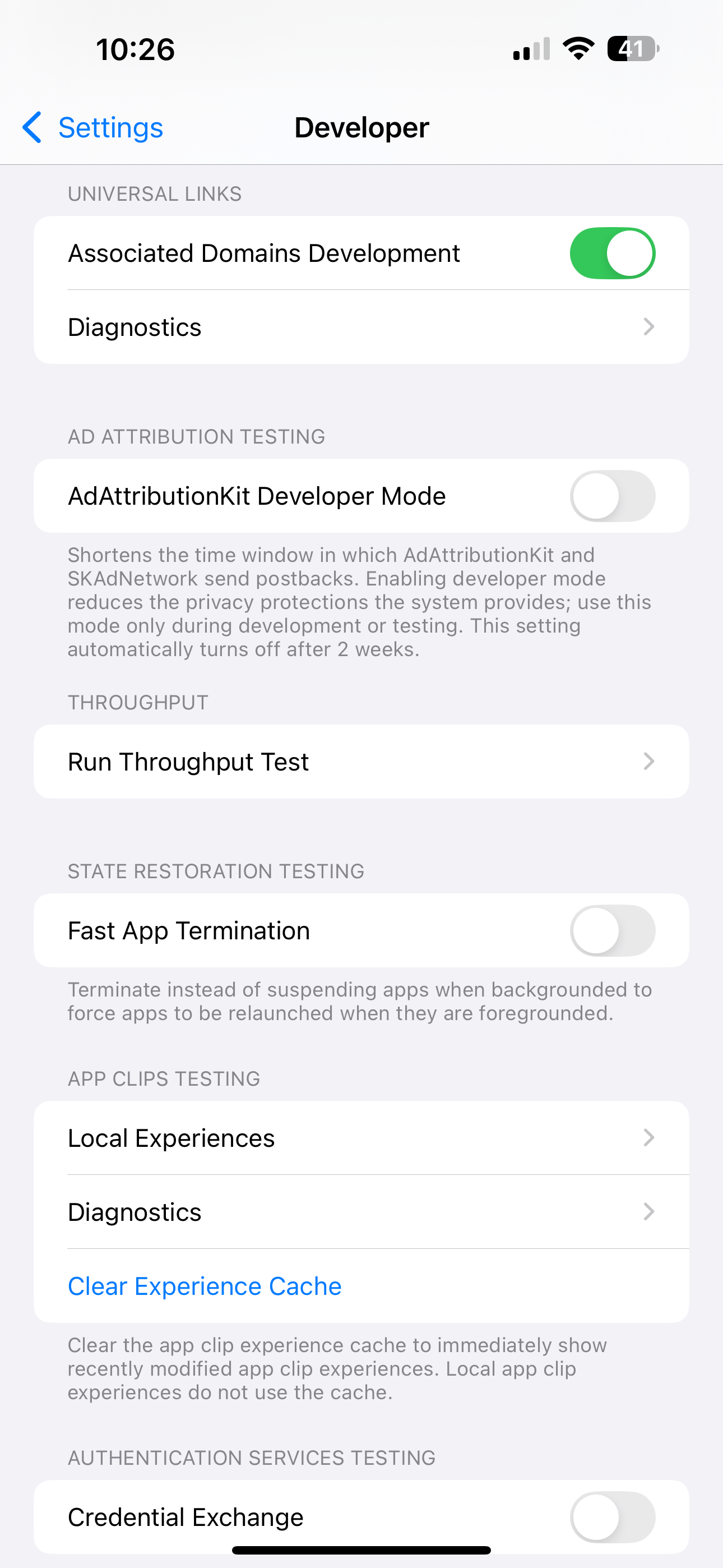
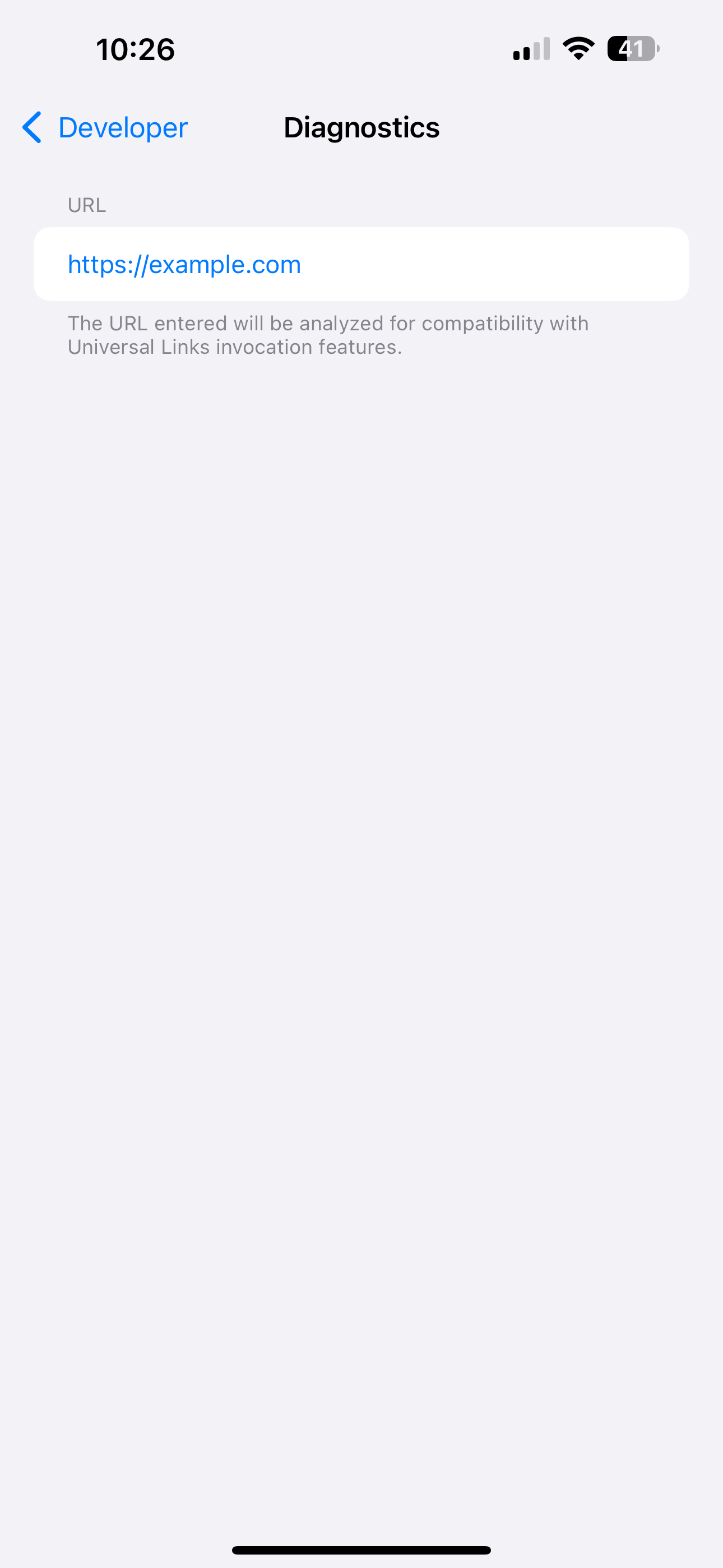
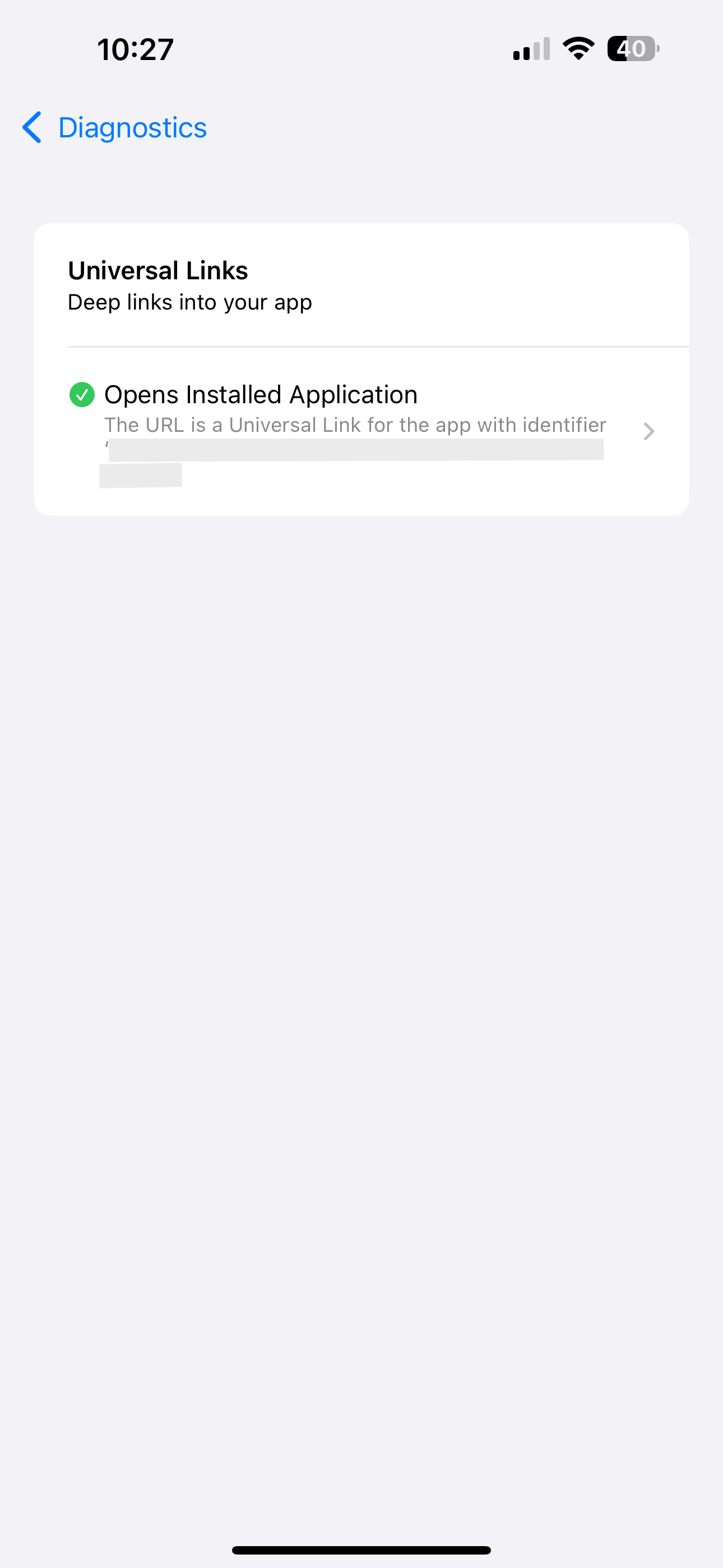
Open **Settings** on a physical device (not a simulator) and search for **Universal Links**. Look for your domain in the diagnostics list with a green checkmark. If it shows a warning or doesn't appear, then reinstall the app:
| Settings > Developer | Universal Links > Diagnostics | Link configured |
| - | - | - |
|  |  |  |
### Android diagnostics
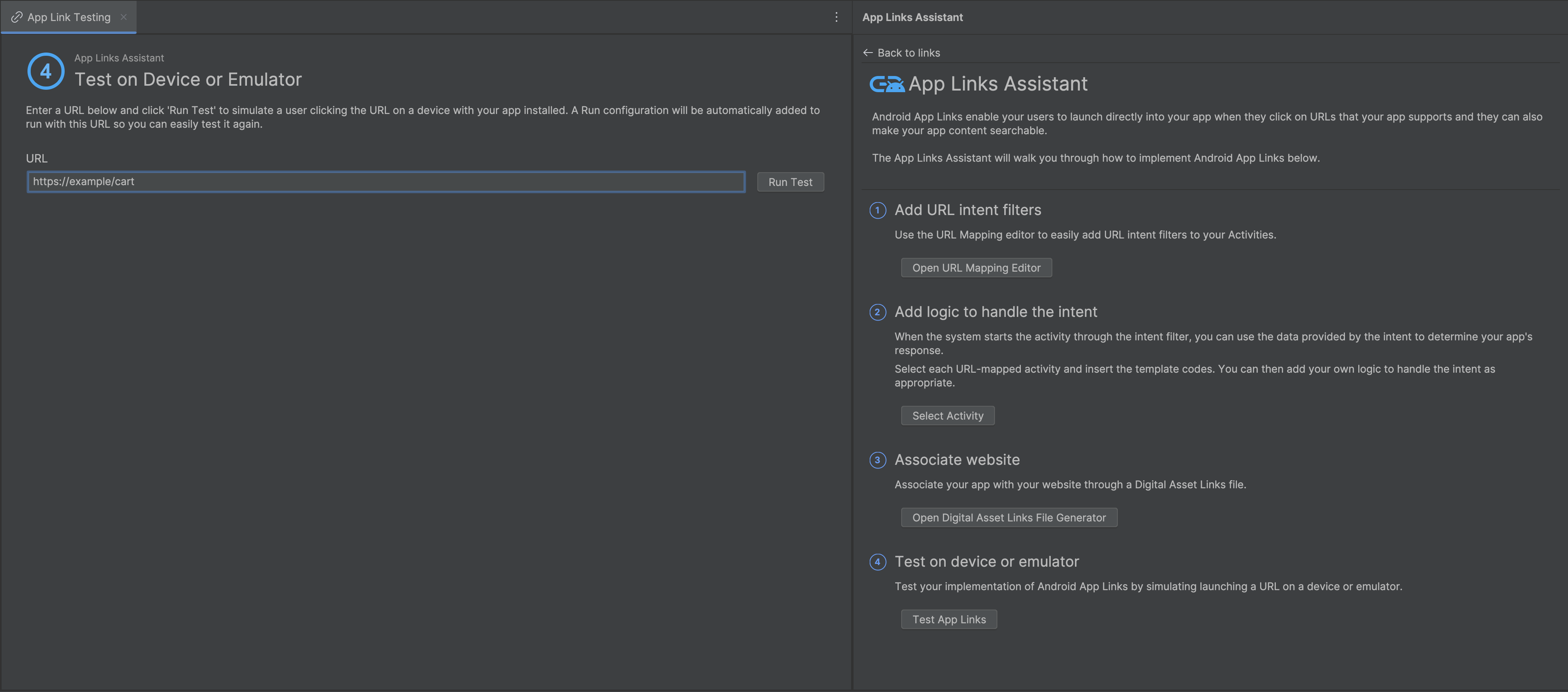
Use the **App Links Assistant** in Android Studio to verify your app links.
***
## Next steps
[Privacy compliance\
\
](https://shopify.dev/docs/storefronts/mobile/checkout-kit/privacy-compliance)
[Pass visitor consent for GDPR, CCPA, and App Tracking Transparency.](https://shopify.dev/docs/storefronts/mobile/checkout-kit/privacy-compliance)
[About accelerated checkouts\
\
](https://shopify.dev/docs/storefronts/mobile/checkout-kit/accelerated-checkouts-overview)
[Add Shop Pay and Apple Pay buttons for one-tap purchases on product and cart pages.](https://shopify.dev/docs/storefronts/mobile/checkout-kit/accelerated-checkouts-overview)
***