---
title: gift_card.liquid
description: Learn about the gift card template, which displays gift card details to a customer.
source_url:
html: https://shopify.dev/docs/storefronts/themes/architecture/templates/gift-card-liquid
md: https://shopify.dev/docs/storefronts/themes/architecture/templates/gift-card-liquid.md
---
# gift\_card.liquid
The `gift_card.liquid` template renders the gift card page, which displays the [gift card](https://help.shopify.com/manual/products/gift-card-products) issued to a customer upon purchase.
**Tip:**
Refer to the [gift\_card.liquid template](https://github.com/Shopify/dawn/blob/main/templates/gift_card.liquid) in Dawn for an example of this template.
Unlike other pages in your store, gift card pages are hosted on the `checkout.shopify.com` domain. Gift card URLs contain unique identifiers for your store and gift card:
```text
https://checkout.shopify.com/gift_cards/[store_id]/[gift_card_token]
```
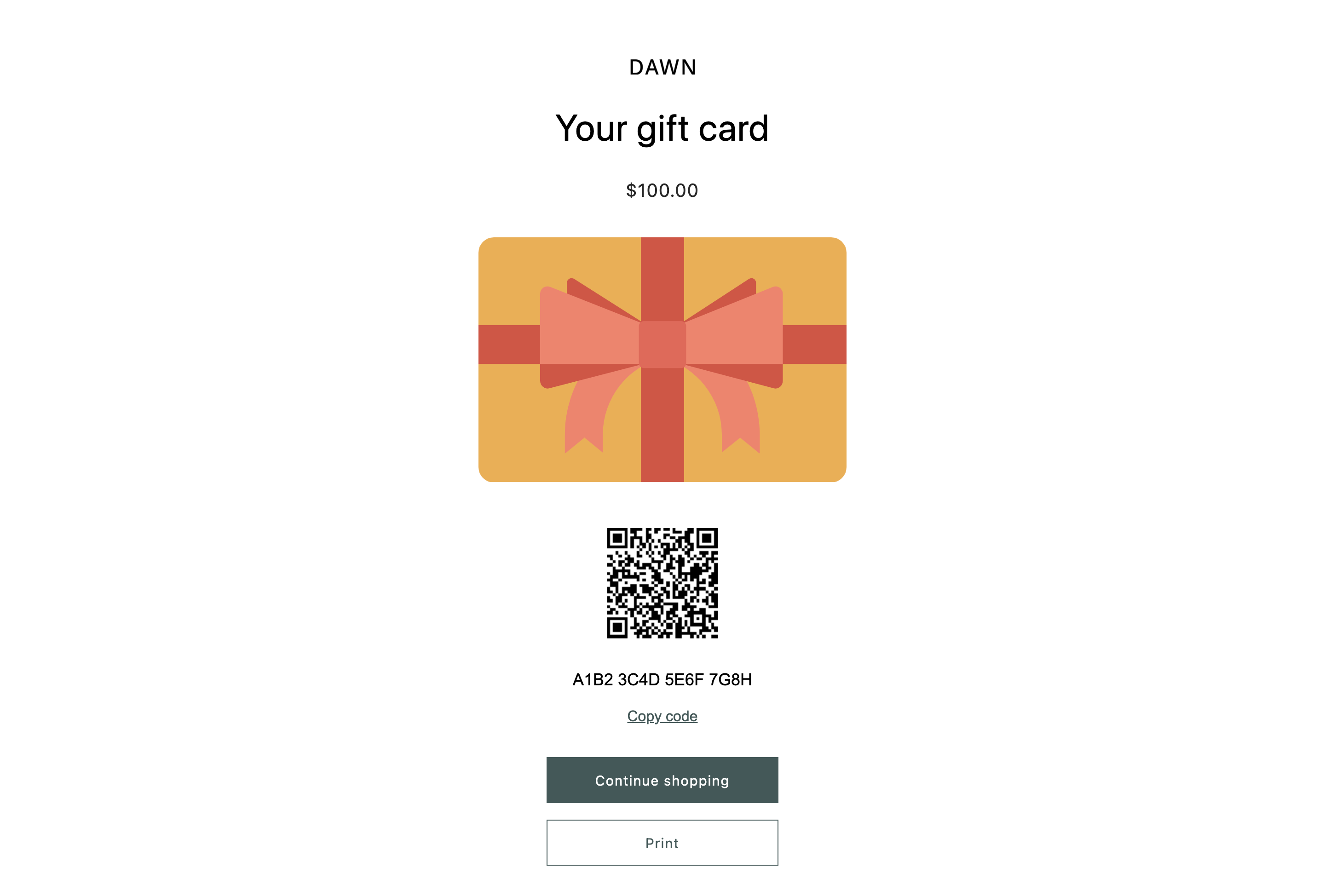
The following image is an example of how Dawn's `gift_card.liquid` template renders the gift card page.
***
## Location
The `gift_card` template is located in the `templates` directory of the theme:
```text
└── theme
├── layout
├── templates
| ...
| ├── gift_card.liquid
| ...
...
```
***
## Content
This template can't be a [JSON template](https://shopify.dev/docs/storefronts/themes/architecture/templates/json-templates).
You can include the following in your gift\_card template or a section inside of the template:
* [The gift\_card object](#the-gift_card-object)
You can also include [a QR code](#qr-code) or [Apple wallet passes](#apple-wallet-passes).
### The gift\_card object
You can access the Liquid [`gift_card` object](https://shopify.dev/docs/api/liquid/objects/gift_card) to display the gift card details.
***
## Usage
When working with the `gift_card` template, you should familiarize yourself with the following:
* [Adding a QR code link](#qr-code)
* [Including Apple Wallet passes to the template](#apple-wallet-passes)
* [Displaying only the gift card details](#display-only-the-gift-card-details)
To learn how to personalize gift card templates with a custom image, refer to the [Shopify Help Center](https://help.shopify.com/manual/online-store/themes/themes-by-shopify/vintage-themes/customizing-vintage-themes/personalize-gift-cards).
### QR code
You can include a QR code link by adding JavaScript that generates a QR code. Add the following snippets in the `` and `` elements of the page, respectively. To control the content of the QR code, update the `text` property with the desired content. In this example, the QR code links to the store's URL.
## Include in \
```liquid
{{ 'vendor/qrcode.js' | shopify_asset_url | script_tag }}
```
## Include in \
```liquid
```
### Apple Wallet passes
You can include [Apple Wallet passes](https://support.apple.com/en-ca/guide/iphone/iphe7aa3336/ios) by adding the following snippet to the `` element of the page:
```liquid
{% if gift_card.pass_url %}
 {% endif %}
```
### Display only the gift card details
If you don’t want to include theme elements, like the header and footer, you can choose to render the `gift_card.liquid` template with no layout or with a custom layout, using the Liquid [`layout` object](https://shopify.dev/docs/api/liquid/tags/layout).
For example:
## gift\_card.liquid
```liquid
{% layout none %}
```
***
## Preview the template
You can preview the gift card's appearance by navigating to the gift card template from the [theme editor](https://shopify.dev/docs/storefronts/themes/tools/online-editor).
1. From the theme editor, open the drop-down menu at the top of the page.
2. Under **Templates**, click **Others**. Then click **Gift card**.
**Note:**
If you can't find the gift card template in the theme editor's navigation menu, then you might need to insert the [`content_for_header` Liquid object](https://shopify.dev/docs/themes/architecture/layouts#content_for_header) in the HTML `` tag of your `gift_card.liquid` template.
***
{% endif %}
```
### Display only the gift card details
If you don’t want to include theme elements, like the header and footer, you can choose to render the `gift_card.liquid` template with no layout or with a custom layout, using the Liquid [`layout` object](https://shopify.dev/docs/api/liquid/tags/layout).
For example:
## gift\_card.liquid
```liquid
{% layout none %}
```
***
## Preview the template
You can preview the gift card's appearance by navigating to the gift card template from the [theme editor](https://shopify.dev/docs/storefronts/themes/tools/online-editor).
1. From the theme editor, open the drop-down menu at the top of the page.
2. Under **Templates**, click **Others**. Then click **Gift card**.
**Note:**
If you can't find the gift card template in the theme editor's navigation menu, then you might need to insert the [`content_for_header` Liquid object](https://shopify.dev/docs/themes/architecture/layouts#content_for_header) in the HTML `` tag of your `gift_card.liquid` template.
***