---
title: search
description: >-
Learn about the search template, which displays the results of a storefront
search.
source_url:
html: 'https://shopify.dev/docs/storefronts/themes/architecture/templates/search'
md: 'https://shopify.dev/docs/storefronts/themes/architecture/templates/search.md'
---
# search
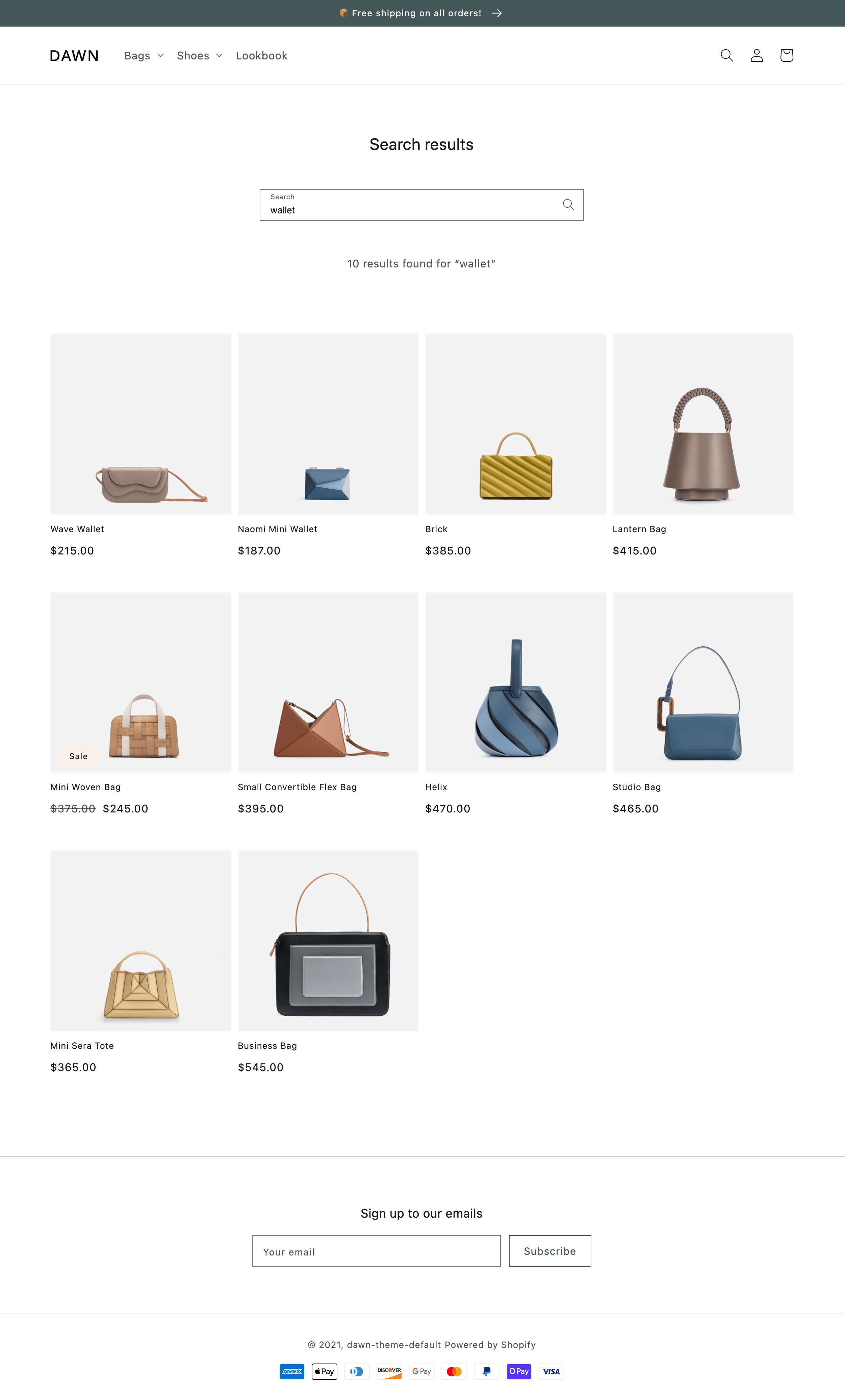
The `search` template renders the search page, which displays the results of a [storefront search](https://help.shopify.com/en/manual/online-store/storefront-search).
**Tip:**
Refer to the [search template](https://github.com/Shopify/dawn/blob/main/templates/search.json) and its [main section](https://github.com/Shopify/dawn/blob/main/sections/main-search.liquid) in Dawn for an example implementation.
***
## Location
The `search` template is located in the `templates` directory of the theme:
```text
└── theme
├── layout
├── templates
| ...
| ├── search.json
| ...
...
```
***
## Content
You should include the following in your `search` template or a section inside of the template:
* [The search object](#the-search-object)
* [The search form](#the-search-form)
* [The search results](#the-search-results)
### The search object
You can access the Liquid [`search` object](https://shopify.dev/docs/api/liquid/objects/search) to display the search details.
### The search form
To land on the search page, customers need to perform a search through a search form. You can include a search form in your theme with a `
```
**Tip:**
To learn more about the search form, refer to [Storefront search](https://shopify.dev/docs/storefronts/themes/navigation-search/search).
### The search results
You can display the search results by looping through the values of the `results` attribute of the [`search` object](https://shopify.dev/docs/api/liquid/objects/search#search-results):
## Example
```liquid
{% for item in search.results %}
{% endfor %}
```
### Remote products
If a store has opted in to displaying remote products on their storefront, products from other stores are surfaced automatically in search results. No theme changes are required to support this. Remote product images contain special badges to signify that they're from a different store.
**Caution:**
Remote products aren't yet supported in themes that surface search results through APIs. Themes must be using Liquid's [`search.results`](https://shopify.dev/docs/api/liquid/objects/search#search-results) to be compatible with this feature.
***
## Usage
When working with the `search` template, you should familiarize yourself with [highlighting search terms](#highlight-search-terms).
**Tip:**
If you're using a JSON template, then any HTML or Liquid code needs to be included in a [section](https://shopify.dev/docs/storefronts/themes/architecture/sections) that's referenced by the template.
### Highlight search terms
If you output any associated content with your search results, then you can highlight the search terms within that content using the Liquid [`highlight` filter](https://shopify.dev/docs/api/liquid/filters/highlight):
## Example
```liquid
{% for item in search.results %}
{{ item.content | highlight: search.terms }}
{% endfor %}
```
**Tip:**
This filter bolds any matching text by wrapping it in a `` element, with an attribute of `className="highlight"` if you want to add any additional styling.
***