search
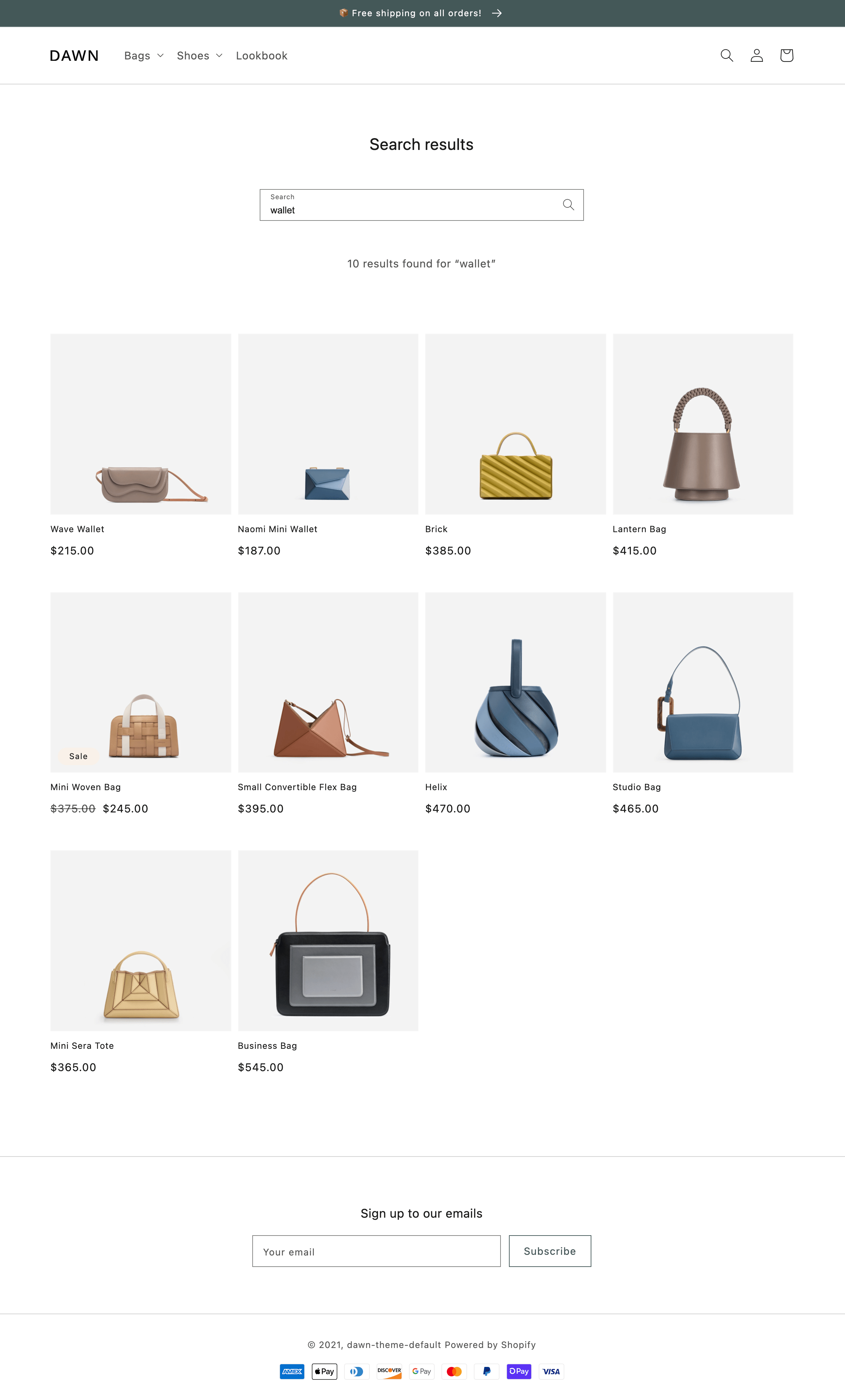
The search template renders the search page, which displays the results of a storefront search.
Refer to the search template and its main section in Dawn for an example implementation.
Refer to the search template and its main section in Dawn for an example implementation.
Anchor to LocationLocation
The search template is located in the templates directory of the theme:
Anchor to ContentContent
You should include the following in your search template or a section inside of the template:
Anchor to The search objectThe search object
You can access the Liquid search object to display the search details.
Anchor to The search formThe search form
To land on the search page, customers need to perform a search through a search form. You can include a search form in your theme with a <form> element that has an attribute of action="{{ routes.search_url }}". Inside the form, you need an input with the following attributes:
-
type="text" -
name="q".You should also set the value of the input to reflect the value of the
termsattribute of thesearchobject so that the customer's search terms are preserved:
Example
To learn more about the search form, refer to Storefront search.
To learn more about the search form, refer to Storefront search.
Anchor to The search resultsThe search results
You can display the search results by looping through the values of the results attribute of the search object:
Example
Anchor to Remote productsRemote products
If a store has opted in to displaying remote products on their storefront, products from other stores are surfaced automatically in search results. No theme changes are required to support this. Remote product images contain special badges to signify that they're from a different store.
Remote products aren't yet supported in themes that surface search results through APIs. Themes must be using Liquid's search.results to be compatible with this feature.
Remote products aren't yet supported in themes that surface search results through APIs. Themes must be using Liquid's search.results to be compatible with this feature.
Anchor to UsageUsage
When working with the search template, you should familiarize yourself with highlighting search terms.
If you're using a JSON template, then any HTML or Liquid code needs to be included in a section that's referenced by the template.
If you're using a JSON template, then any HTML or Liquid code needs to be included in a section that's referenced by the template.
Anchor to Highlight search termsHighlight search terms
If you output any associated content with your search results, then you can highlight the search terms within that content using the Liquid highlight filter:
Example
This filter bolds any matching text by wrapping it in a <strong> element, with an attribute of className="highlight" if you want to add any additional styling.
This filter bolds any matching text by wrapping it in a <strong> element, with an attribute of className="highlight" if you want to add any additional styling.