App nav
App Bridge isn't versioned with Polaris. App Bridge APIs and web components are identical in every App Home reference version.
App Bridge isn't versioned with Polaris. App Bridge APIs and web components are identical in every App Home reference version.
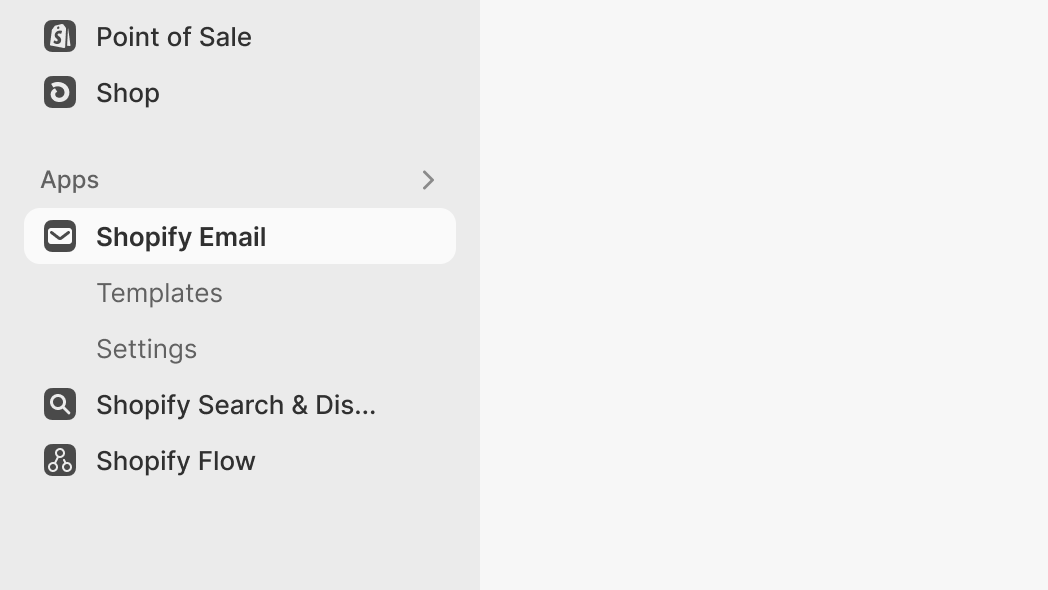
The app nav component configures navigation items for your app in the Shopify admin. On desktop, navigation appears in the left sidebar. On Shopify mobile, it appears in a dropdown from the title bar.
Add links to define navigation items. The app name in the sidebar already links to your app's home route, which defaults to /, so there's no need to add a separate home link. If your home page is at a different path (for example, /app), add an s-link with rel="home" to override the default and hide it from the rendered menu. To trigger navigation from JavaScript, use the Navigation API.
Anchor to Use casesUse cases
- App navigation: Create a persistent navigation menu with links to different sections of your app.
- Desktop sidebar: Display navigation in the left sidebar on desktop for easy access to app sections.
- Mobile dropdown: Provide navigation through a dropdown from the title bar on Shopify mobile.
Anchor to PropertiesProperties
Properties for the app nav element. This element configures the app nav in the Shopify admin.
- anyany
The navigation items to display, provided as link child elements. Each link creates a navigation item in the app's navigation menu. Include one link with
rel="home"to set the default landing page. Commonly used to organize your app into logical sections (like "Products", "Orders", or "Settings").
Anchor to Link propertiesLink properties
Properties for links used as children.
- stringstringrequiredrequired
The URL path for the navigation item. Must be a relative path within your app, such as
/productsor/settings. When clicked, it navigates the app to this route without a full page reload. The path should match a route defined in your app's routing configuration.- stringstring
The visible label text for the navigation item. Keep labels short (1-2 words) and use nouns that describe the destination (such as "Products", "Settings", or "Reports"). Avoid verbs like "Manage" or "View" to maintain consistency with Shopify admin navigation patterns.
- 'home''home'
Set to
"home"to designate this link as the app's default landing page. When set, the link is hidden from the navigation menu. Only one link should haverel="home".
Anchor to ExamplesExamples
Add consistent navigation to your app. This example shows an app whose home page is mounted at /app, so an s-link with rel="home" designates /app as the home route and hides that link from the rendered menu.
Navigation menu
html
Anchor to Best practicesBest practices
- Keep navigation concise: Too many items makes navigation harder to scan. Group related pages or use subpages if you have many sections.
- Use clear, concise labels: Navigation labels should be 1-2 words using nouns, such as "Settings", "Templates", or "Reports".
- Order by importance: Place the most frequently used sections first in the navigation.
- Match labels to page titles: Keep navigation labels consistent with the destination page titles.
Anchor to LimitationsLimitations
You can't nest navigation items inside other navigation items. Structure your app with a single level of navigation.