ANNOTATE
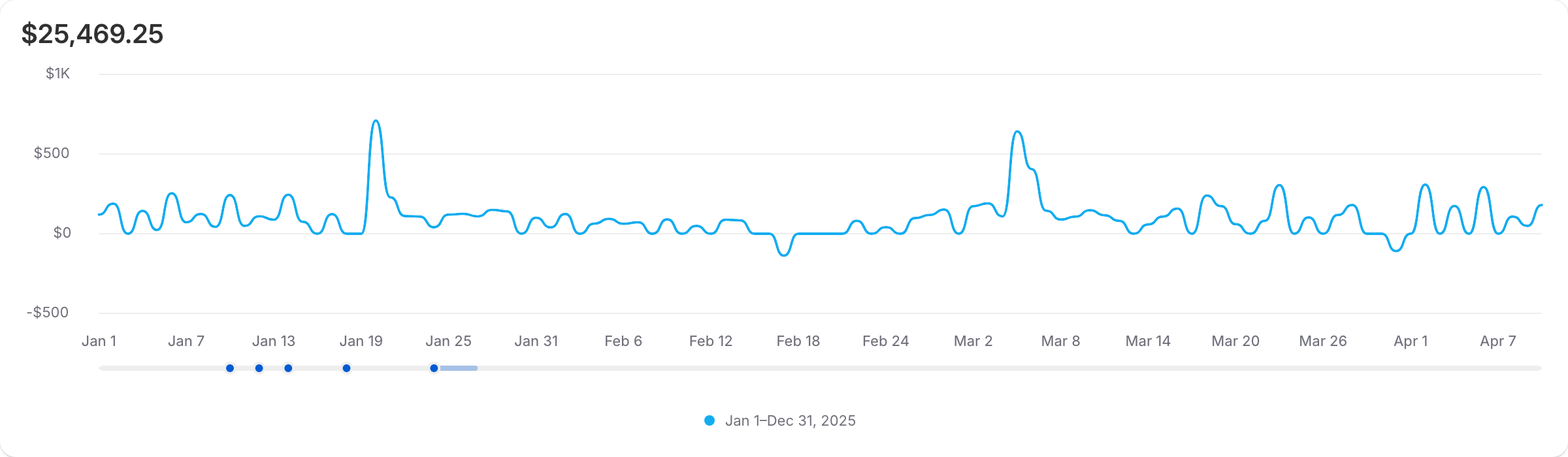
Use ANNOTATE to overlay contextual annotations on a time-based visualization. Annotations such as product launches, discounts, and store redesigns render as markers along the time axis.
Add ANNOTATE after any TYPE and MAX modifiers in the VISUALIZE clause, with at least one annotation category. Annotations anchor to a time axis, so return a time dimension with TIMESERIES or as the first GROUP BY dimension, and use a time-based type such as line, area, or bar. Annotations aren't supported for types like donut, or for multi-store queries that use FROM ORGANIZATION.
Use FILTER to limit annotations to specific sources, apps, or staff members.
Syntax
Anchor to FormsForms
Each form scopes the annotations differently, from every category at once to a single type:
ANNOTATE ALL
Overlays annotations from every category. Use it to see all available context on the chart at once.
ANNOTATE category
Overlays every annotation type in one category. For example, ANNOTATE product_events shows all product launches, discontinuations, and other product annotations.
ANNOTATE category.type
Overlays a single annotation type from a category. For example, ANNOTATE product_events.product_launch shows product launches only.
ANNOTATE category[, ...]
Combines multiple categories and annotation types in one clause. For example, ANNOTATE product_events, online_store_events.store_redesign overlays all product annotations plus store redesigns.
ShopifyQL
Preview
Examples
Overlay all event types
Description
Plot daily `total_sales` for the last year with a marker for every kind of contextual event. This example uses `ANNOTATE ALL` to include all categories at once, so you can scan for any event that lines up with a movement in sales.
ShopifyQL
FROM sales
  SHOW total_sales
  TIMESERIES day WITH TOTALS
  DURING last_year
  ORDER BY day ASC
  LIMIT 100
VISUALIZE total_sales TYPE line ANNOTATE ALL
Combine multiple event types
Description
Overlay a product launch, a marketing campaign, and an online store redesign on a daily `total_sales` bar chart. This example uses `ANNOTATE` with comma-separated category and type pairs to combine multiple annotation types in one clause.
ShopifyQL
FROM sales
  SHOW total_sales
  TIMESERIES day WITH TOTALS
  DURING last_year
  ORDER BY day ASC
  LIMIT 100
VISUALIZE total_sales TYPE bar ANNOTATE product_events.product_launch,
  marketing_events.campaign, online_store_events.store_redesign
Anchor to FILTERFILTER
Add FILTER after the annotation categories to show only the annotations that come from the sources, apps, or staff members that you choose. If you omit FILTER, then the chart shows annotations from every source that you have access to.
FILTER conditions use the same syntax as WHERE conditions, but they support only the = and IN operators and these fields:
| Field | Syntax | Description |
|---|---|---|
| source | source = '<source>' | source IN ('<source>'[, ...]) | Filters by the lower-case source values app, staff, or shopify. |
| app_id | | Filters by unquoted unsigned app IDs. |
| staff_id | | Filters by unquoted unsigned staff member IDs. |
The source field filters by who created the annotation: 'shopify' for annotations that Shopify generates, 'staff' for annotations that staff members create, or 'app' for annotations that apps create.
Combine conditions with OR to add more annotations to the chart, and use parentheses to group them. Using AND, !=, NOT IN, or any other operator in FILTER returns a parse error.
Field names and source values are case-sensitive, so write them in lowercase. Write app and staff IDs as unquoted unsigned integers. ShopifyQL checks that each ID is a valid number, but not that the app or staff member exists.
ShopifyQL applies FILTER after it selects annotations by category and type. FILTER doesn't change the data that your query returns, and it can't show annotations that you don't already have access to. Because FILTER is a keyword only in this position, you can still use filter as a column name or alias elsewhere in a query.
ShopifyQL
Examples
Show only Shopify annotations
Description
Plot daily `total_sales` for the last year with markers only for annotations that Shopify generates. This example uses `FILTER source = 'shopify'` to leave out annotations that staff members and apps create, so you can focus on events that Shopify records for your store.
ShopifyQL
FROM sales
  SHOW total_sales
  TIMESERIES day WITH TOTALS
  DURING last_year
  ORDER BY day ASC
  LIMIT 100
VISUALIZE total_sales TYPE line ANNOTATE ALL
  FILTER source = 'shopify'
Combine sources, apps, and staff members
Description
Plot daily `total_sales` for the last year with annotations from Shopify, two specific apps, and one staff member. This example joins `FILTER` conditions with `OR`, so each condition adds its matching annotations to the chart.
ShopifyQL
FROM sales
  SHOW total_sales
  TIMESERIES day WITH TOTALS
  DURING last_year
  ORDER BY day ASC
  LIMIT 100
VISUALIZE total_sales TYPE line ANNOTATE ALL
  FILTER source = 'shopify'
    OR app_id IN (123, 789)
    OR staff_id = 456
Anchor to Annotation categories and typesAnnotation categories and types
Each category groups related annotation types. Use category.type in ShopifyQL to filter annotations in an ANNOTATE clause. When you create or update analytics annotations with the GraphQL Admin API, use only the type value. For example, use product_launch, not product_events.product_launch.
The GraphQL Admin API operations column lists the operations available for each type. "Not available" means the type is supported in ShopifyQL but not through the GraphQL Admin API.
| Category | Type | Description | GraphQL Admin API operations |
|---|---|---|---|
product_events | product_published | A product becomes available on a sales channel. | Return only |
product_unpublished | A product is removed from a sales channel. | Return only | |
product_launch | A new product or product line becomes available for purchase. | Return, create, update | |
product_discontinuation | A product or product line is retired or reaches end of life. | Return, create, update | |
collection_launch | A new collection or curated product set becomes available. | Return, create, update | |
bundle_launch | A new fixed or build-your-own product bundle becomes available. | Return, create, update | |
preorder_launch | A product becomes available for preorder before inventory is on hand. | Return, create, update | |
marketing_events | in_person_event | A physical event, such as a market, trade show, or booth, takes place. | Return, create, update |
campaign | A marketing campaign runs across owned or paid channels during a defined period. | Return, create, update | |
brand_change | The business changes its brand identity, such as its name, logo, or positioning. | Return, create, update | |
influencer_collaboration | A partnership with a creator or influencer launches. | Return, create, update | |
brand_collaboration | A co-branded product or partnership with another brand launches. | Return, create, update | |
channel_launch | A new sales channel becomes available. | Return, create, update | |
ad_spend_change | Paid media spend changes significantly, or a paid campaign starts or stops. | Return, create, update | |
media_mention | The business receives unpaid press coverage or an organic viral mention. | Return, create, update | |
attribution_change | Analytics, attribution, or measurement changes affect reported data. | Return, create, update | |
discount_events | checkout_offer | An app presents an upsell or cross-sell at checkout or post-purchase. | Return, create, update |
amount_off_products_discount | A percentage or fixed discount applies to specific products or collections. | Return, create, update | |
free_shipping_discount | A code or automatic rule provides free shipping. | Return, create, update | |
buy_x_get_y_discount | A buy-one-get-one or buy-X-get-Y discount is offered. | Return, create, update | |
amount_off_order_discount | A percentage or fixed discount applies to an order total. | Return, create, update | |
seasonal_promotion | A seasonal or holiday promotion runs for a limited time. | Return, create, update | |
shipping_promotion | A shipping incentive changes a shipping threshold or rate. | Return, create, update | |
loyalty_program_offer | A temporary loyalty promotion offers bonus or accelerated points. | Return, create, update | |
reward_program_offer | A temporary rewards promotion offers a gift, redemption, or member perk. | Return, create, update | |
subscription_program_offer | A temporary subscription promotion offers a discount, trial, or perk. | Return, create, update | |
shop_cash_offer | A Shop Cash cashback incentive is offered through Shop. | Return, create, update | |
pricing_experiment | A controlled A/B or multivariate price test runs. | Return, create, update | |
inventory_events | supplier_change | A supplier, sourcing method, or lead time changes. | Return, create, update |
warehouse_change | A warehouse, third-party logistics provider, or storage location changes. | Return, create, update | |
fulfillment_service_change | A fulfillment service is added, removed, or replaced. | Return, create, update | |
online_store_events | landing_page_launch | A landing page or campaign page becomes available. | Return, create, update |
store_redesign | The online store launches a major theme, navigation, or product-page redesign. | Return, create, update | |
payment_method_change | A payment method or wallet is enabled, changed, or removed. | Return, create, update | |
operation_events | retail_store_change | A physical retail location opens, closes, or changes significantly. | Return, create, update |
popup_store | A temporary retail location with point-of-sale selling opens. | Return, create, update | |
revenue_milestone | The store reaches a notable revenue threshold or record. | Return, create, update | |
order_milestone | The store reaches a notable order-volume threshold. | Return, create, update | |
customer_milestone | The store reaches a notable customer-base threshold. | Return, create, update | |
capital_funding | The business receives funding, such as a Shopify Capital advance or external investment. | Return, create, update | |
expansion_milestone | The business enters a new geography or gains a wholesale or retail placement. | Return, create, update | |
award_recognition | The business receives an award or industry recognition. | Return, create, update | |
anniversary | The business reaches a brand or founding anniversary. | Return, create, update | |
market_change | A market or region is added, or its currency, pricing, or localization changes. | Return, create, update | |
tax_change | The store changes how it collects taxes or duties. | Return, create, update | |
loyalty_program_change | The structure or mechanics of a loyalty program change. | Return, create, update | |
reward_program_change | The structure or catalog of a rewards program changes. | Return, create, update | |
subscription_program_change | The structure or cadence of subscription plans changes. | Return, create, update | |
retention_program_change | A retention, winback, or dunning strategy changes. | Return, create, update | |
return_program_change | A return or exchange policy or program changes. | Return, create, update | |
external_event | An external event, such as weather, competitor activity, or an economic change, affects the business. | Return, create, update | |
team_change | A staffing or leadership change affects operations or customer support. | Return, create, update | |
custom_events | other | An event that doesn't match another supported type. | Return, create, update |
app_events | app_installed | Marks when an app was installed on the store. | Not available |
app_uninstalled | Marks when an app was uninstalled from the store. | Not available | |
system_events | definition_change | Marks when a metric definition changed, which can explain jumps in the chart. | Not available |
data_unavailable | Marks when data was unavailable, which can explain gaps in the chart. | Not available |