Manage your app credentials
Your app's client credentials consist of a client ID and a client secret. The client ID identifies your app to Shopify, and the client secret authorizes it to make OAuth calls. Some tools and documentation call these the API key and API secret: SHOPIFY_API_KEY holds your client ID, and SHOPIFY_API_SECRET holds your client secret.
Reference this page when you need to locate your credentials for environment configuration, apply security best practices, or rotate your client secret after launch.
An App Automation Token is a separate credential for authenticating the Shopify CLI in CI/CD, not for API requests. To create, use, or rotate one, see Manage App Automation Tokens.
An App Automation Token is a separate credential for authenticating the Shopify CLI in CI/CD, not for API requests. To create, use, or rotate one, see Manage App Automation Tokens.
Anchor to Find your credentialsFind your credentials
Your credentials are available in the Dev Dashboard:
- Open the Dev Dashboard.
- Click Apps and select your app.
- Click Settings.
- View or copy your client ID and secret under Credentials.
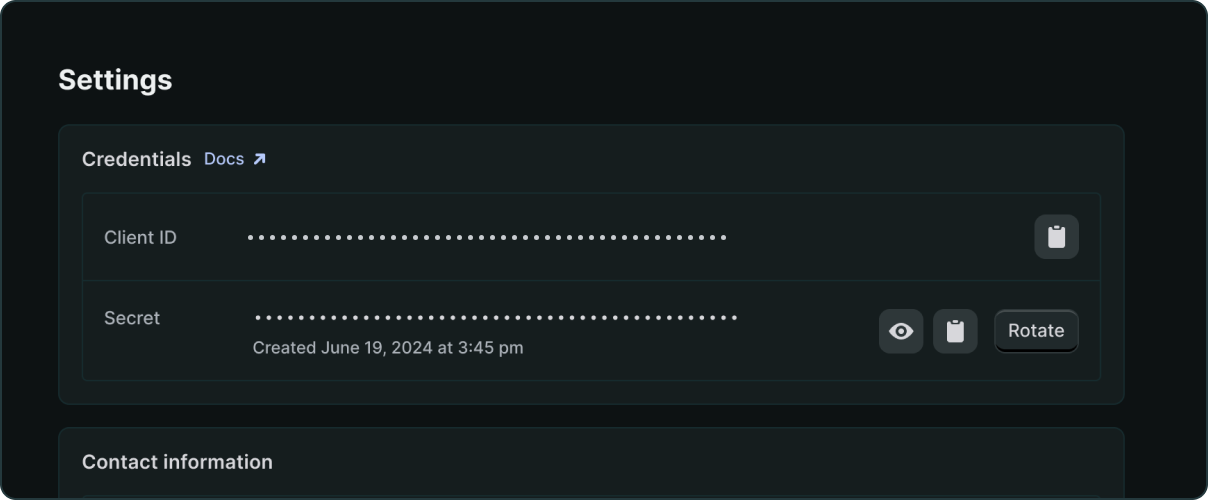
Your client ID is permanent and doesn't change. Your client secret must be kept secure. Treat it like a password. Shopify also signs your app's webhooks with it, so you use it to verify that webhook requests are genuinely from Shopify.
Your app uses these credentials to get an access token. If your app acts only on stores in your own organization, you can exchange them for a token directly. See Authenticate an app for stores in your organization.
Anchor to Secure your credentialsSecure your credentials
- Never commit credentials to version control. Use environment variables or a secrets manager.
- Your client ID is safe to include in frontend code. Your client secret must never be exposed to the browser or included in client-side code.
- Rotate your client secret regularly, or immediately if you suspect it's been compromised.
Anchor to Rotate your client secretRotate your client secret
Rotate your client secret if it's been exposed, if an employee with access has left your organization, and as part of regular security hygiene. You can rotate your secret without causing downtime for your app if you follow these steps in order.
The steps below avoid downtime, which is the right approach for routine rotation. If a secret is actively being misused, prioritize locking out the attacker over avoiding downtime: revoke the exposed secret immediately, before you generate and roll out a new one. Merchants lose access until the new secret is in place, but the leaked secret can't be used in the meantime.
Don't revoke your old secret until you've updated all stored access tokens to use the new one. Revoking early can cause merchants to lose access to your app.
Don't revoke your old secret until you've updated all stored access tokens to use the new one. Revoking early can cause merchants to lose access to your app.
Anchor to Step 1: Generate a new secretStep 1: Generate a new secret
- Open the Dev Dashboard.
- Click Apps and select your app.
- Click Settings.
- In the Credentials section, click Rotate next to your client secret.
- Click Generate new secret to confirm.
The new secret appears with a New label. Your old secret stays active until you revoke it.
Anchor to Step 2: Update webhook validationStep 2: Update webhook validation
Shopify signs webhooks with your app's oldest unrevoked client secret, so during rotation your webhooks keep being signed with the old secret until you revoke it. If your app verifies webhook signatures, update your verification logic to accept signatures from both the old and new secret during the transition. Don't switch to validating with only the new secret until after you revoke the old one in the final step, or you'll reject genuine webhooks.
Anchor to Step 3: Update your app to use the new secretStep 3: Update your app to use the new secret
Update your app's environment configuration to use the new client secret for all OAuth calls: token exchange, the authorization code grant, and refresh token requests. Don't revoke the old secret yet.
Anchor to Step 4: Replace access tokens minted under the old secretStep 4: Replace access tokens minted under the old secret
An access token stays pinned to the secret that minted it, so every token your app has stored is still tied to the old one. Each of those tokens needs to be replaced with a token minted under the new secret before you revoke the old secret.
How a token gets replaced depends on how your app obtained it:
- Token exchange: The next exchange for a store returns a token pinned to the new secret, so coverage follows merchants opening your app.
- Client credentials grant: Request a new token using the new secret. Tokens from this grant last 24 hours, so they turn over on their own.
- Expiring offline tokens: Each store's token is pinned to the new secret when it refreshes. Let the refresh cycle run, or send a
grant_type=refresh_tokenrequest for each store's stored refresh token to move every store at once.
If a refresh request times out, hits a network error, or returns a transient 5xx, retry promptly with the same refresh_token. The repeated request returns the same rotated credentials rather than issuing another set, so a partial failure during a bulk pass doesn't cost you a store's token. Don't rely on a fixed retry-window duration. See Refresh an expiring offline token for the full error behavior.
If a refresh request times out, hits a network error, or returns a transient 5xx, retry promptly with the same refresh_token. The repeated request returns the same rotated credentials rather than issuing another set, so a partial failure during a bulk pass doesn't cost you a store's token. Don't rely on a fixed retry-window duration. See Refresh an expiring offline token for the full error behavior.
Anchor to Re-pin a non-expiring offline tokenRe-pin a non-expiring offline token
A non-expiring offline token has no refresh token of its own, so none of the paths above reaches it. To move one to the new secret, use the rotation refresh token that the Dev Dashboard issues while two secrets are active.
Non-expiring offline tokens remain available to custom apps. Public apps must use expiring offline tokens for GraphQL Admin API requests, so if yours is public and still holds non-expiring tokens, re-pin them to finish rotation, then migrate to expiring offline access tokens.
- In the Credentials section, find Refresh token and click Generate refresh token. This section only appears while your app has more than one active secret, so you won't see it before Step 1 or after Step 5.
- For each store, send the following request. Include
access_tokenso that Shopify re-pins the existing token rather than running an OAuth refresh. Nogrant_typeis needed.
POST https://{shop}.myshopify.com/admin/oauth/access_token
The response contains a new access token, and the old one is destroyed, so store the response before moving to the next store. The token stays non-expiring. Repeated calls with the same access token within 10 seconds return the same result, so a retry after a network timeout is safe.
A rotation refresh token lasts one hour. If your app is installed on more stores than you can work through in that time, generate another one and continue where you left off.
Admin-created custom apps have no Dev Dashboard entry and no way to rotate a client secret, so this flow doesn't apply to them. To change their credentials, the merchant uninstalls and reinstalls the app.
Admin-created custom apps have no Dev Dashboard entry and no way to rotate a client secret, so this flow doesn't apply to them. To change their credentials, the merchant uninstalls and reinstalls the app.
Anchor to Step 5: Revoke the old secretStep 5: Revoke the old secret
Once every stored access token has been replaced with one minted under the new secret, revoke the old secret in the Dev Dashboard. This finalizes rotation and destroys the old secret row. Any access tokens still pinned to the old secret stop working.
After revoking, update your webhook validation to accept only signatures from the new secret.
Anchor to Rotation and token refreshRotation and token refresh
Two different credentials are called a refresh token in this flow, and they aren't interchangeable:
- A rotation refresh token comes from the Dev Dashboard, covers your whole app, and lasts one hour. You send it with an existing
access_tokento re-pin that token to your new secret, as in Step 4. - A store's refresh token is returned alongside an expiring offline access token, and your app stores one per store. You send it with
grant_type=refresh_tokento renew that store's access token before it expires. See Refresh an expiring offline token.
Rotating a secret invalidates every access token tied to the old secret, so it requires moving all of your stores. Refreshing a token renews one store's access token and leaves your credentials unchanged.
Anchor to Next stepsNext steps
- Learn how your app exchanges its credentials for the access token it sends on API requests.
- Use your client secret to verify webhook requests genuinely came from Shopify.
- Create and rotate App Automation Tokens, the separate credential that authenticates Shopify CLI in CI/CD.