Version 2025-07 is the last API version to support React-based UI components. Later versions use Polaris web components, native UI elements with built-in accessibility, better performance, and consistent styling with Shopify's design system. Check out the upgrade guide to upgrade your extension and avoid being blocked from updating your extension after October 1st 2026.
Block
BlockLayout is used to lay out content over multiple rows.
By default, all rows fill the available block space, sharing it equally.
Supported targets
- Checkout::Actions::Render
Before - Checkout::Cart
Line Details::Render After - Checkout::Cart
Lines::Render After - Checkout::Contact::Render
After - Checkout::Customer
Information::Render After - Checkout::Delivery
Address::Render Before - Checkout::Dynamic::Render
- Checkout::Pickup
Locations::Render After - Checkout::Pickup
Locations::Render Before - Checkout::Pickup
Points::Render After - Checkout::Pickup
Points::Render Before - Checkout::Reductions::Render
After - Checkout::Reductions::Render
Before - Checkout::Shipping
Method Details::Render After - Checkout::Shipping
Method Details::Render Expanded - Checkout::Shipping
Methods::Render After - Checkout::Shipping
Methods::Render Before - Checkout::Thank
You::Cart Line Details::Render After - Checkout::Thank
You::Cart Lines::Render After - Checkout::Thank
You::Customer Information::Render After - Checkout::Thank
You::Dynamic::Render - purchase.
checkout. actions. render-before - purchase.
checkout. block. render - purchase.
checkout. cart-line-item. render-after - purchase.
checkout. cart-line-list. render-after - purchase.
checkout. contact. render-after - purchase.
checkout. delivery-address. render-after - purchase.
checkout. delivery-address. render-before - purchase.
checkout. footer. render-after - purchase.
checkout. header. render-after - purchase.
checkout. payment-method-list. render-after - purchase.
checkout. payment-method-list. render-before - purchase.
checkout. pickup-location-list. render-after - purchase.
checkout. pickup-location-list. render-before - purchase.
checkout. pickup-location-option-item. render-after - purchase.
checkout. pickup-point-list. render-after - purchase.
checkout. pickup-point-list. render-before - purchase.
checkout. reductions. render-after - purchase.
checkout. reductions. render-before - purchase.
checkout. shipping-option-item. details. render - purchase.
checkout. shipping-option-item. render-after - purchase.
checkout. shipping-option-list. render-after - purchase.
checkout. shipping-option-list. render-before - purchase.
thank-you. announcement. render - purchase.
thank-you. block. render - purchase.
thank-you. cart-line-item. render-after - purchase.
thank-you. cart-line-list. render-after - purchase.
thank-you. customer-information. render-after - purchase.
thank-you. footer. render-after - purchase.
thank-you. header. render-after
Supported targets
- Checkout::Actions::Render
Before - Checkout::Cart
Line Details::Render After - Checkout::Cart
Lines::Render After - Checkout::Contact::Render
After - Checkout::Customer
Information::Render After - Checkout::Delivery
Address::Render Before - Checkout::Dynamic::Render
- Checkout::Pickup
Locations::Render After - Checkout::Pickup
Locations::Render Before - Checkout::Pickup
Points::Render After - Checkout::Pickup
Points::Render Before - Checkout::Reductions::Render
After - Checkout::Reductions::Render
Before - Checkout::Shipping
Method Details::Render After - Checkout::Shipping
Method Details::Render Expanded - Checkout::Shipping
Methods::Render After - Checkout::Shipping
Methods::Render Before - Checkout::Thank
You::Cart Line Details::Render After - Checkout::Thank
You::Cart Lines::Render After - Checkout::Thank
You::Customer Information::Render After - Checkout::Thank
You::Dynamic::Render - purchase.
checkout. actions. render-before - purchase.
checkout. block. render - purchase.
checkout. cart-line-item. render-after - purchase.
checkout. cart-line-list. render-after - purchase.
checkout. contact. render-after - purchase.
checkout. delivery-address. render-after - purchase.
checkout. delivery-address. render-before - purchase.
checkout. footer. render-after - purchase.
checkout. header. render-after - purchase.
checkout. payment-method-list. render-after - purchase.
checkout. payment-method-list. render-before - purchase.
checkout. pickup-location-list. render-after - purchase.
checkout. pickup-location-list. render-before - purchase.
checkout. pickup-location-option-item. render-after - purchase.
checkout. pickup-point-list. render-after - purchase.
checkout. pickup-point-list. render-before - purchase.
checkout. reductions. render-after - purchase.
checkout. reductions. render-before - purchase.
checkout. shipping-option-item. details. render - purchase.
checkout. shipping-option-item. render-after - purchase.
checkout. shipping-option-list. render-after - purchase.
checkout. shipping-option-list. render-before - purchase.
thank-you. announcement. render - purchase.
thank-you. block. render - purchase.
thank-you. cart-line-item. render-after - purchase.
thank-you. cart-line-list. render-after - purchase.
thank-you. customer-information. render-after - purchase.
thank-you. footer. render-after - purchase.
thank-you. header. render-after
BlockLayout is used to lay out content over multiple rows.
By default, all rows fill the available block space, sharing it equally.
- Anchor to accessibilityLabelaccessibility
Labelaccessibility Label stringstring A label that describes the purpose or contents of the element. When set, it will be announced to buyers using assistive technologies and will provide them with more context.
- Anchor to accessibilityRoleaccessibility
Roleaccessibility Role ViewLikeAccessibilityRoleViewLikeAccessibilityRole Sets the semantic meaning of the component’s content. When set, the role will be used by assistive technologies to help buyers navigate the page.
For example:
In an HTML host a
tuple will render:<li role='separator'>In an HTML host a
string will render:<li>
- Anchor to backgroundbackgroundbackgroundMaybeConditionalStyle<Background>MaybeConditionalStyle<Background>Default: 'transparent'Default: 'transparent'
The background color of the element, set using a design-system keyword.
transparent: No background; the parent's background shows through.base: The standard surface background color.subdued: A muted background for de-emphasized or secondary content.
- Anchor to blockAlignmentblock
Alignmentblock Alignment MaybeResponsiveConditionalStyle<BlockAlignment>MaybeResponsiveConditionalStyle<BlockAlignment> Position children along the cross axis.
- Anchor to borderborderborderMaybeResponsiveConditionalStyle<MaybeShorthandProperty<BorderStyle>>MaybeResponsiveConditionalStyle<MaybeShorthandProperty<BorderStyle>>
The border style of the element.
To shorten the code, it is possible to specify all the border style properties in one property.
For example:
basemeans blockStart, inlineEnd, blockEnd and inlineStart border styles arebase['base', 'none']means blockStart and blockEnd border styles arebase, inlineStart and inlineEnd border styles arenone['base', 'none', 'dotted', 'base']means blockStart border style isbase, inlineEnd border style isnone, blockEnd border style isdottedand blockStart border style isbase
- Anchor to borderWidthborder
Widthborder Width MaybeResponsiveConditionalStyle< MaybeShorthandProperty<BorderWidth> >MaybeResponsiveConditionalStyle< MaybeShorthandProperty<BorderWidth> > The border width of the element.
To shorten the code, it is possible to specify all the border width properties in one property.
For example:
basemeans blockStart, inlineEnd, blockEnd and inlineStart border widths arebase['base', 'medium']means blockStart and blockEnd border widths arebase, inlineStart and inlineEnd border widths aremedium['base', 'medium', 'medium', 'base']means blockStart border width isbase, inlineEnd border width ismedium, blockEnd border width ismediumand blockStart border width isbase
- Anchor to cornerRadiuscorner
Radiuscorner Radius MaybeResponsiveConditionalStyle< MaybeShorthandProperty<CornerRadius> >MaybeResponsiveConditionalStyle< MaybeShorthandProperty<CornerRadius> > The corner radius of the element.
Provide a single value to apply the same corner radius to all four corners, two values to apply different corner radii to opposing corners, or four values to apply different corner radii to each individual corner.
For example:
basemeans all 4 corner radii arebase['base', 'none']means the StartStart and EndEnd corner radii arebase, StartEnd and EndStart corner radii arenone. When the context’s language direction is left to right, StartStart and EndEnd corners are the top left and bottom right corners while StartEnd and EndStart corners are the top right and bottom left corners.['base', 'none', 'small', 'base']means StartStart corner radius isbase, StartEnd corner radius isnone, EndEnd corner radius issmalland EndStart corner radius isbase
A
alias is available for this property. When both are specified,takes precedence.- Anchor to displaydisplaydisplayMaybeResponsiveConditionalStyle<'auto' | 'none'>MaybeResponsiveConditionalStyle<'auto' | 'none'>Default: 'auto'Default: 'auto'
Changes the display of the component.
autothe component's initial value. The actual value depends on the component and context.nonehides the component and removes it from the accessibility tree, making it invisible to screen readers.- Anchor to idididstringstring
A unique identifier for the component.
- Anchor to inlineAlignmentinline
Alignmentinline Alignment MaybeResponsiveConditionalStyle<InlineAlignment>MaybeResponsiveConditionalStyle<InlineAlignment> Position children along the main axis.
- Anchor to maxBlockSizemax
Block Sizemax Block Size MaybeResponsiveConditionalStyle< number | `${number}%` | 'fill' >MaybeResponsiveConditionalStyle< number | `${number}%` | 'fill' > The maximum block size (maximum height in horizontal writing modes). The element won't grow taller than this value even if its content is longer.
number: The size in pixels.`${number}%`: The size as a percentage of the parent container's block size.'fill': Takes all the available space.
Learn more about the max-block-size property.
- Anchor to maxInlineSizemax
Inline Sizemax Inline Size MaybeResponsiveConditionalStyle< number | `${number}%` | 'fill' >MaybeResponsiveConditionalStyle< number | `${number}%` | 'fill' > The maximum inline size (maximum width in horizontal writing modes). The element won't grow wider than this value.
number: The size in pixels.`${number}%`: The size as a percentage of the parent container's inline size.'fill': Takes all the available space.
Learn more about the max-inline-size property.
- Anchor to minBlockSizemin
Block Sizemin Block Size MaybeResponsiveConditionalStyle< number | `${number}%` | 'fill' >MaybeResponsiveConditionalStyle< number | `${number}%` | 'fill' > The minimum block size (minimum height in horizontal writing modes). The element won't shrink smaller than this value even if its content is shorter.
number: The size in pixels.`${number}%`: The size as a percentage of the parent container's block size.'fill': Takes all the available space.
Learn more about the min-block-size property.
- Anchor to minInlineSizemin
Inline Sizemin Inline Size MaybeResponsiveConditionalStyle< number | `${number}%` | 'fill' >MaybeResponsiveConditionalStyle< number | `${number}%` | 'fill' > The minimum inline size (minimum width in horizontal writing modes). The element won't shrink narrower than this value.
number: The size in pixels.`${number}%`: The size as a percentage of the parent container's inline size.'fill': Takes all the available space.
Learn more about the min-inline-size property.
- Anchor to overflowoverflowoverflow'hidden' | 'visible''hidden' | 'visible'Default: 'visible'Default: 'visible'
Sets the overflow behavior of the element.
hidden: clips the content when it is larger than the element’s container. The element will not be scrollable and the users will not be able to access the clipped content by dragging or using a scroll wheel.visible: the content that extends beyond the element’s container is visible.- Anchor to paddingpaddingpaddingMaybeResponsiveConditionalStyle<MaybeShorthandProperty<Spacing>>MaybeResponsiveConditionalStyle<MaybeShorthandProperty<Spacing>>
The padding on all edges of the element, using a shorthand syntax. You can specify one, two, or four values following the CSS shorthand convention.
T: A single value applied uniformly to all edges.[T, T]: The first value applies to block-start and block-end, the second to inline-start and inline-end.[T, T, T, T]: Values apply to block-start, inline-end, block-end, and inline-start respectively.
- Anchor to rowsrowsrowsMaybeResponsiveConditionalStyle<Rows>MaybeResponsiveConditionalStyle<Rows>Default: 'fill'Default: 'fill'
Sizes for each row of the layout.
auto: intrinsic size of the element.fill: fills the remaining available space. When multiple elements are set tofill, the remaining space is shared equally.`${number}%`: size in percentages.`${number}fr`: size in fractions.number: size in pixels.When the sum of the defined sizes is larger than the available space, elements will shrink to avoid overflow.
When the size of an element is not explicitly set, it will fill the remaining space available.
When only one size is set and outside of an array, all elements of the layout will take that size.
- Anchor to spacingspacingspacingMaybeResponsiveConditionalStyle<Spacing | [Spacing, Spacing]>MaybeResponsiveConditionalStyle<Spacing | [Spacing, Spacing]>Default: 'none'Default: 'none'
Adjust spacing between children.
basemeans the space between rows and columns isbase.[
base,none] means the space between rows isbase, space between columns isnone.
- Anchor to borderRadiusborder
Radiusborder Radius MaybeResponsiveConditionalStyle< MaybeShorthandProperty<CornerRadius> >MaybeResponsiveConditionalStyle< MaybeShorthandProperty<CornerRadius> >deprecateddeprecated - Deprecated
Use
instead.The corner radius of the element. Accepts a single value for all corners or a shorthand tuple for per-corner control.
Deprecated:Use
instead.The corner radius of the element. Accepts a single value for all corners or a shorthand tuple for per-corner control.
ViewLikeAccessibilityRole
NonPresentationalAccessibilityRole | [NonPresentationalAccessibilityRole, NonPresentationalAccessibilityRole]NonPresentationalAccessibilityRole
'main' | 'header' | 'footer' | 'section' | 'complementary' | 'navigation' | 'orderedList' | 'listItem' | 'unorderedList' | 'separator' | 'status' | 'alert'MaybeConditionalStyle
A type that represents a value that can be a conditional style. We highly recommend using the `Style` helper which simplifies the creation of conditional styles.
T | ConditionalStyle<T, AcceptedConditions>ConditionalStyle
A conditional style definition that maps one or more conditions to different values. The `default` value is used as a fallback when none of the conditions in `conditionals` are satisfied.
- conditionals
An array of conditional values.
ConditionalValue<T, AcceptedConditions>[] - default
The default value applied when none of the conditional values specified in `conditionals` are met.
T
ConditionalValue
A single conditional branch that pairs a set of conditions with the value to apply when those conditions are met.
- conditions
The conditions that must be met for the value to be applied. At least one condition must be specified.
AcceptedConditions - value
The value that will be applied if the conditions are met.
T
Background
A keyword that maps to a predefined background color from the design system. - `transparent`: No background color; the parent's background shows through. - `base`: The standard surface background color. - `subdued`: A muted background color, typically used to de-emphasize content or distinguish secondary areas from the primary surface.
'transparent' | 'base' | 'subdued'MaybeResponsiveConditionalStyle
A type that represents a value that can be a conditional style. The conditions are based on the viewport size. We highly recommend using the `Style` helper which simplifies the creation of conditional styles.
T | ConditionalStyle<T, ViewportSizeCondition>ViewportSizeCondition
A condition that targets layouts based on the inline size (width in horizontal writing modes) of the viewport.
- viewportInlineSize
The minimum viewport inline size that the condition must match.
{ min: T; }
BlockAlignment
Controls how content is aligned along the block axis (vertical in standard writing modes). - `'start'`: Aligns content to the block start of the container. - `'center'`: Centers content along the block axis. - `'end'`: Aligns content to the block end of the container. - `'baseline'`: Aligns content so their text baselines line up.
Alignment | 'baseline'Alignment
Controls how content is aligned along the cross axis. - `'start'`: Aligns content to the start of the container. - `'center'`: Centers content within the container. - `'end'`: Aligns content to the end of the container.
'start' | 'center' | 'end'MaybeShorthandProperty
A type that accepts either a single value applied to all edges or a shorthand tuple for per-edge control. - `T`: A single value applied uniformly to all edges. - `[T, T]`: The first value applies to block-start and block-end, the second to inline-start and inline-end. - `[T, T, T, T]`: Values apply to block-start, inline-end, block-end, and inline-start respectively.
T | ShorthandProperty<T>ShorthandProperty
A tuple type that accepts two or four values following the CSS shorthand convention for box edges. - `[T, T]`: The first value applies to block-start and block-end, the second to inline-start and inline-end. - `[T, T, T, T]`: Values apply to block-start, inline-end, block-end, and inline-start respectively.
[T, T] | [T, T, T, T]BorderStyle
A keyword that maps to a predefined border style from the design system. - `base`: A solid border line, suitable for most use cases. - `dashed`: A dashed border line, often used for drop zones or placeholder boundaries. - `dotted`: A dotted border line. - `none`: No border is rendered.
'base' | 'dashed' | 'dotted' | 'none'CornerRadius
A keyword that maps to a predefined corner radius from the design system. - `base`: The default corner radius. - `small`: A subtle corner radius, smaller than `base`. - `large`: A pronounced corner radius, larger than `base`. - `fullyRounded`: Fully rounds the corners into a pill or circle shape. - `none`: No corner rounding; sharp square corners.
'base' | 'small' | 'large' | 'fullyRounded' | 'none' | CornerRadiusDeprecatedCornerRadiusDeprecated
'tight' | 'loose'BorderWidth
A keyword that maps to a predefined border width from the design system. - `base`: The default border width. - `medium`: A medium border width, thicker than `base`. - `thick`: The thickest available border width.
'base' | 'medium' | 'thick'InlineAlignment
Controls how content is aligned along the inline axis (horizontal in standard writing modes). - `'start'`: Aligns content to the inline start of the container. - `'center'`: Centers content along the inline axis. - `'end'`: Aligns content to the inline end of the container.
'start' | 'center' | 'end'Spacing
A keyword that maps to a predefined spacing value from the design system. Use these instead of pixel values to ensure consistent spacing throughout the UI. - `none`: No spacing (0px). - `extraTight`: The smallest amount of spacing. - `tight`: A compact amount of spacing, suitable for tight layouts. - `base`: The default spacing, appropriate for most layouts. - `loose`: A generous amount of spacing, used to create visual separation. - `extraLoose`: The largest amount of spacing.
'none' | 'extraTight' | 'tight' | 'base' | 'loose' | 'extraLoose'Rows
GridItemSize[] | GridItemSizeGridItemSize
'auto' | 'fill' | number | `${number}fr` | `${number}%`Anchor to ExamplesExamples
Anchor to Basic BlockLayoutBasic Block
Basic BlockLayout
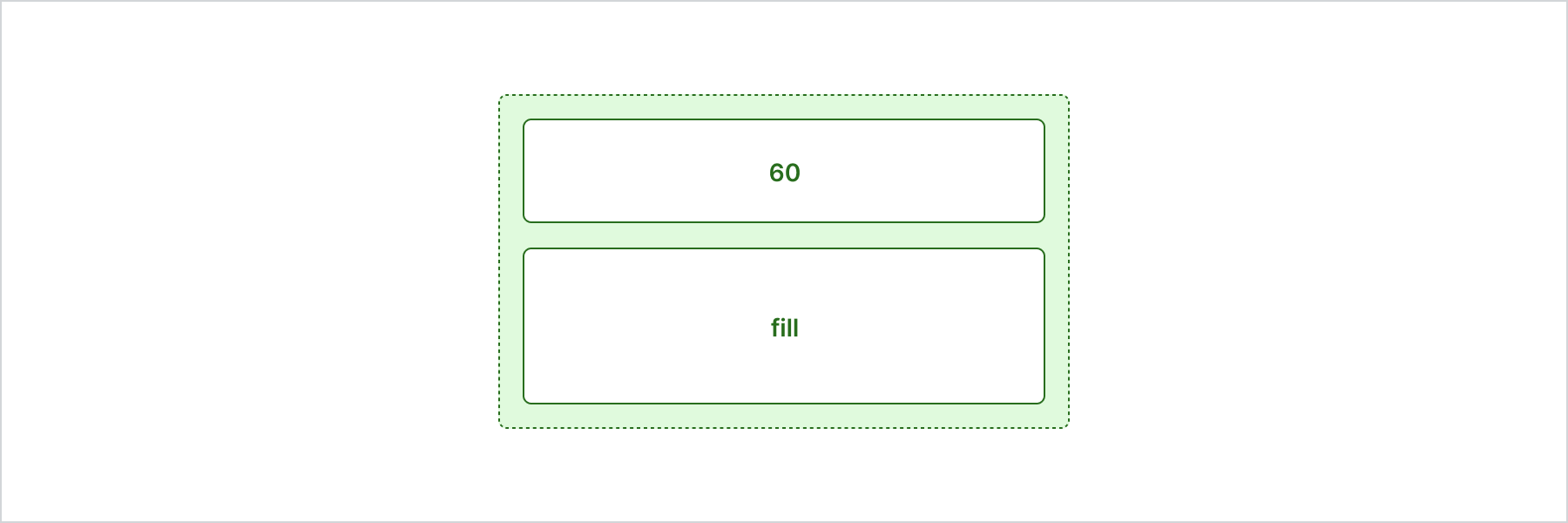
Basic BlockLayout
React
import {
  reactExtension,
  BlockLayout,
  View,
} from '@shopify/ui-extensions-react/checkout';

export default reactExtension(
  'purchase.checkout.block.render',
  () => <Extension />,
);

function Extension() {
  return (
    <BlockLayout rows={[60, 'fill']}>
      <View border="base" padding="base">
        60
      </View>
      <View border="base" padding="base">
        fill
      </View>
    </BlockLayout>
  );
}
JS
import {extension, BlockLayout, View} from '@shopify/ui-extensions/checkout';

export default extension('purchase.checkout.block.render', (root) => {
  const blockLayout = root.createComponent(
    BlockLayout,
    {
      rows: [60, 'fill'],
    },
    [
      root.createComponent(View, {border: 'base', padding: 'base'}, '60'),
      root.createComponent(View, {border: 'base', padding: 'base'}, 'fill'),
    ],
  );

  root.appendChild(blockLayout);
});
Anchor to Accessibility rolesAccessibility roles
| Value | Description |
|---|---|
"main" | Used to indicate the primary content. |
"header" | Used to indicate the component is a header. |
"footer" | Used to display information such as copyright information, navigation links, and privacy statements. |
"section" | Used to indicate a generic section. |
"complementary" | Used to designate a supporting section that relates to the main content. |
"navigation" | Used to identify major groups of links used for navigating. |
"orderedList" | Used to identify a list of ordered items. |
"listItem" | Used to identify an item inside a list of items. |
"unorderedList" | Used to identify a list of unordered items. |
"separator" | Used to indicates the component acts as a divider that separates and distinguishes sections of content. |
"status" | Used to define a live region containing advisory information for the user that is not important enough to be an alert. |
"alert" | Used for important, and usually time-sensitive, information. |

