Switch
The switch component provides a clear way for users to toggle options or settings on and off. Use switch for binary controls that take effect immediately, like enabling features, activating settings, or controlling visibility.
Switches provide instant visual feedback and are ideal for settings that don't require a save action to apply changes. Switch doesn't support error or required. For selections that require validation or explicit submission, use checkbox instead.
Supported targets
- purchase.
checkout. actions. render-before - purchase.
checkout. block. render - purchase.
checkout. cart-line-item. render-after - purchase.
checkout. cart-line-list. render-after - purchase.
checkout. contact. render-after - purchase.
checkout. delivery-address. render-after - purchase.
checkout. delivery-address. render-before - purchase.
checkout. footer. render-after - purchase.
checkout. header. render-after - purchase.
checkout. payment-method-list. render-after - purchase.
checkout. payment-method-list. render-before - purchase.
checkout. pickup-location-list. render-after - purchase.
checkout. pickup-location-list. render-before - purchase.
checkout. pickup-location-option-item. render-after - purchase.
checkout. pickup-point-list. render-after - purchase.
checkout. pickup-point-list. render-before - purchase.
checkout. reductions. render-after - purchase.
checkout. reductions. render-before - purchase.
checkout. shipping-option-item. details. render - purchase.
checkout. shipping-option-item. render-after - purchase.
checkout. shipping-option-list. render-after - purchase.
checkout. shipping-option-list. render-before - purchase.
thank-you. announcement. render - purchase.
thank-you. block. render - purchase.
thank-you. cart-line-item. render-after - purchase.
thank-you. cart-line-list. render-after - purchase.
thank-you. customer-information. render-after - purchase.
thank-you. footer. render-after - purchase.
thank-you. header. render-after
Supported targets
- purchase.
checkout. actions. render-before - purchase.
checkout. block. render - purchase.
checkout. cart-line-item. render-after - purchase.
checkout. cart-line-list. render-after - purchase.
checkout. contact. render-after - purchase.
checkout. delivery-address. render-after - purchase.
checkout. delivery-address. render-before - purchase.
checkout. footer. render-after - purchase.
checkout. header. render-after - purchase.
checkout. payment-method-list. render-after - purchase.
checkout. payment-method-list. render-before - purchase.
checkout. pickup-location-list. render-after - purchase.
checkout. pickup-location-list. render-before - purchase.
checkout. pickup-location-option-item. render-after - purchase.
checkout. pickup-point-list. render-after - purchase.
checkout. pickup-point-list. render-before - purchase.
checkout. reductions. render-after - purchase.
checkout. reductions. render-before - purchase.
checkout. shipping-option-item. details. render - purchase.
checkout. shipping-option-item. render-after - purchase.
checkout. shipping-option-list. render-after - purchase.
checkout. shipping-option-list. render-before - purchase.
thank-you. announcement. render - purchase.
thank-you. block. render - purchase.
thank-you. cart-line-item. render-after - purchase.
thank-you. cart-line-list. render-after - purchase.
thank-you. customer-information. render-after - purchase.
thank-you. footer. render-after - purchase.
thank-you. header. render-after
Anchor to Use casesUse cases
- Feature toggles: Let buyers enable or disable optional features like shipping insurance or gift receipts.
- Notification preferences: Allow buyers to toggle order notifications or marketing communications on or off.
- Pre-enabled defaults: Set commonly chosen options to on by default using
defaultChecked. - Disabled states: Show a non-interactive toggle when the option is locked or depends on another selection.
Anchor to PropertiesProperties
Configure the following properties on the switch component.
- Anchor to accessibilityLabelaccessibility
Labelaccessibility Label stringstring A label used for users using assistive technologies like screen readers. When set, any children or
labelsupplied will not be announced. This can also be used to display a control without a visual label, while still providing context to users using screen readers.- Anchor to checkedcheckedcheckedbooleanbooleanDefault: falseDefault: false
Whether the control is currently checked.
- Anchor to commandcommandcommand'--auto' | '--show' | '--hide' | '--toggle''--auto' | '--show' | '--hide' | '--toggle'Default: '--auto'Default: '--auto'
Sets the action the
target should take when this component is activated.--auto: Performs the default action for the target component.--show: Displays the target component.--hide: Conceals the target component.--toggle: Alternates the target component.--copy: Copies the target ClipboardItem.
Learn more about the
commandattribute.- Anchor to commandForcommand
Forcommand For stringstring The ID of the component to control when this component is activated. Pair with the
commandproperty to specify what action to perform on the target component. Learn more about theattribute.When both
andhrefare set,takes precedence. The command runs and the link doesn't navigate.- Anchor to defaultCheckeddefault
Checkeddefault Checked booleanbooleanDefault: falseDefault: false Whether the control is checked by default.
- Anchor to disableddisableddisabledbooleanbooleanDefault: falseDefault: false
Whether the control is disabled, preventing any user interaction.
- Anchor to idididstringstring
A unique identifier for the element. Use this to reference the element in JavaScript, link labels to form controls, or target specific elements for styling or scripting.
- Anchor to labellabellabelstringstring
The text displayed as the control label, which identifies the purpose of the control to users. This label is associated with the control for accessibility.
- Anchor to namenamenamestringstring
The name attribute for the control, used to identify its value when the form is submitted. Must be unique within the nearest containing form.
- Anchor to valuevaluevaluestringstring
The value used in form data when the control is checked.
Anchor to EventsEvents
The switch component provides event callbacks for handling user interactions. Learn more about handling events.
- Anchor to changechangechangeCallbackEventListener<typeof tagName>CallbackEventListener<typeof tagName>
A callback fired when the switch value changes.
Learn more about the change event.
CallbackEventListener
A typed event listener for custom element events. The listener receives a `CallbackEvent` with the correct `currentTarget` type for the associated custom element tag.
(EventListener & {
    (event: CallbackEvent<TTagName, Event> & TData): void;
}) | null
CallbackEvent
An event type that narrows the `currentTarget` to the specific HTML element associated with the custom element tag. This provides type-safe event handling in callback listeners.
TEvent & {
    currentTarget: HTMLElementTagNameMap[TTagName];
}
Anchor to ExamplesExamples
Anchor to Add a shipping insurance toggleAdd a shipping insurance toggle
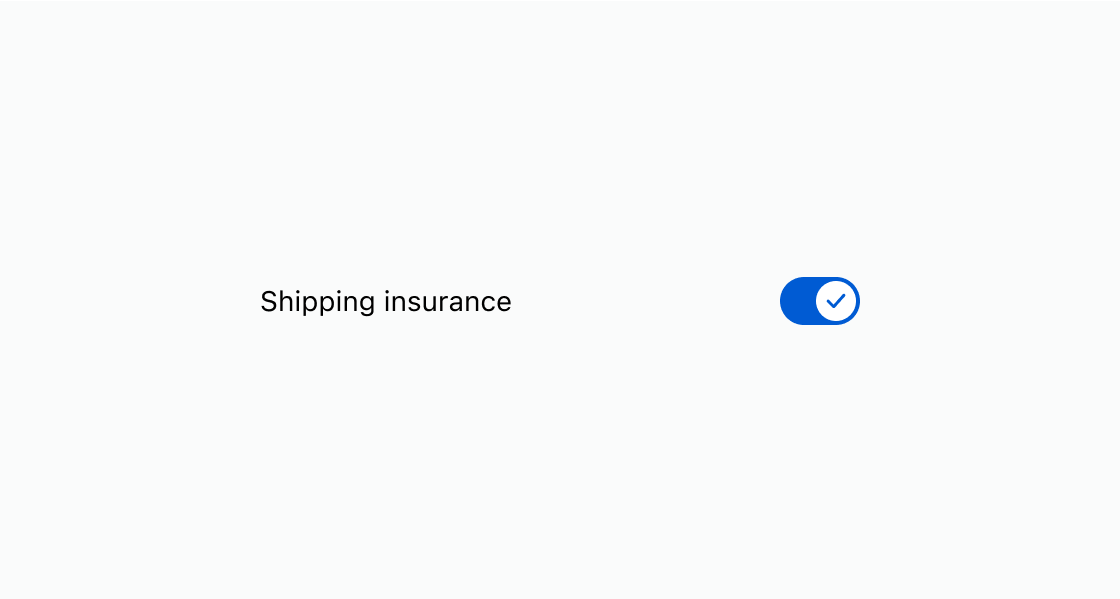
Let buyers opt in to an optional add-on with a toggle. This example presents an s-switch with a label for shipping insurance.Add a shipping insurance toggle
html
Anchor to Pre-enable a notification settingPre-enable a notification setting
Start a toggle in its active state on first load for a commonly chosen option. This example shows an s-switch with defaultChecked for order notifications.html
Show a non-interactive toggle when the option isn't available for the current order. This example displays an
s-switch with the disabled attribute for express delivery.html
Anchor to Best practicesBest practices
- Use for immediate effects: Reserve switches for settings that take effect immediately without a save or submit action.
- Write clear labels: Describe the setting being toggled, such as "Shipping insurance" rather than "Toggle" or "On/Off."
- Use checkbox for deferred actions: If the setting requires form submission to apply, use checkbox instead.
- Pre-enable thoughtfully: Only use
defaultCheckedfor options that benefit the buyer by default.