Text
The textArea component captures multi-line text input. Use it to collect descriptions, notes, comments, or other extended text content.
The component supports configurable height, character limits, and validation. For single-line text input, use textField.
Anchor to PropertiesProperties
Configure the following properties on the textArea component.
Configure the following properties on the text area component.
- Anchor to detailsdetailsdetailsstringstring
Additional text to provide context or guidance for the field. This text is displayed along with the field and its label to offer more information or instructions to the user.
This will also be exposed to screen reader users.
- Anchor to disableddisableddisabledbooleanbooleanDefault: falseDefault: false
Disables the field, disallowing any interaction.
- Anchor to errorerrorerrorstringstring
Indicate an error to the user. The field will be given a specific stylistic treatment to communicate problems that have to be resolved immediately.
- Anchor to idididstringstring
A unique identifier for the element.
- Anchor to labellabellabelstringstring
Content to use as the field label.
- Anchor to maxLengthmax
Lengthmax Length numbernumberDefault: InfinityDefault: Infinity Specifies the maximum number of characters allowed.
- Anchor to placeholderplaceholderplaceholderstringstring
A short hint that describes the expected value of the field.
- Anchor to requiredrequiredrequiredbooleanbooleanDefault: falseDefault: false
Whether the field needs a value. This requirement adds semantic value to the field, but it will not cause an error to appear automatically. If you want to present an error when this field is empty, you can do so with the
errorproperty.- Anchor to rowsrowsrowsnumbernumberDefault: 2Default: 2
A number of visible text lines.
- Anchor to valuevaluevaluestringstring
The current value for the field. If omitted, the field will be empty.
Anchor to EventsEvents
The textArea component provides event callbacks for handling user interactions. Learn more about handling events.
The text area component provides event callbacks for handling user interactions. Learn more about handling events.
- Anchor to blurblurblur(event: CallbackEvent<"s-text-area">) => void(event: CallbackEvent<"s-text-area">) => void
Callback when the element loses focus.
- Anchor to changechangechange(event: CallbackEvent<"s-text-area">) => void(event: CallbackEvent<"s-text-area">) => void
Callback after editing completes (typically on blur).
- Anchor to focusfocusfocus(event: CallbackEvent<"s-text-area">) => void(event: CallbackEvent<"s-text-area">) => void
Callback when the element receives focus.
- Anchor to inputinputinput(event: CallbackEvent<"s-text-area">) => void(event: CallbackEvent<"s-text-area">) => void
Callback when the user makes any changes in the field.
CallbackEvent
- bubbles
boolean - cancelable
boolean - composed
boolean - currentTarget
HTMLElementTagNameMap[T] - detail
any - eventPhase
number - target
HTMLElementTagNameMap[T] | null
Anchor to ExamplesExamples
Capture multi-line text with a text area
Preview
Examples
Capture multi-line text with a text area
Description
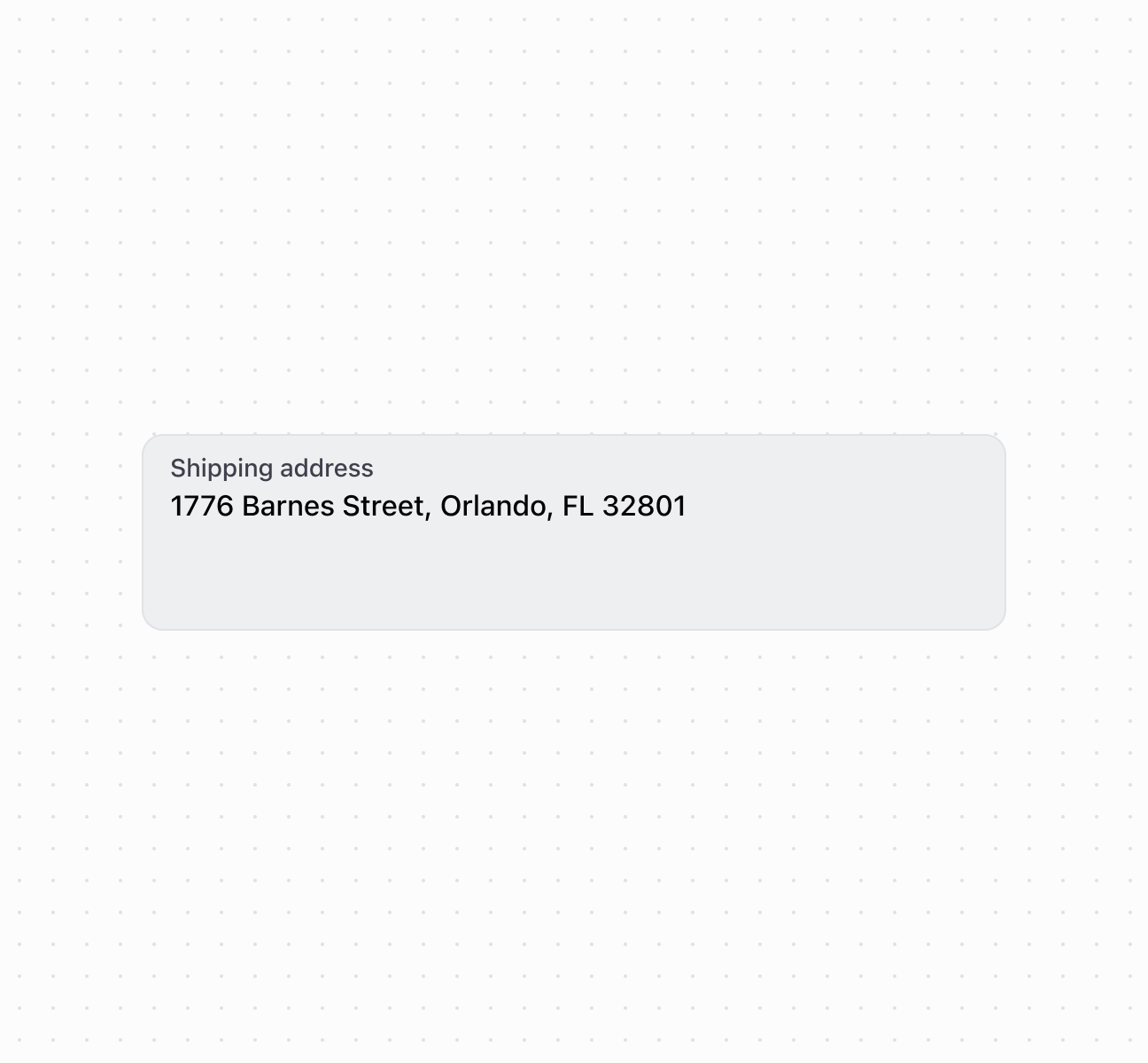
Capture multi-line text input using a textArea component. This example shows a basic text area with a label for extended content.
Capture multi-line text with a text area
<s-text-area
  label="Shipping address"
  value="1776 Barnes Street, Orlando, FL 32801"
/>
Configure rows and character limits
Description
Configure the number of visible rows and character limits to control text area size and input length. This example shows how to use the `rows` property to set initial height and `maxlength` to limit content, ensuring appropriate sizing for different types of text input.
Configure rows and character limits
<s-text-area
  label="Order notes"
  placeholder="Add special instructions..."
  rows={5}
  maxLength={500}
  onInput={(event) => console.log('Characters:', event.currentTarget.value.length)}
/>
Handle text input events
Description
Subscribe to text area events to respond when merchants enter or modify text. This example demonstrates handling `onChange`, `onInput`, `onFocus`, and `onBlur` events for autosave functionality, character counting, or real-time validation of longer text content.
Handle text input events
<s-text-area
  label="Customer feedback"
  placeholder="Enter feedback..."
  onInput={(event) => console.log('Input:', event.currentTarget.value)}
  onChange={(event) => console.log('Change:', event.currentTarget.value)}
  onFocus={(event) => console.log('Focused')}
  onBlur={(event) => console.log('Blurred')}
/>
Anchor to Best practicesBest practices
- Set appropriate row count: Use 2-3
rowsfor brief notes, 4-6 for descriptions, and more for extensive content. - Show character limit feedback: When approaching
maxLength, display remaining characters in thedetailstext. - Write descriptive labels: Use specific labels like "Product Description" or "Special Instructions" rather than generic terms.