Button
The button component triggers actions or events, such as opening dialogs or navigating to other pages. Use button to let merchants perform specific tasks or to initiate interactions throughout the POS interface.
Buttons support various visual styles, tones, and interaction patterns to communicate intent and hierarchy within the interface.
Supported targets
- pos.
cart. line-item-details. action. menu-item. render - pos.
cart. line-item-details. action. render - pos.
customer-details. action. menu-item. render - pos.
customer-details. action. render - pos.
customer-details. block. render - pos.
draft-order-details. action. menu-item. render - pos.
draft-order-details. action. render - pos.
draft-order-details. block. render - pos.
home. modal. render - pos.
order-details. action. menu-item. render - pos.
order-details. action. render - pos.
order-details. block. render - pos.
product-details. action. menu-item. render - pos.
product-details. action. render - pos.
product-details. block. render - pos.
purchase. post. action. menu-item. render - pos.
purchase. post. action. render - pos.
purchase. post. block. render - pos.
register-details. action. menu-item. render - pos.
register-details. action. render - pos.
register-details. block. render
Supported targets
- pos.
cart. line-item-details. action. menu-item. render - pos.
cart. line-item-details. action. render - pos.
customer-details. action. menu-item. render - pos.
customer-details. action. render - pos.
customer-details. block. render - pos.
draft-order-details. action. menu-item. render - pos.
draft-order-details. action. render - pos.
draft-order-details. block. render - pos.
home. modal. render - pos.
order-details. action. menu-item. render - pos.
order-details. action. render - pos.
order-details. block. render - pos.
product-details. action. menu-item. render - pos.
product-details. action. render - pos.
product-details. block. render - pos.
purchase. post. action. menu-item. render - pos.
purchase. post. action. render - pos.
purchase. post. block. render - pos.
register-details. action. menu-item. render - pos.
register-details. action. render - pos.
register-details. block. render
Anchor to Use casesUse cases
- Primary actions: Create actions like "Save changes," "Add customer," or "Process payment" that complete workflows.
- Secondary actions: Provide supporting actions such as "Cancel," "Edit," or "View details."
- Navigation: Enable screen transitions or launch modal experiences for complex operations.
- Loading states: Display loading indicators during asynchronous operations while preventing duplicate submissions.
Anchor to PropertiesProperties
Triggers actions when selected by the merchant.
- '--auto' | '--show' | '--hide' | '--toggle''--auto' | '--show' | '--hide' | '--toggle'Default: '--auto'Default: '--auto'
Sets the action the
should take when this clickable is activated.See the documentation of particular components for the actions they support.
--auto: a default action for the target component.--show: shows the target component.--hide: hides the target component.--toggle: toggles the target component.
- stringstring
ID of a component that should respond to activations (e.g. clicks) on this component.
See
commandfor how to control the behavior of the target.- booleanbooleanDefault: falseDefault: false
Disables the button meaning it cannot be clicked or receive focus.
- stringstring
A unique identifier for the element.
- booleanbooleanDefault: falseDefault: false
Replaces content with a loading indicator while a background action is being performed.
This also disables the button.
- 'auto' | 'neutral' | 'caution' | 'warning' | 'critical''auto' | 'neutral' | 'caution' | 'warning' | 'critical'Default: 'auto'Default: 'auto'
Sets the tone of the button, based on the intention of the information being conveyed.
- 'auto' | 'primary' | 'secondary''auto' | 'primary' | 'secondary'Default: 'auto'Default: 'auto'
Changes the visual appearance of the button.
Anchor to EventsEvents
The button component provides event callbacks for handling user interactions. Learn more about handling events.
- (event: CallbackEvent<"s-button">) => void(event: CallbackEvent<"s-button">) => void
Called when the button is activated.
CallbackEvent
- bubbles
boolean - cancelable
boolean - composed
boolean - currentTarget
HTMLElementTagNameMap[T] - detail
any - eventPhase
number - target
HTMLElementTagNameMap[T] | null
Anchor to ExamplesExamples
Trigger actions using a button component with customizable visual styles and tones. This example shows a basic button with text content.
Trigger actions with a button
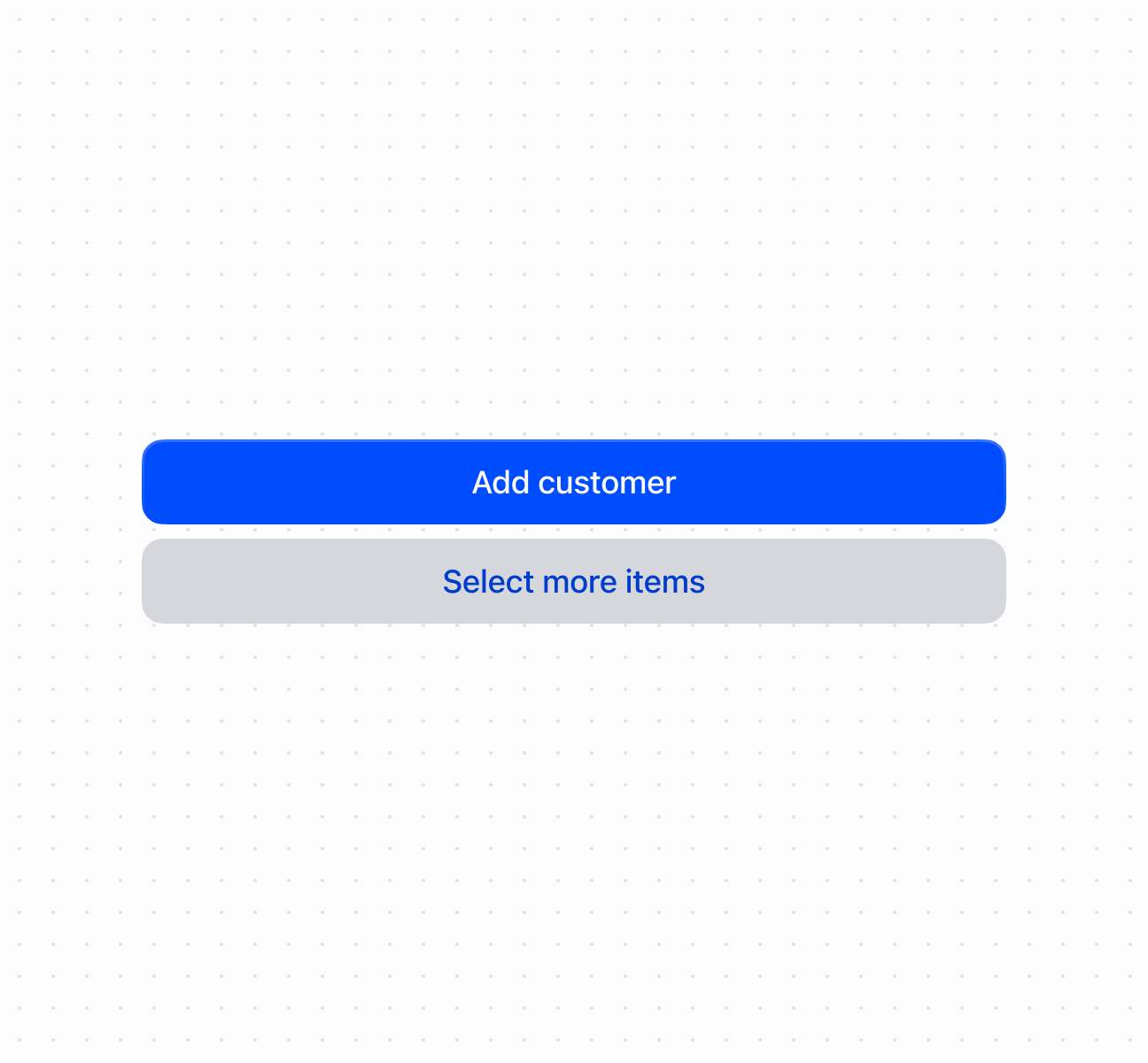
Trigger actions with a button
Anchor to Best practicesBest practices
- Write action-oriented text: Use specific, actionable language like "Save customer" or "Process payment" rather than generic terms like "OK" or "Submit."
- Choose appropriate variants and tones: Use
primaryfor the main action andsecondaryfor supporting actions. Usecriticalfor destructive actions,cautionorwarningfor actions requiring attention. - Show loading states: Set
loadingtotrueduring async operations to prevent duplicate submissions. - Use command system for component control: Use
commandForandcommandto control modals and overlays declaratively. - Structure hierarchies clearly: Group related actions together. Separate destructive actions to prevent accidental activation.