Time picker
The time picker component allows merchants to select times using an interactive picker interface. Use it when merchants benefit from visual time selection rather than typing exact times.
For direct text entry when merchants know the exact time, use time field.
Supported targets
- pos.
cart. line-item-details. action. render - pos.
customer-details. action. render - pos.
customer-details. block. render - pos.
draft-order-details. action. render - pos.
draft-order-details. block. render - pos.
home. modal. render - pos.
order-details. action. render - pos.
order-details. block. render - pos.
product-details. action. render - pos.
product-details. block. render - pos.
purchase. post. action. render - pos.
purchase. post. block. render - pos.
register-details. action. render - pos.
register-details. block. render
Supported targets
- pos.
cart. line-item-details. action. render - pos.
customer-details. action. render - pos.
customer-details. block. render - pos.
draft-order-details. action. render - pos.
draft-order-details. block. render - pos.
home. modal. render - pos.
order-details. action. render - pos.
order-details. block. render - pos.
product-details. action. render - pos.
product-details. block. render - pos.
purchase. post. action. render - pos.
purchase. post. block. render - pos.
register-details. action. render - pos.
register-details. block. render
Anchor to Use casesUse cases
- Visual selection: Provide visual time selection for appointments or scheduling workflows.
- Quick selection: Enable quick time selection for business hours or delivery windows.
- Touch optimization: Support touch-optimized time input on POS devices.
- User-friendly: Allow users to select times without remembering specific formats.
Anchor to PropertiesProperties
Lets merchants select a time from a picker.
- Anchor to idididstringstring
A unique identifier for the element.
- Anchor to valuevaluevaluestringstringDefault: ''Default: ''
Current selected value.
The default,
'', means no time is selected.The value must be a 24-hour time in
HH:mm:ssformat, with leading zeros.Examples:
"00:00:00","09:05:00","23:59:00","14:03:30".This follows the HTML time input value format, which is always 24-hour with leading zeros regardless of UI presentation.
See: https://developer.mozilla.org/docs/Web/HTML/Element/input/time
If the provided value is invalid, '' is used as the value.
Anchor to EventsEvents
The time picker component provides event callbacks for handling user interactions. Learn more about handling events.
- Anchor to blurblurblur(event: CallbackEvent<"s-time-picker">) => void(event: CallbackEvent<"s-time-picker">) => void
Callback when the time picker is dismissed.
- Anchor to changechangechange(event: CallbackEvent<"s-time-picker">) => void(event: CallbackEvent<"s-time-picker">) => void
Callback when the user selects a time from the picker that is different to the current value.
- Anchor to focusfocusfocus(event: CallbackEvent<"s-time-picker">) => void(event: CallbackEvent<"s-time-picker">) => void
Callback when the time picker is revealed.
- Anchor to inputinputinput(event: CallbackEvent<"s-time-picker">) => void(event: CallbackEvent<"s-time-picker">) => void
Callback when the user selects a time from the picker.
CallbackEvent
- bubbles
boolean - cancelable
boolean - composed
boolean - currentTarget
HTMLElementTagNameMap[T] - detail
any - eventPhase
number - target
HTMLElementTagNameMap[T] | null
Anchor to ExamplesExamples
Anchor to Select times with a time pickerSelect times with a time picker
Select times using a time picker component. This example shows a basic time picker for selecting hours and minutes.Select times with a time picker
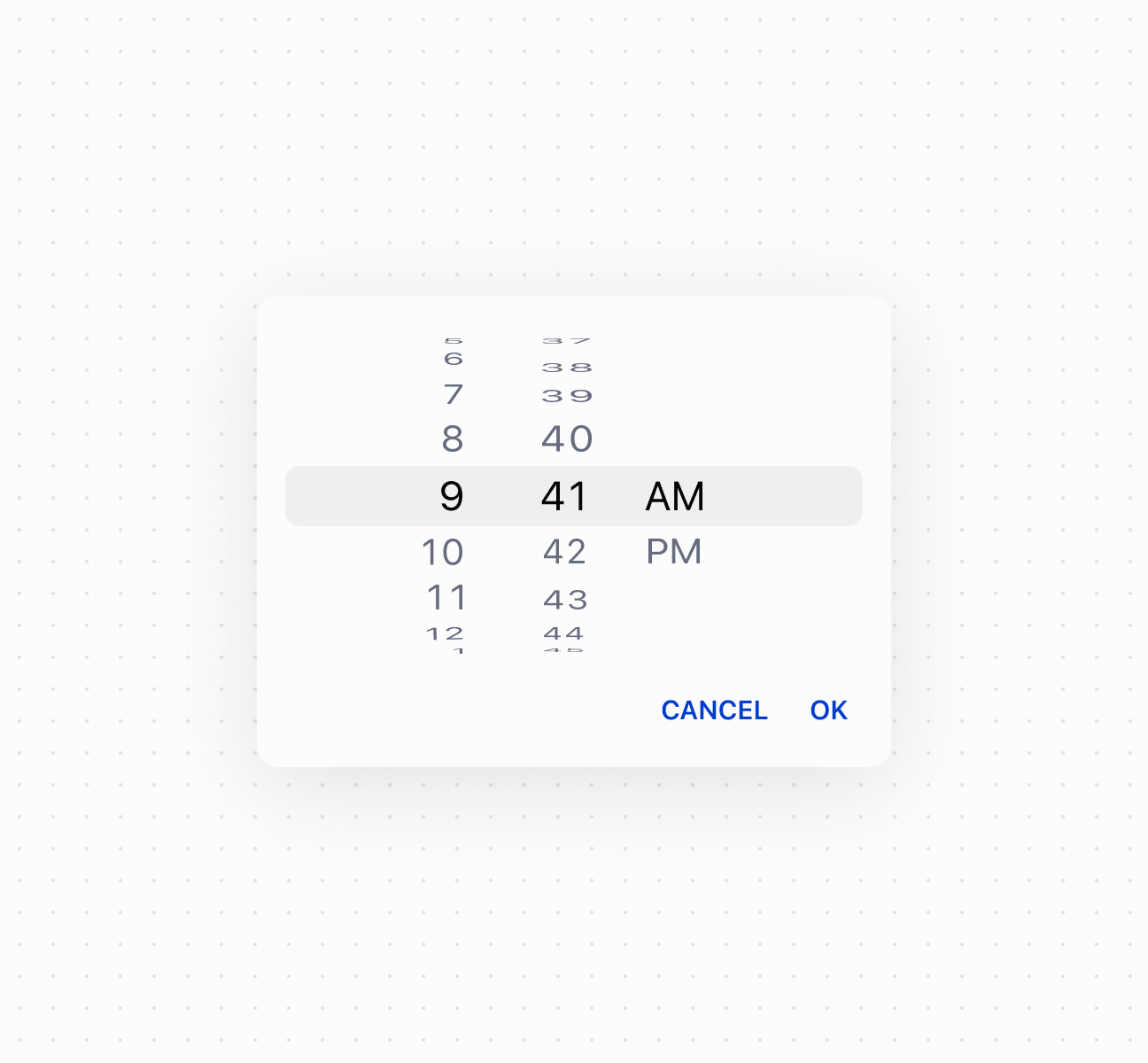
Select times with a time picker
Anchor to Control picker visibilityControl picker visibility
Control time picker visibility programmatically using the command system with show and hide methods. This example demonstrates using button commands to display or dismiss the time picker, enabling custom trigger patterns for time selection workflows.Control picker visibility
Anchor to Handle time selection eventsHandle time selection events
Subscribe to time selection events to respond when merchants pick a time. This example shows how to handle onChange events to capture selected times, enabling validation, scheduling logic, or dynamic updates based on the chosen time.Handle time selection events
Anchor to Best practicesBest practices
- Choose for visual time selection: Use time picker when users benefit from a visual picker interface. Use time field when users know the exact time.
- Use correct format: Always use
HH:mm:ssformat with leading zeros. The internal format is always 24-hour regardless of UI presentation. - Validate before setting values: Invalid values reset to empty string. Implement validation to show appropriate error messages.