POS block
The POS block component creates a container to place content with an action button. Use it to display structured content within POS block targets.
The component provides a standardized layout specifically designed for content blocks within POS detail views, with consistent padding, spacing, and optional action buttons.
Supported targets
- pos.
cart. line-item-details. action. render - pos.
customer-details. action. render - pos.
customer-details. block. render - pos.
draft-order-details. action. render - pos.
draft-order-details. block. render - pos.
home. modal. render - pos.
order-details. action. render - pos.
order-details. block. render - pos.
product-details. action. render - pos.
product-details. block. render - pos.
purchase. post. action. render - pos.
purchase. post. block. render - pos.
register-details. action. render - pos.
register-details. block. render
Supported targets
- pos.
cart. line-item-details. action. render - pos.
customer-details. action. render - pos.
customer-details. block. render - pos.
draft-order-details. action. render - pos.
draft-order-details. block. render - pos.
home. modal. render - pos.
order-details. action. render - pos.
order-details. block. render - pos.
product-details. action. render - pos.
product-details. block. render - pos.
purchase. post. action. render - pos.
purchase. post. block. render - pos.
register-details. action. render - pos.
register-details. block. render
Anchor to Use casesUse cases
- Customer information: Display customer info, loyalty status, or account details.
- Order summaries: Show order details, transaction info, or fulfillment status.
- Product recommendations: Present recommendations, inventory status, or related items.
- Contextual content: Provide actions and information that enhance core POS functionality.
Anchor to PropertiesProperties
Displays content in a POS block container with optional heading.
- Anchor to headingheadingheadingstringstring
The heading to display within the POSBlock.
If not provided, the description of the extension will be used when a heading is appropriate.
- Anchor to idididstringstring
A unique identifier for the element.
Anchor to QR CodeQR Code
Renders a QR code from provided content.
- Anchor to contentcontentcontentstringstring
The content to be encoded in the QR code, which can be any string such as a URL, email address, plain text, etc. Specific string formatting can trigger actions on the user's device when scanned, like opening geolocation coordinates on a map, opening a preferred app or app store entry, preparing an email, text message, and more.
- Anchor to idididstringstring
A unique identifier for the element.
Anchor to SlotsSlots
The POS block component supports slots for additional content placement within the block. Learn more about using slots.
- Anchor to secondary-actionssecondary-actionssecondary-actionsHTMLElementHTMLElement
The secondary actions to perform, provided as button or link type elements.
Anchor to ExamplesExamples
Create structured content blocks using a POS block component with optional action buttons. This example shows a basic block with content and an action button.
Create a content block with an action button
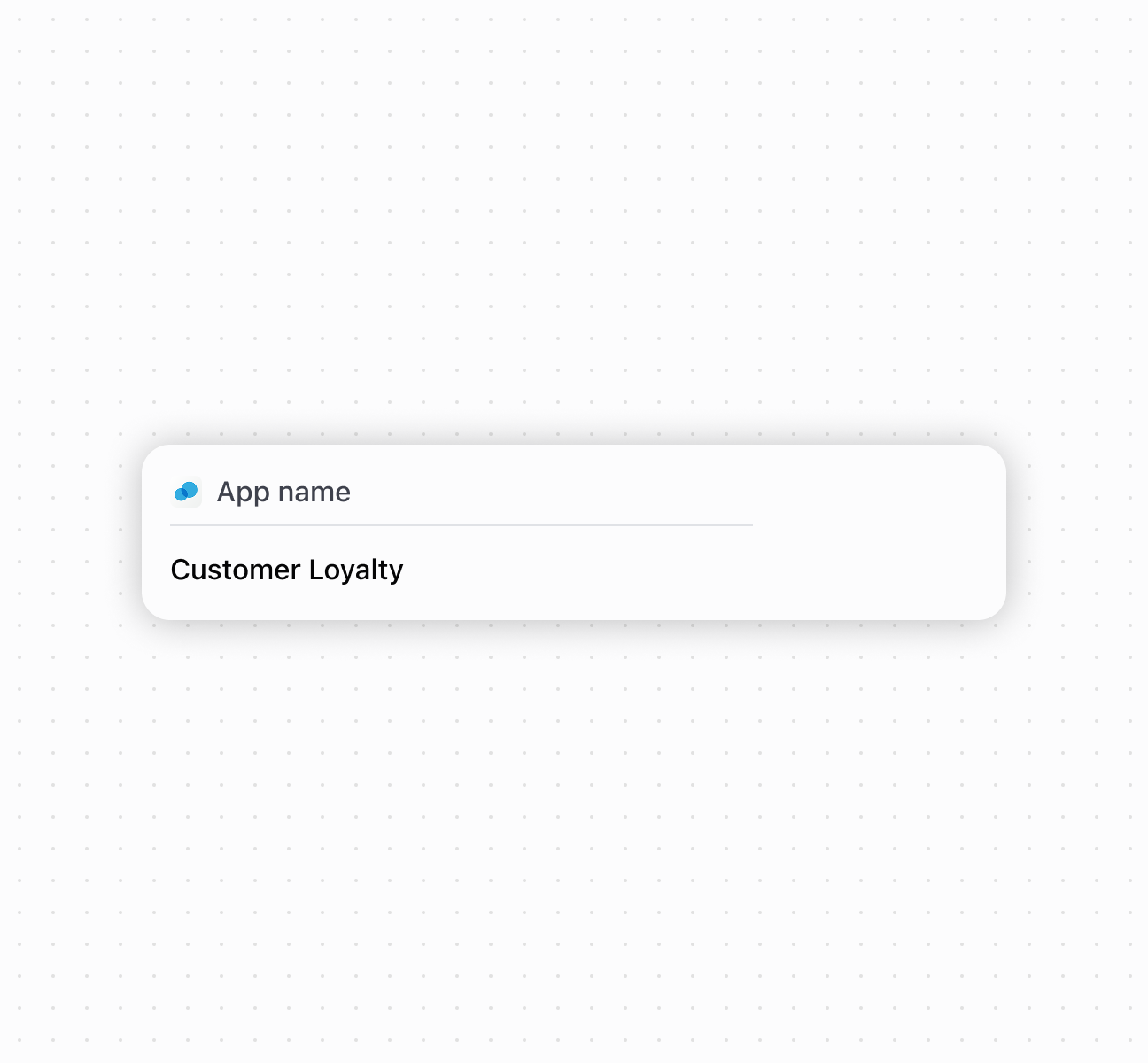
Create a content block with an action button
Anchor to Best practicesBest practices
- Provide descriptive headings: If you don't specify a heading, the system uses your extension's description, so ensure it's meaningful and concise.
- Place important actions in secondary-actions slot: Include only the most relevant actions directly related to your block's content.
- Limit secondary actions: To maintain clean, focused interfaces that don't overwhelm the existing POS workflow, use only one secondary action element in each block.