Tabs
The tabs component organizes content into separate views, allowing merchants to switch between related information without leaving the current page. Use tabs when you need to present multiple categories of content in a space-efficient manner.
Tabs consist of a tab list containing clickable tab buttons and corresponding tab panels that display the content. Only one panel is visible at a time, reducing cognitive load and keeping the interface clean.
Anchor to Use casesUse cases
- Content categories: Organize product information, customer details, or order data into categorized views.
- Workflow sections: Separate different stages or aspects of a workflow into distinct tabbed panels.
- Dashboard views: Present multiple data views like analytics, inventory, and reports in a space-efficient layout.
- Settings groups: Group related settings or preferences into tabs for easier navigation and management.
Anchor to Tabs PropertiesTabs Properties
Groups related content into selectable tabbed views.
- Anchor to defaultValuedefault
Valuedefault Value stringstring The default value of the selected tab.
This should match the
idprop of one of the tab panel components. If not provided, the first tab will be selected by default.Reflects to the
valueattribute- Anchor to disableddisableddisabledbooleanboolean
Disables all tabs and prevents user interaction.
- Anchor to valuevaluevaluestringstring
The value of the selected tab.
This should match the
idprop of one of the tab panel components. If not provided, the first tab will be selected by default.
Anchor to Tabs EventsTabs Events
The tabs component provides event callbacks for handling user interactions. Learn more about handling events.
- Anchor to changechangechange(event: CallbackEvent<"s-tabs">) => void(event: CallbackEvent<"s-tabs">) => void
CallbackEvent
- bubbles
boolean - cancelable
boolean - composed
boolean - currentTarget
HTMLElementTagNameMap[T] - detail
any - eventPhase
number - target
HTMLElementTagNameMap[T] | null
Anchor to TabListTab
- Anchor to childrenchildrenchildrenComponentChildrenComponentChildren
Accepts only tabs components.
ComponentChildren
TODO: Update `any` type here after this is resolved https://github.com/Shopify/ui-api-design/issues/139
anyRepresents an individual tab inside a tabs component.
- Anchor to controlscontrolscontrolsstringstring
Corresponds to the
idproperty of the tab panel component that will be displayed when selected- Anchor to disableddisableddisabledbooleanbooleanDefault: falseDefault: false
Disables the control, disallowing any interaction.
Anchor to TabPanelTab
Represents content associated with a selected tab.
- Anchor to idididstringstring
The id of the tab panel used for identification in the tabs component. Must match the
controlsprop of the corresponding tab component.
Anchor to ExamplesExamples
Anchor to Create a tabbed interfaceCreate a tabbed interface
Organize content into tabs using the tabs component with tab list, tab, and tab panel components. This example shows a basic tabbed interface with two tabs.Create a tabbed interface
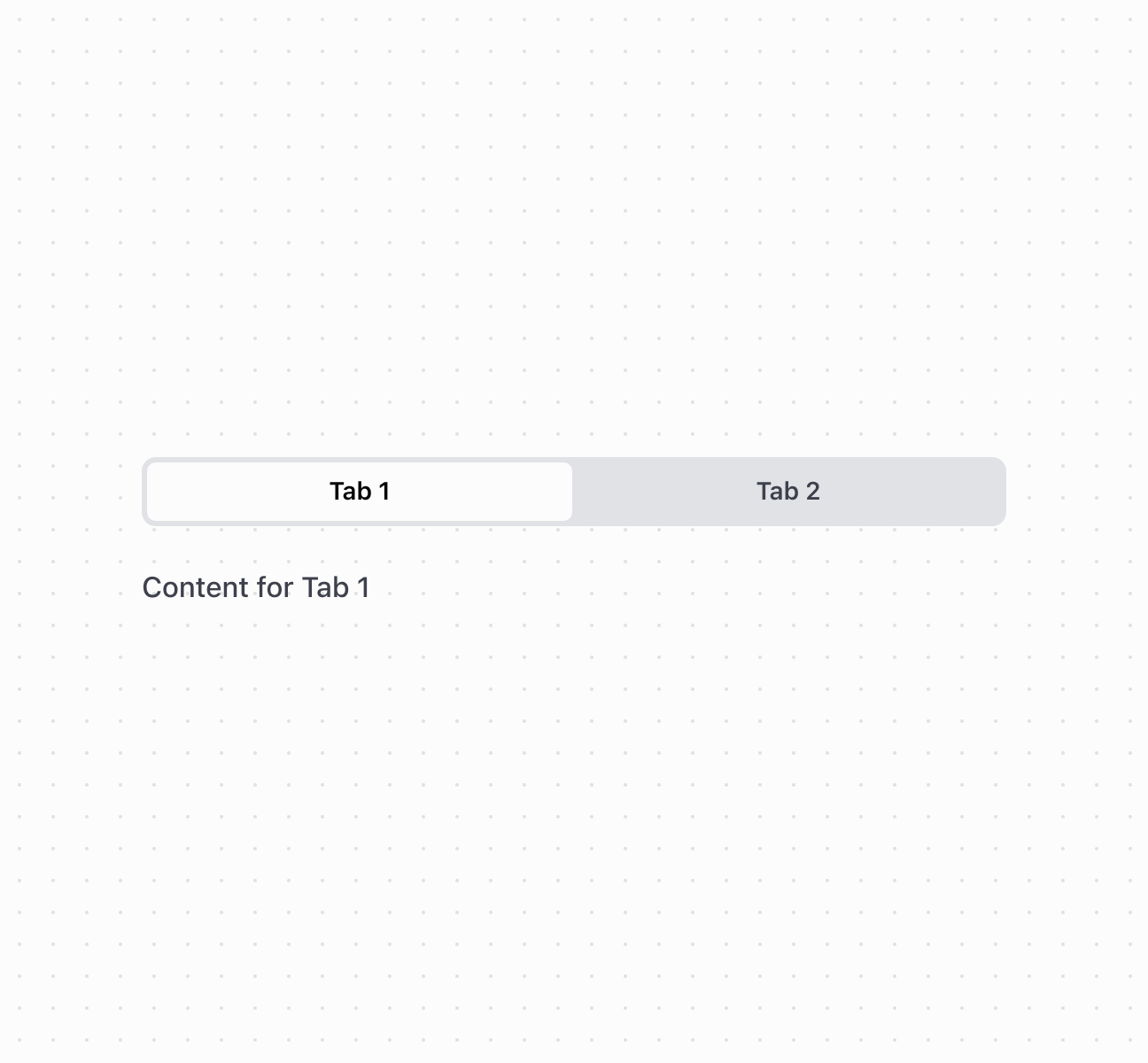
Create a tabbed interface
Anchor to Handle tab change eventsHandle tab change events
Subscribe to the onChange event to respond when merchants select different tabs. This example shows how to handle tab changes and capture the selected tab value in real time, enabling dynamic behavior based on which tab is active.Handle tab change events
Anchor to AccessibilityAccessibility
- Provide accessibility labels: Use the
accessibilityLabelprop on the tabs component to describe the purpose of the tab group. - Ensure keyboard navigation: The component supports arrow key navigation between tabs and Enter/Space to activate tabs.
- Connect tabs and panels: Always use matching
controls(on tab) andid(on tab panel) properties to maintain proper semantic relationships.