View charges and earnings
App charge data covers what merchants pay for your apps, including subscription, usage, and one-time charges, and what you earn from those charges in your payouts.
Start with what you need:
- To see what you've been paid, view the charges in a payout.
- To check a merchant's charge, find it from its app or its store, and then review its details.
- To download earnings data or invoices, export payout data.
- To read charge data from your app, query it with the GraphQL Admin API.
Anchor to RequirementsRequirements
-
To view Payouts in your organization settings, you need to be a user on the organization with the View financials permission.
-
To use the Partner Dashboard, you need a Partner account. To view a charge's details there, you also need to be a user on the organization with the View financials permission.
-
To use the GraphQL Admin API, your app must be able to make authenticated requests to the API.
Anchor to View chargesView charges
You can view charges by payout, app, or store. Start from a payout to see what you were paid for, or from an app or store to find a specific merchant's charge.
Anchor to View the charges in a payoutView the charges in a payout
- In the Dev Dashboard, click Organization settings.
- Click Payouts.
- In Past payouts, click the payout that you want to check. Past payouts lists your most recent payouts, so if you don't see it, then click View all.
The payout lists its transactions. Each row shows the date, the app or theme, the charge type, the store, and the amount. To show only app or only theme transactions, click the Apps or Themes tab.
In each row, a linked charge type opens that charge's details, and a linked app or store name opens its page.
Anchor to View the charges for an appView the charges for an app
-
Open App distribution on your Partner Dashboard.
-
Click the name of the app with the charges that you want to check.
-
Open the app's history:
- On the Overview page, scroll to Latest app history. To see more than the latest events, click View all app history.
- Or, in the Partner Dashboard sidebar, click Insights > App history.
-
In the Event Details column for the app charge that you want to check, click Open payments.
The charge's details open.
Anchor to View the charges for a storeView the charges for a store
- Open App distribution on your Partner Dashboard.
- In the search bar, enter the name of the store with the app charges that you want to check.
- In the search results, select the store.
- Next to the app charge that you want to check, click the link in the Details column.
The charge's details open.
For totals rather than individual charges, use the Dev Dashboard and your organization settings:
| To see | Go to |
|---|---|
| One store's totals across your apps and themes | In Stores, click the store. If you have the View financials permission, then its Earnings card shows Total app earnings, Total theme earnings, and Recurring revenue share. |
| One app's earnings and history on one store | On your app's Overview, click the install count on the Installs card, and then click the store. Its app history page shows App earnings, which is gross, and the store's Activity. Refer to View one store's app history. |
| The transactions in a payout | Payouts in your organization settings. Refer to View the charges in a payout. |
Anchor to Review charge detailsReview charge details
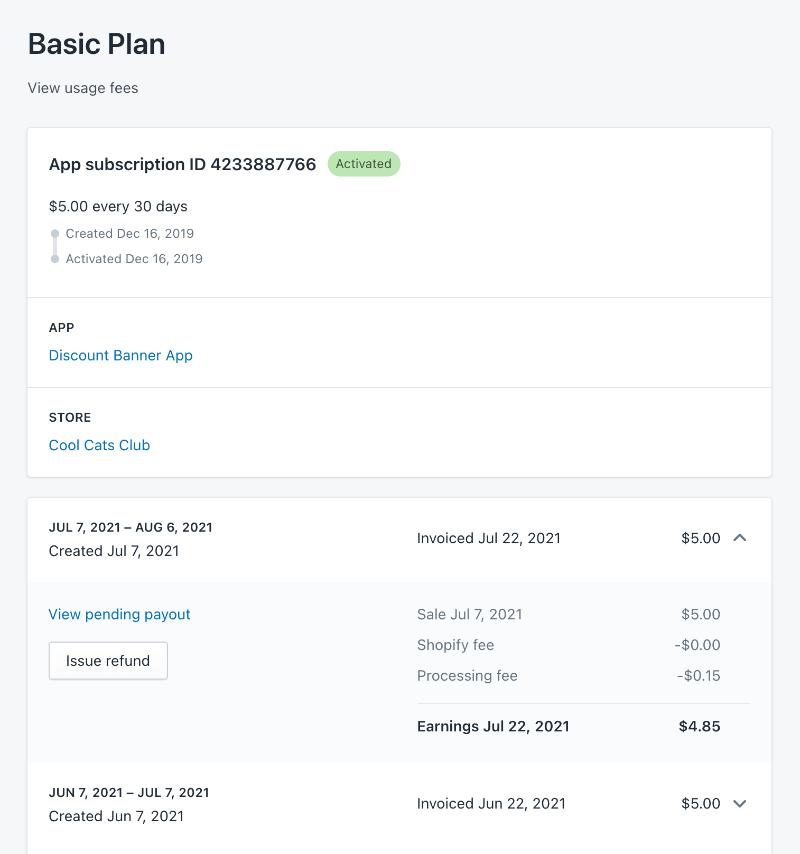
Each charge has an app charge overview page in the Partner Dashboard. It shows:
-
Merchant information, including a link to the store where the app is installed
-
The name of the app that the merchant was charged for, including a link to the app
-
The status of the app charge or subscription
-
The list of merchant payment transactions that are associated with the charge
Clicking the arrow (▼) next to a transaction displays the following details:
-
An itemized list of the Shopify revenue share fee, processing fee, and your net profit as the app's developer
-
A link to the Partner payout that includes the app charge. Pending payouts don't have a payout link.
-
If a charge's details and its payout disagree, then the payout is correct.
If a charge's details and its payout disagree, then the payout is correct.
Anchor to Subscription charge detailsSubscription charge details
Subscription charges also show the following details:
-
A description of the charge, such as $15 every 30 days for an app subscription charge.
-
The date on which the charge was created.
-
The charge's status, which can be one of the following:
Charge statuses Status Description Pending The merchant hasn't yet approved or declined the charge. Activated The charge is currently active.
For some payments, such as wire transfers, Shopify marks the charge as active when the payment is in flight.
Declined The merchant declined the charge. Canceled The merchant or the developer canceled the subscription. Frozen The subscription is on hold due to a store subscription non-payment. The charge reactivates after the subscription payments resume.
If a payment doesn't go through, then Shopify retries the charge. Only shut off a merchant's app access after Shopify freezes the charge.
Expired The merchant didn't accept the charge within two days.
Anchor to Export payout dataExport payout data
From a single payout, you can export your earnings data, your Shopify fees invoice, and a payout statement. You can also export earnings data for several payouts at once.
Anchor to Export data for one payoutExport data for one payout
-
In the Dev Dashboard, click Organization settings.
-
Click Payouts.
-
In Past payouts, click the payout that you want to export data for.
-
Click Export, and then select Earnings CSV, Shopify fees invoice, or Payout statement.
Referral payouts offer Referral commission invoice instead of Shopify fees invoice. Payouts that aren't sales or referral payouts offer only Earnings CSV.
Anchor to Export data for multiple payoutsExport data for multiple payouts
- In the Dev Dashboard, click Organization settings.
- Click Payouts.
- In Past payouts, click View all.
- Click Export.
- Select the payouts that you want to export: All payouts, Last 6 months, Last 12 months, or Last year.
- Click Export.
The export is emailed to you.
Anchor to Query charges with the GraphQL Admin APIQuery charges with the Graph
Use the following billing resources on the GraphQL Admin API to read charge data from your app.
| Data | Resource | Learn how |
|---|---|---|
| Single app purchase | AppPurchaseOneTime | Example |
| Multiple app purchases | currentAppInstallation | Example |
| Single app subscription | AppSubscription | Example |
| Multiple app subscriptions | currentAppInstallation | Example |
| App usage records for a single subscription | AppSubscription | Example |
| App usage records for multiple subscriptions | currentAppInstallation | Example |
| App usage record by ID | AppUsageRecord | Example |
Anchor to App purchasesApp purchases
You can query a single purchase or multiple purchases.
Anchor to Single app purchaseSingle app purchase
Query a single purchase with the AppPurchaseOneTime object. Pass the app purchase ID as an argument. You can retrieve this ID from the appPurchaseOneTimeCreate response when you create the purchase, or by querying multiple purchases.
The following is an example:
POST https://{shop}.myshopify.com/admin/api/{api_version}/graphql.json
GraphQL query
JSON response
Anchor to Multiple app purchasesMultiple app purchases
Query multiple purchases using currentAppInstallation. Specify the number of purchases to return by passing first or last as an argument.
The following is an example:
POST https://{shop}.myshopify.com/admin/api/{api_version}/graphql.json
GraphQL query
JSON response
Anchor to App subscriptionsApp subscriptions
You can query a single subscription or multiple subscriptions.
Anchor to Single app subscriptionSingle app subscription
Query a single subscription using the AppSubscription object. Pass the subscription ID as an argument.
The subscription ID is returned when you create a subscription. The AppSubscription object can also return the app subscriptions that are associated with the installation.
The following is an example:
POST https://{shop}.myshopify.com/admin/api/{api_version}/graphql.json
GraphQL query
JSON response
Anchor to Multiple app subscriptionsMultiple app subscriptions
Query multiple subscriptions using currentAppInstallation. Specify the number of subscriptions to return by passing first or last as an argument.
The following is an example:
POST https://{shop}.myshopify.com/admin/api/{api_version}/graphql.json
GraphQL query
JSON response
Anchor to App usage recordsApp usage records
Query an app usage record for a single subscription or records for multiple subscriptions. You can also query a specific app usage record by its ID.
Anchor to App usage records for a single subscriptionApp usage records for a single subscription
Query the app usage record for a single subscription using the AppSubscription object. Pass the subscription ID as an argument. You can specify the number of records to return by passing first or last as an argument.
The subscription ID is returned when you create a subscription. The AppSubscription object can also return the app subscriptions that are associated with the installation.
The following is an example:
POST https://{shop}.myshopify.com/admin/api/{api_version}/graphql.json
GraphQL query
JSON response
Anchor to App usage records for multiple subscriptionsApp usage records for multiple subscriptions
Query the app usage records for multiple subscriptions using currentAppInstallation. You can get the usageRecords from the lineItems field of allSubscriptions. Specify the number of records to return by passing first or last as an argument.
POST https://{shop}.myshopify.com/admin/api/{api_version}/graphql.json
GraphQL query
JSON response
Anchor to App usage record by IDApp usage record by ID
Query a specific app usage record using the AppUsageRecord object. Pass the app usage record ID as an argument.