Image group
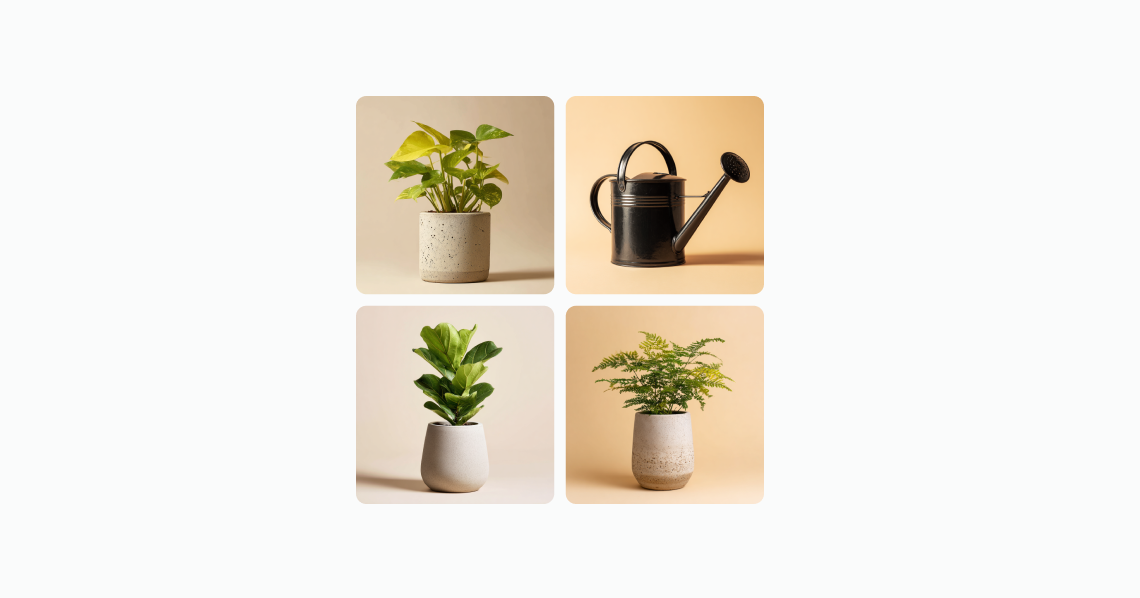
The image group component displays up to four images in a grid or stacked layout. Use image group to showcase collections of related images, such as products in a wishlist or subscription. The images display as a grid when used within a section component.
When there are more than four images, the component indicates how many additional images aren't displayed, giving customers a clear sense of the full collection size.
Image group displays a maximum of four images. Additional images are represented by a count indicator rather than being shown. All images in the group share the same display size — individual sizing or aspect ratio overrides aren't supported.
Supported targets
- customer-account.
footer. render-after - customer-account.
order-index. announcement. render - customer-account.
order-index. block. render - customer-account.
order-status. announcement. render - customer-account.
order-status. block. render - customer-account.
order-status. cart-line-item. render-after - customer-account.
order-status. cart-line-list. render-after - customer-account.
order-status. customer-information. render-after - customer-account.
order-status. fulfillment-details. render-after - customer-account.
order-status. payment-details. render-after - customer-account.
order-status. return-details. render-after - customer-account.
order-status. unfulfilled-items. render-after - customer-account.
order. action. menu-item. render - customer-account.
order. action. render - customer-account.
order. page. render - customer-account.
page. render - customer-account.
profile. addresses. render-after - customer-account.
profile. announcement. render - customer-account.
profile. block. render - customer-account.
profile. company-details. render-after - customer-account.
profile. company-location-addresses. render-after - customer-account.
profile. company-location-payment. render-after - customer-account.
profile. company-location-staff. render-after - customer-account.
profile. payment. render-after
Supported targets
- customer-account.
footer. render-after - customer-account.
order-index. announcement. render - customer-account.
order-index. block. render - customer-account.
order-status. announcement. render - customer-account.
order-status. block. render - customer-account.
order-status. cart-line-item. render-after - customer-account.
order-status. cart-line-list. render-after - customer-account.
order-status. customer-information. render-after - customer-account.
order-status. fulfillment-details. render-after - customer-account.
order-status. payment-details. render-after - customer-account.
order-status. return-details. render-after - customer-account.
order-status. unfulfilled-items. render-after - customer-account.
order. action. menu-item. render - customer-account.
order. action. render - customer-account.
order. page. render - customer-account.
page. render - customer-account.
profile. addresses. render-after - customer-account.
profile. announcement. render - customer-account.
profile. block. render - customer-account.
profile. company-details. render-after - customer-account.
profile. company-location-addresses. render-after - customer-account.
profile. company-location-payment. render-after - customer-account.
profile. company-location-staff. render-after - customer-account.
profile. payment. render-after
Anchor to Use casesUse cases
- Order summaries: Display product images from a recent order in a compact visual group.
- Wishlists and collections: Show a preview of saved items with a count of additional products.
- Subscription overviews: Present the products included in a recurring subscription.
- Visual previews: Provide a quick visual snapshot of related items without taking up significant space.
Anchor to PropertiesProperties
Configure the following properties on the image group component.
- Anchor to idididstringstring
A unique identifier for the element. Use this to target the element with CSS, JavaScript, or accessibility attributes. The
idmust be unique within the document.- Anchor to totalItemstotal
Itemstotal Items numbernumber The total number of items that the image group represents. When this value exceeds the number of visible images, the component displays a badge showing the remaining count (for example, "+3"), indicating there are more images than currently displayed.
Anchor to ExamplesExamples
Anchor to Display an image groupDisplay an image group
Show a collection of related images in a compact layout. This example displays four product images in the default arrangement.
Display an image group
html
Anchor to Display subscription itemsDisplay subscription items
Show subscription items with delivery details. This example places an image group inside a section alongside the next delivery date and pricing information.
html
Anchor to Best practicesBest practices
- Write concise alt text for each image: Describe what's important about each image so all customers can understand the content, even when using assistive technologies.
- Optimize performance: Compress images and use modern formats like WebP. Consider lazy loading to reduce initial load times, especially when displaying multiple groups on a page.
- Preserve visual breathing room: Maintain consistent spacing around the group so images don't feel crowded or overwhelming within the layout.
- Use consistent image dimensions: Provide images with similar aspect ratios to maintain a clean, uniform grid appearance.