Text field
The text field component captures single-line text input. Use it to collect short, free-form information like names, titles, or identifiers.
The component supports various input configurations including placeholders, character limits, and validation. For multi-line text entry, use the text area component.
Anchor to Use casesUse cases
- Product identifiers: Collect product names, SKUs, or short identifiers.
- Customer info: Capture customer names, reference numbers, or brief labels.
- Filtering: Enable text-based filtering or tagging with short text values.
- Form submissions: Support single-line text values like names, codes, or identifiers.
Anchor to PropertiesProperties
Collects single-line text input.
- Anchor to detailsdetailsdetailsstringstring
Additional text to provide context or guidance for the field. This text is displayed along with the field and its label to offer more information or instructions to the user.
This will also be exposed to screen reader users.
- Anchor to disableddisableddisabledbooleanbooleanDefault: falseDefault: false
Disables the field, disallowing any interaction.
- Anchor to errorerrorerrorstringstring
Indicate an error to the user. The field will be given a specific stylistic treatment to communicate problems that have to be resolved immediately.
- Anchor to idididstringstring
A unique identifier for the element.
- Anchor to labellabellabelstringstring
Content to use as the field label.
- Anchor to maxLengthmax
Lengthmax Length numbernumberDefault: InfinityDefault: Infinity Specifies the maximum number of characters allowed.
- Anchor to placeholderplaceholderplaceholderstringstring
A short hint that describes the expected value of the field.
- Anchor to requiredrequiredrequiredbooleanbooleanDefault: falseDefault: false
Whether the field needs a value. This requirement adds semantic value to the field, but it will not cause an error to appear automatically. If you want to present an error when this field is empty, you can do so with the
errorproperty.- Anchor to valuevaluevaluestringstring
The current value for the field. If omitted, the field will be empty.
Anchor to SlotsSlots
The text field component supports slots for additional content placement within the field. Learn more about using slots.
- Anchor to accessoryaccessoryaccessoryHTMLElementHTMLElement
Additional content to be displayed in the field. Commonly used to display clickable text.
Anchor to EventsEvents
The text field component provides event callbacks for handling user interactions. Learn more about handling events.
- Anchor to blurblurblur(event: CallbackEvent<"s-text-field">) => void(event: CallbackEvent<"s-text-field">) => void
Callback when the element loses focus.
- Anchor to changechangechange(event: CallbackEvent<"s-text-field">) => void(event: CallbackEvent<"s-text-field">) => void
Callback after editing completes (typically on blur).
- Anchor to focusfocusfocus(event: CallbackEvent<"s-text-field">) => void(event: CallbackEvent<"s-text-field">) => void
Callback when the element receives focus.
- Anchor to inputinputinput(event: CallbackEvent<"s-text-field">) => void(event: CallbackEvent<"s-text-field">) => void
Callback when the user makes any changes in the field.
CallbackEvent
- bubbles
boolean - cancelable
boolean - composed
boolean - currentTarget
HTMLElementTagNameMap[T] - detail
any - eventPhase
number - target
HTMLElementTagNameMap[T] | null
Anchor to ExamplesExamples
Anchor to Capture text input with a text fieldCapture text input with a text field
Capture single-line text input using a text field component with validation support. This example shows a basic text field with label and placeholder text.Capture text input with a text field
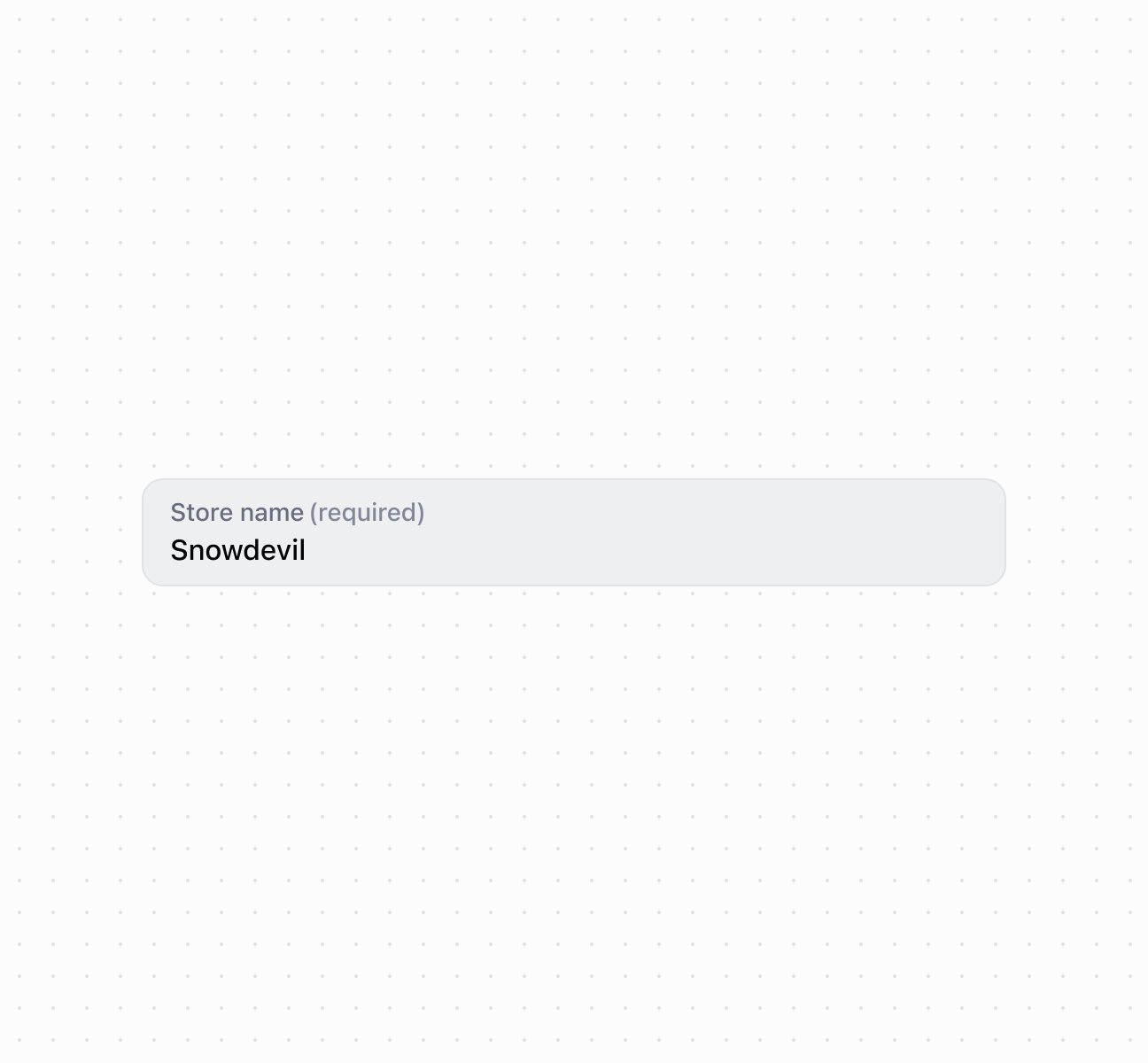
Capture text input with a text field
Add action buttons to the text field using the accessory slot for quick actions like clearing text or submitting input. This example shows how to use
s-button and s-clickable components with text content in the accessory slot, enabling inline actions without leaving the input context.Add accessory buttons
Anchor to Configure validation and guidanceConfigure validation and guidance
Configure common text field properties for validation, character limits, and user guidance. This example demonstrates using props like maxlength, required, helperText, and error to create a well-guided input experience with proper validation feedback.Configure validation and guidance
Anchor to Handle input eventsHandle input events
Subscribe to text field events including onInput, onFocus, onBlur, and onChange to respond to user interactions. This example shows how to handle different input events for real-time validation, autosave functionality, or dynamic form behavior.Handle input events
Anchor to Best practicesBest practices
- Use for single-line text input: Choose text field for short values like names, titles, or identifiers. For multi-line content, use text area.
- Show character limit feedback: When approaching
maxLength, display remaining characters in thedetailstext. - Write descriptive labels: Use specific labels like "Product Name" or "Reference Code" rather than generic terms.
Anchor to LimitationsLimitations
The accessory slot supports only button and clickable components with text content only—other component types or complex layouts can't be used for field accessories.