Build a customer segment template extension
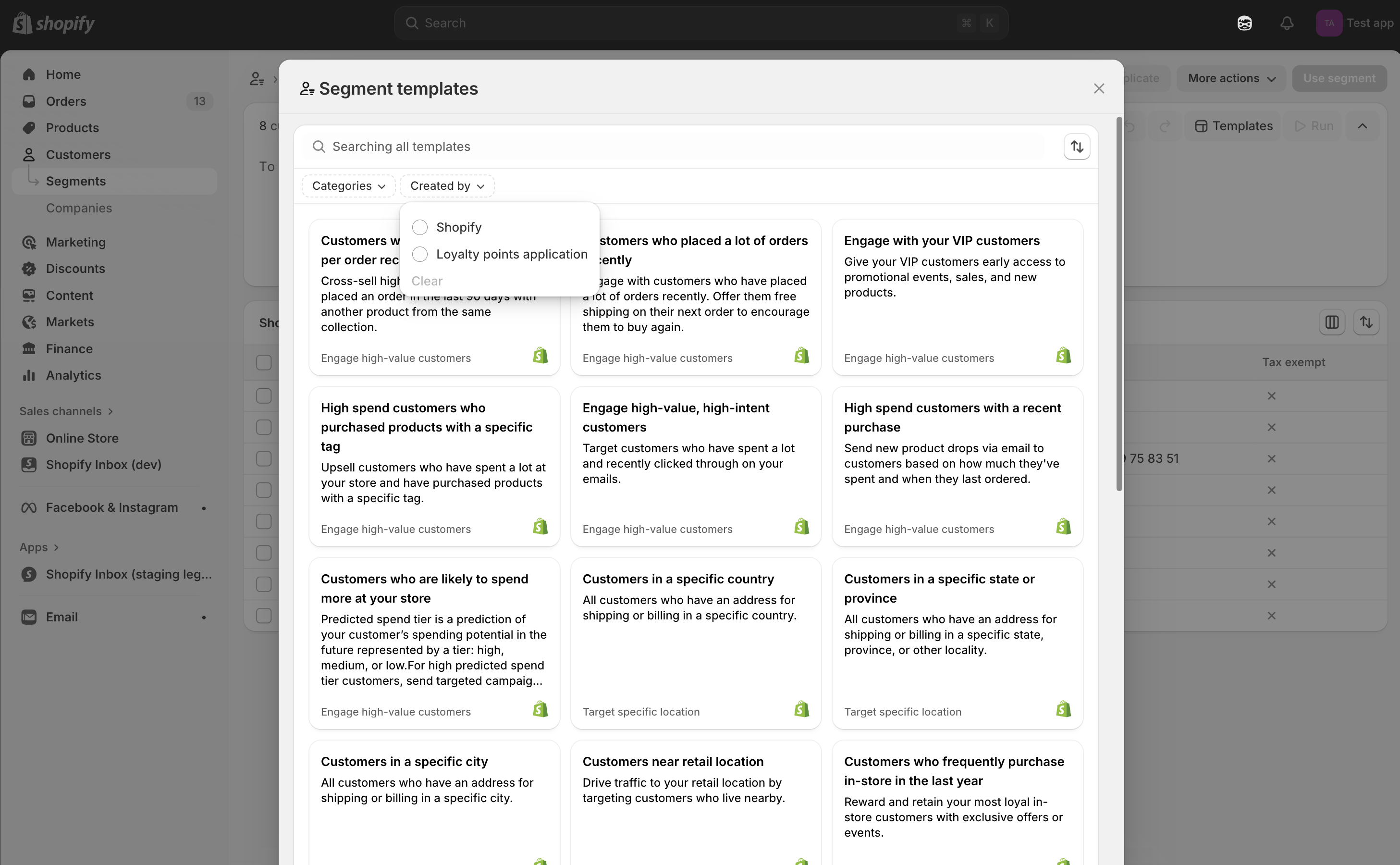
A customer segment template extension is an extension that's displayed in the template section of the customer segment editor.
This guide is the first part in a two-part tutorial series on how to build a feature using customer segment template extensions and an admin action in the Use segment modal. This guide demonstrates how to build a customer segment template extension that enables users to create a segment based on a custom query your app provides. The customer segment template extension displays in the template section of the customer segment editor under the segment details page.
Anchor to What you'll learnWhat you'll learn
In this tutorial, you'll learn how to do the following tasks:
-
Create a customer segment template extension that's displayed in the template section of customer segment editor in the Shopify admin.
-
Run the extension locally and test it on a dev store.
Anchor to RequirementsRequirements
- You're a user with app development permissions and have created a dev store.
- You've created an app that uses the React Router template.
- Your app is using Shopify CLI 3.48 or higher.
Anchor to Step 1: Create a new extensionStep 1: Create a new extension
To create your customer segment template extension, you can use Shopify CLI to generate a starter extension.
-
Navigate to your app directory:
Terminal
cd <directory> -
Run the following command to create a new admin action extension:
Terminal
shopify app generate extension --template customer_segment_template --name loyal-customers-templateThe command creates a new extension template in your app's
extensionsdirectory with the following structure:Customer segment template structure
extensions/loyal-customers-template├── README.md├── locales│ ├── en.default.json // The default locale for the extension│ └── fr.json // The French language translations for the extension├── package.json├── shopify.extension.toml // The config file for the extension└── src└── CustomerSegmentTemplateData.js // The code that returns the template's data
Anchor to Step 2: Define the templateStep 2: Define the template
Complete the following steps to define the extension's template.
Anchor to Review the configurationReview the configuration
The extension's .toml file stores the extension's static configuration. To have the template appear in the template section of the customer segment editor, validate that the target is set to admin.customers.segmentation-templates.data. For a full list of targets and the locations where they display in the Shopify admin, refer to the admin extension configuration reference.
shopify.extension.toml
Anchor to Return the template dataReturn the template data
The admin.customers.segmentation-templates.data target is a runnable target. Instead of rendering UI, your extension returns template data, and Shopify displays your templates in the template section of the customer segment editor.
You can view the source of your extension in the src/CustomerSegmentTemplateData.js file. This file exports a function that runs at the admin.customers.segmentation-templates.data target and returns your template data. All the template extensions that you create for your application display under your application's category.
The target in the component export must match the target defined in your .toml file, or the extension won't render.
If the template refers to a metafield, then the metafield needs to exist in our database or the extension won't render.
The target in the component export must match the target defined in your .toml file, or the extension won't render.
If the template refers to a metafield, then the metafield needs to exist in our database or the extension won't render.
To build your customer segment template, your extension returns an object with a templates array of CustomerSegmentTemplate objects. Each CustomerSegmentTemplate object has title, description, query, queryToInsert, and createdOn properties, and an optional dependencies property. For a list of all the properties and their descriptions, refer to the Customer Segment Template Extension API reference.
Add the following code to src/CustomerSegmentTemplateData.js:
src/CustomerSegmentTemplateData.js
The validity of the query's syntax isn't verified and needs to be tested in the customer segment editor.
The validity of the query's syntax isn't verified and needs to be tested in the customer segment editor.
To update the title and description of the template, edit the corresponding title and description values in the locale files.
Locales
locales/en.default.json
English
{
  "title": "Loyal customers",
  "description": "Use this template to identify your loyal customers, you can reward them with discounts, or award them loyalty points!"
}
French
{
  "title": "Clients fidèles",
  "description": "Utilisez ce modèle pour identifier vos clients fidèles. Vous pouvez les récompenser avec des remises ou leur attribuer des points de fidélité!"
}You can create queries using your own metafields. You could choose to query your loyal customers by using a loyalty points metafield. For example, customers that have already 10 loyalty points could be considered as loyal customers. After the segment is created, an additional number of loyalty points could be awarded to these customers.
You can create queries using your own metafields. You could choose to query your loyal customers by using a loyalty points metafield. For example, customers that have already 10 loyalty points could be considered as loyal customers. After the segment is created, an additional number of loyalty points could be awarded to these customers.
Anchor to Step 3: Test the extensionStep 3: Test the extension
After you've built the extension, you can test it by completing the following steps.
-
Navigate to your app directory:
Terminal
cd <directory> -
To build and preview your app, either start or restart your server with the following command:
Terminal
shopify app dev
- Press
pto open the Dev Console. - In the extension list for your app, click on the preview link for the loyalty points template extension.
The template section of the customer segment editor opens on the customer index page.
-
To use your extension, click Use this template:
-
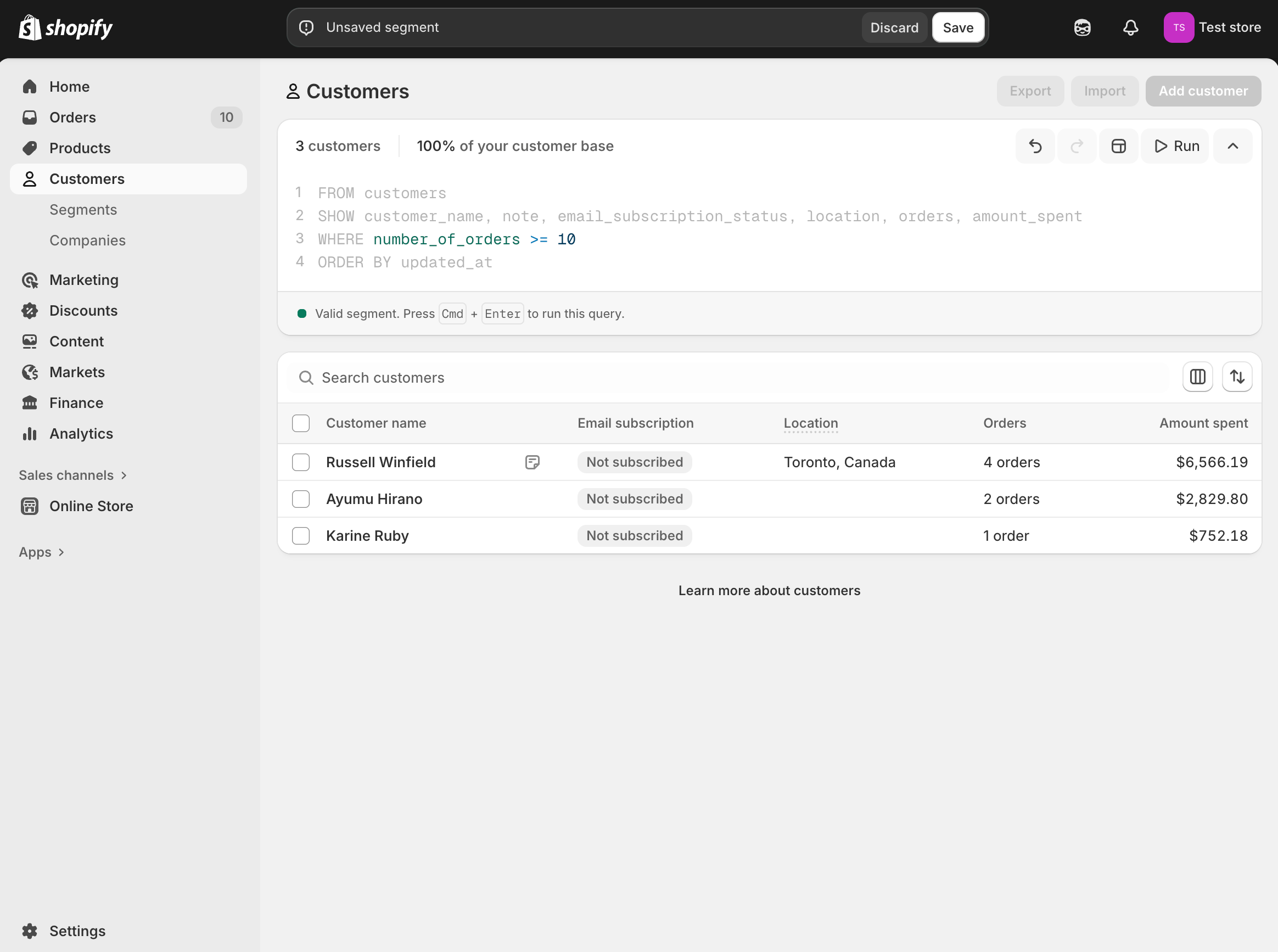
Validate the query inside the customer segment editor:
Anchor to Next stepsNext steps
- Complete the next guide in this tutorial series by building an action extension in the Use segment modal. This allows your app to use the newly created customer segment.