Build a customer segment action extension
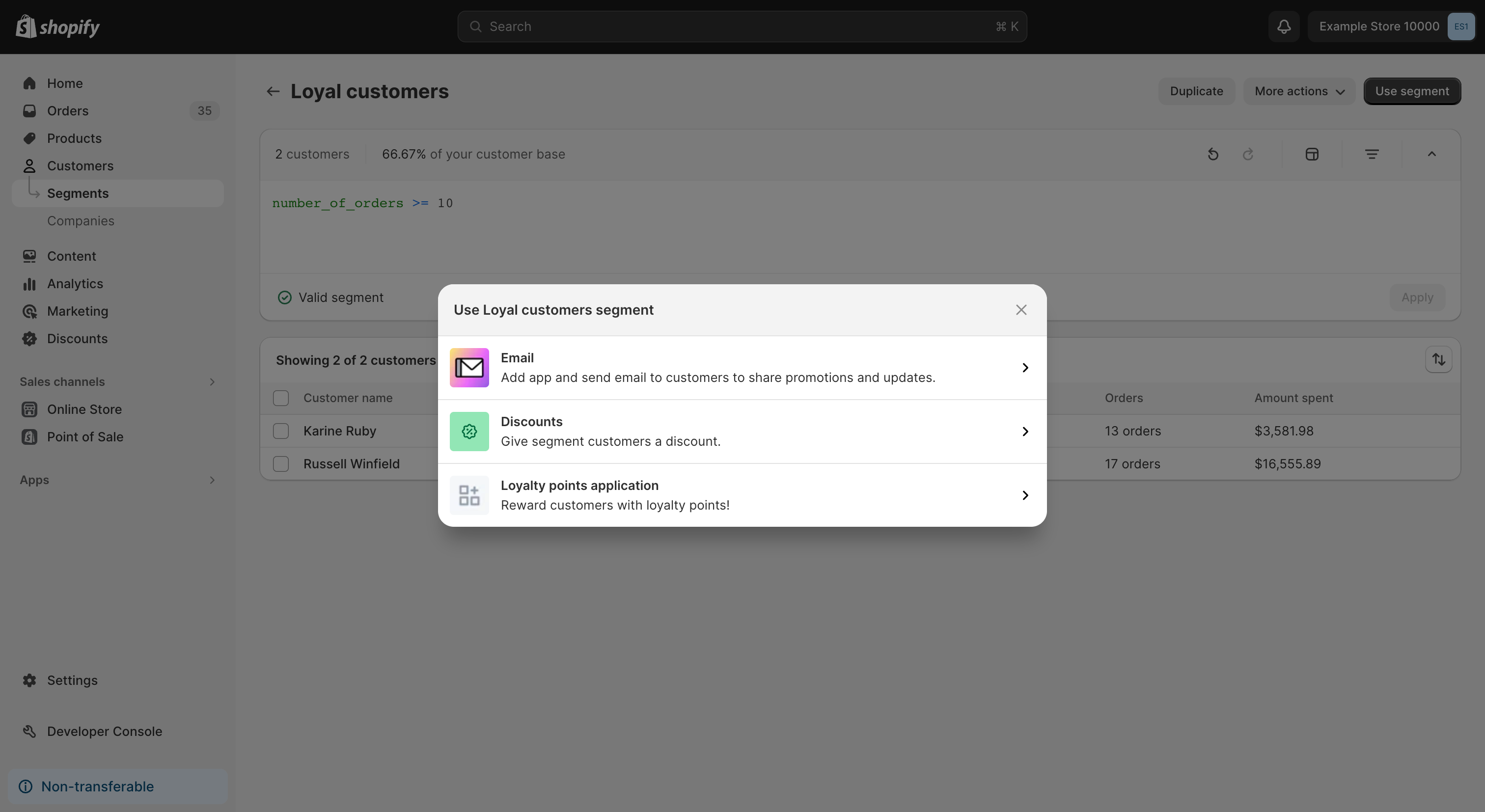
A customer segment action extension is an action extension that is displayed in the Use segment modal.
This guide is the second part in a two-part tutorial series on how to build a feature using customer segment template extensions and customer segment action extensions in the Use segment modal. The first guide in the series is not required to complete the second part of the tutorial.
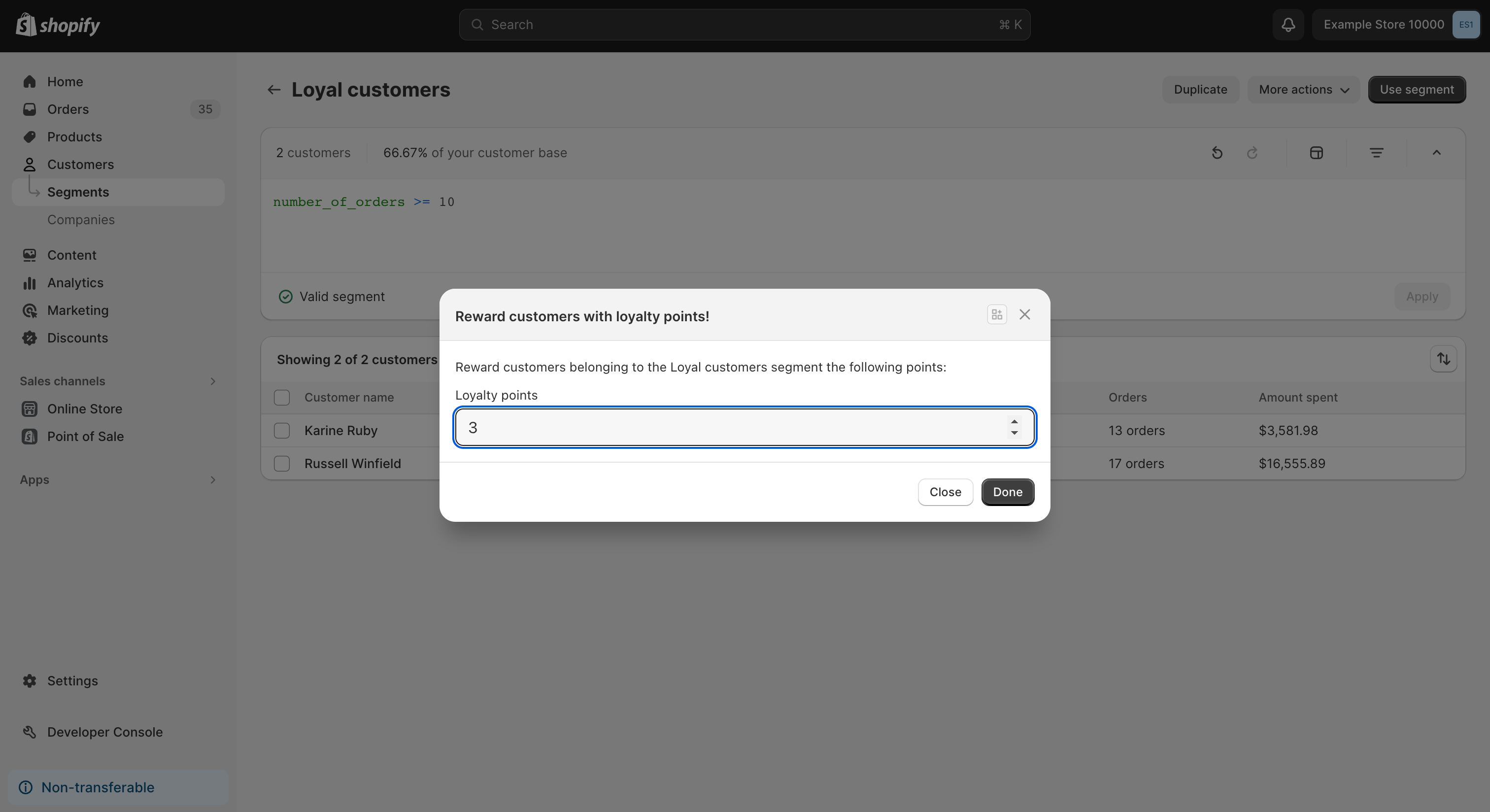
This guide demonstrates how to build a customer segment action extension that enables users to perform actions on a target customer segment. This action will appear under the customer segment details page, in the Use segment modal.
Building a customer segment action extension follows the same pattern as building an admin action extension. If you are familiar with building admin actions, then you can skip this tutorial.
Building a customer segment action extension follows the same pattern as building an admin action extension. If you are familiar with building admin actions, then you can skip this tutorial.
Anchor to What you'll learnWhat you'll learn
In this tutorial, you'll learn how to do the following tasks:
-
Create a customer segment action extension that displays on the customer segment details page or the customer segments index page.
-
Use a TOML declarative custom data definition to define metafields for customer loyalty points.
-
Fetch information to populate the extension's initial state.
-
Configure the extension to gather input from users.
-
Update the data using GraphQL based on user input.
-
Run the extension locally and test it on a dev store.
Anchor to RequirementsRequirements
-
You're a user with app development permissions and have created a dev store.
-
Your app is using Shopify CLI 3.48 or higher.
- Your app can make authenticated requests to the GraphQL Admin API.
- Your app has the
read_customersandwrite_customersaccess scopes. Learn how to configure your access scopes using Shopify CLI.
Anchor to Step 1: Define the loyalty points metafieldStep 1: Define the loyalty points metafield
To track customer loyalty points in your customer segment action extension, you need to define a metafield that will store the points data. Use TOML declarative custom data definitions to define this metafield in your app's configuration.
-
In your app's
shopify.app.tomlfile, add the following metafield definition:shopify.app.toml
[customer.metafields.app.points]type = "number_integer"name = "Loyalty Points"description = "Customer loyalty points earned through segment-based rewards"access.admin = "merchant_read_write"This TOML configuration creates a metafield definition that:
- Stores integer values representing loyalty point amounts
- Allows merchants to view and manage customer loyalty points through the admin
- Is automatically available across all stores where your app is installed
- Uses the app-scoped namespace to avoid conflicts with other apps
Anchor to Step 2: Create a new extensionStep 2: Create a new extension
To create your customer segment action extension, you can use Shopify CLI to generate a starter extension.
-
Navigate to your app directory:
Terminal
cd <directory> -
Run the following command to create a new admin action extension:
Terminal
shopify app generate extension --template admin_action --name loyalty-points-actionThe command creates a new extension template in your app's
extensionsdirectory with the following structure:Admin action structure
extensions/loyalty-points-action├── README.md├── locales│ ├── en.default.json // The default locale for the extension│ └── fr.json // The French language translations for the extension├── package.json├── shopify.extension.toml // The config file for the extension├── tsconfig.json├── shopify.d.ts // Provides types for components and APIs available to the extension└── src└── ActionExtension.jsx // The code that defines the action's UI and behavior
Anchor to Step 3: Build the extension's UIStep 3: Build the extension's UI
Complete the following steps to build the extension's UI.
Anchor to Review the configurationReview the configuration
The extension's .toml file stores the extension's static configuration. To have the action appear in the Use segment modal, validate that the target is set to admin.customer-segment-details.action.render. For a full list of targets and the locations where they display in the Shopify admin, refer to the admin extension configuration reference.
shopify.extension.toml
To update the display name when users select the action from the menu, in locale files edit the corresponding name value.
Locales
locales/en.default.json
English
{
  "name": "Reward customers with loyalty points!"
}
French
{
  "name": "Récompensez vos clients avec des points de fidélité!"
}
Anchor to Create the UICreate the UI
This tutorial uses Preact and the web components that Shopify provides to admin UI extensions.
This tutorial uses Preact and the web components that Shopify provides to admin UI extensions.
Admin UI extensions are rendered using Remote DOM, which is a fast and secure remote-rendering framework. Because Shopify renders the UI remotely, components used in the extensions must comply with a contract in the Shopify host. Shopify provides these components to your extension automatically as web components, such as s-admin-action and s-button. For a list of all the available components and their properties, refer to the admin UI extension web components reference.
You can view the source of your extension in the src/ActionExtension.jsx file. This file's default export is a function that calls the render method from Preact to render the extension's UI. You can create the extension's body by using the web components that are automatically provided, and access APIs like i18n, data, and close through the global shopify object.
To build your action's UX, add the following code to src/ActionExtension.jsx, and the locales to locales/en.default.json.
The module value in your .toml file must point to ./src/ActionExtension.jsx, or the extension won't render at the admin.customer-segment-details.action.render target.
The module value in your .toml file must point to ./src/ActionExtension.jsx, or the extension won't render at the admin.customer-segment-details.action.render target.
Creating the UI
src/ActionExtension.jsx
import { render } from "preact";
import { useEffect, useState } from "preact/hooks";

import { updateLoyaltyPoints } from "./utils";

export default async () => {
  render(<Extension />, document.body);
};

function Extension() {
  // The global shopify object provides access to several useful APIs like i18n, data, and close.
  const { i18n, data } = shopify;

  const [segmentName, setSegmentName] = useState("");
  const [loyaltyPoints, setLoyaltyPoints] = useState("0");

  // Use direct API calls to fetch data from Shopify.
  // See https://shopify.dev/docs/api/admin-graphql for more information about Shopify's GraphQL API
  useEffect(() => {
    (async function getSegmentInfo() {
      const getSegmentQuery = {
        query: `query Segment($id: ID!) {
          segment(id: $id) {
            name
          }
        }`,
        variables: { id: data.selected[0].id },
      };

      const res = await fetch("shopify:admin/api/graphql.json", {
        method: "POST",
        body: JSON.stringify(getSegmentQuery),
      });

      if (!res.ok) {
        console.error("Network error");
      }

      const segmentData = await res.json();
      setSegmentName(segmentData.data.segment.name);
    })();
  }, []);

  return (
    // The s-admin-action component wraps the action extension modal and provides slots for its primary and secondary actions.
    <s-admin-action>
      <s-stack direction="block" gap="base">
        <s-text>
          {i18n.translate("description", {
            segment: segmentName,
          })}
        </s-text>
        <s-number-field
          inputMode="numeric"
          max={100}
          label={i18n.translate("label")}
          value={loyaltyPoints}
          onChange={(event) => setLoyaltyPoints(event.currentTarget.value)}
        />
      </s-stack>
      <s-button slot="primary-action" onClick={() => shopify.close()}>
        {i18n.translate("done")}
      </s-button>
      <s-button slot="secondary-actions" onClick={() => shopify.close()}>
        {i18n.translate("close")}
      </s-button>
    </s-admin-action>
  );
}
locales
{
  "name": "Reward customers with loyalty points!",
  "description": "Reward customers belonging to the {{ segment }} segment the following points:",
  "label": "Loyalty points",
  "close": "Close",
  "done": "Done"
}At this point, you can use the Dev Console to run your app's server and preview your extension. After you preview the extension, changes to your extension's code automatically reload the extension that you're previewing. This enables you to preview your extension and see it update live as you make changes to the code.
At this point, you can use the Dev Console to run your app's server and preview your extension. After you preview the extension, changes to your extension's code automatically reload the extension that you're previewing. This enables you to preview your extension and see it update live as you make changes to the code.
Anchor to Step 4: Build the extension logic and connect to the GraphQL Admin APIStep 4: Build the extension logic and connect to the Graph
After defining the UI of the extension, you can complete the experience by building the logic to control it using standard Preact tooling. This step will implement the functionality to populate the loyalty points metafield that you configured with TOML in Step 1.
When you're building extensions, you don't need proxy calls to the GraphQL Admin API through your app's backend. Instead, your extension can use direct API access to create requests directly using fetch. This helps extensions be more performant and responsive for users. This guide includes a utility file for GraphQL queries that uses the metafieldsSet mutation to populate values in the metafield definition you created via TOML. Add the contents below to a new file at ./src/utils.js.
Your app can also get data from the extension APIs, which includes data on the current resource from the data API.
The number field returns its value as a string, and merchants can still type values outside its max limit. Before calling updateLoyaltyPoints, the onSubmit handler converts the value to a whole number and checks that it's between 0 and 100. If it isn't, then the handler shows an error on the field instead of saving.
Extension logic
src/ActionExtension.jsx
import { render } from "preact";
import { useCallback, useEffect, useState } from "preact/hooks";

import { updateLoyaltyPoints } from "./utils";

export default async () => {
  render(<Extension />, document.body);
};

function Extension() {
  // The global shopify object provides access to several useful APIs like i18n, data, and close.
  const { i18n, data } = shopify;

  const [segmentName, setSegmentName] = useState("");
  const [loyaltyPoints, setLoyaltyPoints] = useState("0");
  const [error, setError] = useState("");

  // Use direct API calls to fetch data from Shopify.
  // See https://shopify.dev/docs/api/admin-graphql for more information about Shopify's GraphQL API
  useEffect(() => {
    (async function getSegmentInfo() {
      const getSegmentQuery = {
        query: `query Segment($id: ID!) {
          segment(id: $id) {
            name
          }
        }`,
        variables: { id: data.selected[0].id },
      };

      const res = await fetch("shopify:admin/api/graphql.json", {
        method: "POST",
        body: JSON.stringify(getSegmentQuery),
      });

      if (!res.ok) {
        console.error("Network error");
      }

      const segmentData = await res.json();
      setSegmentName(segmentData.data.segment.name);
    })();
  }, []);

  const onSubmit = useCallback(async () => {
    // The number field returns its value as a string, which can be empty, out of range,
    // or in scientific notation (for example, "1e2"). Convert it to a whole number
    // before writing it to the integer metafield.
    const points = Number(loyaltyPoints);
    if (loyaltyPoints === "" || !Number.isInteger(points) || points < 0 || points > 100) {
      setError(i18n.translate("error"));
      return;
    }

    // Commit changes to the database
    await updateLoyaltyPoints(data.selected[0].id, points);
    // Close the modal using the 'close' API
    shopify.close();
  }, [loyaltyPoints]);

  return (
    // The s-admin-action component wraps the action extension modal and provides slots for its primary and secondary actions.
    <s-admin-action>
      <s-stack direction="block" gap="base">
        <s-text>
          {i18n.translate("description", {
            segment: segmentName,
          })}
        </s-text>
        <s-number-field
          inputMode="numeric"
          max={100}
          label={i18n.translate("label")}
          value={loyaltyPoints}
          error={error}
          onChange={(event) => {
            setLoyaltyPoints(event.currentTarget.value);
            setError("");
          }}
        />
      </s-stack>
      <s-button slot="primary-action" onClick={onSubmit}>
        {i18n.translate("done")}
      </s-button>
      <s-button slot="secondary-actions" onClick={() => shopify.close()}>
        {i18n.translate("close")}
      </s-button>
    </s-admin-action>
  );
}
src/utils.js
export async function updateLoyaltyPoints(segmentId, points) {
  const customerIds = await getCustomerIds(segmentId);

  // This example uses metafields to store the data. The metafield definition is created via TOML configuration.
  return await makeGraphQLQuery(
    `mutation SetMetafield($metafields: [MetafieldsSetInput!]!) {
      metafieldsSet(metafields: $metafields) {
        userErrors {
          field
          message
          code
        }
      }
    }
  `,
    {
      metafields: customerIds.map((customerId) => ({
        ownerId: customerId,
        namespace: "$app",
        key: "points",
        type: "number_integer",
        value: points.toString(),
      })),
    }
  );
}

export async function getCustomerIds(segmentId) {
  // This example uses metafields to store the data. For more information, refer to https://shopify.dev/docs/apps/custom-data/metafields.
  const response = await makeGraphQLQuery(
    `query Segment($id: ID!) {
      customerSegmentMembers(first: 10, segmentId: $id) {
        edges {
          node {
            id
          }
        }
      }
    }
`,
    { id: segmentId }
  );

  return response.data.customerSegmentMembers.edges.map((edge) => edge.node.id);
}

async function makeGraphQLQuery(query, variables) {
  const graphQLQuery = {
    query,
    variables,
  };

  const res = await fetch("shopify:admin/api/graphql.json", {
    method: "POST",
    body: JSON.stringify(graphQLQuery),
  });

  if (!res.ok) {
    console.error("Network error");
  }

  return await res.json();
}
locales
{
  "name": "Reward customers with loyalty points!",
  "description": "Reward customers belonging to the {{ segment }} segment the following points:",
  "label": "Loyalty points",
  "close": "Close",
  "done": "Done",
  "error": "Enter a whole number from 0 to 100."
}
Anchor to Step 5: Test the extensionStep 5: Test the extension
After you've built the extension, you can test it by completing the following steps.
-
Navigate to your app directory:
Terminal
cd <directory> -
To build and preview your app, either start or restart your server with the following command:
Terminal
shopify app dev
- Press
pto open the Dev Console. - In the extension list for your app, click on the preview link for the loyalty points action extension.
The customer segment details page opens. If you don't have a customer segment in your store, then you need to create one.
-
To launch your extension, click the Use segment button and select your extension.
-
After you've entered a number of loyalty points, click Done.
-
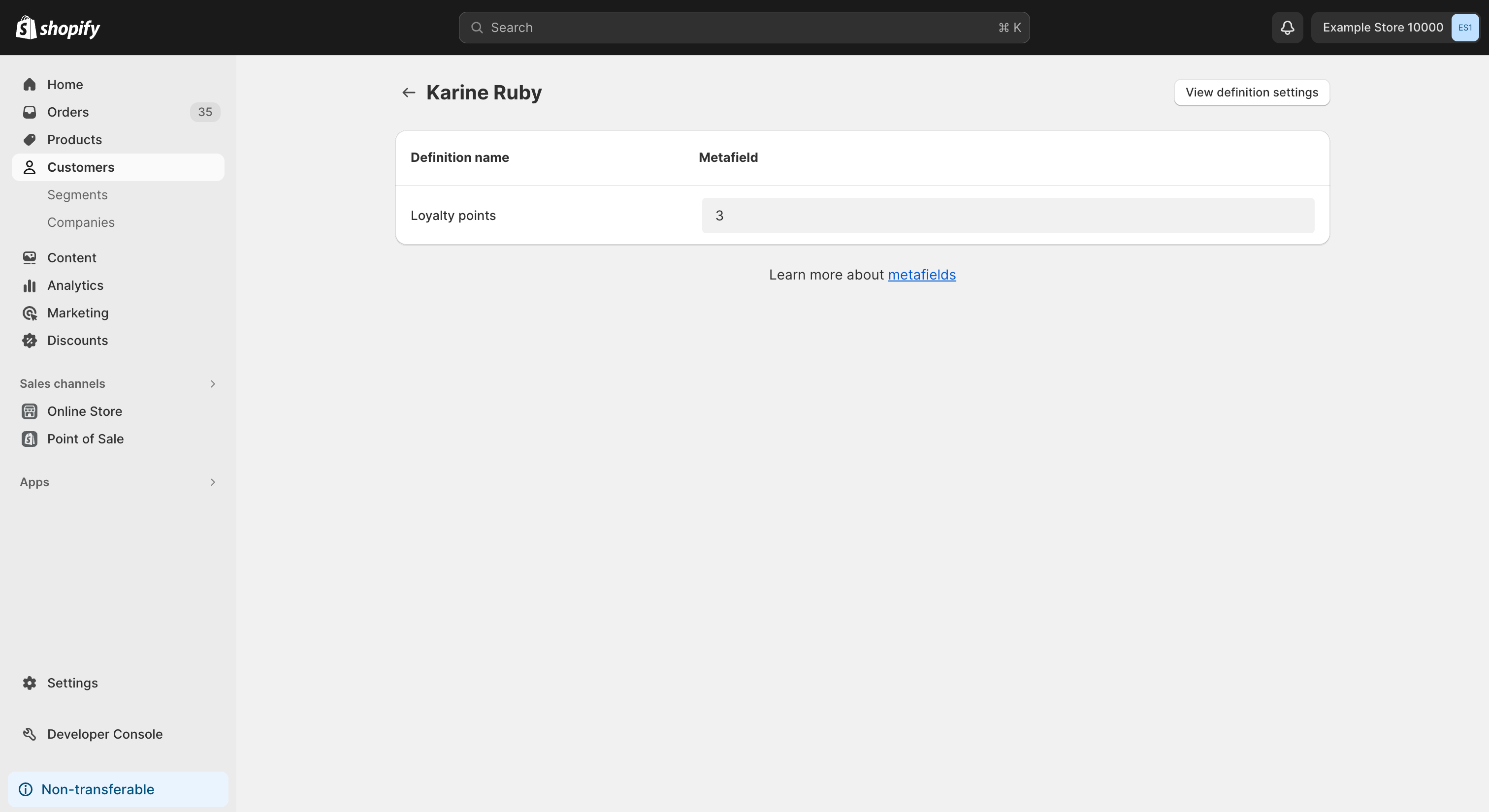
Validate that the loyalty points metafield has properly been updated by navigating to one of the customer profiles that belongs to your segment. Click Show all in the Metafields section. You should see the "Loyalty Points" metafield (configured via TOML in Step 1) displaying the correct value that you entered.
Anchor to Next stepsNext steps
- Learn about the surfaces in the Shopify admin where you can create admin extensions.
- Learn about the full set of available web components for writing admin UI extensions.