Shop Pay
If you are building a shopping experience for Shopify merchants, you can offer Shop Pay as a payment method in your own checkout. Buyers pay with the payment methods and addresses saved to their Shop Pay account, and Shopify processes the payment.
Anchor to About Shop PayAbout Shop Pay
Shop Pay is an express checkout and digital wallet that partners can use to capture payments on behalf of merchants. It works in any app, agent, or shopping experience that you build, including multi-merchant experiences, on the web or in native apps.
Shop Pay has a network of 400M+ buyers that use the wallet to shop from millions of Shopify merchants. In addition to the convenience of the one-tap checkout, buyers seeing Shop Pay on a merchant store increases confidence in the merchant's reputability, resulting in a higher conversion rate. Checkouts featuring Shop Pay convert at least 10% better. From a merchant's point of view, in addition to the increased conversion, merchants can ship orders paid for by Shop Pay with peace of mind, knowing Shopify is guaranteeing them against fraud-related chargebacks through Shopify Protect.
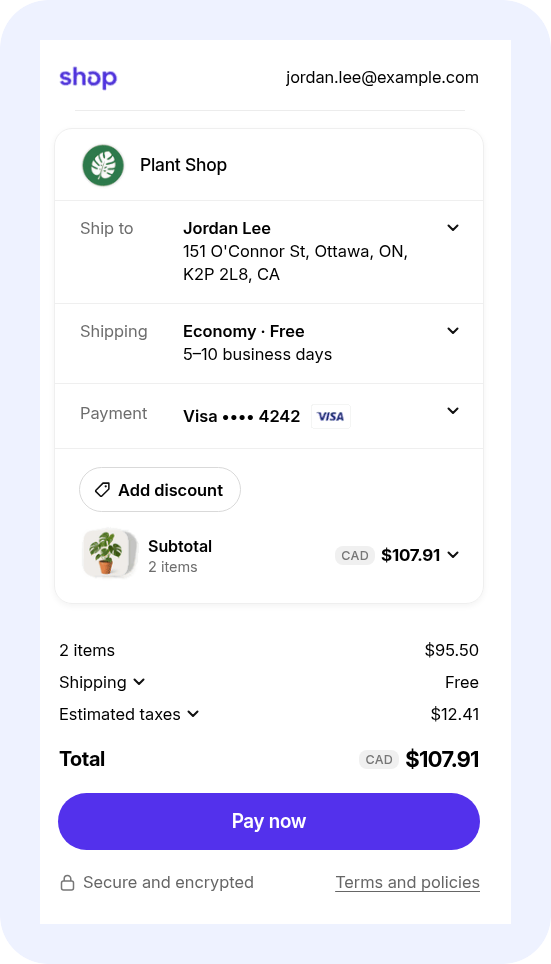
Shop Pay can appear as Shop Pay's button at the top of your checkout, or as a row in your payment list that your own pay button opens. When the buyer chooses Shop Pay, Shop Pay opens in its own window over your checkout. The buyer signs in and pays there, Shop Pay completes the checkout at each merchant, and you receive the completed checkouts with their orders. Returning buyers don't have to sign in again as long as their Shop Pay session hasn't expired.
If you're a merchant adding Shop Pay to your own store's checkout, then refer to Shop Pay for merchants. If you're building a personal agent that pays on a buyer's behalf, then refer to shop.dev.
Anchor to Technical detailsTechnical details
This integration was designed for multi-merchant experiences and shopping apps, and built with the Universal Commerce Protocol (UCP) as its interface: merchants advertise Shop Pay in their UCP profiles, and the checkouts that Shop Pay hands back are UCP checkouts. You don't have to use UCP APIs to use it, though. An app that isn't agentic, and doesn't speak UCP anywhere else, integrates the same way.
You build with Checkout Kit, Shopify's open-source SDK for embedding checkout in any surface. Shop Pay is one import from it, @shopify/checkout-kit/shop-pay, which adds a <shop-pay> element to your page. The element opens Shop Pay with your session and tells you how the purchase goes, and you never collect or hold the buyer's actual payment details. The rest of Checkout Kit is worth a look too. The same SDK embeds a merchant's full Shopify checkout in your page or app, with the store's branding, checkout UI extensions, and Shopify Functions.
shop-pay.js
Anchor to Build your integrationBuild your integration
Today, Shop Pay opens a checkout that Shopify creates from your carts, for merchants on Shopify. Support for any merchant that accepts Shop Pay is coming soon.
Choose your path
- Where do your merchants sell?
- On Shopify —
Build a cart at each merchant, and Shopify combines the carts into one checkout that Shop Pay opens.
- Any merchant that accepts Shop Pay — Coming soon
- On Shopify —
- Which button opens Shop Pay?
- The Shop Pay button —
Display the Shop Pay button that buyers trust to accelerate checkouts. When the buyer taps it, Shop Pay opens.
- Your pay button —
Shop Pay appears as one of the payment methods that you list. Your own pay button opens Shop Pay.
- The Shop Pay button —
- What are you building for?
- Web / WebView —
A browser or native web view, with Checkout Kit for the web.
- Swift — Coming soon
- Kotlin — Coming soon
- React Native — Coming soon
- Web / WebView —
Where do your merchants sell?
On Shopify · The Shop Pay button · Web / WebView
Anchor to How it worksHow it works
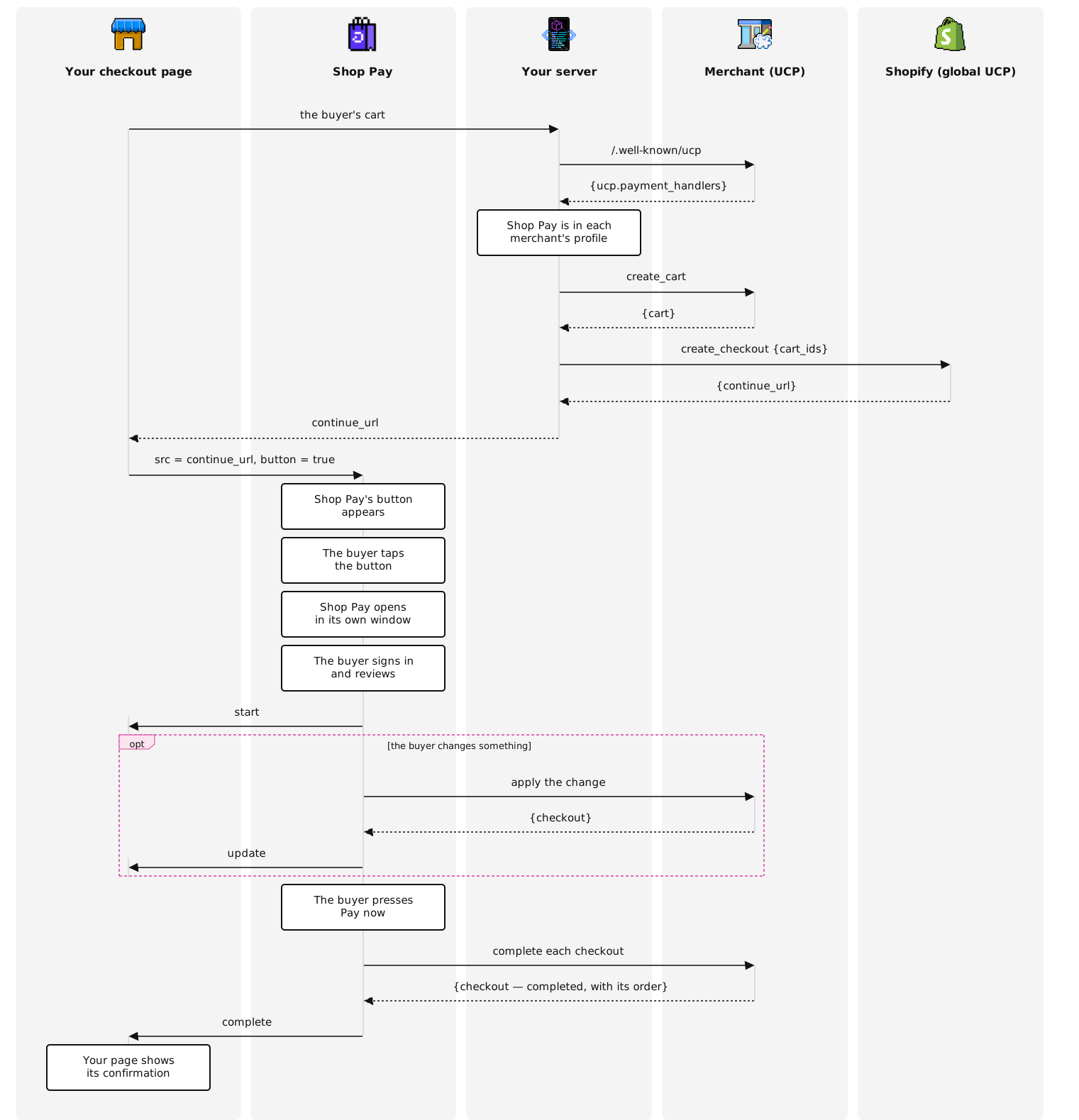
In this path, Shop Pay's button appears on your page, where your other wallet buttons go. Your server creates a cart at each merchant and combines the carts into one Universal session. When the buyer taps the button, Shop Pay opens in its own window over your page. The buyer signs in and pays, Shop Pay completes the checkout at each merchant, and your page receives the completed checkouts with their orders.
A combined checkout always works with a list of carts. If your cart includes items from one merchant, then it holds one cart. If it includes items from several merchants, then it holds one cart for each merchant, and one tap pays for all of them.
Universal Checkout is in early access and available by request. Tool names, inputs, and response fields might change before general availability. To request access for your API key, submit the Universal Checkout early access request form.
Universal Checkout is in early access and available by request. Tool names, inputs, and response fields might change before general availability. To request access for your API key, submit the Universal Checkout early access request form.
Anchor to RequirementsRequirements
- API credentials from Catalogs in the Dev Dashboard, with your client ID and client secret. Your server exchanges them for an access token, as Authentication describes, and sends it as a Bearer token in every request below.
Anchor to Step 1: Show Shop Pay only when the merchants accept itStep 1: Show Shop Pay only when the merchants accept it
Each merchant that accepts Shop Pay advertises it in its UCP profile, at /.well-known/ucp on its storefront, through a dev.shopify.shop_pay entry in ucp.payment_handlers. Read each merchant's profile on your server, and offer Shop Pay only when every merchant in the cart has the entry.
{} {shop}.myshopify.com/.well-known/ucp
server.js
Anchor to Step 2: Prepare the checkoutStep 2: Prepare the checkout
On your server, create a cart at each merchant with the create_cart tool on its Cart MCP endpoint. Then create one Universal session from the carts with the create_checkout tool on the global UCP endpoint, https://catalog.shopify.com/api/ucp/mcp. Pass up to 15 carts, one for each merchant, all in the same currency.
create_checkout returns a continue_url, the Universal session URL, that your page hands to Shop Pay in the next step. It gives access to the buyer's checkout, so return it to your page only, and don't log it. Prepare a new checkout whenever the cart changes.
server.js
Add a <shop-pay> element where your other wallet buttons go. Importing @shopify/checkout-kit/shop-pay registers the element. When your server returns the combined checkout, set its continue_url as the element's src, and then set button. The element draws Shop Pay's button, and a tap opens Shop Pay.
Whenever the cart changes, hide the button and clear src before you ask for a new combined checkout, and show the button again only with the new checkout. Otherwise the button can pay for a cart that your page no longer shows. If requests can overlap, then keep only the latest response. With target="popup", Shop Pay opens in a pop-up window over your page. Without it, Shop Pay opens in a new tab.
While Shop Pay is open, the element shows an overlay over your page, with a button that brings Shop Pay's window to the front and a button that closes it.

checkout.html
shop-pay.js
Anchor to Step 4: Follow the purchaseStep 4: Follow the purchase
Shop Pay opens, and the buyer signs in and reviews the purchase. When the checkouts become interactive, the element dispatches start. When a checkout changes, for example when the buyer's Shop Pay address replaces yours or the buyer picks a shipping option, the element dispatches update. Shop Pay applies each change at the merchant for you.
Each event's detail lists only the checkouts that it describes, as {context, checkout} entries. context.shopId names the merchant. The element's checkouts property always holds the latest entry for every merchant in the session.
shop-pay.js
Anchor to Step 5: Show your confirmationStep 5: Show your confirmation
When the buyer presses Pay now, which happens once for the whole cart, Shop Pay completes each checkout at its merchant. A checkout that completes before the others arrives in an update, with context.status set to completed. When the session ends, the element dispatches complete with the checkouts that the final step completed. Read the element's checkouts property for all of them.
In each completed checkout, status is completed, and order contains that merchant's order, with its id and label. Shop Pay doesn't show an order confirmation. Show yours, with one order for each merchant, using order.label as the order number.
Use order.id on your server to follow each order with Order MCP and order webhooks, which return the order's permalink_url for the buyer's order status page. Each merchant also sends the buyer its usual order confirmation.
shop-pay.js
Anchor to Edge casesEdge cases
The steps above are the happy path. Handle the following too.
Anchor to The buyer closes Shop PayThe buyer closes Shop Pay
If the buyer closes Shop Pay's window before paying, or closes it from the overlay, then the element dispatches close. Nothing is completed at the merchants, and the buyer can open Shop Pay again with the same session, or pay another way.
To close Shop Pay from your page, call close(). Changing src or target also closes it.
shop-pay.js
Anchor to A merchant drops outA merchant drops out
In a session with several merchants, one merchant can fail while the others continue. An update reports that merchant with context.status set to failed, which Shop Pay can still retry, or ejected, which means that the merchant left the session. A merchant that can't continue also arrives in error, as an entry whose recoverable is true. The other checkouts carry on, and complete reports only the merchants that completed. Tell the buyer which items weren't bought.
shop-pay.js
Anchor to Shop Pay can't continueShop Pay can't continue
If Shop Pay can't continue, then the element dispatches error with an entry whose recoverable is false, and the session ends. Each entry has an error with a code and a message. Use code to decide what to do, and treat message as diagnostic text. Offer another payment method, and create a new combined checkout if the buyer wants to try Shop Pay again.
The element also reports problems on your page this way, before it opens Shop Pay: unsupported_browser when the browser lacks a feature that Shop Pay needs, and sdk_error when src is empty or isn't a valid URL. The element's errors property holds every error in the session.
shop-pay.js
{} The detail of an error event
Anchor to The browser blocks Shop Pay's windowThe browser blocks Shop Pay's window
Browsers open a window only in response to the buyer's tap. Shop Pay's button opens Shop Pay from the tap itself. If the browser blocks the window anyway, then the element dispatches blocked, and its overlay offers the buyer a button that opens Shop Pay again. If the buyer dismisses the overlay instead, then the element dispatches close.
shop-pay.js
Anchor to Your page runs in your app's web viewYour page runs in your app's web view
Checkout Kit for the web works the same in a native app's web view, and needs three things from the app:
- JavaScript and DOM storage, which Android web views don't enable by default.
- Your app's shared, persistent cookie store, so that the buyer signs in to Shop Pay on
shop.apponce per install. - A window for Shop Pay. The
<shop-pay>element opens Shop Pay withwindow.open. Create that window as a web view of its own, on the same cookie store, present it in your own UI with a close button, and dismiss it when the page closes it.
CheckoutViewController.swift
CheckoutWebView.kt
Anchor to ReferenceReference
<shop-pay> is the whole interface: an element with attributes, two properties, two methods, and five events. Every event is dispatched on the element and doesn't bubble, so add your listeners to the element itself. Each attribute is also a property.
Anchor to AttributesAttributes
src
• string Required (critical)
The Universal session URL: the continue_url that create_checkout returned to your server. Changing it closes Shop Pay if it's open.
button
• boolean
Draws Shop Pay's button in the element. A tap calls open(). Without it, the element draws nothing, and you call open() from your own button.
target
• string
Where Shop Pay opens: popup for a pop-up window over your page, auto (the default) or _blank for a new tab, or the name of a window. Changing it closes Shop Pay if it's open.
Anchor to PropertiesProperties
checkouts
• readonly array
The latest {context, checkout} entry for every merchant in the open session, including a merchant that left it. Empty before the first event.
errors
• readonly array
Every {recoverable, error} entry in the open session.
Anchor to MethodsMethods
open()
• method
Opens Shop Pay with the session in src. Shop Pay's button calls it on tap. With your own pay button, call it from the click handler itself.
close()
• method
Closes Shop Pay and the overlay. The element dispatches close.
Anchor to EventsEvents
start
• event
The checkouts became interactive. detail is an array of {context, checkout} entries.
update
• event
Checkouts changed, or a merchant's context.status changed. detail is an array of {context, checkout} entries for the merchants that changed.
complete
• event
The session completed. detail is an array of {context, checkout} entries for the checkouts that the final step completed. Read checkouts for every merchant.
error
• event
detail is an array of {recoverable, error} entries. A recoverable error belongs to one merchant and leaves the session open. Any other error ends it.
close
• event
Shop Pay closed. detail is null. Closing says nothing about whether the purchase completed.
The shop-pay element
{} The detail of a complete event
On Shopify · Your pay button · Web / WebView
Anchor to How it worksHow it works
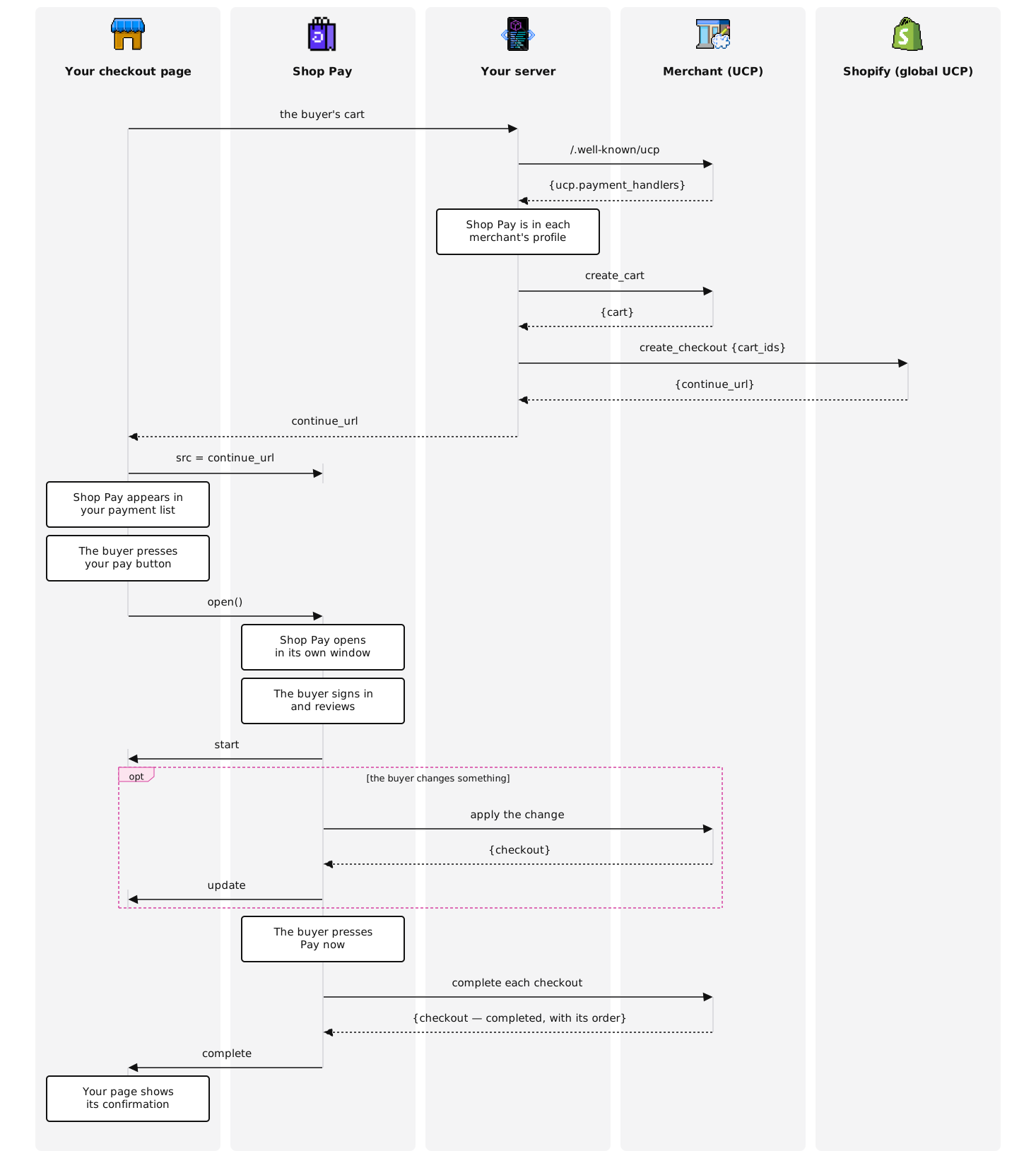
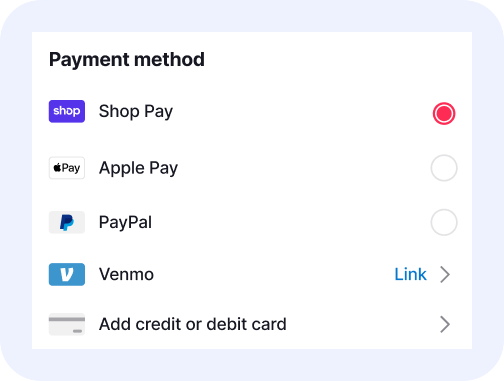
In this path, Shop Pay appears as one of the payment methods in your list. Your server creates a cart at each merchant and combines the carts into one Universal session. When the buyer picks Shop Pay and presses your pay button, Shop Pay opens in its own window over your page. The buyer signs in and pays, Shop Pay completes the checkout at each merchant, and your page receives the completed checkouts with their orders.
A combined checkout always works with a list of carts. If your cart includes items from one merchant, then it holds one cart. If it includes items from several merchants, then it holds one cart for each merchant, and one press of your pay button pays for all of them.
Universal Checkout is in early access and available by request. Tool names, inputs, and response fields might change before general availability. To request access for your API key, submit the Universal Checkout early access request form.
Universal Checkout is in early access and available by request. Tool names, inputs, and response fields might change before general availability. To request access for your API key, submit the Universal Checkout early access request form.
Anchor to RequirementsRequirements
- API credentials from Catalogs in the Dev Dashboard, with your client ID and client secret. Your server exchanges them for an access token, as Authentication describes, and sends it as a Bearer token in every request below.
Anchor to Step 1: Show Shop Pay only when the merchants accept itStep 1: Show Shop Pay only when the merchants accept it
Each merchant that accepts Shop Pay advertises it in its UCP profile, at /.well-known/ucp on its storefront, through a dev.shopify.shop_pay entry in ucp.payment_handlers. Read each merchant's profile on your server, and offer Shop Pay only when every merchant in the cart has the entry.
{} {shop}.myshopify.com/.well-known/ucp
server.js
Anchor to Step 2: Prepare the checkoutStep 2: Prepare the checkout
On your server, create a cart at each merchant with the create_cart tool on its Cart MCP endpoint. Then create one Universal session from the carts with the create_checkout tool on the global UCP endpoint, https://catalog.shopify.com/api/ucp/mcp. Pass up to 15 carts, one for each merchant, all in the same currency.
create_checkout returns a continue_url, the Universal session URL, that your page hands to Shop Pay in the next step. It gives access to the buyer's checkout, so return it to your page only, and don't log it. Prepare a new checkout whenever the cart changes.
server.js
Anchor to Step 3: Add Shop Pay to your payment listStep 3: Add Shop Pay to your payment list
Add Shop Pay as a row in your payment list, and add a <shop-pay> element without the button attribute anywhere in your page. The element draws nothing until Shop Pay opens, but it must stay in the page, because it shows the overlay and receives Shop Pay's messages. Importing @shopify/checkout-kit/shop-pay registers the element.
Create the combined checkout before the buyer presses your pay button, for example when your checkout page loads, and set its continue_url as the element's src. Whenever the cart changes, hide the Shop Pay row and clear src before you ask for a new combined checkout, and show the row again only with the new checkout, so that Shop Pay never pays for a cart that your page no longer shows. When the buyer presses your pay button with Shop Pay selected, call open() from the click handler itself. Browsers open a window only in response to the buyer's click, so a click handler that waits for your server first loses the chance to open it.
With target="popup", Shop Pay opens in a pop-up window over your page. Without it, Shop Pay opens in a new tab. While Shop Pay is open, the element shows an overlay over your page, with a button that brings Shop Pay's window to the front and a button that closes it.
checkout.html
shop-pay.js
Anchor to Step 4: Follow the purchaseStep 4: Follow the purchase
Shop Pay opens, and the buyer signs in and reviews the purchase. When the checkouts become interactive, the element dispatches start. When a checkout changes, for example when the buyer's Shop Pay address replaces yours or the buyer picks a shipping option, the element dispatches update. Shop Pay applies each change at the merchant for you.
Each event's detail lists only the checkouts that it describes, as {context, checkout} entries. context.shopId names the merchant. The element's checkouts property always holds the latest entry for every merchant in the session.
shop-pay.js
Anchor to Step 5: Show your confirmationStep 5: Show your confirmation
When the buyer presses Pay now, which happens once for the whole cart, Shop Pay completes each checkout at its merchant. A checkout that completes before the others arrives in an update, with context.status set to completed. When the session ends, the element dispatches complete with the checkouts that the final step completed. Read the element's checkouts property for all of them.
In each completed checkout, status is completed, and order contains that merchant's order, with its id and label. Shop Pay doesn't show an order confirmation. Show yours, with one order for each merchant, using order.label as the order number.
Use order.id on your server to follow each order with Order MCP and order webhooks, which return the order's permalink_url for the buyer's order status page. Each merchant also sends the buyer its usual order confirmation.
shop-pay.js
Anchor to Edge casesEdge cases
The steps above are the happy path. Handle the following too.
Anchor to The buyer closes Shop PayThe buyer closes Shop Pay
If the buyer closes Shop Pay's window before paying, or closes it from the overlay, then the element dispatches close. Nothing is completed at the merchants, and the buyer can open Shop Pay again with the same session, or pay another way.
To close Shop Pay from your page, call close(). Changing src or target also closes it.
shop-pay.js
Anchor to A merchant drops outA merchant drops out
In a session with several merchants, one merchant can fail while the others continue. An update reports that merchant with context.status set to failed, which Shop Pay can still retry, or ejected, which means that the merchant left the session. A merchant that can't continue also arrives in error, as an entry whose recoverable is true. The other checkouts carry on, and complete reports only the merchants that completed. Tell the buyer which items weren't bought.
shop-pay.js
Anchor to Shop Pay can't continueShop Pay can't continue
If Shop Pay can't continue, then the element dispatches error with an entry whose recoverable is false, and the session ends. Each entry has an error with a code and a message. Use code to decide what to do, and treat message as diagnostic text. Offer another payment method, and create a new combined checkout if the buyer wants to try Shop Pay again.
The element also reports problems on your page this way, before it opens Shop Pay: unsupported_browser when the browser lacks a feature that Shop Pay needs, and sdk_error when src is empty or isn't a valid URL. The element's errors property holds every error in the session.
shop-pay.js
{} The detail of an error event
Anchor to The browser blocks Shop Pay's windowThe browser blocks Shop Pay's window
If the browser blocks Shop Pay's window, then the element dispatches blocked, and its overlay offers the buyer a button that opens Shop Pay again. If the buyer dismisses the overlay instead, then the element dispatches close. To avoid this, call open() directly from the buyer's click, and never from a blocked listener, a timer, or after an await.
shop-pay.js
Anchor to Your page runs in your app's web viewYour page runs in your app's web view
Checkout Kit for the web works the same in a native app's web view, and needs three things from the app:
- JavaScript and DOM storage, which Android web views don't enable by default.
- Your app's shared, persistent cookie store, so that the buyer signs in to Shop Pay on
shop.apponce per install. - A window for Shop Pay. The
<shop-pay>element opens Shop Pay withwindow.open. Create that window as a web view of its own, on the same cookie store, present it in your own UI with a close button, and dismiss it when the page closes it.
CheckoutViewController.swift
CheckoutWebView.kt
Anchor to ReferenceReference
<shop-pay> is the whole interface: an element with attributes, two properties, two methods, and five events. Every event is dispatched on the element and doesn't bubble, so add your listeners to the element itself. Each attribute is also a property.
Anchor to AttributesAttributes
src
• string Required (critical)
The Universal session URL: the continue_url that create_checkout returned to your server. Changing it closes Shop Pay if it's open.
button
• boolean
Draws Shop Pay's button in the element. A tap calls open(). Without it, the element draws nothing, and you call open() from your own button.
target
• string
Where Shop Pay opens: popup for a pop-up window over your page, auto (the default) or _blank for a new tab, or the name of a window. Changing it closes Shop Pay if it's open.
Anchor to PropertiesProperties
checkouts
• readonly array
The latest {context, checkout} entry for every merchant in the open session, including a merchant that left it. Empty before the first event.
errors
• readonly array
Every {recoverable, error} entry in the open session.
Anchor to MethodsMethods
open()
• method
Opens Shop Pay with the session in src. Shop Pay's button calls it on tap. With your own pay button, call it from the click handler itself.
close()
• method
Closes Shop Pay and the overlay. The element dispatches close.
Anchor to EventsEvents
start
• event
The checkouts became interactive. detail is an array of {context, checkout} entries.
update
• event
Checkouts changed, or a merchant's context.status changed. detail is an array of {context, checkout} entries for the merchants that changed.
complete
• event
The session completed. detail is an array of {context, checkout} entries for the checkouts that the final step completed. Read checkouts for every merchant.
error
• event
detail is an array of {recoverable, error} entries. A recoverable error belongs to one merchant and leaves the session open. Any other error ends it.
close
• event
Shop Pay closed. detail is null. Closing says nothing about whether the purchase completed.
The shop-pay element
{} The detail of a complete event
Anchor to Shop Pay iconShop Pay icon
If you list Shop Pay with your other payment methods, then show this icon beside it. Use the icon as it is, at the same size as your other payment icons.

Anchor to Next stepsNext steps
- Checkout Kit: The SDK that adds Shop Pay to your page.
- Cart MCP: Create the carts that you combine into one checkout.
- Order MCP: Follow the orders that buyers place with Shop Pay.
- Shop Pay payment handler: The UCP handler that merchants advertise to accept Shop Pay.