Version 2025-07 is the last API version to support React-based UI components. Later versions use web components, native UI elements with built-in accessibility, better performance, and consistent styling with Shopify's design system. Check out the upgrade guide to upgrade your extension.
Text
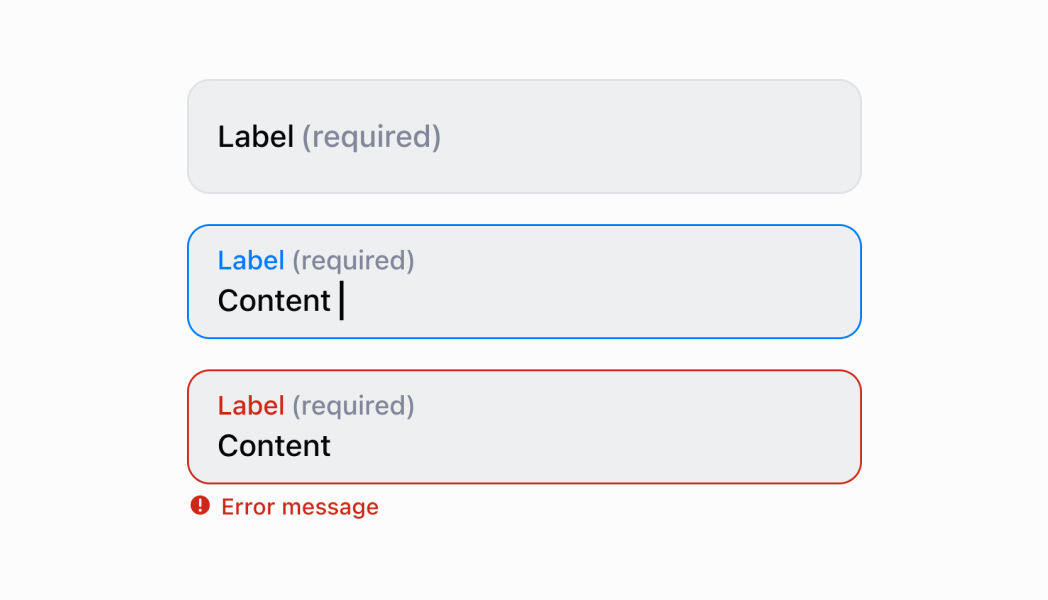
The TextField component captures single-line text input. Use it to collect short, free-form information in forms and data entry workflows.
The component supports various input configurations including placeholders, character limits, and validation. It includes built-in support for labels, helper text, and error states to guide merchants through data entry, ensuring accurate and efficient information capture across different retail scenarios.
Anchor to Use casesUse cases
- Product identifiers: Collect product names, SKUs, or short identifiers.
- Customer names: Capture customer names, reference numbers, or brief labels.
- Filtering: Enable text-based filtering or tagging for short text values.
- Form submissions: Support form submissions requiring single-line text values.
Anchor to PropertiesProperties
Configure the following properties on the TextField component.
- Anchor to labellabellabelstringstringrequiredrequired
The content to use as the field label that describes the text information being requested.
- Anchor to actionactionactionInputActionInputAction
A button configuration object displayed under the text field to provide extra functionality.
- Anchor to disableddisableddisabledbooleanboolean
Controls whether the field can be modified. When
true, the field is disabled and users cannot edit its value.- Anchor to errorerrorerrorstringstring
An error message that indicates a problem to the user. The field is given specific stylistic treatment to communicate issues that must be resolved immediately.
- Anchor to helpTexthelp
Texthelp Text stringstring The label text displayed under the field that provides guidance or instructions to assist users.
- Anchor to maxLengthmax
Lengthmax Length numbernumber The maximum number of characters allowed in the text field.
- Anchor to onBluron
Bluron Blur () => void() => void A callback function executed when focus is removed from the field.
- Anchor to onChangeon
Changeon Change (value: string) => void(value: string) => void A callback function executed when the user has finished editing the field, receiving the new text value as a parameter. You should update the
valueproperty in response to this callback.- Anchor to onFocuson
Focuson Focus () => void() => void A callback function executed when the field receives focus.
- Anchor to onInputon
Inputon Input (value: string) => void(value: string) => void A callback function executed immediately when the user makes any change in the field. Use this for real-time feedback, such as clearing validation errors as soon as the user begins making corrections. Don't use this to update the
valueproperty—thecallback is the appropriate handler for updating the field's value.- Anchor to placeholderplaceholderplaceholderstringstring
A short hint that describes the expected value of the field.
- Anchor to requiredrequiredrequiredbooleanboolean
A boolean that indicates whether the field needs a value for form submission or validation purposes.
- Anchor to valuevaluevaluestringstring
The current text value for the field. If omitted, the field will be empty. You should update the
valueproperty in response to thecallback.
InputAction
Defines the configuration object for action buttons displayed below input fields to provide extra functionality.
- disabled
A boolean value that determines whether the action button can be pressed.
boolean - label
The text displayed on the action button.
string - onPress
A callback function executed when the action button is pressed.
() => void
Anchor to ExamplesExamples
Anchor to Capture single-line text inputCapture single-line text input
Collect short, free-form text using a single-line input field. This example shows a TextField with labels, placeholders, and validation support, ensuring accurate and efficient information capture for forms and data entry workflows.Capture single-line text input
Capture single-line text input
React
import React, {useState} from 'react';
import {
  TextField,
  Screen,
  ScrollView,
  Navigator,
  reactExtension,
  Text,
} from '@shopify/ui-extensions-react/point-of-sale';

const SmartGridModal = () => {
  const [name, setName] = useState('');
  return (
    <Navigator>
      <Screen name="TextField" title="Text Field Example">
        <ScrollView>
          <TextField
            label="Name"
            placeholder="Input your name here"
            required={true}
            value={name}
            onChange={setName}
          />
          <Text>{name ? `Hello ${name}!` : ''}</Text>
        </ScrollView>
      </Screen>
    </Navigator>
  );
};

export default reactExtension('pos.home.modal.render', () => (
  <SmartGridModal />
));
TS
import {
  Navigator,
  Screen,
  ScrollView,
  Text,
  TextField,
  extension,
} from '@shopify/ui-extensions/point-of-sale';

export default extension('pos.home.modal.render', (root, api) => {
  const textField = root.createComponent(TextField, {
    label: 'Name',
    placeholder: 'Input your name here',
    required: true,
    value: '',
  });

  const textBox = root.createComponent(Text);

  const onChangeHandler = (newValue: string) => {
    textField.updateProps({value: newValue});

    const greeting = newValue ? `Hello ${newValue}!` : '';
    textBox.replaceChildren(greeting);
  };

  textField.updateProps({onChange: onChangeHandler});

  const scrollView = root.createComponent(ScrollView);
  scrollView.append(textField);
  scrollView.append(textBox);

  const screen = root.createComponent(Screen, {
    name: 'TextField',
    title: 'Text Field Example',
  });
  screen.append(scrollView);

  const navigator = root.createComponent(Navigator);
  navigator.append(screen);

  root.append(navigator);
});
Anchor to Best practicesBest practices
- Set initial focus appropriately: When merchants open a new form, set focus on the first text field automatically to streamline data entry and reduce the number of interactions required to begin input.
- Write clear and concise labels: Write labels in sentence case and keep them brief. Use consistent terminology for similar fields throughout the app to create a predictable and familiar experience for merchants.
- Indicate required fields clearly: When a text field is required for form submission, use the
requiredproperty and display a "Required" indicator. Implement validation logic in youronChangecallback to check empty values and display errors. - Provide helpful guidance with helpText and placeholder: Use
helpTextfor explain content expectations, formatting requirements, or character limits. Use placeholder text to provide examples of the expected content format or structure. - Support autocomplete when appropriate: Provide autocomplete options for fields where merchants commonly enter predictable values, such as addresses, product names, or customer information.
- Implement character limits appropriately: Set
maxLengthto prevent excessively long input that might cause display or processing issues. Provide feedback about character limits in thehelpText, especially when users are approaching the limit. - Use action buttons for enhanced functionality: Use the
actionproperty to provide helpful actions like "Clear Field," "Generate Code," or "Use Default." This enhances usability by providing quick access to common text operations.
Anchor to LimitationsLimitations
- TextField provides single-line text input only—multi-line text entry requires the TextArea component.
- The
requiredproperty adds semantic meaning only—it doesn't trigger automatic error display or validation, so you must implement validation logic manually. - Action buttons are limited to simple press callbacks—complex action workflows require custom implementation or additional components.