Version 2025-07 is the last API version to support React-based UI components. Later versions use web components, native UI elements with built-in accessibility, better performance, and consistent styling with Shopify's design system. Check out the upgrade guide to upgrade your extension.
Time
The TimePicker component allows merchants to select a specific time using an interactive picker interface. Use it to provide visual time selection for improved user experience and reduced input errors.
TimePicker offers a more visual and touch-friendly alternative to text-based time input, making time selection faster and more accurate. The picker interface provides an intuitive way to select hours and minutes through an interactive interface.
Supported targets
- pos.
cart. line-item-details. action. render - pos.
customer-details. action. render - pos.
customer-details. block. render - pos.
draft-order-details. action. render - pos.
draft-order-details. block. render - pos.
home. modal. render - pos.
order-details. action. render - pos.
order-details. block. render - pos.
product-details. action. render - pos.
product-details. block. render - pos.
purchase. post. action. render - pos.
purchase. post. block. render
Supported targets
- pos.
cart. line-item-details. action. render - pos.
customer-details. action. render - pos.
customer-details. block. render - pos.
draft-order-details. action. render - pos.
draft-order-details. block. render - pos.
home. modal. render - pos.
order-details. action. render - pos.
order-details. block. render - pos.
product-details. action. render - pos.
product-details. block. render - pos.
purchase. post. action. render - pos.
purchase. post. block. render
Anchor to Use casesUse cases
- Visual selection: Provide visual time selection where touch interaction is preferred.
- Quick selection: Enable quick time selection for business hours or delivery windows.
- Touch-optimized: Support touch-optimized time input where tapping is more efficient.
- Modal pickers: Implement modal-style time pickers that can be shown or hidden programmatically.
Anchor to PropertiesProperties
Configure the following properties on the TimePicker component.
- Anchor to visibleStatevisible
Statevisible State [boolean, (visible: boolean) => void][boolean, (visible: boolean) => void]requiredrequired A tuple that controls the visible state of the picker and provides a callback to set visibility to false when the dialog closes. The first element is the current visibility state, and the second is a setter function.
- Anchor to inputModeinput
Modeinput Mode 'inline' | 'spinner''inline' | 'spinner'Default: 'inline'Default: 'inline' The display mode for the time picker.
inline: A clock-style interface that displays an analog or digital clock where users can tap to select specific times. Provides visual context about time relationships. Only available on Android devices—iOS always uses spinner mode.spinner: A spinner-style selector with scrollable columns for hours, minutes, and optionally seconds. Offers a more compact interface suitable for all devices and is the only mode supported on iOS.
- Anchor to is24Houris24Houris24HourbooleanbooleanDefault: falseDefault: false
Whether the clock displays in 24-hour format instead of 12-hour format. This property only affects Android devices.
- Anchor to onChangeon
Changeon Change (selected: string) => void(selected: string) => void A callback for changes.
- Anchor to selectedselectedselectedstringstringDefault: The current time.Default: The current time.
The currently selected time value. Defaults to the current time when not specified.
Anchor to ExamplesExamples
Anchor to Select time with a pickerSelect time with a picker
Enable time selection using an interactive picker interface. This example demonstrates a TimePicker that provides a visual, touch-friendly way to select hours and minutes, making time selection faster and more accurate than text-based input for scheduling workflows.Select time with a picker
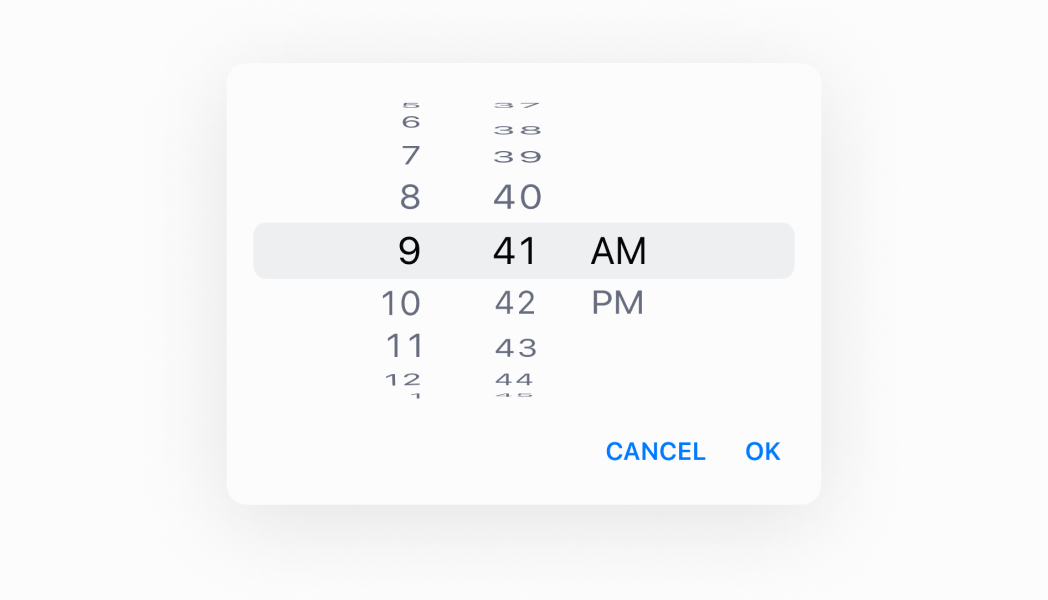
Select time with a picker
React
import React, {useState} from 'react';
import {
  Button,
  TimePicker,
  Screen,
  Text,
  reactExtension,
} from '@shopify/ui-extensions-react/point-of-sale';

const SmartGridModal = () => {
  const [date, setDate] = useState(
    new Date().toDateString(),
  );
  const visibleState = useState(false);

  return (
    <Screen name="Home" title="Home">
      <Text>Selected date: {date}</Text>
      <Button
        title="Show"
        onPress={() => {
          visibleState[1](true);
        }}
      />
      <TimePicker
        visibleState={visibleState}
        onChange={(selected) => {
          setDate(
            new Date(selected).toDateString(),
          );
        }}
        selected={date}
        is24Hour={true}
        inputMode={'spinner'}
      />
    </Screen>
  );
};

export default reactExtension(
  'pos.home.modal.render',
  () => <SmartGridModal />,
);
TS
import {
  Button,
  TimePicker,
  Screen,
  extension,
} from '@shopify/ui-extensions/point-of-sale';

export default extension(
  'pos.home.modal.render',
  (root) => {
    const mainScreen = root.createComponent(
      Screen,
      {
        name: 'Home',
        title: 'Home',
      },
    );

    const button = root.createComponent(Button, {
      title: 'Show',
      onPress: () => {
        timePicker.updateProps({
          visibleState: [true, () => {}],
        });
      },
    });

    const handleOnChange = (selected) => {
      timePicker.updateProps({
        selected: new Date(
          selected,
        ).toDateString(),
      });
    };

    const timePicker = root.createComponent(
      TimePicker,
      {
        visibleState: [false, () => {}],
        onChange: handleOnChange,
        selected: new Date().toDateString(),
        is24Hour: true,
        inputMode: 'spinner',
      },
    );

    mainScreen.append(button);
    mainScreen.append(timePicker);
    root.append(mainScreen);
  },
);
Anchor to Best practicesBest practices
- Choose appropriate input modes for your platform: Use
'inline'mode (clock) on Android when users benefit from seeing a clock interface. iOS only supports'spinner'mode, so design your time selection experience to work well with spinners across all platforms. - Configure time format for Android users: Use the
is24Hourproperty to control whether Android devices display times in 24-hour or 12-hour format. Set this based on your target audience's preferences and regional conventions. This property only affects Android devices. - Handle time selection with onChange: Implement the
onChangecallback to capture selected times and update your application state accordingly. This callback receives the selected time string that you can use to update UI or trigger related actions. - Default to current time thoughtfully: The picker defaults to the current time when no
selectedvalue is provided. If you need a different starting time or want to guide users to a specific time period, explicitly set theselectedproperty. - Provide clear triggers for showing the picker: Since visibility is controlled by
visibleState, ensure you have clear UI elements like buttons or field interactions that toggle the picker visibility. Users should understand how to open and close the time picker.
Anchor to LimitationsLimitations
- TimePicker requires external visibility state management through the
visibleStatetuple—automatic show/hide behavior based on field focus is not built-in. - The
inputModeproperty has platform limitations—iOS only supports spinner mode regardless of theinputModesetting, which may affect cross-platform consistency. - The
is24Hourproperty only affects Android devices—iOS and other platforms use their system-level time format preferences regardless of this setting. - The component provides time selection but doesn't include field labels, help text, or error messaging—combine with other UI elements or text components to provide complete form field experiences.