Version 2025-07 is the last API version to support React-based UI components. Later versions use web components, native UI elements with built-in accessibility, better performance, and consistent styling with Shopify's design system. Check out the upgrade guide to upgrade your extension.
Camera
The CameraScanner component provides camera-based scanning functionality with optional banner messaging. Use it to enable barcode scanning, QR code reading, or other camera-based input methods with contextual user feedback.
CameraScanner works in conjunction with the Scanner API to capture scan data from device cameras, providing both the visual interface and the data handling capabilities for complete scanning workflows.
CameraScanner components provide real-time feedback during scanning operations with visual guides for optimal positioning, helping merchants quickly capture barcodes even in challenging lighting conditions or with damaged labels. The component provides audio feedback during scanning operations, confirming successful scans without requiring visual confirmation.
Anchor to Use casesUse cases
- Barcode scanning: Enable barcode scanning for product lookup or inventory management.
- QR codes: Provide QR code scanning for customer engagement or loyalty programs.
- Guided experiences: Create guided scanning experiences with banner messages.
- Visual capture: Implement camera-based input for workflows requiring visual data capture.
Anchor to PropertiesProperties
Configure the following properties on the CameraScanner component.
- CameraScannerBannerPropsCameraScannerBannerProps
An optional banner configuration object that displays contextual messages during scanning operations.
CameraScannerBannerProps
- title
The title text displayed on the banner to provide context or instructions to users.
string - variant
The appearance variant of the banner that conveys the type of message being displayed.
BannerVariant - visible
Controls the visibility state of the banner within the scanner interface.
boolean
BannerVariant
'confirmation' | 'alert' | 'error' | 'information'Anchor to ExamplesExamples
Anchor to Scan barcodes with the cameraScan barcodes with the camera
Enable barcode and QR code scanning using the device camera. This example demonstrates a full-screen camera scanner with scan data display and banner messaging, showing how to integrate camera-based scanning into your workflow for product lookups or inventory management.Scan barcodes with the camera
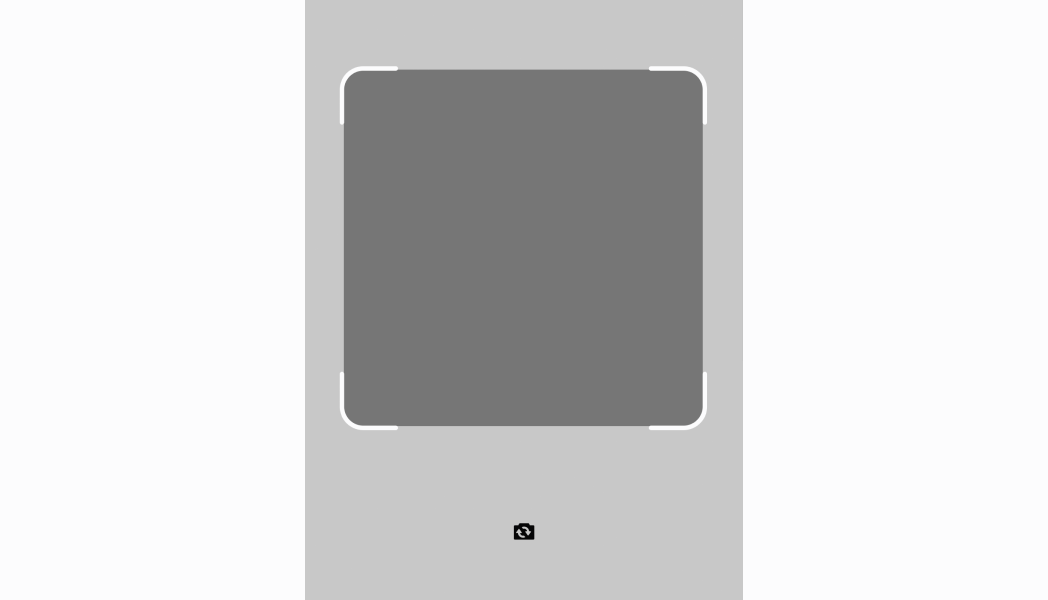
Scan barcodes with the camera
React
import React from 'react';
import {
  CameraScanner,
  Screen,
  Text,
  useScannerDataSubscription,
  reactExtension,
} from '@shopify/ui-extensions-react/point-of-sale';

const SmartGridModal = () => {
  const {data} = useScannerDataSubscription();

  return (
    <Screen
      name="CameraScanner"
      title="Camera Scanner Title"
    >
      <CameraScanner />
      <Text>{`Scanned data: ${data || ''}`}</Text>
    </Screen>
  );
};

export default reactExtension(
  'pos.home.modal.render',
  () => <SmartGridModal />,
);
TS
import {
  CameraScanner,
  Screen,
  Text,
  Stack,
  extension,
} from '@shopify/ui-extensions/point-of-sale';

export default extension(
  'pos.home.modal.render',
  (root, api) => {
    const mainScreen = root.createComponent(
      Screen,
      {
        title: 'CameraScanner',
        name: 'Camera Scanner Title',
      },
    );

    const cameraScanner = root.createComponent(
      CameraScanner,
    );

    const text = root.createComponent(
      Text,
      null,
      'Scanned data: ',
    );

    mainScreen.append(cameraScanner);
    mainScreen.append(text);
    root.append(mainScreen);

    api.scanner.scannerDataSubscribable.subscribe(
      (data) => {
        text.replaceChildren(
          `Scanned data: ${data || ''}`,
        );
      },
    );
  },
);
Anchor to Best practicesBest practices
- Implement proper post-scan workflow management: After successful scanning, dismiss the full-screen camera view and display a secondary screen showcasing the intended outcome. Use the Toast API (
toast.show()) with concise messages like "Item scanned" to confirm successful operations and consider altering screen content to signal completion. - Optimize camera view layout for multitasking: Adjust the camera scanner UI to display the camera view on part of the screen while dedicating remaining space to other components. This approach is particularly useful for tasks like inventory management where users need to see both camera input and related information simultaneously.
- Write effective banner content: Keep banner messages concise with one to two short sentences maximum. Make banners dismissible unless they contain critical information or important steps merchants need to take. Use clear, actionable language that guides users toward successful scanning.
- Coordinate with Toast API for success feedback: Use the Toast API (
toast.show()) for short confirmation messages after successful scans. Keep toast messages to three to four words maximum, avoid using them for error messages, and write them in noun + verb pattern. For example, "Item scanned" instead of "Your item has been scanned and added to your inventory count!".
Anchor to LimitationsLimitations
- CameraScanner requires device camera access and appropriate permissions—functionality is limited on devices without cameras or when permissions are denied.
- Banner messaging is the only built-in user feedback mechanism—complex scanning feedback or custom UI elements require additional components or external state management.
- The component handles basic camera functionality—advanced camera controls, image processing, or custom scanning algorithms aren't supported within the component itself.