Version 2025-07 is the last API version to support React-based UI components. Later versions use web components, native UI elements with built-in accessibility, better performance, and consistent styling with Shopify's design system. Check out the upgrade guide to upgrade your extension.
Navigator
The Navigator component manages navigation between multiple Screen components within a POS UI extension. Use it to create multi-screen workflows with proper navigation stack management and initial screen configuration.
Navigator works with the Navigation API to provide complete navigation control for complex POS workflows that require multiple views and user interactions.
Navigator components maintain navigation history across app lifecycle events and supports deep linking to specific screens, enabling merchants to return to their exact workflow state after interruptions The component supports gesture-based navigation like swipe-to-go-back on platforms where this is standard, providing familiar interaction patterns that feel native to each platform.
Anchor to Use casesUse cases
- Multi-step workflows: Create workflows like customer onboarding or product configuration.
- Settings interfaces: Build configuration interfaces with separate screens for different categories.
- Screen lifecycle: Provide structured navigation with proper back button handling.
- Parameter passing: Support deep-linking or parameter passing between screens.
Anchor to PropertiesProperties
Configure the following properties on the Navigator component.
- stringstring
The name of the initial Screen component to display when the Navigator is first rendered. Must match the
nameproperty of a child Screen component.
Anchor to ExamplesExamples
Create a multi-screen navigation flow within your extension. This example shows how to set up a Navigator with multiple Screen components and navigate between them, enabling complex workflows, wizards, or detailed views with proper navigation stack management.
Navigate between screens
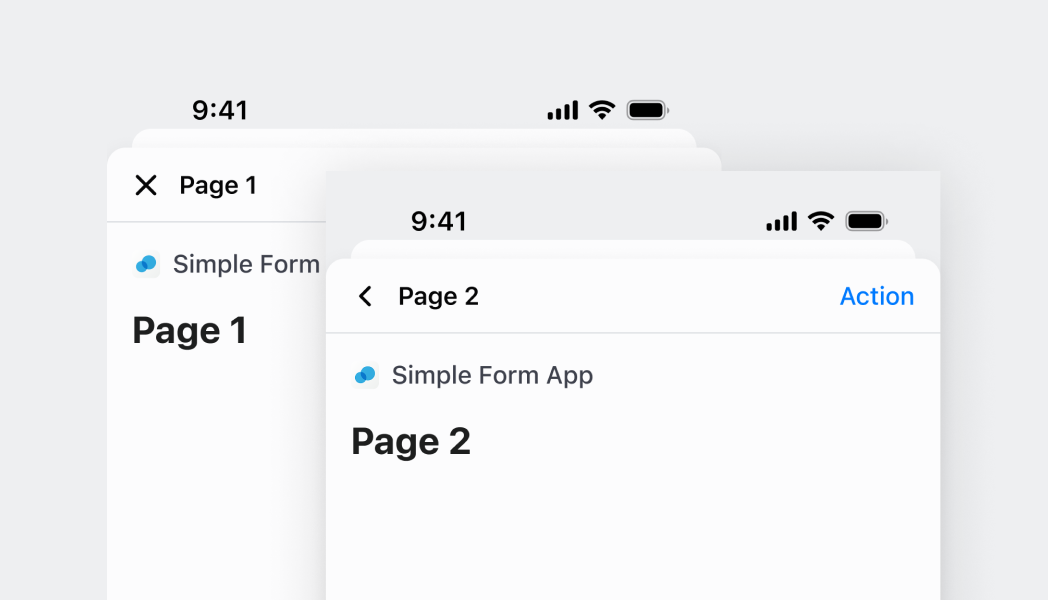
Navigate between screens
React
import React from 'react'

import { Screen, Text, Navigator, reactExtension, Button, useApi } from '@shopify/ui-extensions-react/point-of-sale';

const Modal = () => {
  const api = useApi<'pos.home.modal.render'>();

  return (
    <Navigator>
      <Screen name="Home" title="Home">
        <Text>Home screen</Text>
        <Button title="Navigate to details" onPress={() => api.navigation.navigate('Details')} />
      </Screen>
      <Screen name="Details" title="Details">
        <Text>Details screen</Text>
      </Screen>
    </Navigator>
  )
}

export default reactExtension('pos.home.modal.render', () => <Modal />);
TS
import {
  extension,
  Screen,
  Navigator,
  Text,
  Button,
} from '@shopify/ui-extensions/point-of-sale';

export default extension('pos.home.modal.render', (root, api) => {
  const homeScreen = root.createComponent(Screen, {
    name: 'Home',
    title: 'Home',
  });

  const homeText = root.createComponent(Text);
  homeText.append('Home screen');
  homeScreen.append(homeText);

  const navigateButton = root.createComponent(Button, {
    title: 'Navigate to details',
    onPress: () => api.navigation.navigate('Details'),
  });
  homeScreen.append(navigateButton);

  const detailsScreen = root.createComponent(Screen, {
    name: 'Details',
    title: 'Details',
  });

  const detailsText = root.createComponent(Text);
  detailsText.append('Details screen');
  detailsScreen.append(detailsText);

  const navigator = root.createComponent(Navigator);
  navigator.append(homeScreen);
  navigator.append(detailsScreen);
  root.append(navigator);
});
Anchor to Pass data between screensPass data between screens
Navigate to screens while passing data as parameters. This example demonstrates how to send information from one screen to another using navigation parameters, enabling contextual data flow through multi-step workflows.Pass data between screens
React
import React, {useState} from 'react';

import {
  Screen,
  Text,
  Navigator,
  reactExtension,
  Button,
  useApi,
} from '@shopify/ui-extensions-react/point-of-sale';

const Modal = () => {
  return (
    <Navigator>
      <HomeScreen />
      <DetailsScreen />
    </Navigator>
  );
};

const HomeScreen = () => {
  const api = useApi<'pos.home.modal.render'>();
  return (
    <Screen name="Home" title="Home">
      <Text>Home screen</Text>
      <Button
        title="Navigate to details"
        onPress={() => api.navigation.navigate('Details', {orderId: '123'})}
      />
    </Screen>
  );
};

const DetailsScreen = () => {
  const [params, setParams] = useState<pos.home.modal.render>();

  return (
    <Screen
      name="Details"
      title="Details"
      presentation={{sheet: true}}
      onReceiveParams={setParams}
    >
      <Text>{`Order ID: ${params.orderId}`}</Text>
    </Screen>
  );
};

export default reactExtension('pos.home.modal.render', () => <Modal />);
TS
import {
  extension,
  Screen,
  Navigator,
  Text,
  Button,
} from '@shopify/ui-extensions/point-of-sale';

export default extension('pos.home.modal.render', (root, api) => {
  const homeScreen = root.createComponent(Screen, {
    name: 'Home',
    title: 'Home',
  });

  const homeText = root.createComponent(Text);
  homeText.append('Home screen');
  homeScreen.append(homeText);

  const navigateButton = root.createComponent(Button, {
    title: 'Navigate to details',
    onPress: () => api.navigation.navigate('Details', {orderId: '123'}),
  });
  homeScreen.append(navigateButton);

  const detailsText = root.createComponent(Text);

  const detailsScreen = root.createComponent(Screen, {
    name: 'Details',
    title: 'Details',
    onReceiveParams: (params) => {
      detailsText.replaceChildren(`Order ID: ${params.orderId}`);
    },
  });

  detailsScreen.append(detailsText);

  const navigator = root.createComponent(Navigator);
  navigator.append(homeScreen);
  navigator.append(detailsScreen);
  root.append(navigator);
});
Anchor to Present a screen as a sheetPresent a screen as a sheet
Show a screen using sheet presentation style for modal-like interactions. This example demonstrates how to present screens as overlays that slide up from the bottom, useful for quick actions or secondary information without losing the parent screen context.Present a screen as a sheet
React
import React from 'react'

import { Screen, Text, Navigator, reactExtension, Button, useApi } from '@shopify/ui-extensions-react/point-of-sale';

const Modal = () => {
  const api = useApi<'pos.home.modal.render'>();

  return (
    <Navigator>
      <Screen name="Home" title="Home">
        <Text>Home screen</Text>
        <Button title="Navigate to details" onPress={() => api.navigation.navigate('Details')} />
      </Screen>
      <Screen name="Details" title="Details" presentation={{sheet: true}}>
        <Text>Details screen</Text>
      </Screen>
    </Navigator>
  )
}

export default reactExtension('pos.home.modal.render', () => <Modal />);
TS
import {
  extension,
  Screen,
  Navigator,
  Text,
  Button,
} from '@shopify/ui-extensions/point-of-sale';

export default extension('pos.home.modal.render', (root, api) => {
  const homeScreen = root.createComponent(Screen, {
    name: 'Home',
    title: 'Home',
  });

  const homeText = root.createComponent(Text);
  homeText.append('Home screen');
  homeScreen.append(homeText);

  const navigateButton = root.createComponent(Button, {
    title: 'Navigate to details',
    onPress: () => api.navigation.navigate('Details'),
  });
  homeScreen.append(navigateButton);

  const detailsScreen = root.createComponent(Screen, {
    name: 'Details',
    title: 'Details',
    presentation: {sheet: true},
  });

  const detailsText = root.createComponent(Text);
  detailsText.append('Details screen');
  detailsScreen.append(detailsText);

  const navigator = root.createComponent(Navigator);
  navigator.append(homeScreen);
  navigator.append(detailsScreen);
  root.append(navigator);
});
Anchor to Best practicesBest practices
- Use descriptive screen names for navigation: Choose clear, unique screen names that accurately represent their content and purpose. These names are used by the Navigation API for programmatic navigation and should be meaningful for code maintainability.
- Set appropriate initial screens: Select initial screens that provide the most logical entry point for your workflow. Consider the context in which your extension will be launched and what users will most likely want to see first.
- Implement proper navigation patterns: Use the Navigation API methods consistently—
navigate()for moving forward,pop()for going back, anddismiss()for closing the extension. This creates predictable navigation behavior that users can understand. - Handle screen parameters effectively: When passing parameters between screens using
navigation.navigate(), ensure receiving screens properly handle the data through theironReceiveParamscallbacks. Design parameter structures that are maintainable and type-safe. - Consider navigation context and user flow: Design navigation patterns that make sense within the broader POS workflow. Avoid deep navigation hierarchies that might confuse users or disrupt their primary tasks.
Anchor to LimitationsLimitations
- Navigator requires Screen components as children—it can't manage navigation for other component types or standalone content.
- Navigation state is managed internally—external navigation state management or complex routing patterns require custom implementation using the Navigation API.
- The component is designed for modal-style navigation within POS UI extensions—it's not suitable for main application navigation or replacing core POS navigation patterns.