Deeplinks
Learn how to implement and test deeplinks in your Shop Mini. This guide covers deeplink structure, testing during development, and best practices for handling different entry points into your Mini.
Anchor to OverviewOverview
Deeplinks enable users to navigate directly to specific content within your Shop Mini. They provide seamless entry points from external sources like push notifications, marketing campaigns, or other apps directly into specific screens or features of your Mini.
Key benefits:
- Direct navigation: Users can jump straight to relevant content
- Enhanced user experience: Reduces friction by eliminating navigation steps
- Cross-app integration: Allow other apps and services to link directly to your Mini's content
Anchor to Testing Deeplinks During DevelopmentTesting Deeplinks During Development
During development, you can test how your Mini handles different deeplink paths to ensure proper navigation and parameter handling. The Shop Minis dev server provides two convenient methods for testing deeplinks.
Anchor to Why Test Deeplinks?Why Test Deeplinks?
Testing deeplinks during development helps you:
- Verify that navigation to specific screens works correctly
- Test entry points with query parameters
- Debug routing logic and path handling
- Ensure a smooth user experience when users arrive from external sources
- Validate that your Mini properly handles various path formats
Anchor to Method 1: Terminal Shortcut (Press ,[object Object],)Method 1: Terminal Shortcut (Press d)
d)The quickest way to test deeplinks is directly from the development terminal:
- Start your development server with
npm start - Press
din the terminal - Enter your desired path when prompted (e.g.,
/recipe/123or/search?q=pasta) - Select your target platform (iOS Simulator or Android Device/Emulator)
- Your Mini will automatically launch with the specified deeplink path

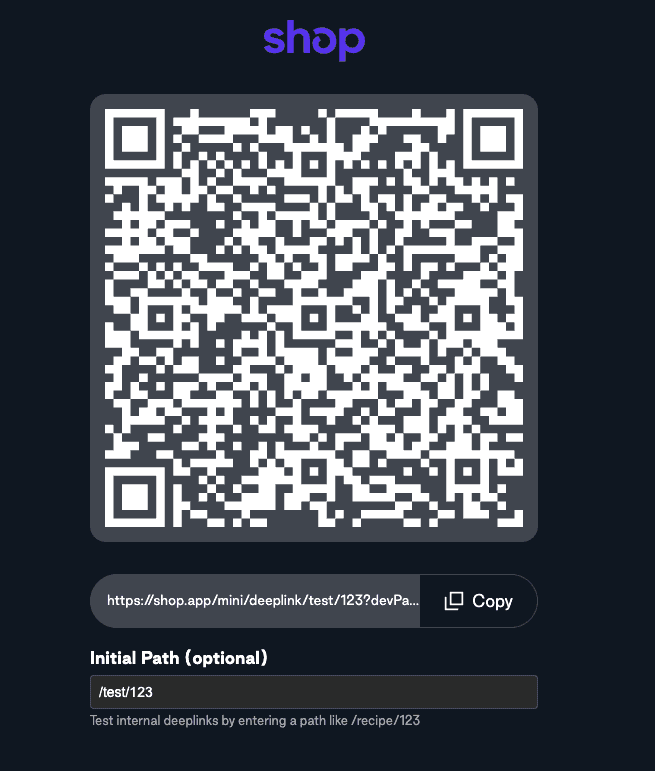
Anchor to Method 2: QR Code with Initial PathMethod 2: QR Code with Initial Path
For testing on physical iOS devices:
- Start your development server with
npm start - Press
qto open the QR code page in your browser - Enter your desired path in the "Initial Path" field
- Scan the QR code with your iOS device
- Your Mini will open directly to the specified path
Anchor to Path FormatPath Format
Paths should follow standard URL path conventions. The development server automatically handles path normalization, so both formats with and without leading slashes work correctly.
Anchor to Basic Path FormatsBasic Path Formats
- Simple navigation:
/about,/settings,/products - Resource with ID:
/product/123,/user/profile/456 - Query parameters:
/search?q=shoes&category=mens - Complex paths:
/category/electronics/phones?brand=apple&sort=price - Root path:
/(navigates to your Mini's home screen)
Anchor to Path NormalizationPath Normalization
Leading slashes are handled automatically by the development server:
/products→ normalized toproductsproducts→ remainsproducts/→ special case, preserved as root
This ensures consistent behavior regardless of how developers enter paths during testing.