Dev Dashboard
The Dev Dashboard is your central hub for building on Shopify. Whether you're building apps, setting up stores for clients, or managing collaborator access to merchant stores, it all lives here.


Anchor to Create appsCreate apps
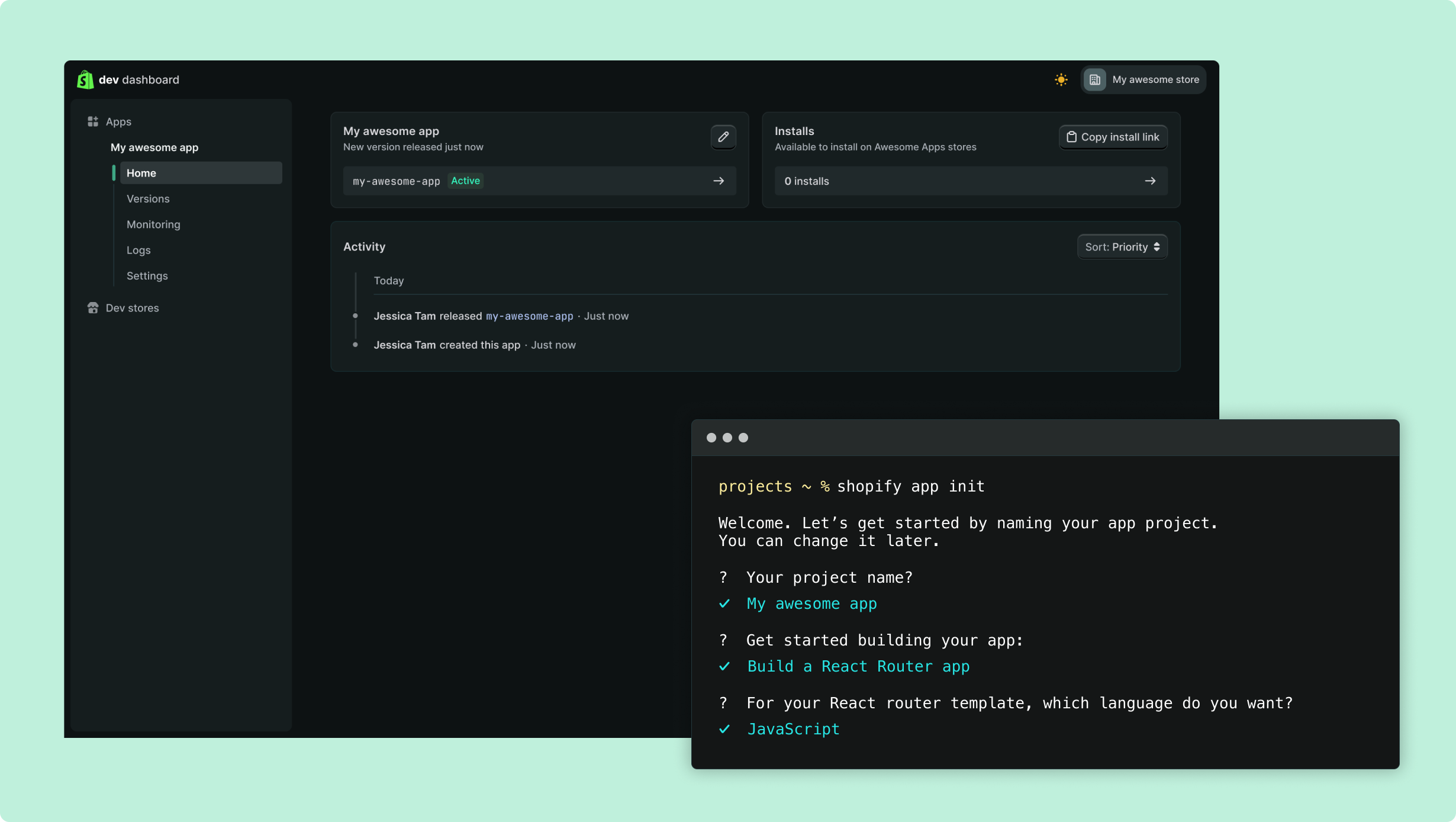
Build apps that extend, automate, or connect your store in countless ways. Whether you want to build fully interactive experiences or just need secure API access, getting started is straightforward and approachable for any skill level.
Pick the path that matches what you're building:


Anchor to Manage appsManage apps
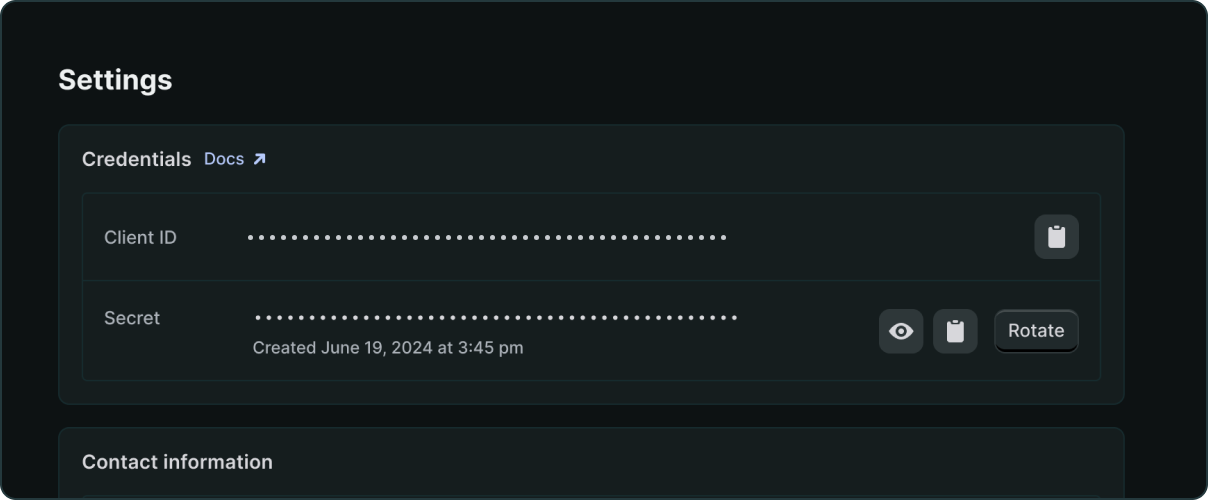
The Dev Dashboard lets you see every app tied to your organization, check app status, and configure your apps. You can also manage permissions, credentials, and team access.

Anchor to Track performanceTrack performance
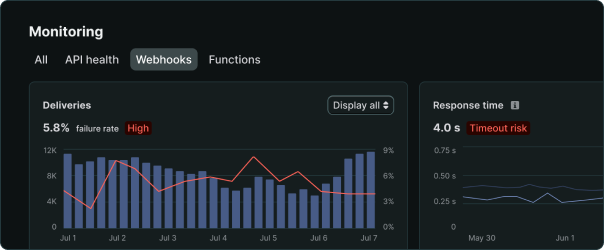
The Dev Dashboard gives you direct access to logs and health metrics for each of your apps. Use these built-in monitoring tools to track your app's performance and help identify and diagnose problems.
The dashboard also displays app events data that your app sends to Shopify, giving you a complete view of both Shopify-generated events and custom events from your app.


Anchor to Manage storesManage stores
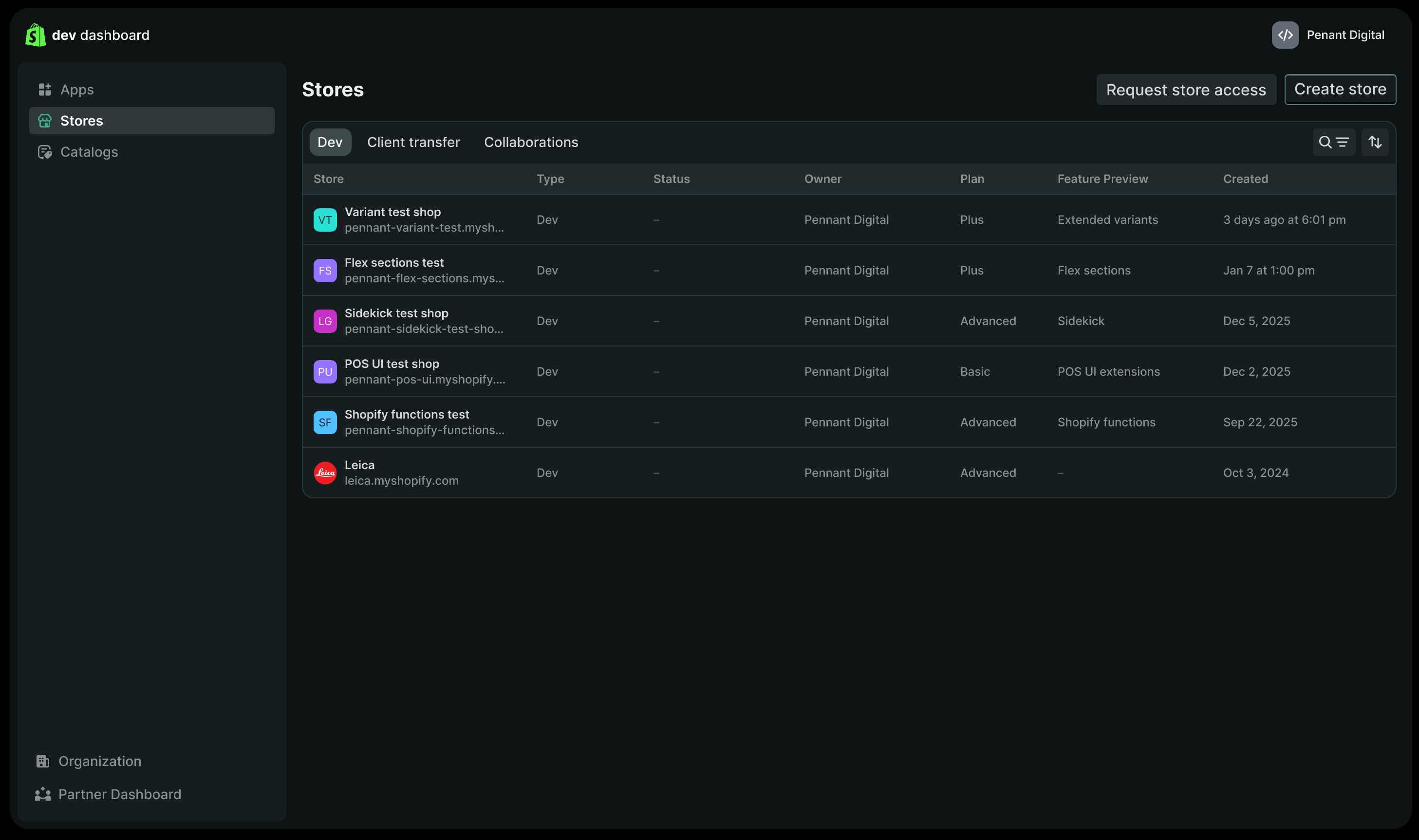
The Dev Dashboard is the home for all your stores. The Stores tab gives you a unified view of every store connected to your organization, across three types:
- Dev stores: Testing environments for building and validating apps.
- Client transfer stores: Stores you build and hand off to merchant clients.
- Collaborations: Merchant-owned stores you have collaborator access to.

Anchor to Create catalogs for agentic experiencesCreate catalogs for agentic experiences
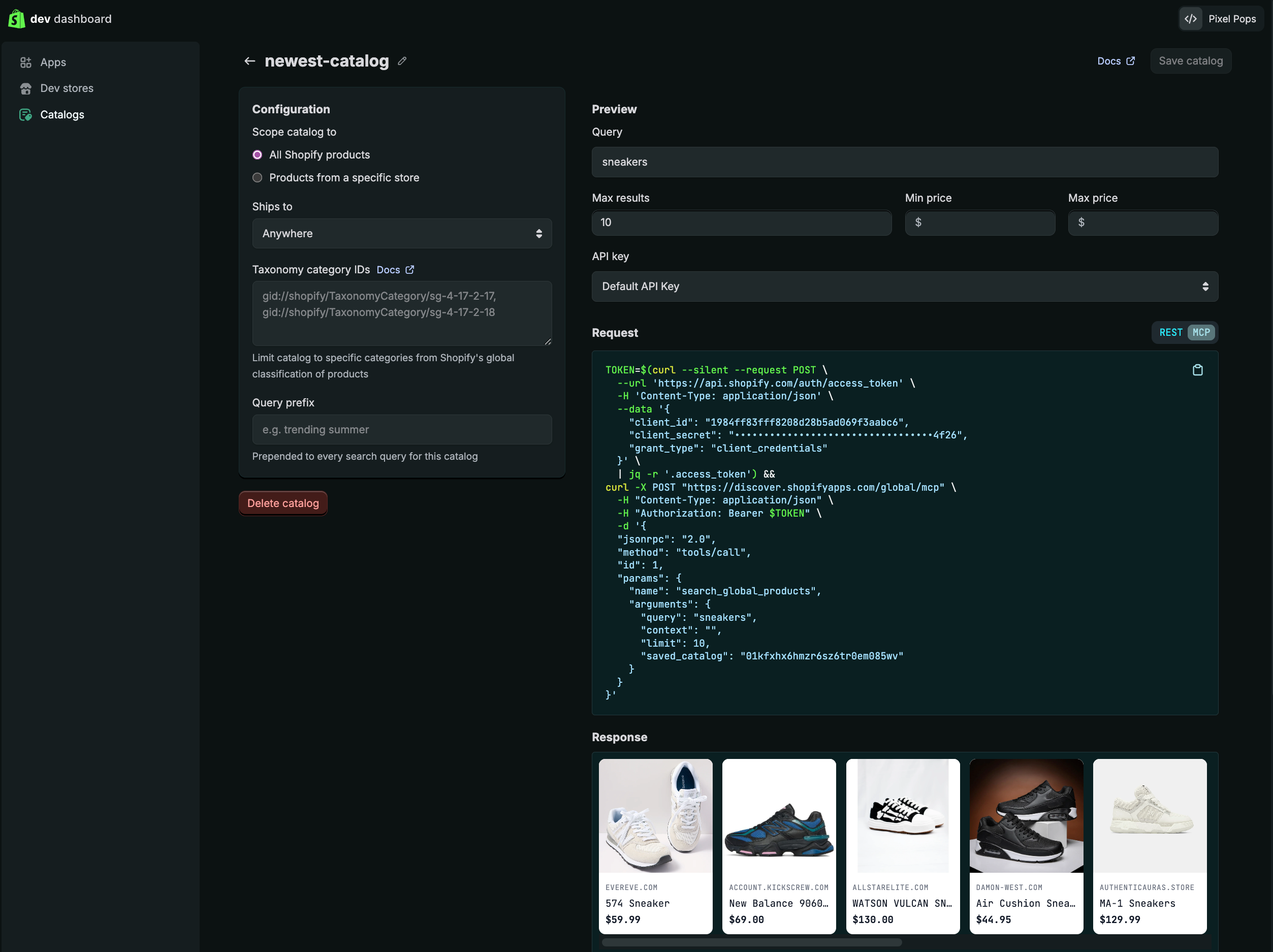
Saved Catalogs let you customize product discovery for your AI agents. Instead of querying all of Shopify's global product catalog, you can create filtered views scoped to specific product taxonomies, price ranges, or individual shops.
From the Dev Dashboard, you can configure catalog filters, preview search results, and generate a custom endpoint URL for your agents. This is useful when your agents consistently need the same query parameters applied to every request.