Intents API
The Intents API launches Shopify's native admin interfaces for creating and editing resources. When your extension calls an intent, merchants complete their changes using the standard Shopify admin UI, and your app receives the result. This means you don't need to build custom forms.
Use this API to build workflows like adding products to collections, creating multiple related resources in a sequence (like a product, collection, and discount for a promotion), opening specific resources for editing, or launching discount creation with pre-selected types.
Anchor to Use casesUse cases
- Resource creation: Invoke admin workflows to create products, collections, discounts, or other Shopify resources.
- Resource editing: Open existing Shopify resources for editing using their admin workflows.
- Workflow completion: Await the result of an intent to determine whether the merchant completed or cancelled the operation.
- Admin consistency: Use native Shopify admin workflows instead of building custom forms for resource management.
Anchor to invoke methodinvoke method
The invoke method launches a Shopify admin workflow for creating or editing resources. The method returns a promise that resolves to an activity handle you can await to get the workflow result.
The method accepts either:
- String query:
${action}:${type},${value}with optional second parameter () - Object: Properties for
action,type,value, anddata
IntentQueryOptions parameters
Optional parameters for the invoke method when using the string query format:
value(string): The resource identifier for edit operations (for example,). Required when editing existing resources. Omit for create operations.data({ [key: string]: unknown }): Additional context required by specific resource types. For example, discounts require a type, variants require a product ID, and metaobjects require a definition type.
Supported resources
The following tables show which resource types you can create or edit, and what values you need to pass for value and data for each operation.
Article
Articles are blog posts published on the Online Store. Use this to create or edit articles for merchant blogs.
| Action | Type | Value | Data |
|---|---|---|---|
create | | — | — |
edit | | | — |
Catalog
Catalogs are product groupings that organize products for different markets or channels. Use this to create or edit catalogs for B2B or multi-market selling.
| Action | Type | Value | Data |
|---|---|---|---|
create | | — | |
edit | | | — |
The optional is a market's numeric ID (for example, '123' from ). Pass it to pre-select that market when the catalog creation workflow opens.
Collection
Collections are groups of products organized manually or by automated rules. Use this to create or edit product collections.
| Action | Type | Value | Data |
|---|---|---|---|
create | | — | — |
edit | | | — |
Customer
Customers are profiles with contact information, order history, and metadata. Use this to create or edit customer accounts.
| Action | Type | Value | Data |
|---|---|---|---|
create | | — | — |
edit | | | — |
Delivery profile
Delivery profiles define shipping rates and rules for products across locations and zones. Use this to create or edit shipping configurations for different product groups.
| Action | Type | Value | Data |
|---|---|---|---|
create | | — | — |
edit | | | — |
Discount
Discounts are price reductions applied to products, orders, or shipping. Use this to create or edit discount codes and automatic discounts. Creating discounts requires specifying a discount type.
| Action | Type | Value | Data |
|---|---|---|---|
create | | — | { type: 'amount-off-product' | 'amount-off-order' | 'buy-x-get-y' | 'free-shipping' } |
edit | | | — |
For edit intents, pass a discount GID. Use as the canonical value. If you use a method-specific GID, match it to the discount method: use for discount codes and for automatic discounts.
For edit intents, pass a discount GID. Use as the canonical value. If you use a method-specific GID, match it to the discount method: use for discount codes and for automatic discounts.
Note: For edit intents, pass a discount GID. Use <code><span class="PreventFireFoxApplyingGapToWBR">gid://shopify<wbr/>/Discount<wbr/>Node<wbr/>/{id}</span></code> as the canonical value. If you use a method-specific GID, match it to the discount method: use <code><span class="PreventFireFoxApplyingGapToWBR">gid://shopify<wbr/>/Discount<wbr/>Code<wbr/>Node<wbr/>/{id}</span></code> for discount codes and <code><span class="PreventFireFoxApplyingGapToWBR">gid://shopify<wbr/>/Discount<wbr/>Automatic<wbr/>Node<wbr/>/{id}</span></code> for automatic discounts.
File
Files are images, videos, 3D models, and other media uploaded to the store. Use the pick action to let merchants choose existing files. The workflow resolves with the selected file IDs in response.data.ids.
| Action | Type | Value | Data |
|---|---|---|---|
pick | | — | |
The data options are all optional: restricts the picker to specific file types, allows selecting more than one file, and / control which files are pre-selected when the picker opens.
Location
Locations are physical or virtual places where merchants store inventory and fulfill orders. Use this to create or edit locations for managing stock and fulfillment.
| Action | Type | Value | Data |
|---|---|---|---|
create | | — | — |
edit | | | — |
Market
Markets are geographic regions with customized pricing, languages, and domains. Use this to create or edit markets for international selling.
| Action | Type | Value | Data |
|---|---|---|---|
create | | — | — |
edit | | | — |
Menu
Menus are navigation structures for the Online Store. Use this to create or edit menu structures and links.
| Action | Type | Value | Data |
|---|---|---|---|
create | | — | — |
edit | | | — |
Metafield definition
Metafield definitions are schemas that define custom data fields for resources. Use this to create or edit metafield definitions that merchants can use to add structured data to products, customers, and other resources.
| Action | Type | Value | Data |
|---|---|---|---|
create | | — | |
edit | | | |
The is required and sets which resource the metafield definition attaches to. Matching is case-insensitive. The supported values are PRODUCT, PRODUCTVARIANT, COLLECTION, CUSTOMER, ORDER, DRAFTORDER, COMPANY, COMPANY_LOCATION, LOCATION, TRANSFER, PAGE, BLOG, ARTICLE, MARKET, and SHOP. These are the subset of the enum that the admin metafield UI supports.
Metaobject
Metaobjects are custom structured data entries based on metaobject definitions. Use this to create or edit metaobject instances that store complex custom data. Requires a definition type.
| Action | Type | Value | Data |
|---|---|---|---|
create | | — | |
edit | | | { type: string } |
The type is required and identifies the metaobject definition the entry belongs to (for example, 'shopify--color-pattern' for a standard definition, or your own definition's type). On create, the optional pre-fills the entry's display name.
Metaobject definition
Metaobject definitions are schemas that define the structure for metaobjects. Use this to create or edit metaobject definitions that determine the fields and data types for custom structured data.
| Action | Type | Value | Data |
|---|---|---|---|
create | | — | |
edit | | — | |
On create, the optional object pre-fills the new definition's fields. On edit, type is required and identifies the definition to open.
Page
Pages are static content pages for the Online Store. Use this to create or edit pages like About Us, Contact, or custom informational pages.
| Action | Type | Value | Data |
|---|---|---|---|
create | | — | — |
edit | | | — |
Product
Products are items sold in the store with pricing, inventory, and variants. Use this to create or edit products.
| Action | Type | Value | Data |
|---|---|---|---|
create | | — | — |
edit | | | — |
Product variant
Product variants are specific combinations of product options like size and color. Use this to create or edit product variants. Creating variants requires a parent product ID.
| Action | Type | Value | Data |
|---|---|---|---|
create | | — | |
edit | | | |
Note: When editing products with variants, query the <a href="/docs/api/admin-graphql/latest/objects/Product#field-Product.fields.hasOnlyDefaultVariant"><code><span class="PreventFireFoxApplyingGapToWBR">product.has<wbr/>Only<wbr/>Default<wbr/>Variant</span></code></a> field first. If <code>true</code>, then use the <code><span class="PreventFireFoxApplyingGapToWBR">shopify<wbr/>/Product</span></code> edit intent. If <code>false</code>, then use the <code><span class="PreventFireFoxApplyingGapToWBR">shopify<wbr/>/Product<wbr/>Variant</span></code> edit intent for specific variants.
Settings
Settings are the configuration options for the store. Use this to invoke and edit settings.
| Action | Type | Value | Data |
|---|---|---|---|
edit | | — | — |
edit | | — | — |
edit | | — | — |
edit | | — | — |
edit | | — | — |
edit | | — | — |
edit | | — | — |
edit | | — | — |
edit | | — | — |
- Anchor to requestrequestrequestIntentRequestApiIntentRequestApirequiredrequired
The current intent request as a subscribable.
When the app isn't running inside an intent workflow, the current value is
null.- Anchor to invokeinvokeinvoke{ (query: IntentQuery): Promise<IntentActivity>; (intentURL: string, options?: IntentQueryOptions): Promise<IntentActivity>; }{ (query: IntentQuery): Promise<IntentActivity>; (intentURL: string, options?: IntentQueryOptions): Promise<IntentActivity>; }
Invoke an intent using the object syntax.
Invoke an intent using the URL syntax.
URL format:
action:type[,value][?params].- Anchor to responseresponseresponseIntentResponseApiIntentResponseApi
If in an intent workflow, provides mechanisms to resolve the intent with a given response.
IntentQuery
- action
IntentAction - data
Additional data required for certain intent types. For example: - Discount creation requires { type: 'amount-off-product' | 'amount-off-order' | 'buy-x-get-y' | 'free-shipping' } - ProductVariant creation requires { productId: 'gid://shopify/Product/123' } - Metaobject creation requires { type: 'shopify--color-pattern' }
{ [key: string]: unknown; } - type
IntentType - value
The resource identifier for edit actions (e.g., 'gid://shopify/Product/123').
string
IntentAction
Supported actions that can be performed on resources. - `create`: Opens a creation workflow for a new resource - `edit`: Opens an editing workflow for an existing resource (requires `value` parameter)
'create' | 'edit'IntentType
Supported resource types that can be targeted by intents.
'settings/LocationDefault' | 'settings/OrderIDFormat' | 'settings/OrderProcessing' | 'settings/StoreDefaults' | 'settings/StoreDetails' | 'shopify/Article' | 'shopify/Catalog' | 'shopify/Collection' | 'shopify/Customer' | 'shopify/Discount' | 'shopify/Location' | 'shopify/Market' | 'shopify/Menu' | 'shopify/MetafieldDefinition' | 'shopify/Metaobject' | 'shopify/MetaobjectDefinition' | 'shopify/Page' | 'shopify/Product' | 'shopify/ProductVariant'IntentActivity
Activity handle for tracking intent workflow progress.
- complete
A Promise that resolves when the intent workflow completes, returning the response.
Promise<IntentResponse>
IntentResponse
Response object returned when the intent workflow completes.
ClosedIntentResponse | SuccessIntentResponse | ErrorIntentResponseClosedIntentResponse
User dismissed or closed the workflow without completing it.
- code
'closed'
SuccessIntentResponse
Successful intent completion.
- code
'ok' - data
{ [key: string]: unknown; }
ErrorIntentResponse
Failed intent completion.
- code
'error' - issues
Issue[] - message
string
Issue
A structured issue describing a validation or workflow error.
- code
A machine-readable error code for this issue. Use this for programmatic error handling or logging.
string - message
A description of what's wrong with this field. Display this to help merchants understand how to fix the error.
string - path
The path to the field that has an error (for example, `['product', 'title']`). Use this to identify which field caused the validation failure.
string[]
IntentQueryOptions
Options for invoking intents when using the query string format.
- data
Additional data required for certain intent types. For example: - Discount creation requires { type: 'amount-off-product' | 'amount-off-order' | 'buy-x-get-y' | 'free-shipping' } - ProductVariant creation requires { productId: 'gid://shopify/Product/123' } - Metaobject creation requires { type: 'shopify--color-pattern' }
{ [key: string]: unknown; } - value
The resource identifier for edit actions (e.g., 'gid://shopify/Product/123').
string
IntentRequestApi
- subscribe
(callback: (value: IntentRequest) => void) => () => void - value
IntentRequest | null
IntentRequest
- action
string - data
{ [key: string]: unknown; } - type
string - value
unknown
IntentResponseApi
- closed
If in an intent workflow, resolves the intent with a closed response.
() => Promise<void> - error
If in an intent workflow, resolves the intent with an error response and the provided message and issues, if any.
(message: string, issues?: Issue[]) => Promise<void> - ok
If in an intent workflow, resolves the intent with a success response and the provided data, if any.
(data?: { [key: string]: unknown; }) => Promise<void>
Anchor to IntentResponseIntent
The result returned when an intent workflow completes. Check the code property to determine the outcome:
'ok': The merchant completed the workflow successfully.'error': The workflow failed due to validation or other errors.'closed': The merchant cancelled without completing.
ClosedIntentResponse | SuccessIntentResponse | ErrorIntentResponseClosedIntentResponse | SuccessIntentResponse | ErrorIntentResponseClosedIntentResponse
- Anchor to codecodecode'closed''closed'
ErrorIntentResponse
- Anchor to codecodecode'error''error'
- Anchor to issuesissuesissuesIssue[]Issue[]
- Anchor to messagemessagemessagestringstring
SuccessIntentResponse
- Anchor to codecodecode'ok''ok'
- Anchor to datadatadata{ [key: string]: unknown; }{ [key: string]: unknown; }
Anchor to requestrequest
When your app is opened through an app intent (for example, via an admin.app.intent.link target), the platform delivers the incoming intent to your embedded app in two complementary ways:
shopify.intents.request: A subscribable that exposes the current intent request to your app. Read the current request synchronously fromshopify.intents.request.value. When your app isn't running inside an intent workflow, the value isnull. Useshopify.intents.request.subscribe(callback)to react to changes if the host updates the current intent without reloading the iframe (for example, when a single-page app navigates between intent targets).?intent=<URL-encoded JSON>: On the initial page load, the same payload is appended to your app's URL as a singleintentquery parameter. Read it from the incoming request URL when server-side rendering (for example, in a Remix loader or Next.jsgetServerSideProps), or fromwindow.locationin client-side code before App Bridge is ready.
Both paths expose the same action, type, value, and data fields. The exact contents of data differ slightly between the two paths. See the data row of the table for details.
| Field | Type | Description |
|---|---|---|
action | string | The operation the merchant is performing (for example, 'create' or 'edit'). |
type | string | The intent type declared under [[extensions.targeting.intents]] in your extension's shopify.extension.toml. See Register your extension as an intent. For example, application/email. |
value | unknown | The primary resource identifier when present. The exact shape is defined by your intent schema's value field; for an application/email intent that might be a campaign ID like '42'. Optional. |
data | { [key: string]: unknown } | Additional input fields defined by your intent's schema. From shopify.intents.request.value: the raw data from the original invocation, with no merging.From the URL intent= JSON: the same data, additionally merged with any input-schema fields whose mapTo is 'form_data' (or the schema default). Fields declared with mapTo: 'query_param' arrive as separate query parameters on the launch URL (not inside the intent= JSON); fields with mapTo: 'param' land in the URL path. Optional. |
Note: Read the intent payload once on load and store it in your app's state, or subscribe to it if your app stays mounted across intent transitions. The request tells you what to render. The merchant then completes the workflow in your UI, and you report the result through
shopify.intents.response.The URL
intent=JSON may include additional internal fields beyond the four documented above. Those are runtime-only and not part of the public contract; treat them as Shopify-internal and don't rely on them in your app.
Anchor to response methodsresponse methods
The response methods resolve an app intent from inside the extension that's handling it. When your extension implements an app intent (for example, through an admin.app.intent.link target), call one of these methods to return control to the invoker with the appropriate outcome.
ok(data?): Resolves the intent with a success response. The optionaldataobject is returned to the invoker asresponse.data.error(message, issues?): Resolves the intent with an error response. Themessagedescribes the failure, andissuesis an optional array of Standard Schema validation issues.closed(): Resolves the intent as closed, indicating the merchant cancelled the workflow without completing it.
Each method returns a promise that resolves once the response has been delivered.
- Anchor to closedclosedclosed() => Promise<void>() => Promise<void>requiredrequired
If in an intent workflow, resolves the intent with a closed response.
- Anchor to errorerrorerror(message: string, issues?: Issue[]) => Promise<void>(message: string, issues?: Issue[]) => Promise<void>requiredrequired
If in an intent workflow, resolves the intent with an error response and the provided message and issues, if any.
- Anchor to okokok(data?: { [key: string]: unknown; }) => Promise<void>(data?: { [key: string]: unknown; }) => Promise<void>requiredrequired
If in an intent workflow, resolves the intent with a success response and the provided data, if any.
js
Preview
Examples
Description
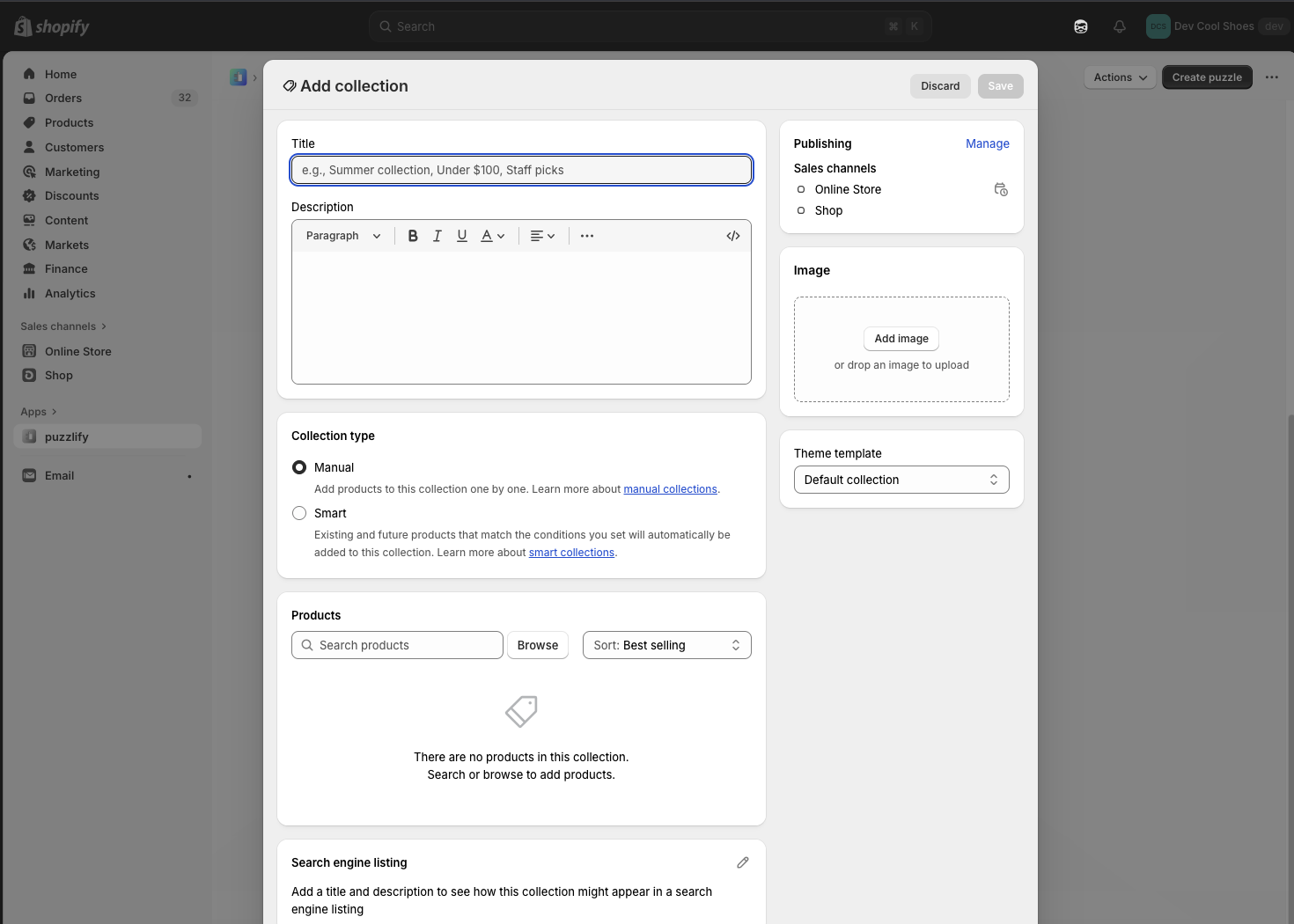
Launch the collection creation workflow in the Shopify admin. The merchant completes the form using the standard Shopify admin UI, and your app receives the result when the workflow completes.
js
const activity = await shopify.intents.invoke('create:shopify/Collection');

const response = await activity.complete;

if (response.code === 'ok') {
  console.log('Collection created:', response.data);
} else if (response.code === 'closed') {
  console.log('Creation cancelled by user');
} else if (response.code === 'error') {
  console.log('Error:', response.message);
}
Description
Launch the article creation workflow in the Shopify admin. The merchant writes and publishes the article using the standard Shopify admin UI, and your app receives the result when the workflow completes.
js
const activity = await shopify.intents.invoke('create:shopify/Article');

const response = await activity.complete;

if (response.code === 'ok') {
  console.log('Article created:', response.data);
} else if (response.code === 'closed') {
  console.log('Creation cancelled by user');
} else if (response.code === 'error') {
  console.log('Error:', response.message);
}
Description
Open an existing article for editing in the Shopify admin. Pass the article's GID (for example, `gid://shopify/Article/123456789`) as the value. Your app receives the updated data when the merchant saves their changes.
js
const activity = await shopify.intents.invoke('edit:shopify/Article', {
  value: 'gid://shopify/Article/123456789',
});

const response = await activity.complete;

if (response.code === 'ok') {
  console.log('Article updated:', response.data);
} else if (response.code === 'closed') {
  console.log('Edit cancelled by user');
} else if (response.code === 'error') {
  console.log('Error:', response.message);
}
Description
Launch the catalog creation workflow in the Shopify admin. The merchant completes the form using the standard Shopify admin UI, and your app receives the result when the workflow completes.
js
const activity = await shopify.intents.invoke('create:shopify/Catalog');

const response = await activity.complete;

if (response.code === 'ok') {
  console.log('Catalog created:', response.data);
} else if (response.code === 'closed') {
  console.log('Creation cancelled by user');
} else if (response.code === 'error') {
  console.log('Error:', response.message);
}
Description
Open an existing catalog for editing in the Shopify admin. Pass the catalog's GID as the value. Your app receives the updated data when the merchant saves their changes.
js
const activity = await shopify.intents.invoke('edit:shopify/Catalog', {
  value: 'gid://shopify/Catalog/123456789',
});

const response = await activity.complete;

if (response.code === 'ok') {
  console.log('Catalog updated:', response.data);
} else if (response.code === 'closed') {
  console.log('Edit cancelled by user');
} else if (response.code === 'error') {
  console.log('Error:', response.message);
}
Description
Open an existing collection for editing in the Shopify admin. Pass the collection's GID as the value. Your app receives the updated data when the merchant saves their changes.
js
const activity = await shopify.intents.invoke('edit:shopify/Collection', {
  value: 'gid://shopify/Collection/987654321',
});

const response = await activity.complete;

if (response.code === 'ok') {
  console.log('Collection updated:', response.data);
} else if (response.code === 'closed') {
  console.log('Edit cancelled by user');
} else if (response.code === 'error') {
  console.log('Error:', response.message);
}
Description
Launch the customer creation workflow in the Shopify admin. The merchant completes the form using the standard Shopify admin UI, and your app receives the result when the workflow completes.
js
const activity = await shopify.intents.invoke('create:shopify/Customer');

const response = await activity.complete;

if (response.code === 'ok') {
  console.log('Customer created:', response.data);
} else if (response.code === 'closed') {
  console.log('Creation cancelled by user');
} else if (response.code === 'error') {
  console.log('Error:', response.message);
}
Description
Open an existing customer for editing in the Shopify admin. Pass the customer's GID as the value. Your app receives the updated data when the merchant saves their changes.
js
const activity = await shopify.intents.invoke('edit:shopify/Customer', {
  value: 'gid://shopify/Customer/456789123',
});

const response = await activity.complete;

if (response.code === 'ok') {
  console.log('Customer updated:', response.data);
} else if (response.code === 'closed') {
  console.log('Edit cancelled by user');
} else if (response.code === 'error') {
  console.log('Error:', response.message);
}
Description
Launch the delivery profile creation workflow in the Shopify admin. The merchant configures shipping zones, rates, and product assignments using the standard Shopify admin UI, and your app receives the result when the workflow completes.
js
const activity = await shopify.intents.invoke('create:shopify/DeliveryProfile');

const response = await activity.complete;

if (response.code === 'ok') {
  console.log('Delivery profile created:', response.data);
}
Description
Open an existing delivery profile for editing in the Shopify admin. Pass the delivery profile's GID as the value. Your app receives the updated data when the merchant saves their changes.
js
const activity = await shopify.intents.invoke('edit:shopify/DeliveryProfile', {
  value: 'gid://shopify/DeliveryProfile/123456789',
});

const response = await activity.complete;

if (response.code === 'ok') {
  console.log('Delivery profile updated:', response.data);
}
Description
Launch the discount creation workflow in the Shopify admin. You must specify the discount type in the `data` parameter. Valid types are `'amount-off-product'`, `'amount-off-order'`, `'buy-x-get-y'`, and `'free-shipping'`. Your app receives the result when the merchant completes the workflow.
js
const activity = await shopify.intents.invoke('create:shopify/Discount', {
  data: {type: 'amount-off-product'},
});

const response = await activity.complete;

if (response.code === 'ok') {
  console.log('Discount created:', response.data);
} else if (response.code === 'closed') {
  console.log('Creation cancelled by user');
} else if (response.code === 'error') {
  console.log('Error:', response.message);
}
Description
Open an existing discount for editing in the Shopify admin. Pass the discount GID as the value. Your app receives the updated data when the merchant saves their changes.
js
const activity = await shopify.intents.invoke('edit:shopify/Discount', {
  value: 'gid://shopify/DiscountNode/123456789',
});

const response = await activity.complete;

if (response.code === 'ok') {
  console.log('Discount updated:', response.data);
} else if (response.code === 'closed') {
  console.log('Edit cancelled by user');
} else if (response.code === 'error') {
  console.log('Error:', response.message);
}
Description
Open the file picker so the merchant can choose existing files from the store. Use the `data` options to filter by media type, allow multiple selection, or pre-select files. The workflow resolves with the selected file IDs in `response.data.ids`.
js
const activity = await shopify.intents.invoke('pick:shopify/File', {
  data: {mediaTypes: ['MediaImage'], multiSelect: true},
});

const response = await activity.complete;

if (response.code === 'ok') {
  console.log('Selected file IDs:', response.data.ids);
} else if (response.code === 'closed') {
  console.log('Selection cancelled by user');
} else if (response.code === 'error') {
  console.log('Error:', response.message);
}
Description
Create a new location. Opens the location creation workflow.
js
const activity = await shopify.intents.invoke('create:shopify/Location');

const response = await activity.complete;

if (response.code === 'ok') {
  console.log('Location created:', response.data);
}
Description
Edit an existing location. Requires a location GID.
js
const activity = await shopify.intents.invoke('edit:shopify/Location', {
  value: 'gid://shopify/Location/123456789',
});

const response = await activity.complete;

if (response.code === 'ok') {
  console.log('Location updated:', response.data);
}
Description
Edit the default location.
js
const activity = await shopify.intents.invoke('edit:settings/LocationDefault');

const response = await activity.complete;

if (response.code === 'ok') {
  console.log('Settings updated:', response.data);
}
Description
Launch the market creation workflow in the Shopify admin. The merchant completes the form using the standard Shopify admin UI, and your app receives the result when the workflow completes.
js
const activity = await shopify.intents.invoke('create:shopify/Market');

const response = await activity.complete;

if (response.code === 'ok') {
  console.log('Market created:', response.data);
} else if (response.code === 'closed') {
  console.log('Creation cancelled by user');
} else if (response.code === 'error') {
  console.log('Error:', response.message);
}
Description
Open an existing market for editing in the Shopify admin. Pass the market's GID as the value. Your app receives the updated data when the merchant saves their changes.
js
const activity = await shopify.intents.invoke('edit:shopify/Market', {
  value: 'gid://shopify/Market/123456789',
});

const response = await activity.complete;

if (response.code === 'ok') {
  console.log('Market updated:', response.data);
} else if (response.code === 'closed') {
  console.log('Edit cancelled by user');
} else if (response.code === 'error') {
  console.log('Error:', response.message);
}
Description
Launch the menu creation workflow in the Shopify admin. The merchant completes the form using the standard Shopify admin UI, and your app receives the result when the workflow completes.
js
const activity = await shopify.intents.invoke('create:shopify/Menu');

const response = await activity.complete;

if (response.code === 'ok') {
  console.log('Menu created:', response.data);
} else if (response.code === 'closed') {
  console.log('Creation cancelled by user');
} else if (response.code === 'error') {
  console.log('Error:', response.message);
}
Description
Open an existing menu for editing in the Shopify admin. Pass the menu's GID as the value. Your app receives the updated data when the merchant saves their changes.
js
const activity = await shopify.intents.invoke('edit:shopify/Menu', {
  value: 'gid://shopify/Menu/123456789',
});

const response = await activity.complete;

if (response.code === 'ok') {
  console.log('Menu updated:', response.data);
} else if (response.code === 'closed') {
  console.log('Edit cancelled by user');
} else if (response.code === 'error') {
  console.log('Error:', response.message);
}
Description
Launch the metafield definition creation workflow in the Shopify admin. You must specify the owner type in the `data` parameter (for example, `'product'`). Your app receives the result when the merchant completes the workflow.
js
const activity = await shopify.intents.invoke(
  'create:shopify/MetafieldDefinition',
  {data: {ownerType: 'product'}},
);

const response = await activity.complete;

if (response.code === 'ok') {
  console.log('Metafield definition created:', response.data);
} else if (response.code === 'closed') {
  console.log('Creation cancelled by user');
} else if (response.code === 'error') {
  console.log('Error:', response.message);
}
Description
Open an existing metafield definition for editing in the Shopify admin. Pass the metafield definition's GID as the value and the owner type in the `data` parameter. Your app receives the updated data when the merchant saves their changes.
js
const activity = await shopify.intents.invoke(
  'edit:shopify/MetafieldDefinition',
  {
    value: 'gid://shopify/MetafieldDefinition/123456789',
    data: {ownerType: 'product'},
  },
);

const response = await activity.complete;

if (response.code === 'ok') {
  console.log('Metafield definition updated:', response.data);
} else if (response.code === 'closed') {
  console.log('Edit cancelled by user');
} else if (response.code === 'error') {
  console.log('Error:', response.message);
}
Description
Launch the metaobject creation workflow in the Shopify admin. You must specify the metaobject type in the `data` parameter (for example, `'shopify--color-pattern'`). Your app receives the result when the merchant completes the workflow.
js
const activity = await shopify.intents.invoke('create:shopify/Metaobject', {
  data: {type: 'shopify--color-pattern'},
});

const response = await activity.complete;

if (response.code === 'ok') {
  console.log('Metaobject created:', response.data);
} else if (response.code === 'closed') {
  console.log('Creation cancelled by user');
} else if (response.code === 'error') {
  console.log('Error:', response.message);
}
Description
Open an existing metaobject for editing in the Shopify admin. Pass the metaobject's GID as the value and the metaobject type in the `data` parameter. Your app receives the updated data when the merchant saves their changes.
js
const activity = await shopify.intents.invoke('edit:shopify/Metaobject', {
  value: 'gid://shopify/Metaobject/123456789',
  data: {type: 'shopify--color-pattern'},
});

const response = await activity.complete;

if (response.code === 'ok') {
  console.log('Metaobject updated:', response.data);
} else if (response.code === 'closed') {
  console.log('Edit cancelled by user');
} else if (response.code === 'error') {
  console.log('Error:', response.message);
}
Description
Launch the metaobject definition creation workflow in the Shopify admin. The merchant completes the form using the standard Shopify admin UI, and your app receives the result when the workflow completes.
js
const activity = await shopify.intents.invoke(
  'create:shopify/MetaobjectDefinition',
);

const response = await activity.complete;

if (response.code === 'ok') {
  console.log('Metaobject definition created:', response.data);
} else if (response.code === 'closed') {
  console.log('Creation cancelled by user');
} else if (response.code === 'error') {
  console.log('Error:', response.message);
}
Description
Open an existing metaobject definition for editing in the Shopify admin. Pass the metaobject definition type in the `data` parameter. Your app receives the updated data when the merchant saves their changes.
js
const activity = await shopify.intents.invoke(
  'edit:shopify/MetaobjectDefinition',
  {data: {type: 'my_metaobject_definition_type'}},
);

const response = await activity.complete;

if (response.code === 'ok') {
  console.log('Metaobject definition updated:', response.data);
} else if (response.code === 'closed') {
  console.log('Edit cancelled by user');
} else if (response.code === 'error') {
  console.log('Error:', response.message);
}
Description
Launch the page creation workflow in the Shopify admin. The merchant completes the form using the standard Shopify admin UI, and your app receives the result when the workflow completes.
js
const activity = await shopify.intents.invoke('create:shopify/Page');

const response = await activity.complete;

if (response.code === 'ok') {
  console.log('Page created:', response.data);
} else if (response.code === 'closed') {
  console.log('Creation cancelled by user');
} else if (response.code === 'error') {
  console.log('Error:', response.message);
}
Description
Open an existing page for editing in the Shopify admin. Pass the page's GID as the value. Your app receives the updated data when the merchant saves their changes.
js
const activity = await shopify.intents.invoke('edit:shopify/Page', {
  value: 'gid://shopify/Page/123456789',
});

const response = await activity.complete;

if (response.code === 'ok') {
  console.log('Page updated:', response.data);
} else if (response.code === 'closed') {
  console.log('Edit cancelled by user');
} else if (response.code === 'error') {
  console.log('Error:', response.message);
}
Description
Launch the product creation workflow in the Shopify admin. The merchant completes the form using the standard Shopify admin UI, and your app receives the result when the workflow completes.
js
const activity = await shopify.intents.invoke('create:shopify/Product');

const response = await activity.complete;

if (response.code === 'ok') {
  console.log('Product created:', response.data);
} else if (response.code === 'closed') {
  console.log('Creation cancelled by user');
} else if (response.code === 'error') {
  console.log('Error:', response.message);
}
Description
Open an existing product for editing in the Shopify admin. Pass the product's GID as the value. Your app receives the updated data when the merchant saves their changes.
js
const activity = await shopify.intents.invoke('edit:shopify/Product', {
  value: 'gid://shopify/Product/123456789',
});

const response = await activity.complete;

if (response.code === 'ok') {
  console.log('Product updated:', response.data);
} else if (response.code === 'closed') {
  console.log('Edit cancelled by user');
} else if (response.code === 'error') {
  console.log('Error:', response.message);
}
Description
Launch the product variant creation workflow in the Shopify admin. You must specify the parent product's GID in the `data` parameter. Your app receives the result when the merchant completes the workflow.
js
const activity = await shopify.intents.invoke('create:shopify/ProductVariant', {
  data: {productId: 'gid://shopify/Product/123456789'},
});

const response = await activity.complete;

if (response.code === 'ok') {
  console.log('Product variant created:', response.data);
} else if (response.code === 'closed') {
  console.log('Creation cancelled by user');
} else if (response.code === 'error') {
  console.log('Error:', response.message);
}
Description
Open an existing product variant for editing in the Shopify admin. Pass the variant's GID as the value and the parent product's GID in the `data` parameter. Your app receives the updated data when the merchant saves their changes.
js
const activity = await shopify.intents.invoke('edit:shopify/ProductVariant', {
  value: 'gid://shopify/ProductVariant/123456789',
  data: {productId: 'gid://shopify/Product/123456789'},
});

const response = await activity.complete;

if (response.code === 'ok') {
  console.log('Product variant updated:', response.data);
} else if (response.code === 'closed') {
  console.log('Edit cancelled by user');
} else if (response.code === 'error') {
  console.log('Error:', response.message);
}
Description
Invoke and edit store details.
js
const activity = await shopify.intents.invoke('edit:settings/StoreDetails');

const response = await activity.complete;

if (response.code === 'closed') {
  console.log('Settings closed:', response.data);
}
Description
Invoke and edit store defaults.
js
const activity = await shopify.intents.invoke('edit:settings/StoreDefaults');

const response = await activity.complete;

if (response.code === 'ok') {
  console.log('Settings updated:', response.data);
}
Description
Invoke and edit order ID format.
js
const activity = await shopify.intents.invoke('edit:settings/OrderIdFormat');

const response = await activity.complete;

if (response.code === 'ok') {
  console.log('Settings updated:', response.data);
}
Description
Invoke and edit order processing.
js
const activity = await shopify.intents.invoke('edit:settings/OrderProcessing');

const response = await activity.complete;

if (response.code === 'ok') {
  console.log('Settings updated:', response.data);
}
Description
Invoke and edit the gift card expiration policy for the store.
js
const activity = await shopify.intents.invoke('edit:settings/GiftCardExpiration');

const response = await activity.complete;

if (response.code === 'ok') {
  console.log('Settings updated:', response.data);
}
Description
Invoke and edit the payment capture method for the store.
js
const activity = await shopify.intents.invoke('edit:settings/PaymentCaptureMethod');

const response = await activity.complete;

if (response.code === 'ok') {
  console.log('Settings updated:', response.data);
}
Description
Invoke and edit the sender email address used for customer notifications.
js
const activity = await shopify.intents.invoke('edit:settings/NotificationsSenderEmail');

const response = await activity.complete;

if (response.code === 'ok') {
  console.log('Settings updated:', response.data);
}
Description
Invoke and edit the staff notification settings for the store.
js
const activity = await shopify.intents.invoke('edit:settings/NotificationsStaff');

const response = await activity.complete;

if (response.code === 'ok') {
  console.log('Settings updated:', response.data);
}
Description
From inside an app intent, resolve the intent with a success, error, or closed response. Call `shopify.intents.response.ok(data)` when the merchant completes the workflow, `shopify.intents.response.error(message)` when it fails, or `shopify.intents.response.closed()` when the merchant cancels. The invoking surface receives the matching [`IntentResponse`](#intentresponse).
js
// Inside an embedded app route that's been registered as an admin link
// intent (see /docs/apps/build/sidekick/build-app-actions), resolve the
// intent by calling one of the response methods when the merchant
// finishes the workflow.

async function handleSave(formValues) {
  try {
    const result = await saveEmailCampaign(formValues);
    await shopify.intents.response.ok({campaignId: result.id});
  } catch (error) {
    await shopify.intents.response.error(error.message);
  }
}

async function handleCancel() {
  await shopify.intents.response.closed();
}
Description
Read the incoming intent payload from `shopify.intents.request.value` when your app is opened as an app intent. Use the `action`, `type`, `value`, and `data` fields to drive your initial render. The value is `null` outside an intent workflow. Use `shopify.intents.request.subscribe(callback)` if your app stays mounted across intent transitions and you need to react to updates.
js
// Read the incoming intent payload when your app is opened as an app
// intent. The current value is available synchronously at
// `shopify.intents.request.value`. It's `null` when the app isn't
// running inside an intent workflow.

const request = shopify.intents.request?.value;

if (request) {
  // request.action — the operation (for example, 'create' or 'edit')
  // request.type — the intent type declared in shopify.extension.toml
  // request.value — the primary resource identifier when present
  // request.data — fields defined by the intent's input schema
  renderEmailComposer({
    action: request.action,
    campaignId: request.value,
    subject: request.data?.subject,
    recipient: request.data?.recipient,
  });
}

// If your app stays mounted across intent transitions (for example, a
// single-page app navigating between intent targets), subscribe to
// changes instead.
const unsubscribe = shopify.intents.request?.subscribe((next) => {
  if (next) renderEmailComposer({action: next.action, campaignId: next.value});
});
Description
Read the incoming intent payload synchronously from the URL when your app is launched via an app intent. The platform appends the same payload as a URL-encoded JSON `intent` query parameter, so you can parse it from `window.location` before App Bridge is ready (for example, during server-side rendering).
js
// Read the incoming intent payload synchronously from the URL. When your
// app is launched via an app intent, the platform appends the payload as
// a URL-encoded JSON `intent` query parameter.
//
// In server-side rendering contexts (for example, Remix loaders or
// Next.js `getServerSideProps`), parse the intent from the incoming
// request URL. In client-side code, parse it from `window.location`
// before App Bridge loads.

// Client-side example:
const params = new URLSearchParams(window.location.search);
const rawIntent = params.get('intent');

if (rawIntent) {
  const request = JSON.parse(rawIntent);

  renderEmailComposer({
    action: request.action,
    campaignId: request.value,
    subject: request.data?.subject,
    recipient: request.data?.recipient,
  });
}