Targets
Targets define where your checkout UI extensions appear within Shopify checkout and what capabilities they receive.
Targets serve specific purposes. Some render persistent UI elements at fixed locations in checkout, others render only in specific contexts like delivery selection or payment, and some appear only when certain checkout features are active.
You can define targets on either the checkout or Thank you page. See the Checkout and Thank you page sections to see which targets are available on each page and where they display in the checkout flow.
Anchor to Configuring targetsConfiguring targets
To use targets in your extension, you need to configure them in your shopify.extension.toml configuration file.
You can define one or more targets in your configuration file using the extensions.targeting field. Along with the target value, you also need to specify the code module to execute. You specify the path to your code file by using the module property.
If you define a single target for your extension, then the code module should default export the extension root for that target. If you define multiple targets for your extension, then you must define a separate code module for each target, where each module has a default export.
shopify.extension.toml
Single target
# ...

[[extensions.targeting]]
target = "purchase.checkout.block.render"
module = "./Block.jsx"

# ...
Two targets
# ...

[[extensions.targeting]]
target = "purchase.checkout.actions.render-before"
module = "./Actions.jsx"

[[extensions.targeting]]
target = "purchase.checkout.shipping-option-item.render-after"
module = "./ShippingOptions.jsx"

# ...
Anchor to Target typesTarget types
There are two types of targets available for checkout UI extensions, static extension targets and block extension targets.
Anchor to Static extension targetsStatic extension targets
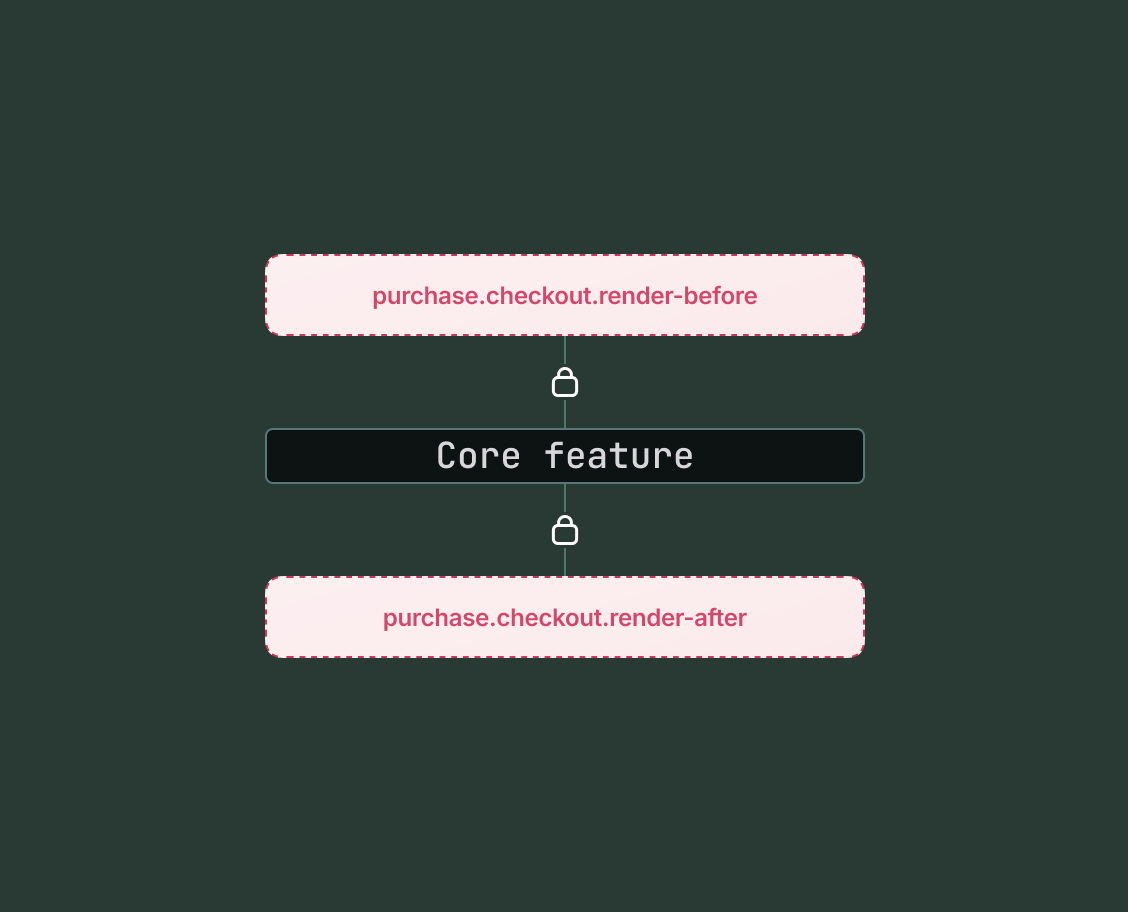
Static extension targets render immediately before or after core checkout features such as contact information, shipping methods, and order summary line items. Merchants use the checkout and accounts editor to activate and place the extension in the checkout experience.
When a core checkout feature isn't rendered, the static extension targets tied to it aren't rendered either. For example, shipping methods aren't shown when buyers select the option for store pickup, so the extensions that load before or after the shipping method aren't rendered.
Choose static extension targets when your content and functionality is closely related to a core checkout feature, such as a shipping delay notice.
Anchor to Block extension targetsBlock extension targets
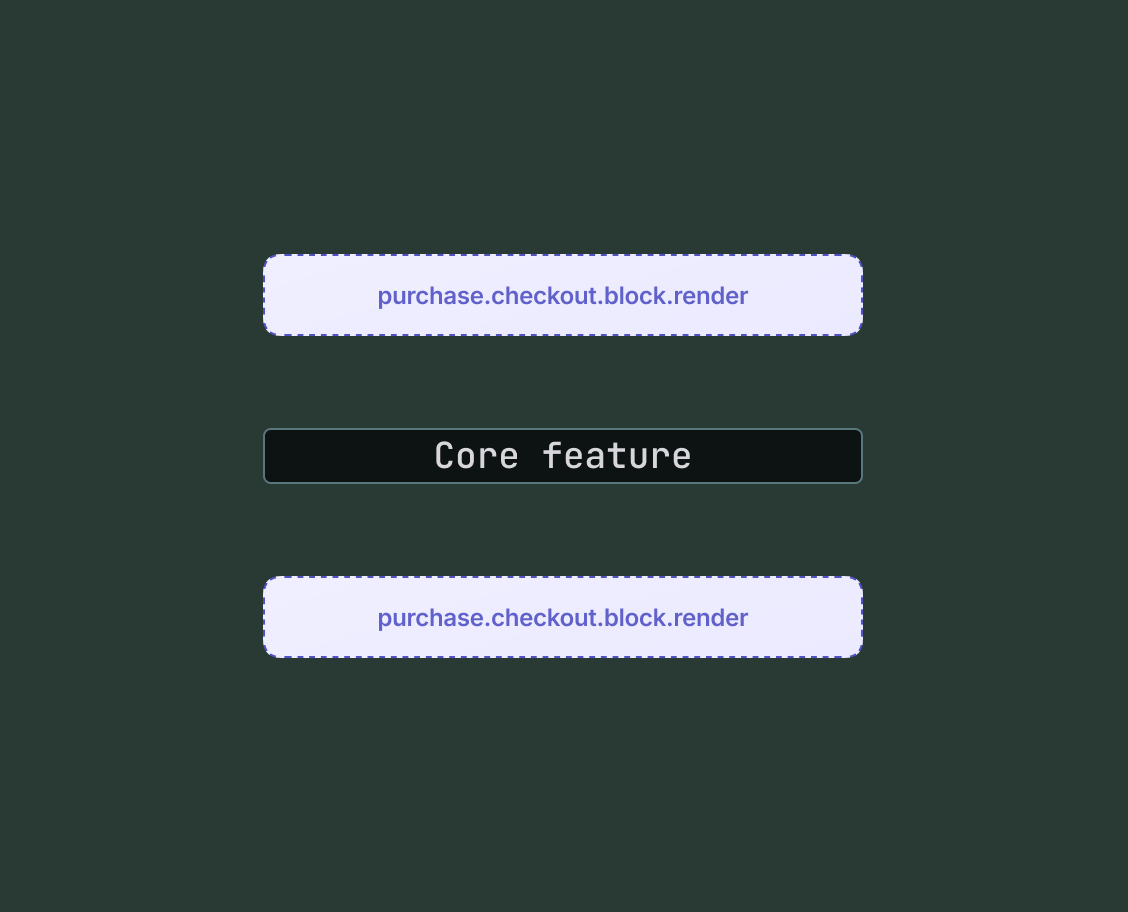
Shopify checkout is a complex, multi-step workflow. To provide merchants with more flexibility in how they customize this flow, block extension targets can be repositioned at different points in checkout by using the checkout and accounts editor. Use block extension targets when the target's content and functionality isn't specific to a particular part of the checkout flow.
Unlike static targets, block extensions are always rendered, even if the section they're positioned in is hidden. For example, an extension placed above a shipping address displays even for digital products where an address isn't required.
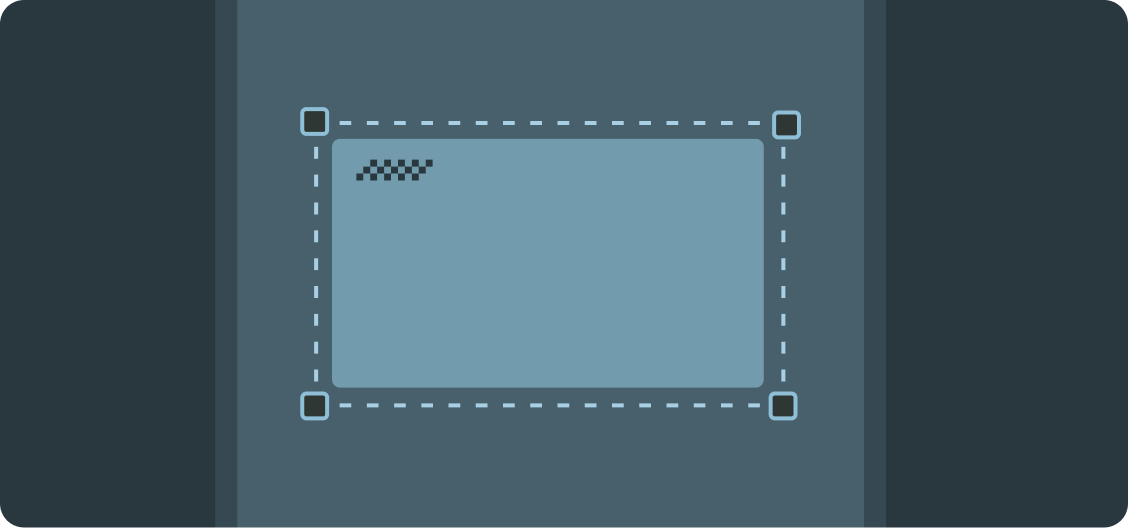
During development, you can test your extension at each of the supported locations using a local development server. After running shopify app dev to start the server, append a placement-reference to the end of the URL for your dev store's checkout. For example, to preview your extension above the contact information section, add ?placement-reference=INFORMATION1. For the full list of placement references and where each one renders, see the checkout block target and Thank you block target pages.
You can also use placement references to define the default location for these targets by setting the default_placement property in your extension's TOML configuration file. This default is the location merchants first see when they use the checkout and accounts editor to configure your extension.


Anchor to Checkout targetsCheckout targets
Checkout targets let you extend specific sections of the checkout experience where buyers make purchase decisions. These targets appear during different parts of the checkout flow, from delivery selection to payment, and provide contextual access to relevant buyer and cart information.
Anchor to AddressAddress
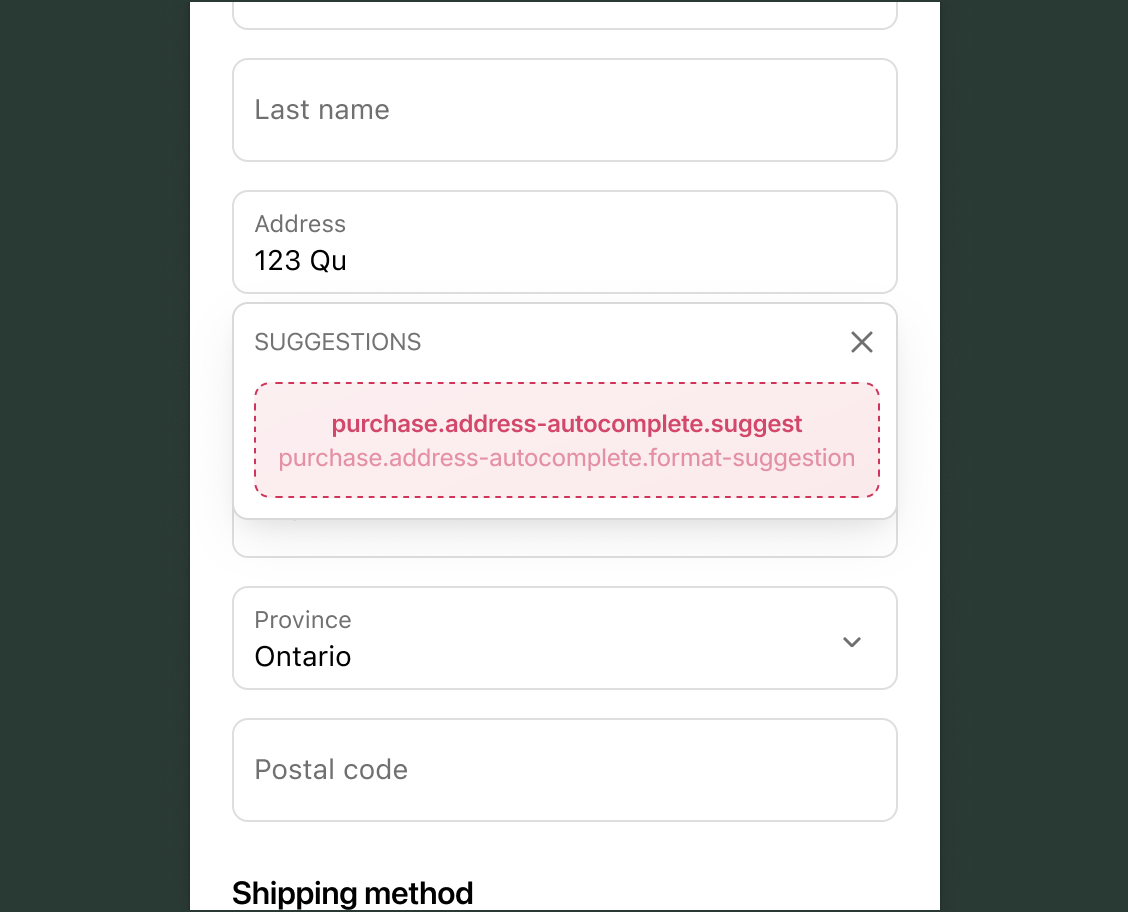
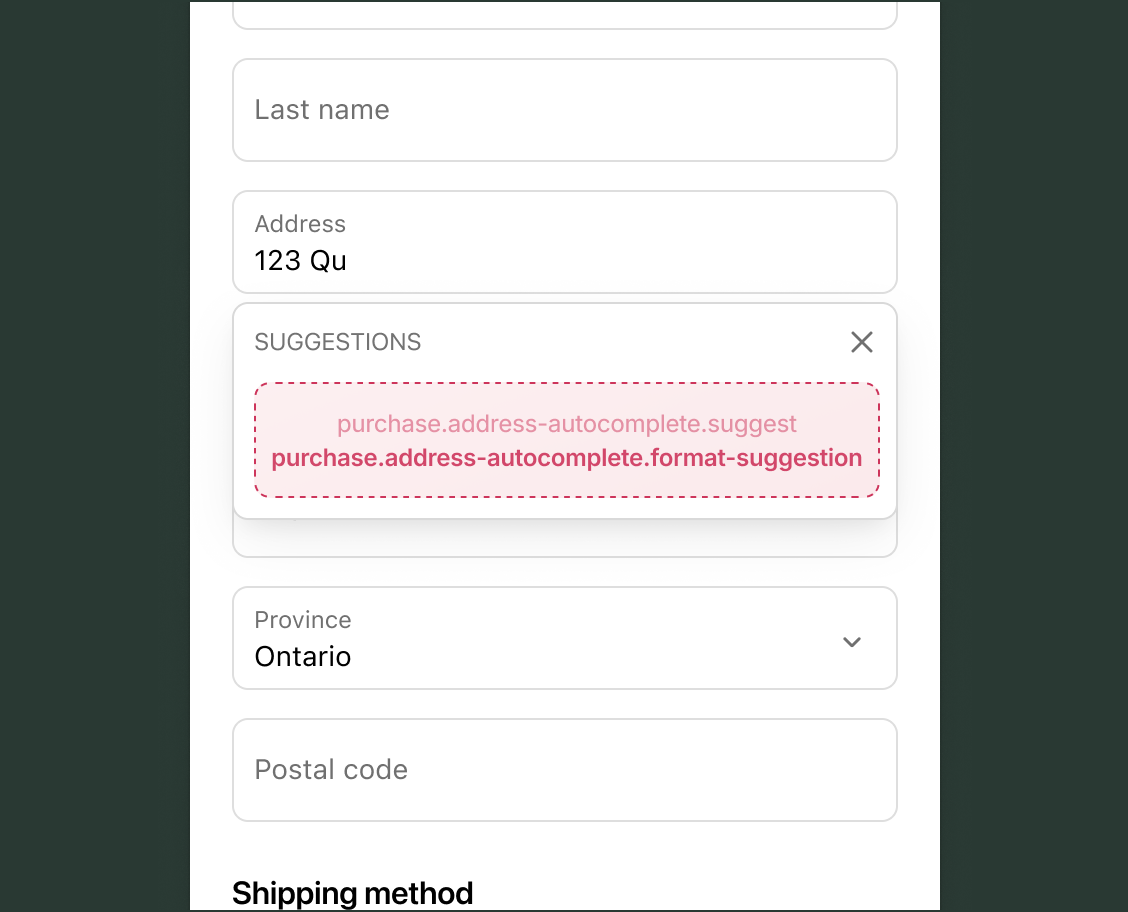
The address section targets provide address autocomplete functionality during checkout. These targets enable you to customize how address suggestions are provided and formatted for buyers as they fill out delivery, billing, and pickup point address forms.
Use cases: Custom address lookup services or region-specific address formats.
Suggest address runnable
purchase.address-autocomplete.suggest
A runnable target that provides address autocomplete suggestions for address forms at checkout.
Format address suggestion runnable
purchase.address-autocomplete.format-suggestion
A runnable target that formats the selected address suggestion provided by a purchase.address-autocomplete.suggest target.
Anchor to BlockBlock
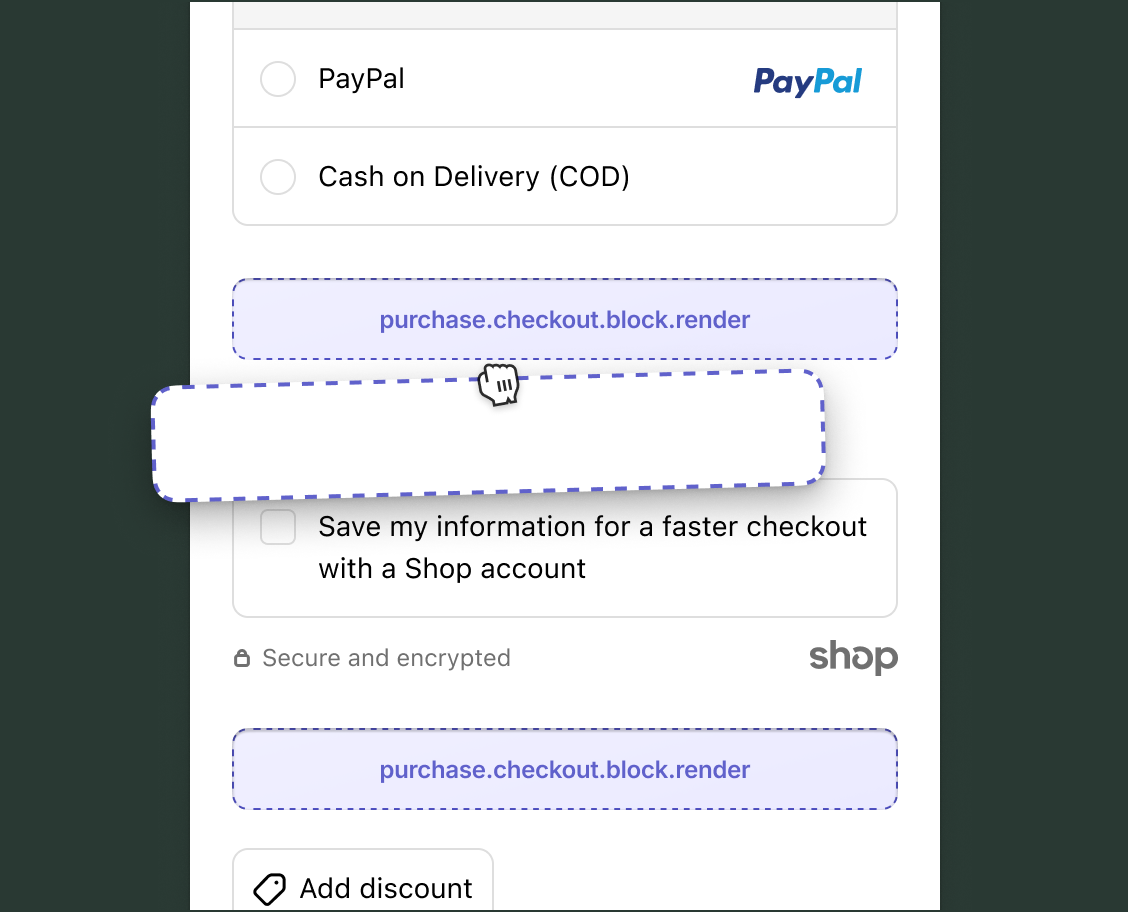
The block target isn't tied to a specific checkout section or feature. Block extensions render where merchants place them using the checkout and accounts editor.
Use cases: Flexible content placement, merchant-customizable features, trust badges, promotional content, or any functionality that needs merchant-controlled positioning.
Render block
purchase.checkout.block.render
A block target that isn't tied to a specific checkout section or feature. Unlike static targets, block targets render where the merchant sets them using the checkout and accounts editor.
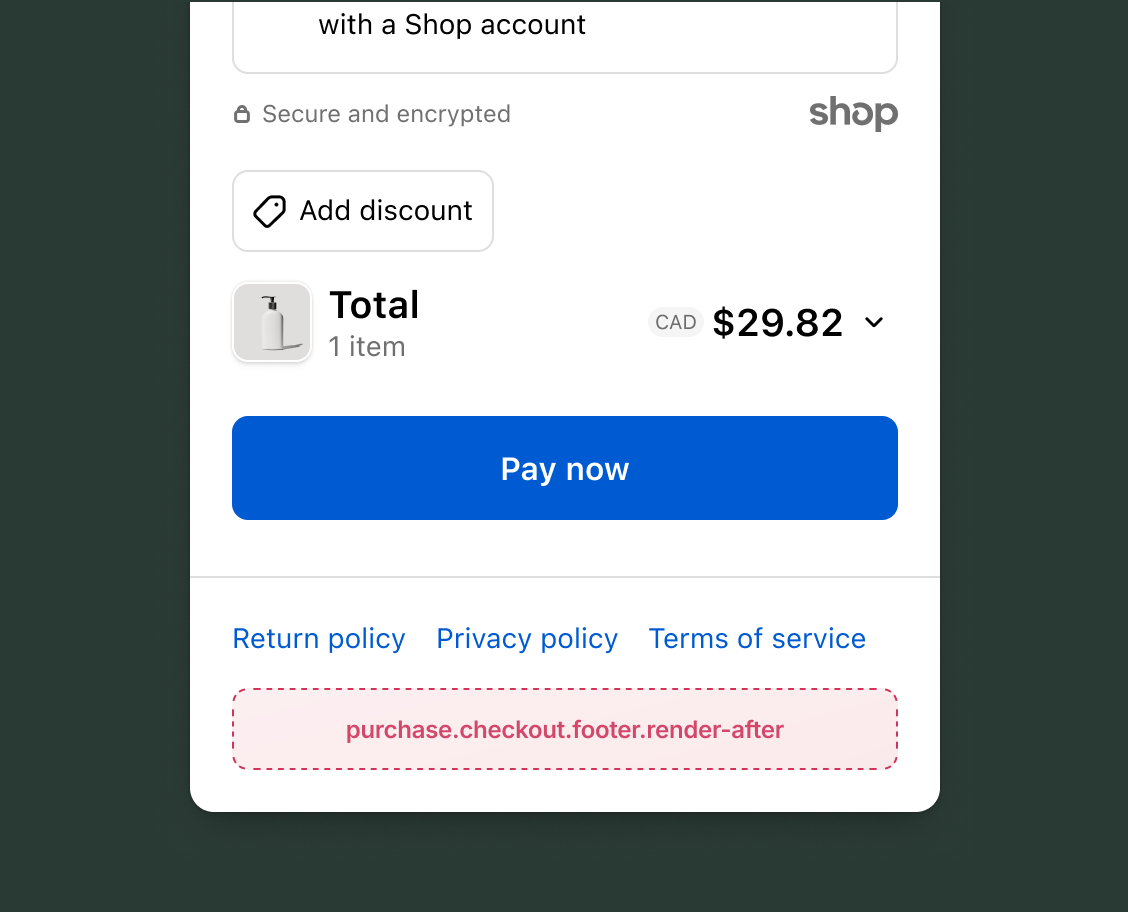
The footer section appears at the bottom of every checkout page.
Use cases: Links to custom policy information (for example, refund, shipping, or privacy policies), trust signals and badges, custom branding, consent collection, or additional legal disclaimers.
Anchor to HeaderHeader
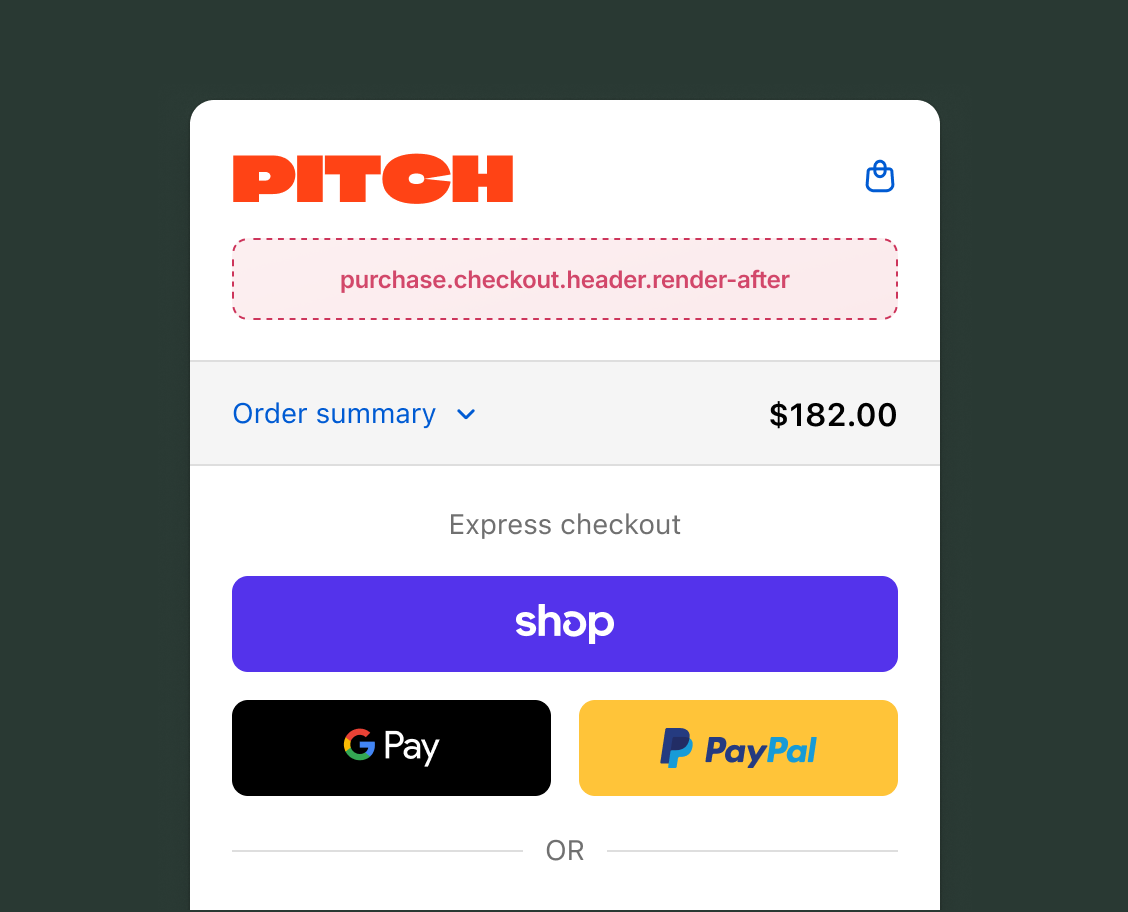
The header section appears at the top of every checkout page, providing a prominent location for important messaging or branding that should be visible throughout the checkout flow.
Use cases: Promotional banners, custom breadcrumbs, important announcements, brand messaging, shipping thresholds, or progress indicators.
After header static
purchase.checkout.header.render-after
A static target that renders below the header.
Anchor to InformationInformation
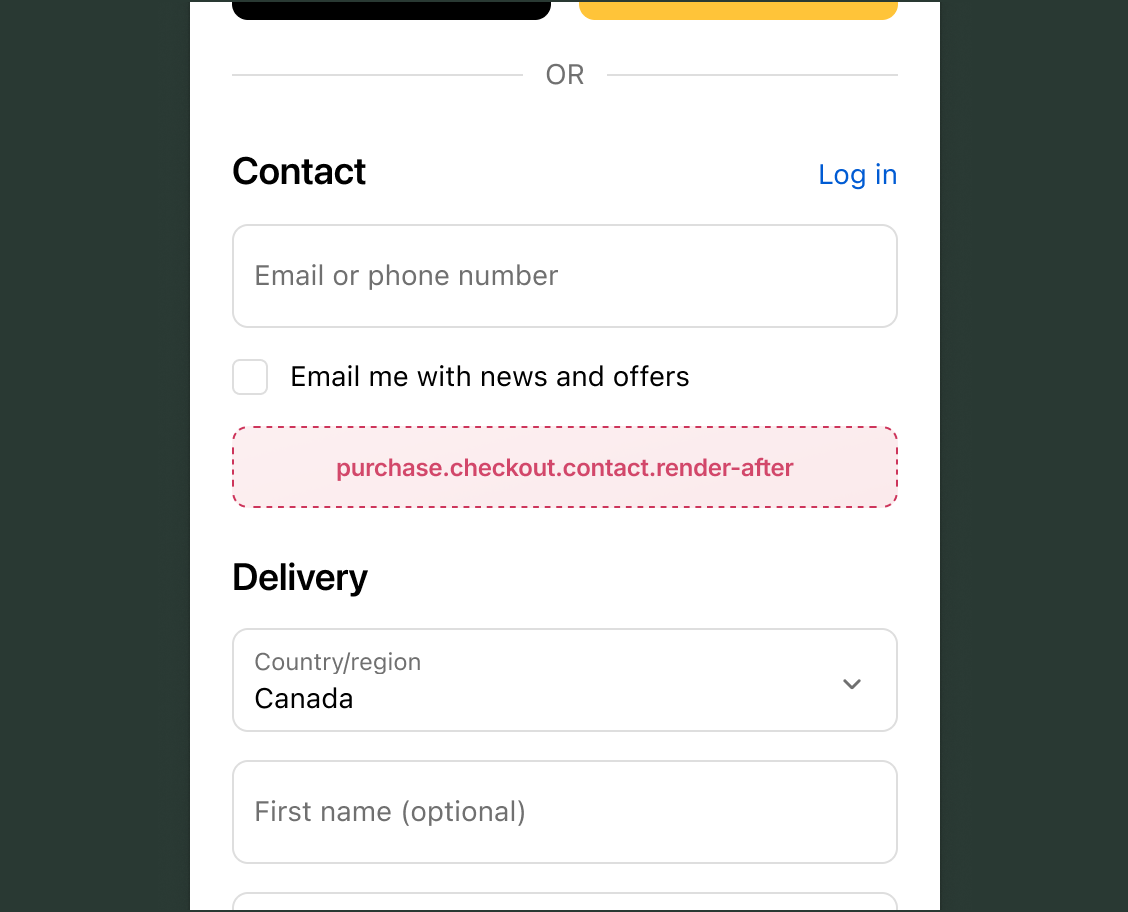
The information section contains the buyer's contact details that are collected early in the checkout process. This section appears before delivery and payment information.
Use cases: Newsletter subscriptions, phone number verification, marketing consent, or additional contact preferences.
After contact static
purchase.checkout.contact.render-after
A static target that renders immediately after the contact form element.
Anchor to Local pickupLocal pickup
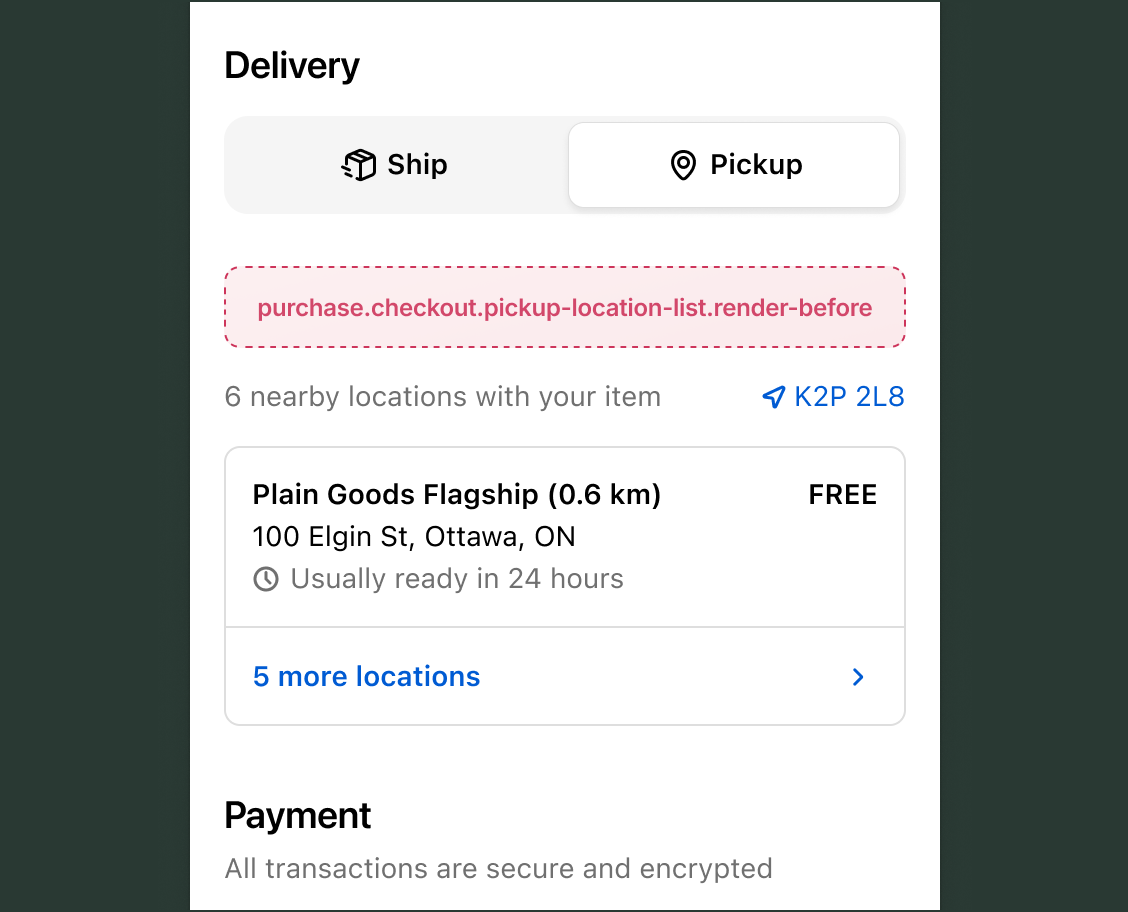
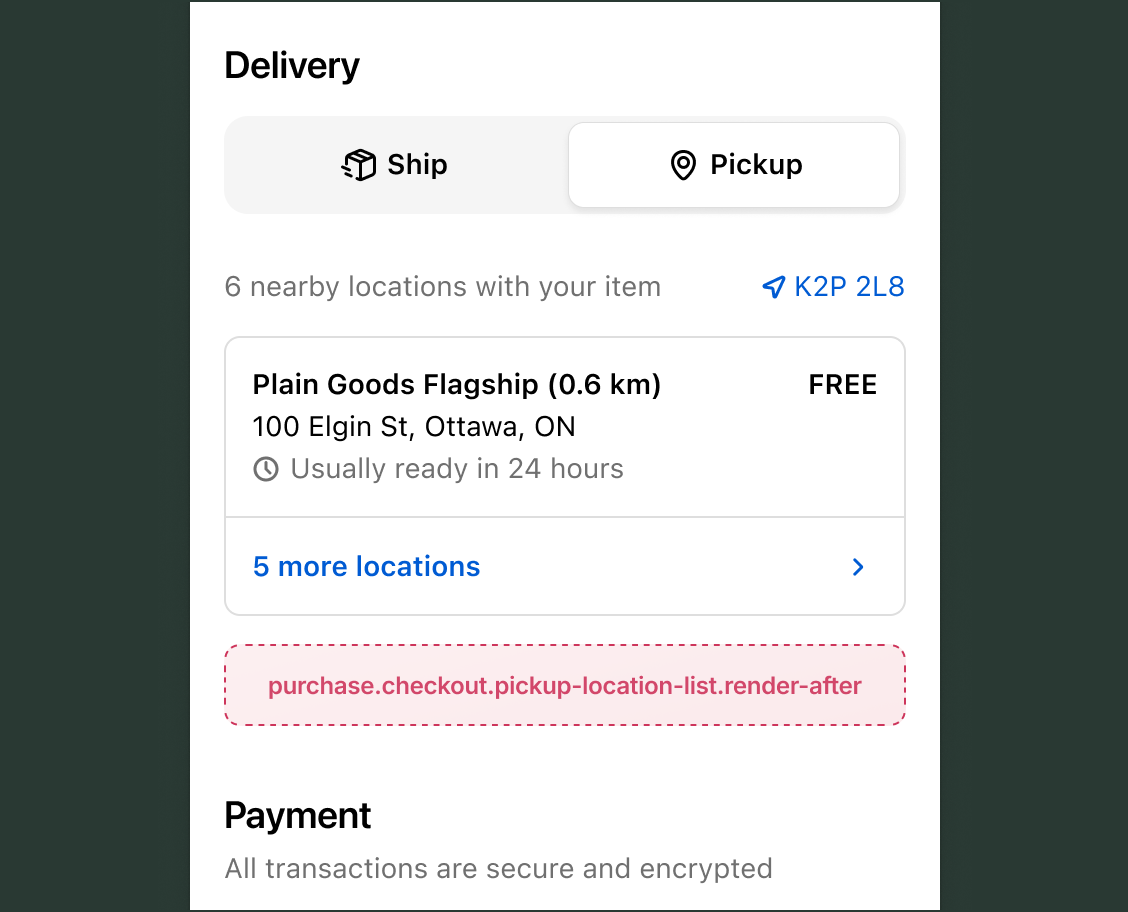
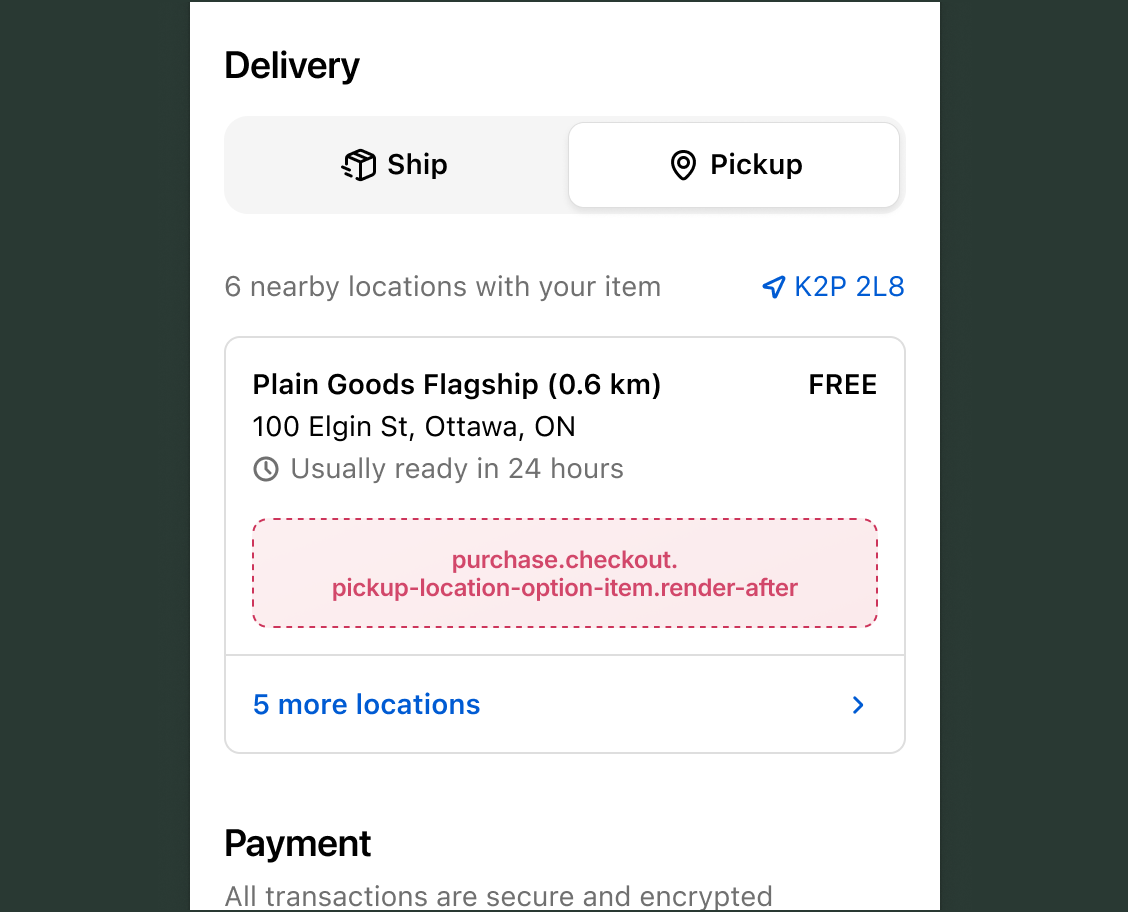
The local pickup section appears when buyers can select a store location to pick up their purchase instead of having items shipped to an address. This section displays available pickup locations with their addresses and pickup time estimates.
Use cases: Location-specific information, pickup time customization, inventory availability notices, or special instructions for store pickup.
Before pickup location list static
purchase.checkout.pickup-location-list.render-before
A static target that renders before pickup location options.
After pickup location list static
purchase.checkout.pickup-location-list.render-after
A static target that renders after pickup location options.
After pickup location item static
purchase.checkout.pickup-location-option-item.render-after
A static target that renders after the pickup location details within the local pickup option list, for each option.
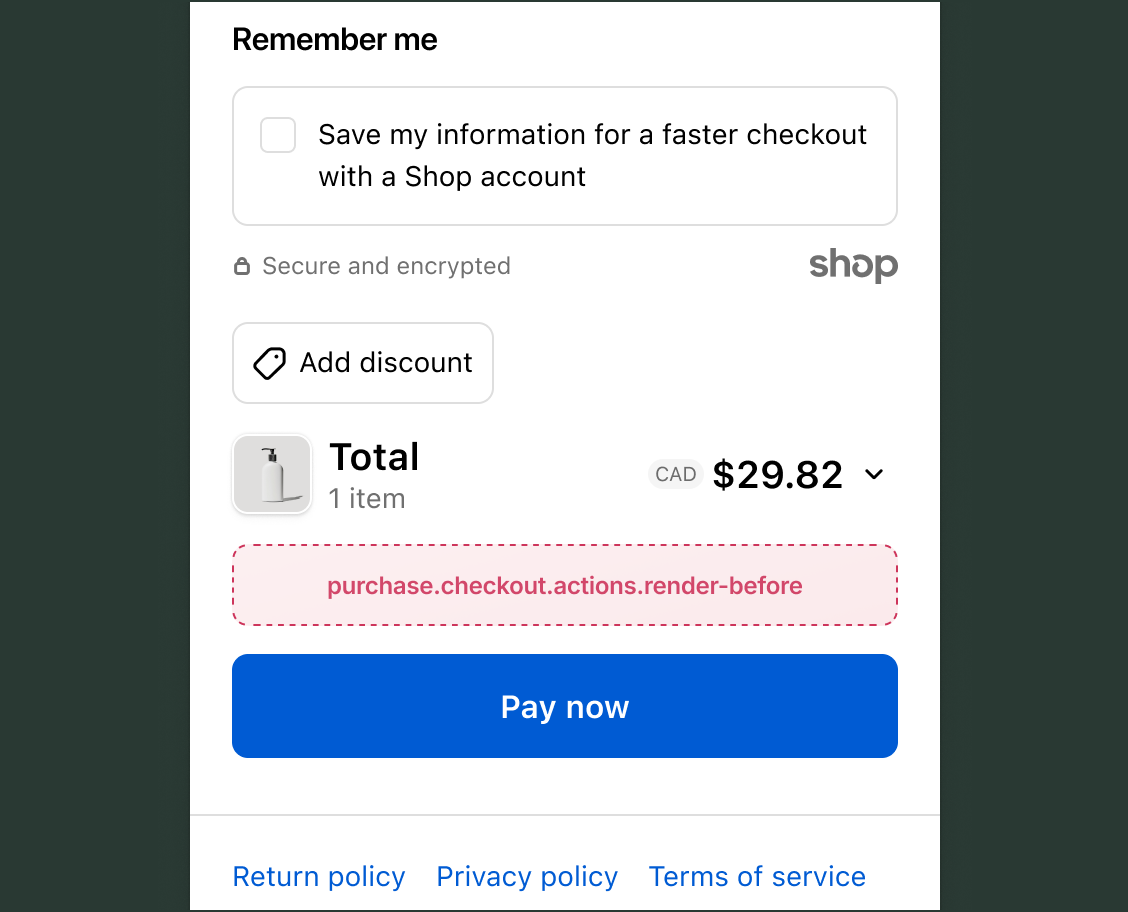
The navigation section contains the action buttons that allow buyers to progress through the checkout steps, such as Continue to shipping or Pay now buttons.
Use cases: Marketing opt-in consent, gift note collection, contextual cart messaging, or loyalty reward points display.
Before actions static
purchase.checkout.actions.render-before
A static target that renders immediately before any actions within each step.
Anchor to Order summaryOrder summary
The order summary displays the buyer's cart contents, including line items, discounts, and price breakdowns. It appears on every checkout page, providing a persistent view of the purchase.
Use cases: Product warranties, gift wrapping options, loyalty program information, or custom pricing details.
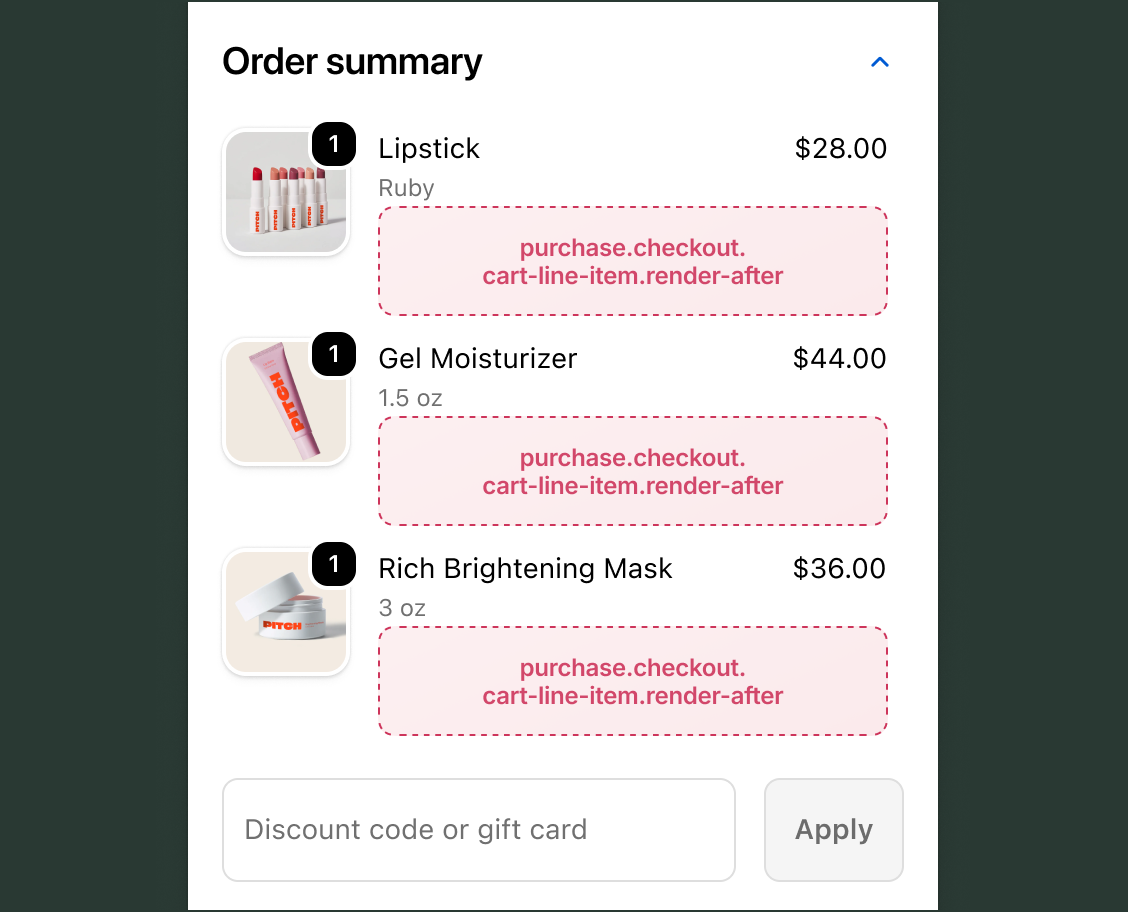
After cart line item static
purchase.checkout.cart-line-item.render-after
A static target that renders on every line item, inside the details under the line item properties element.
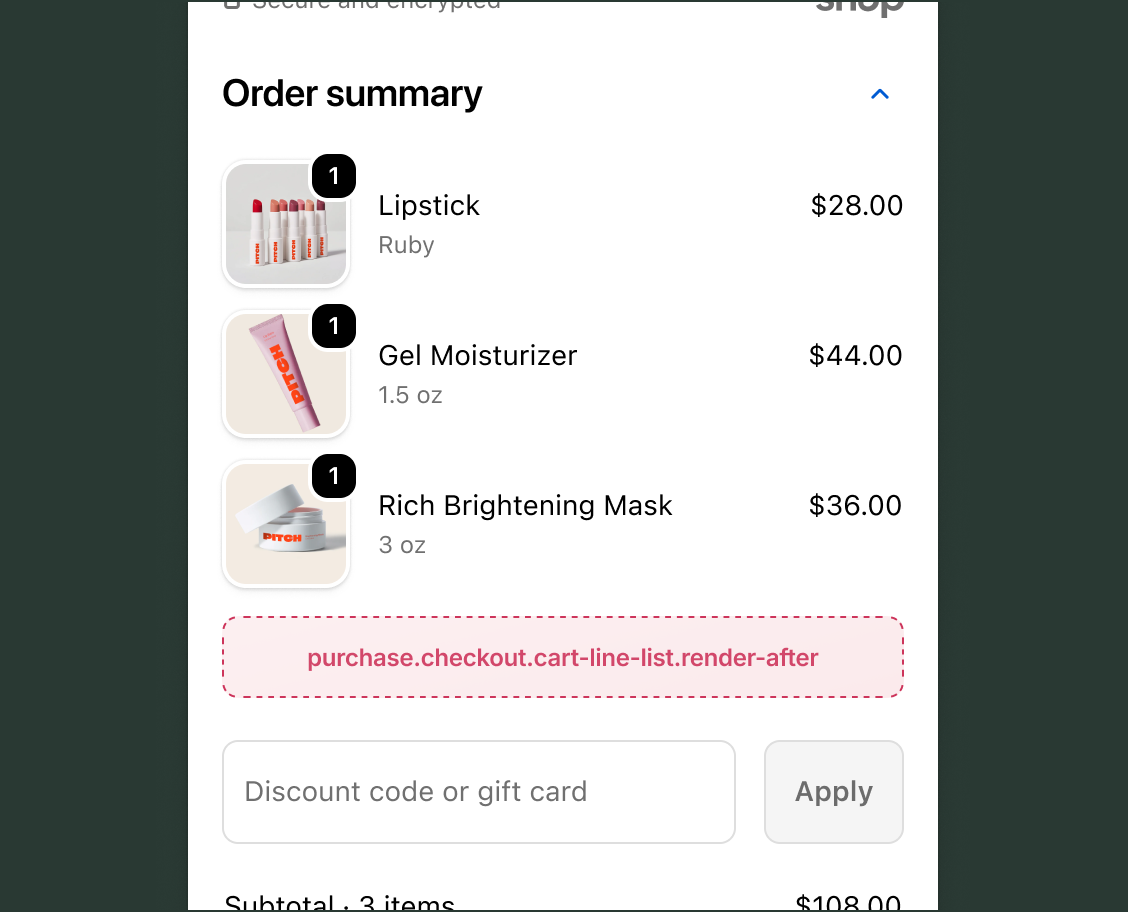
After cart line list static
purchase.checkout.cart-line-list.render-after
A static target that renders after all line items.
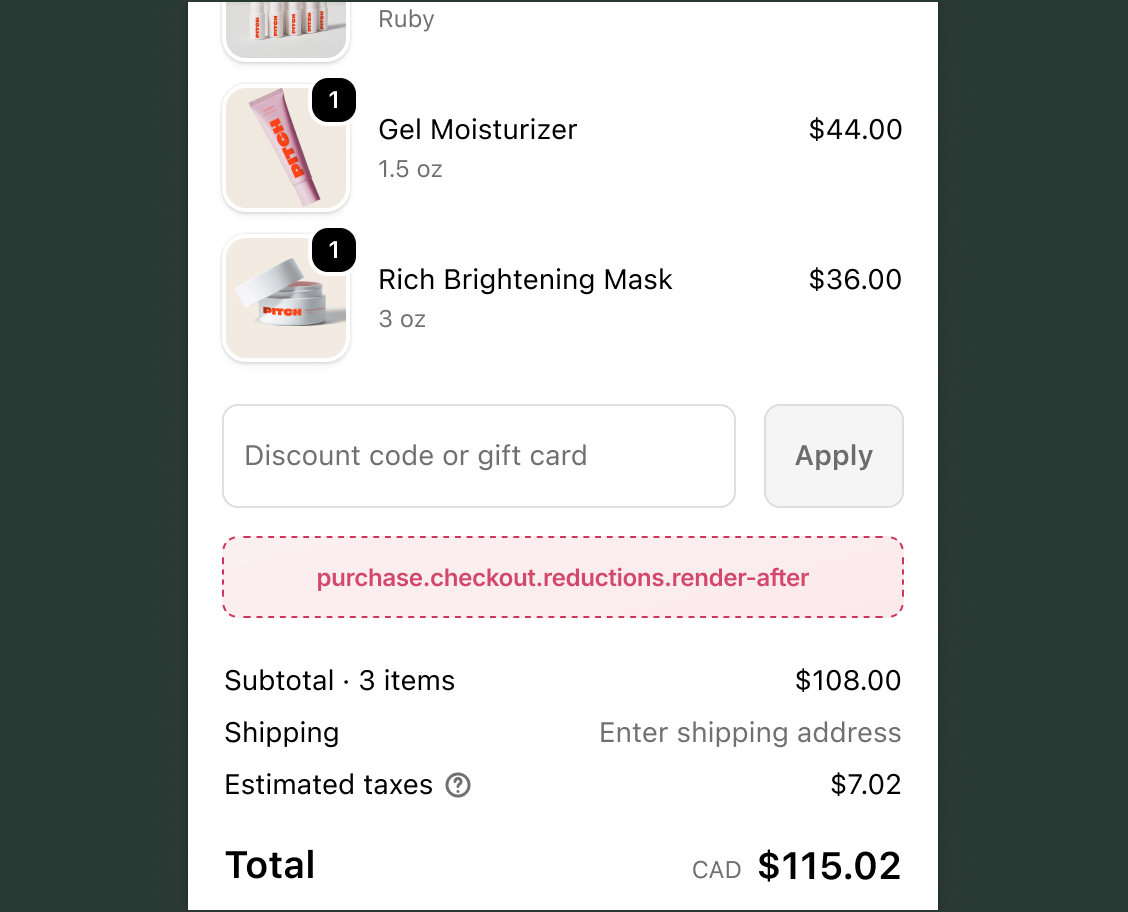
After reductions static
purchase.checkout.reductions.render-after
A static target that renders in the order summary, after the discount form and discount tag elements.
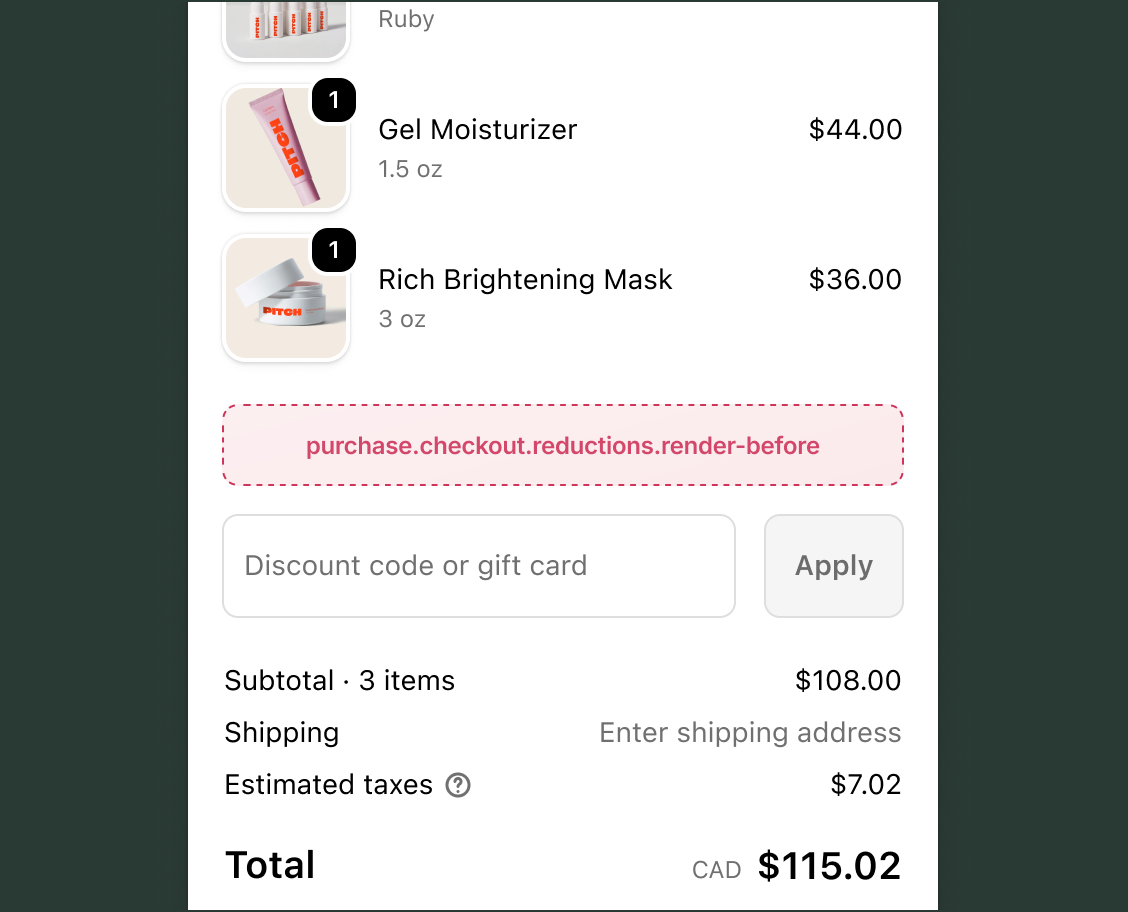
Before reductions static
purchase.checkout.reductions.render-before
A static target that renders in the order summary, before the discount form element.
Anchor to PaymentPayment
The payment section is where buyers select their payment method and enter payment details. This critical step in the checkout flow determines how buyers will complete their purchase.
Use cases: Payment plan information, security badges, accepted payment icons, financing options, or additional payment instructions.
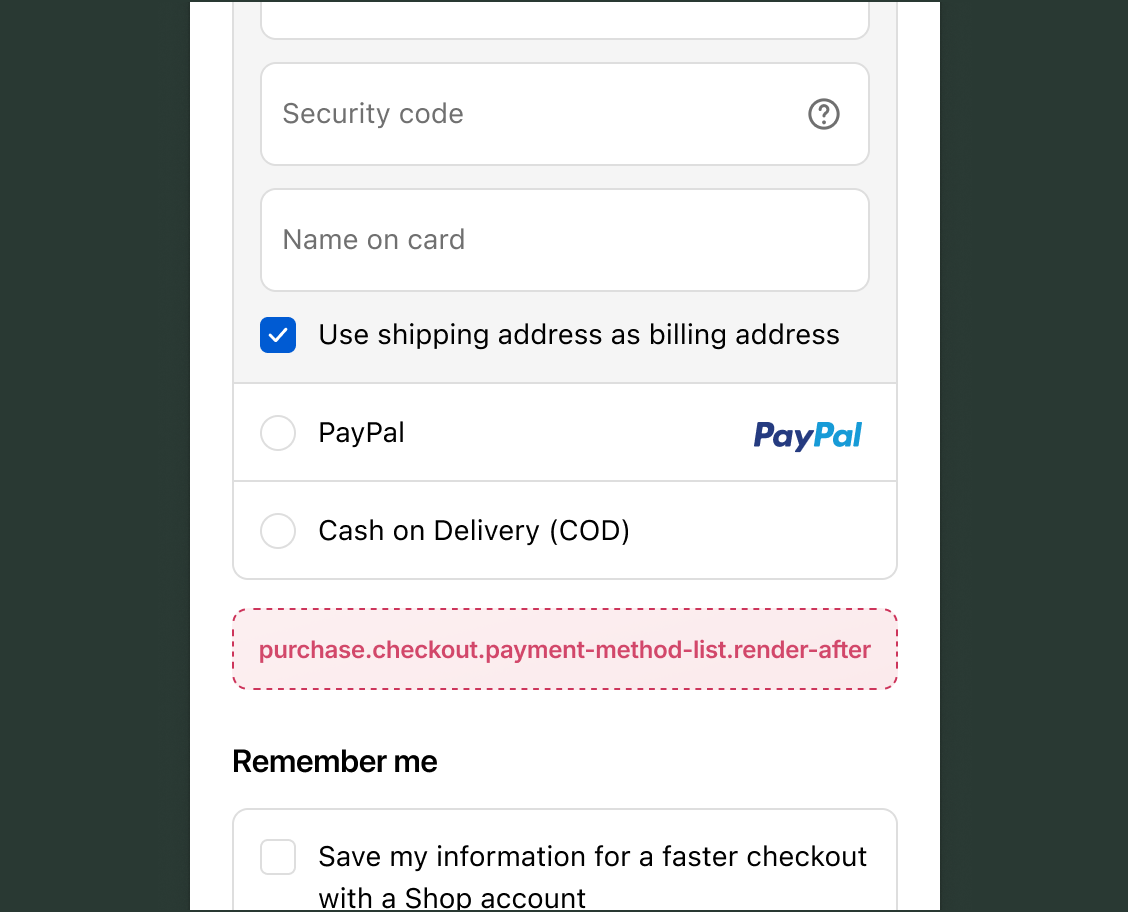
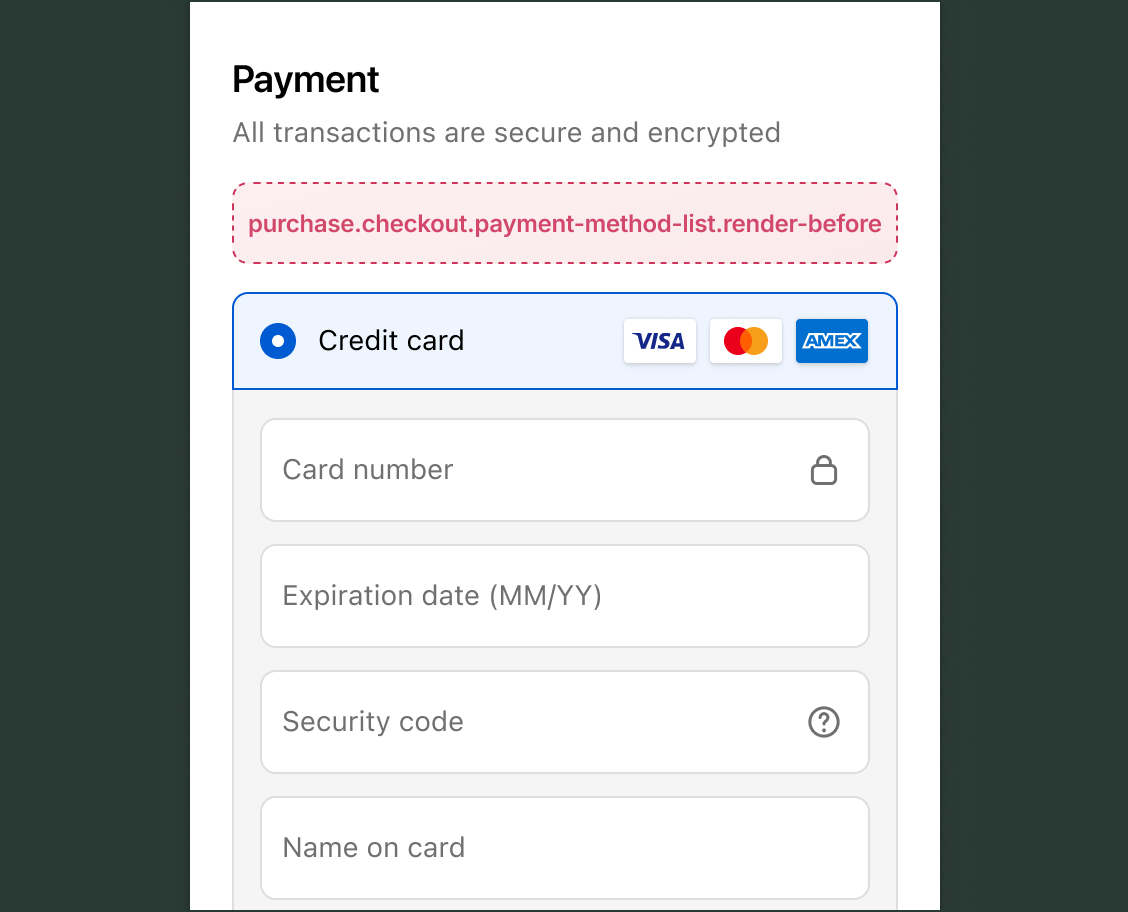
After payment method list static
purchase.checkout.payment-method-list.render-after
A static target that renders below the list of payment methods.
Before payment method list static
purchase.checkout.payment-method-list.render-before
A static target that renders between the payment heading and payment method list.
Anchor to Pickup pointsPickup points
The pickup points section appears when buyers can select a carrier-managed pickup location (such as a post office or parcel locker) for their delivery. This is different from local pickup at a merchant's store location.
Use cases: Pickup point instructions, service area information, operating hours, identification requirements, or custom pickup point details.
Pickup points are in early access and available only to custom apps built for stores on the Shopify Plus plan. Stores must also have eligible fulfillment locations and use eligible Shopify Shipping carriers.
Pickup points are in early access and available only to custom apps built for stores on the Shopify Plus plan. Stores must also have eligible fulfillment locations and use eligible Shopify Shipping carriers.
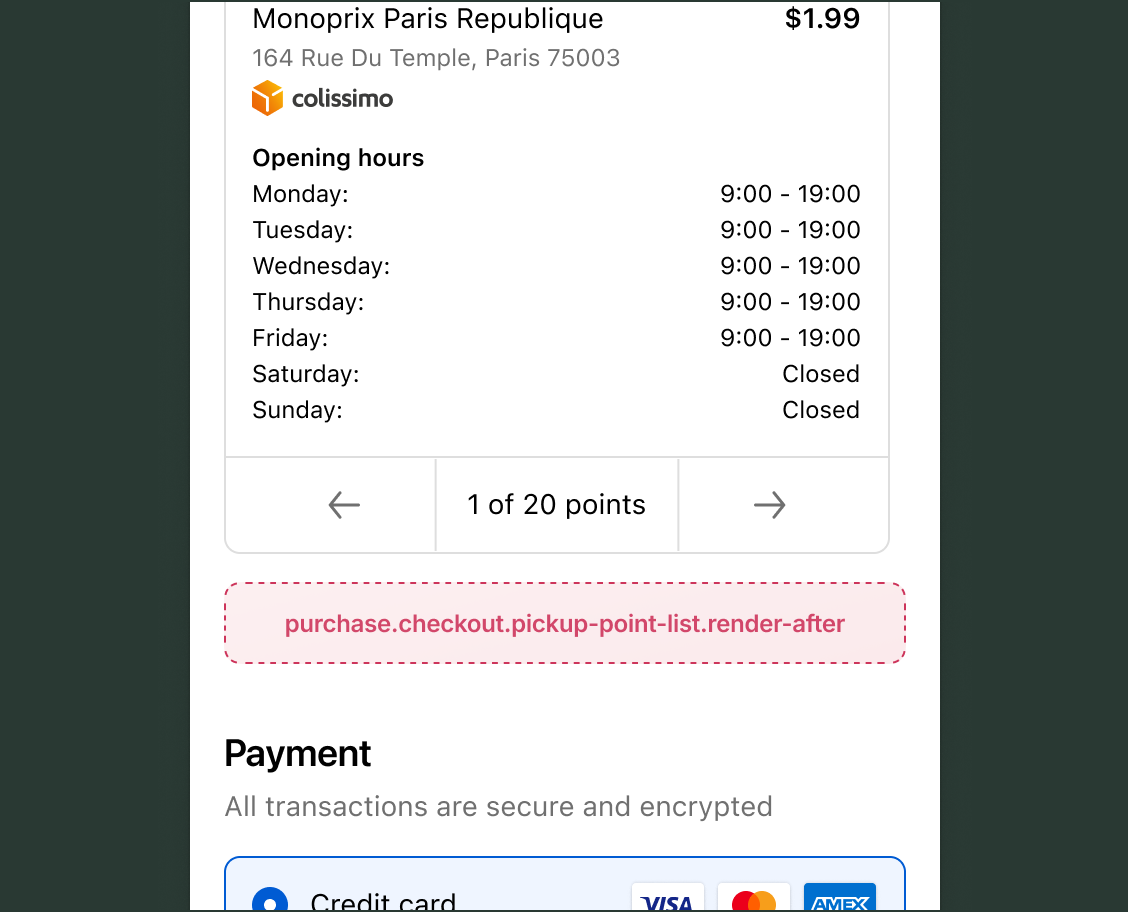
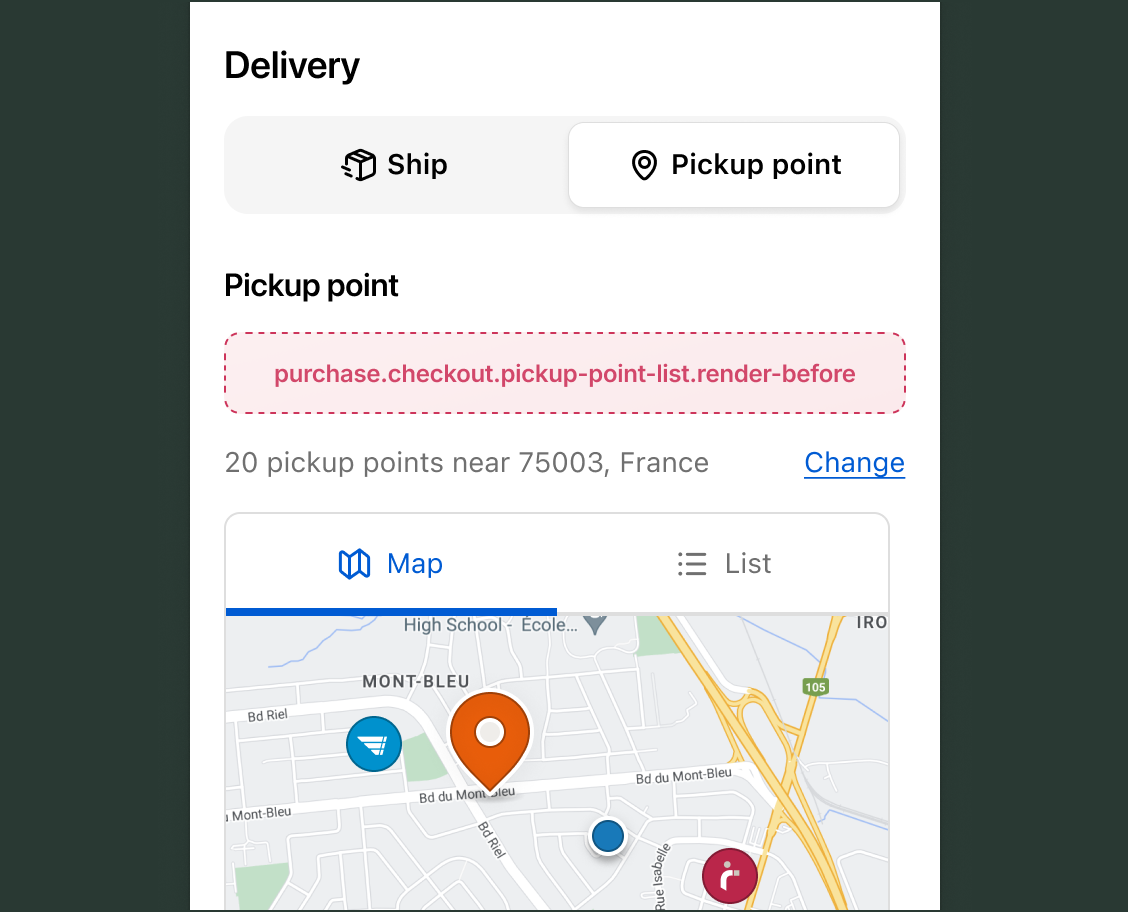
After pickup point list static
purchase.checkout.pickup-point-list.render-after
A static target that renders immediately after the pickup points.
Before pickup point list static
purchase.checkout.pickup-point-list.render-before
A static target that renders immediately before the pickup points.
Anchor to ShippingShipping
The shipping section is where buyers view their delivery address and select a shipping method for their order. This section includes shipping options with rates, estimated delivery times, and any special delivery instructions.
Use cases: Delivery date selection, shipping insurance options, carbon offset programs, special delivery instructions, shipping method recommendations, or split shipping customization.
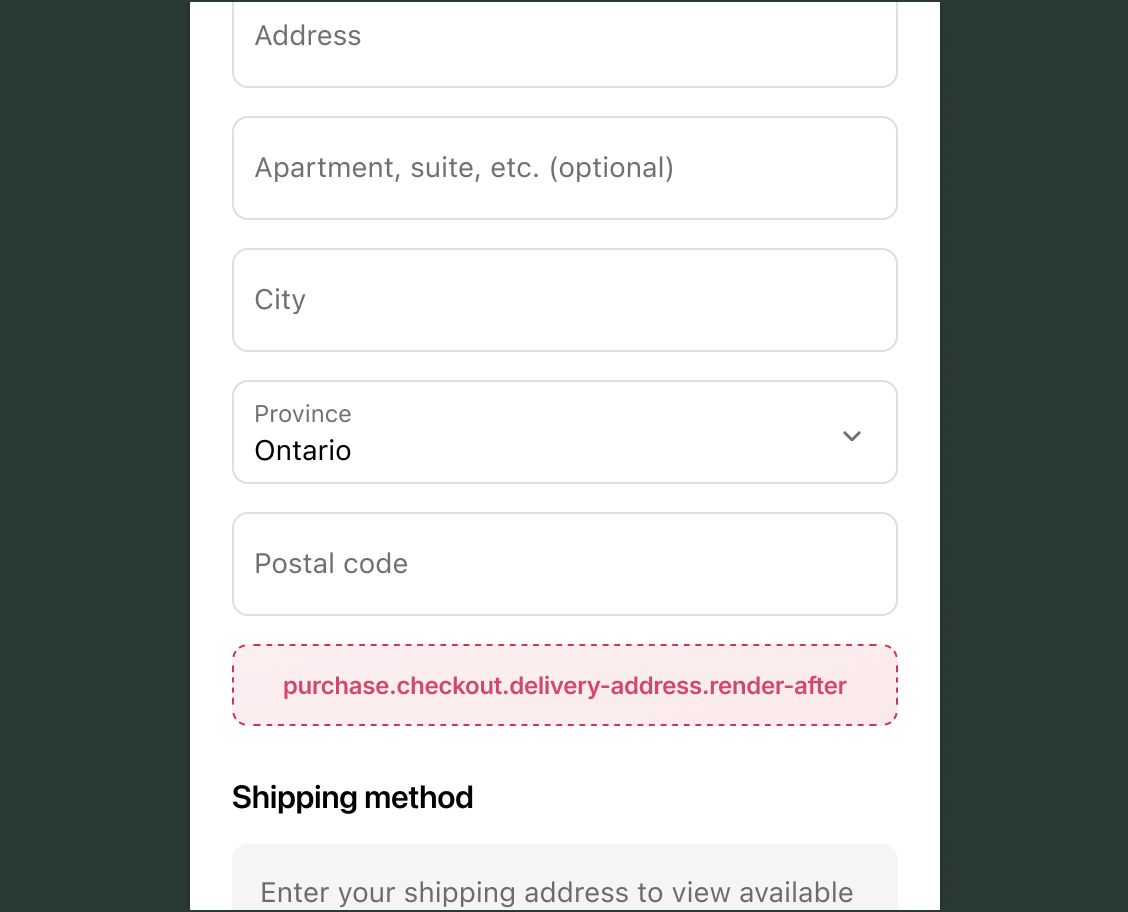
After delivery address static
purchase.checkout.delivery-address.render-after
A static target that renders after the shipping address form elements.
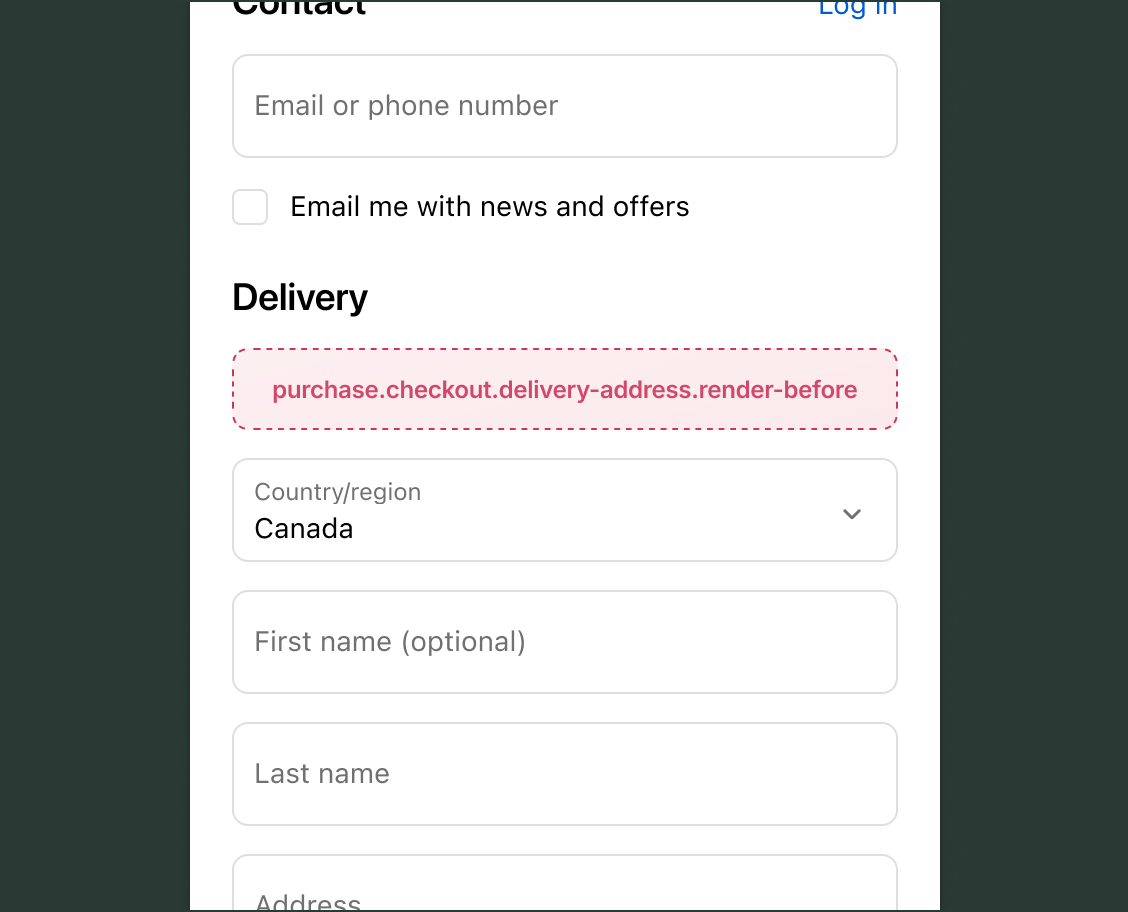
Before delivery address static
purchase.checkout.delivery-address.render-before
A static target that renders between the shipping address header and shipping address form elements.
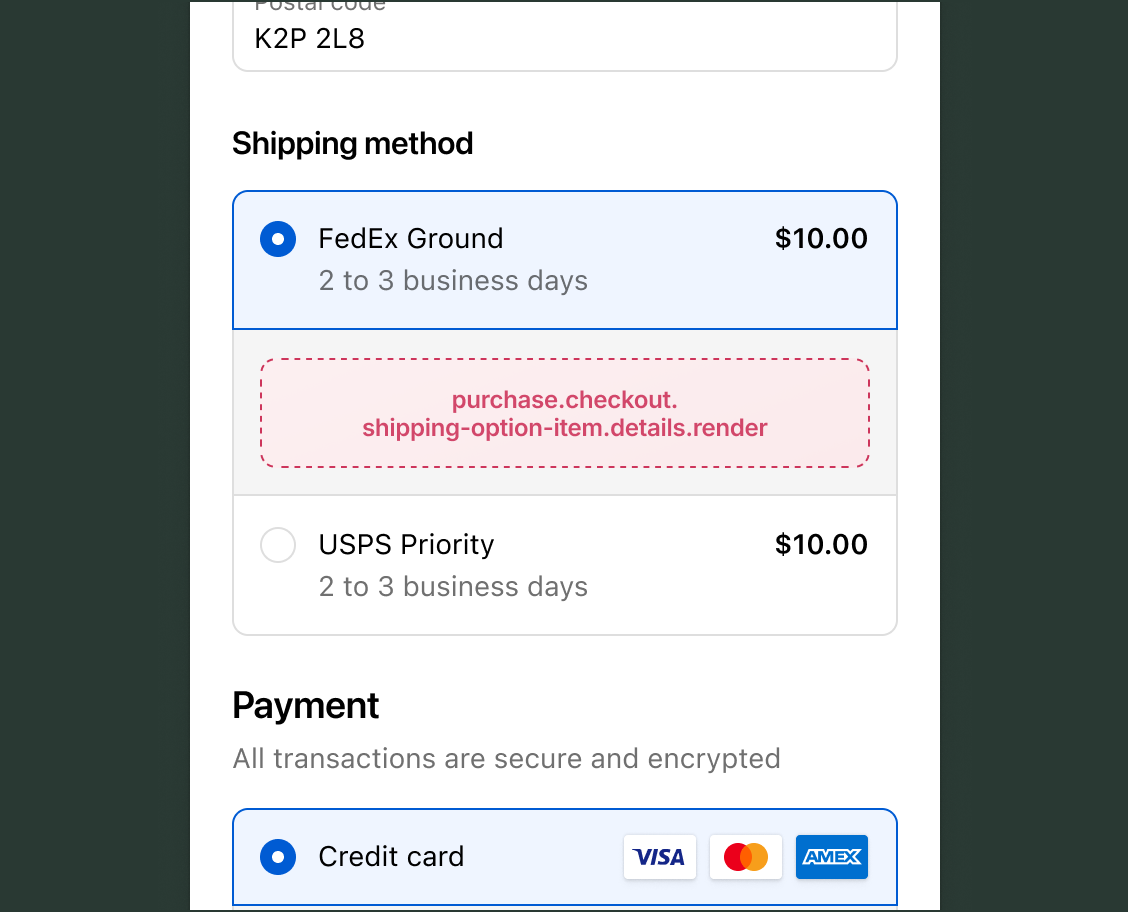
Shipping option item details static
purchase.checkout.shipping-option-item.details.render
A static target that renders under the shipping method within the shipping method option list, for each option.
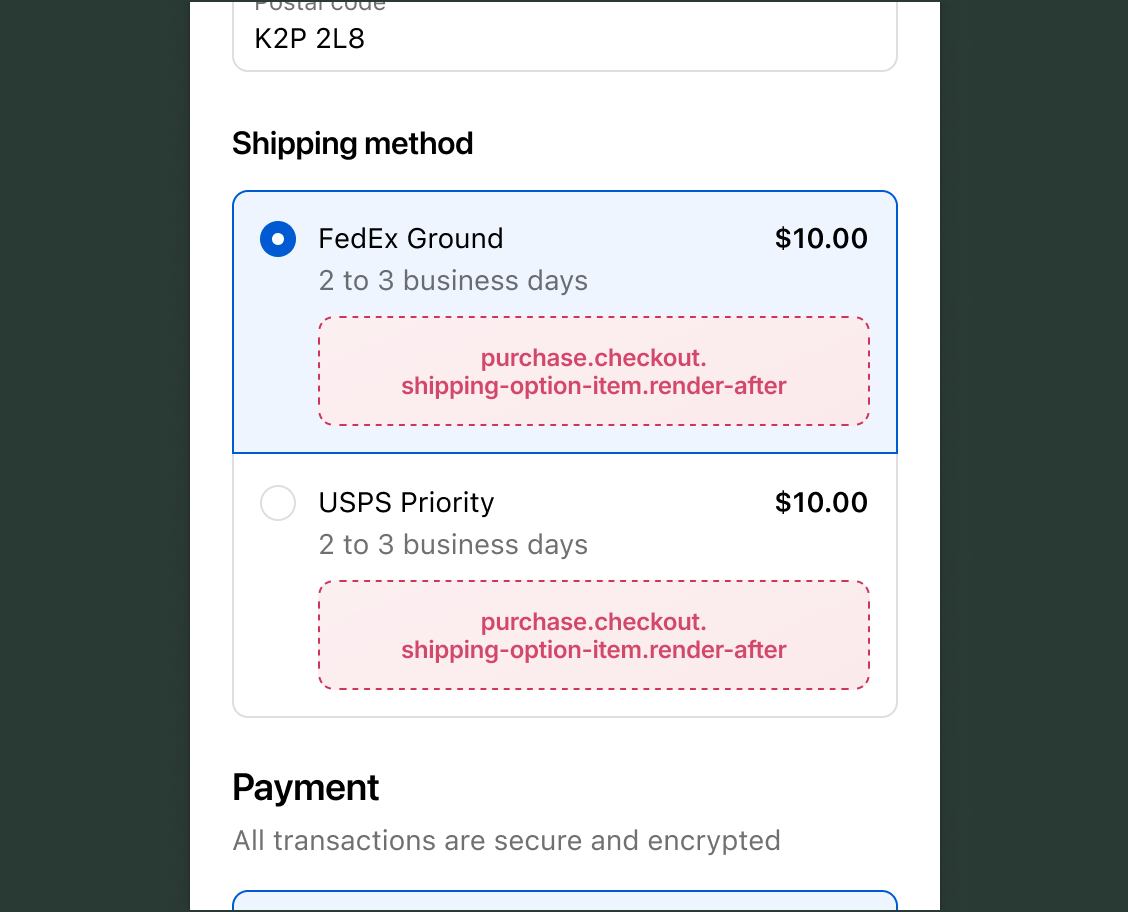
After shipping option item static
purchase.checkout.shipping-option-item.render-after
A static target that renders after the shipping method details within the shipping method option list, for each option.
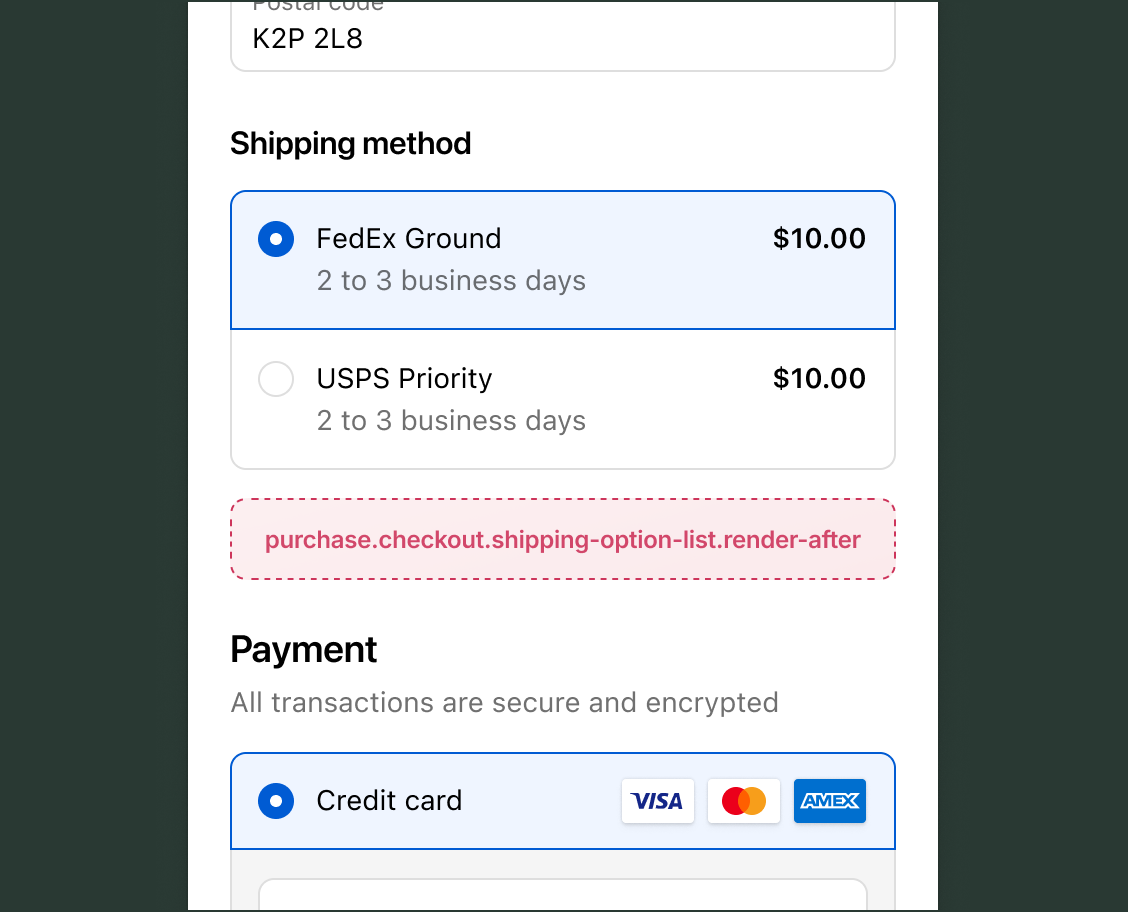
After shipping option list static
purchase.checkout.shipping-option-list.render-after
A static target that renders after the shipping method options.
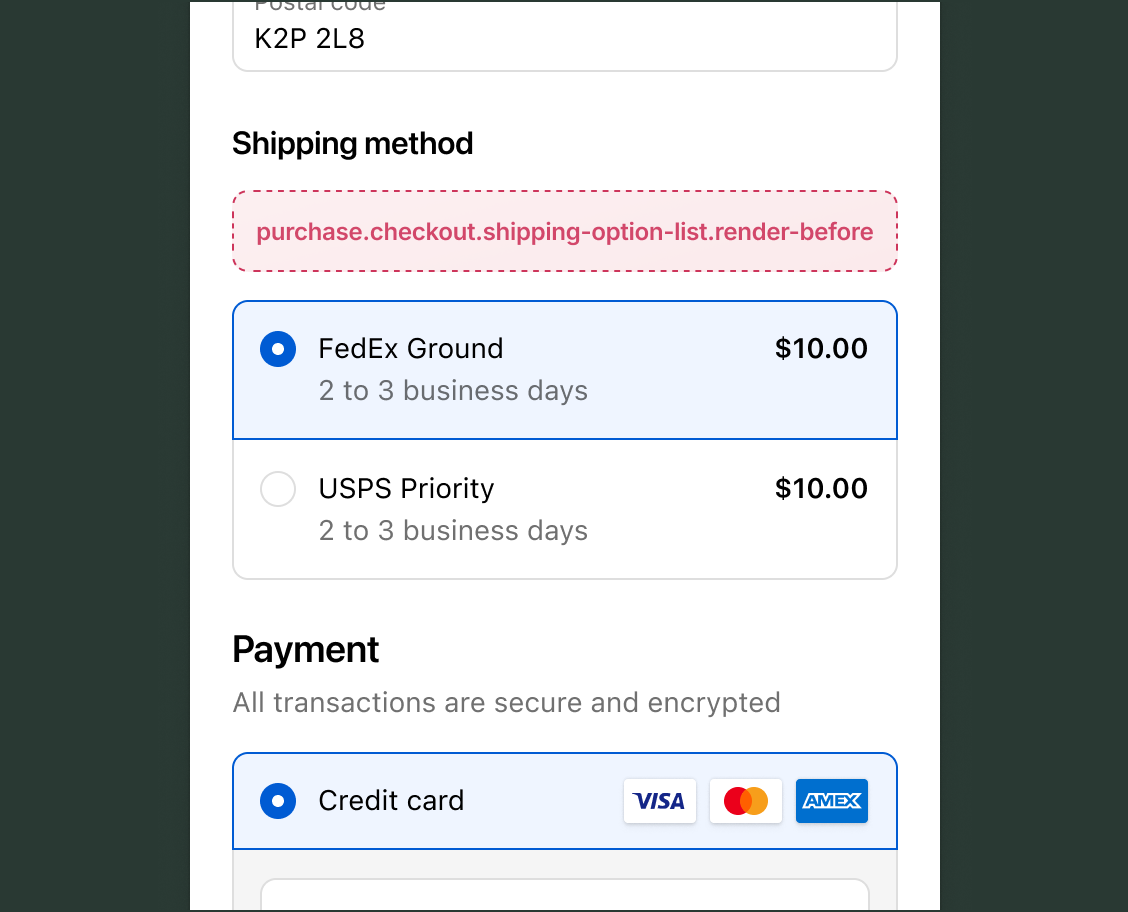
Before shipping option list static
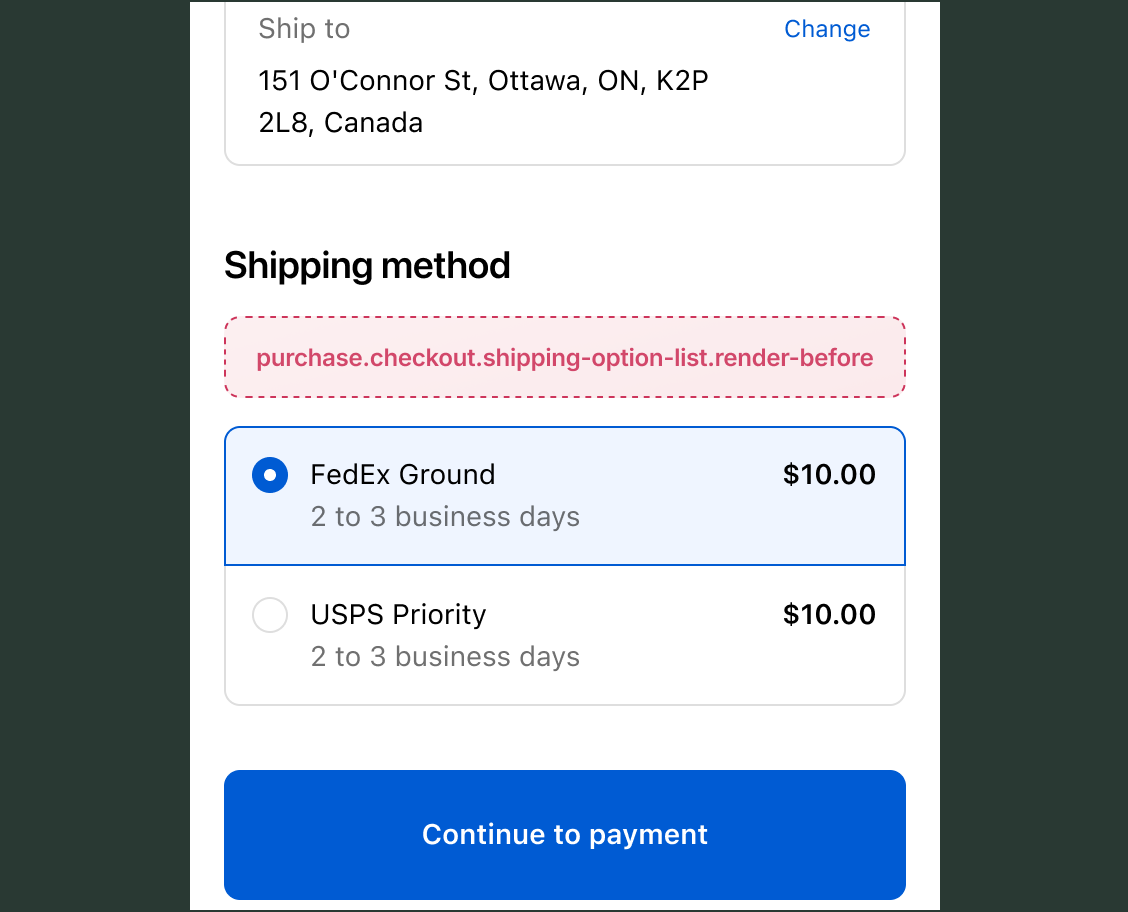
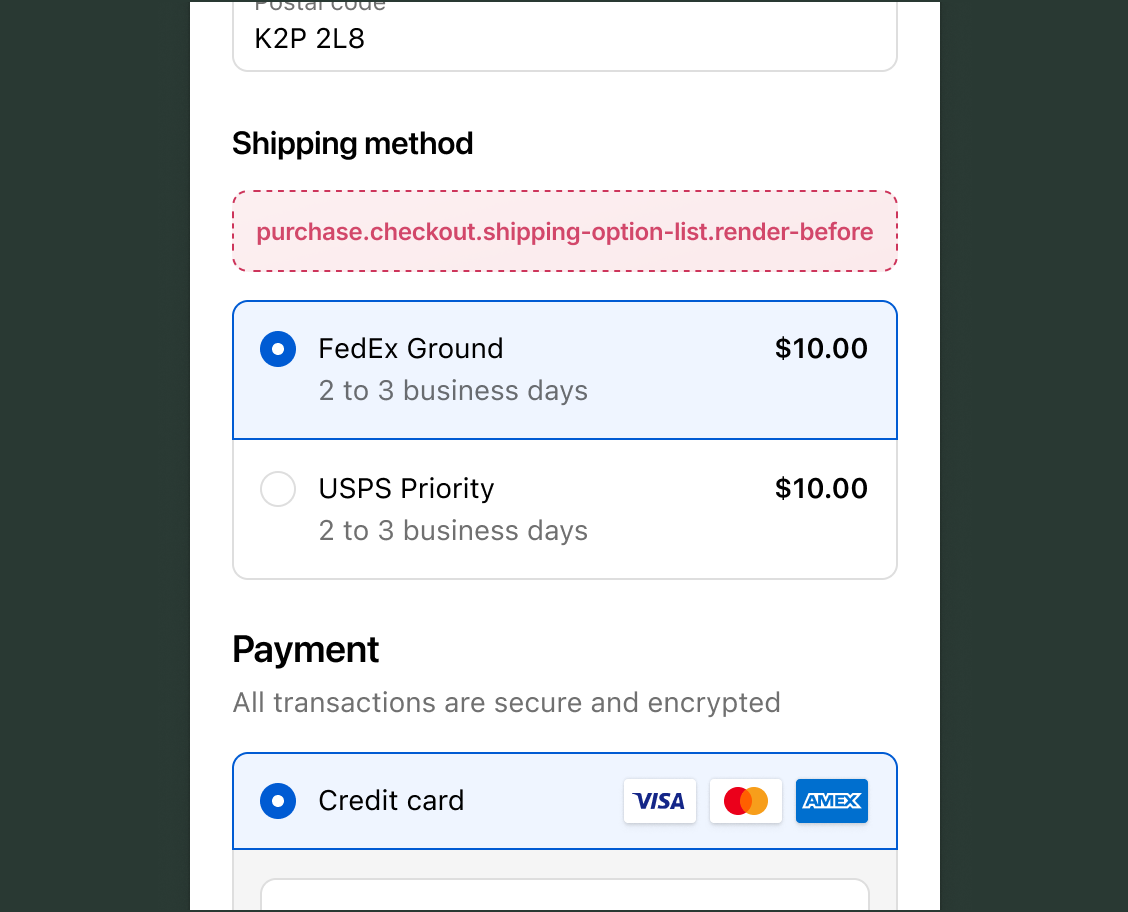
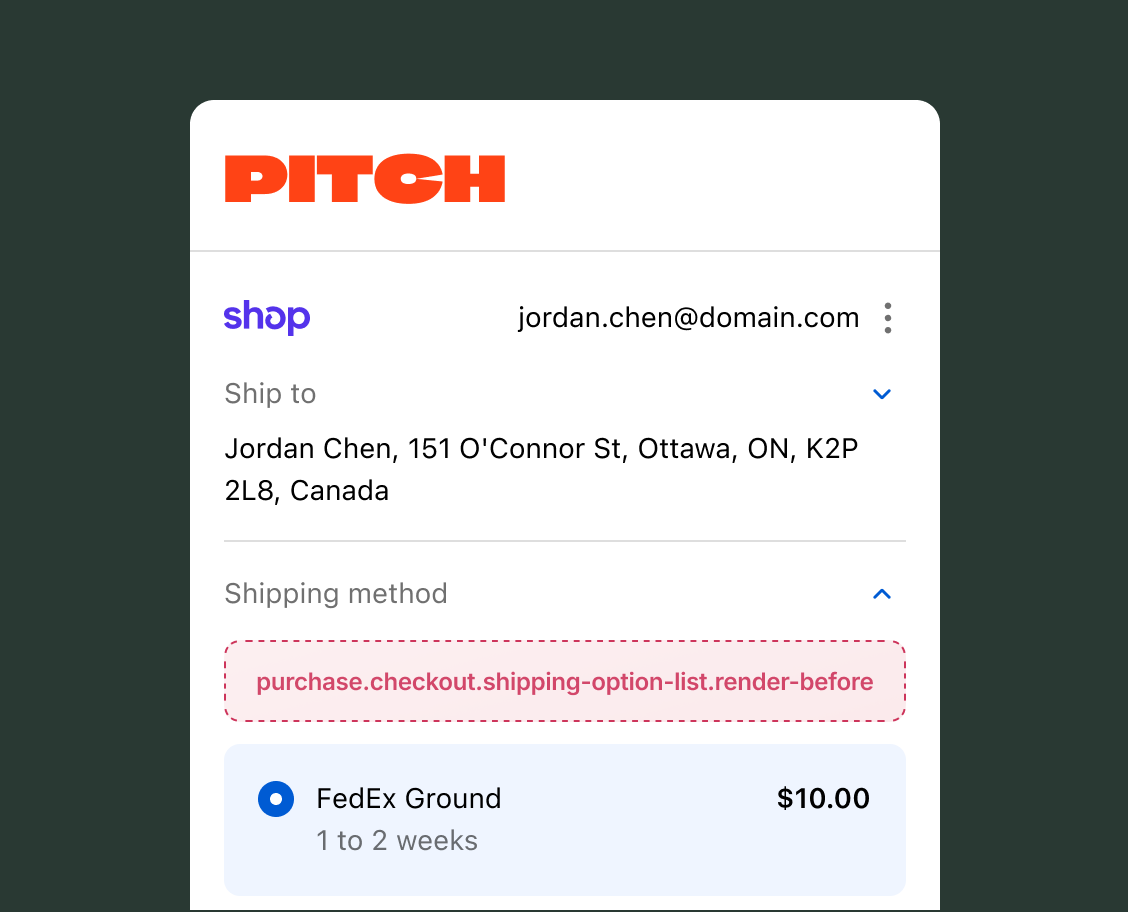
purchase.checkout.shipping-option-list.render-before
A static target that renders between the shipping method header and shipping method options.
Anchor to Thank you page targetsThank you page targets
Thank you page targets let you extend the order confirmation experience after buyers complete their purchase.
Anchor to AnnouncementAnnouncement
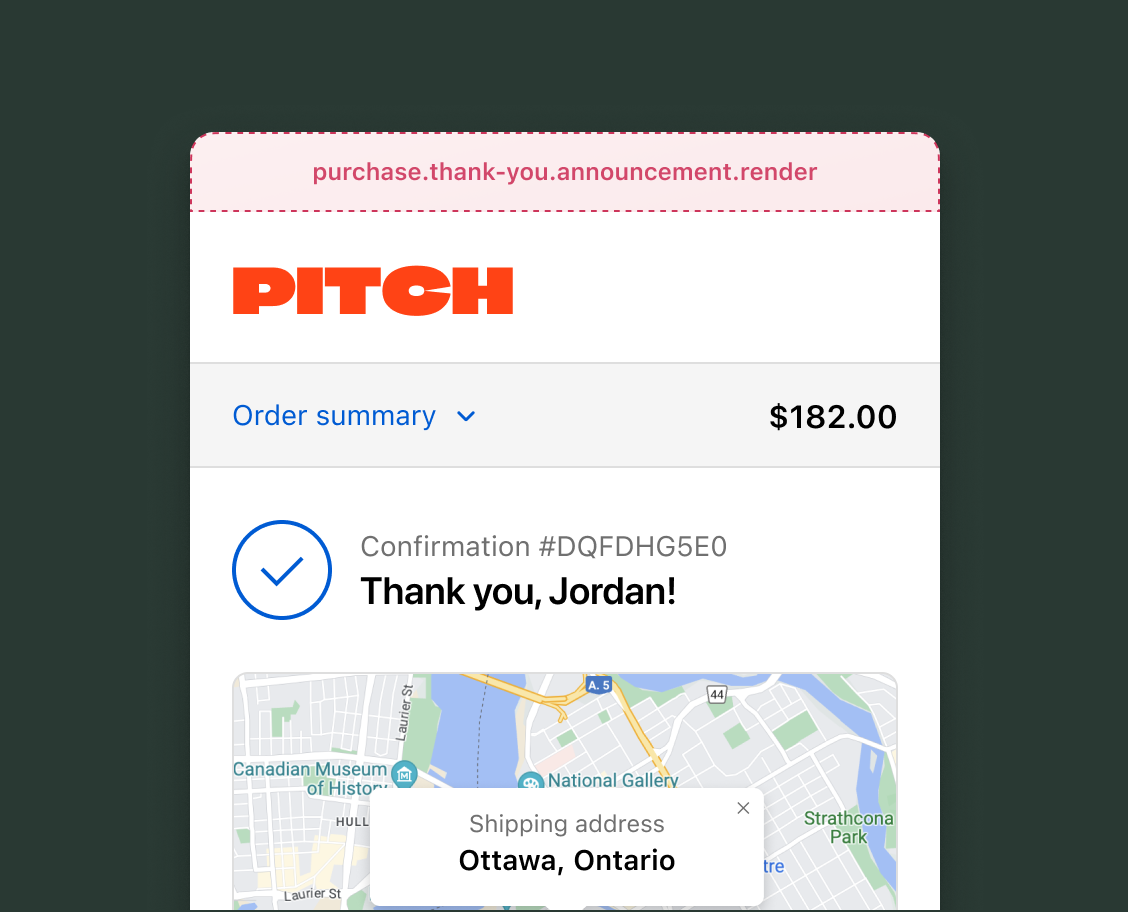
The announcement section displays dismissable content at the top of the Thank you page, ideal for important messages that buyers should see after completing their purchase.
Use cases: Order confirmation details, special promotions, referral programs, app download prompts, or survey requests.
Announcement render static
purchase.thank-you.announcement.render
A static target that renders on top of the Thank you page as a dismissable announcement.
Anchor to BlockBlock
The block target provides a flexible target on the Thank you page that isn't tied to a specific section. Block extensions render where merchants place them using the checkout and accounts editor, giving them control over the placement.
Use cases: Post-purchase offers, loyalty program signups, product recommendations, social sharing prompts, or review requests.
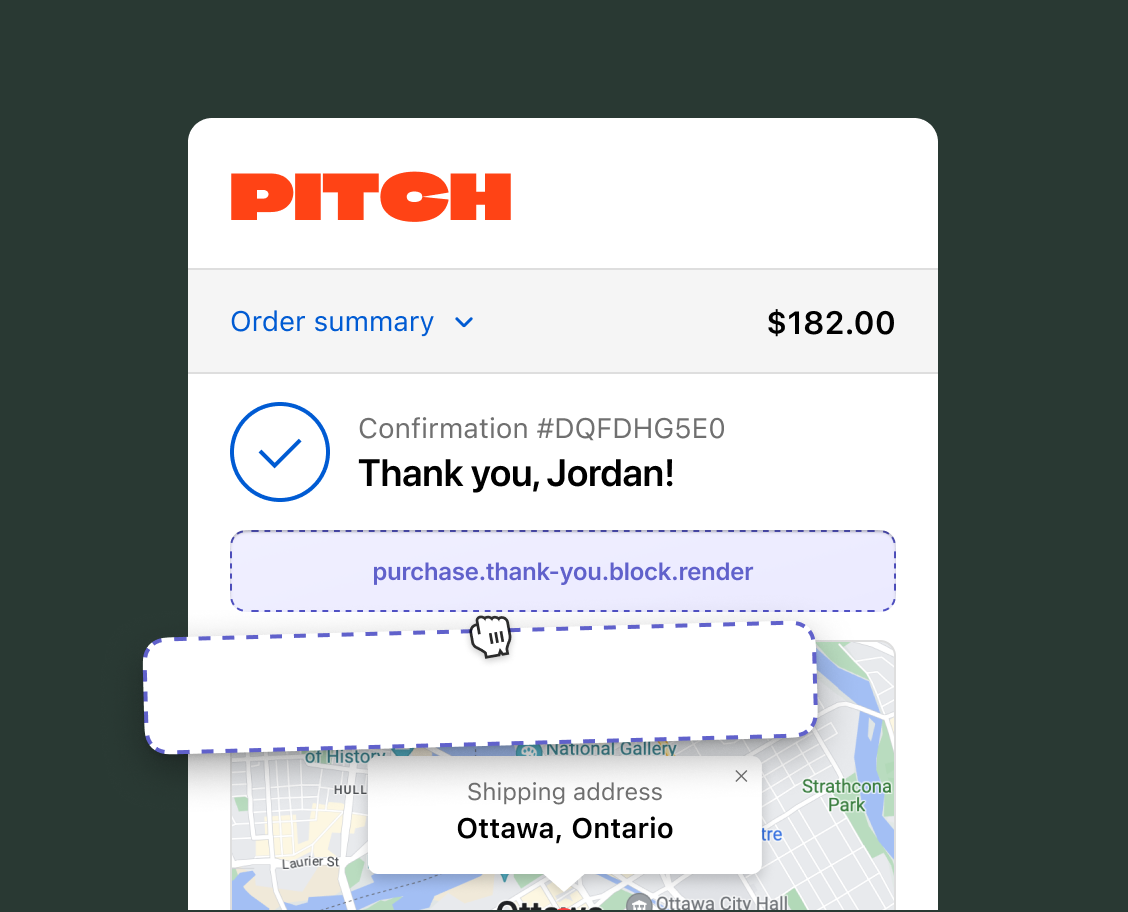
Render block
purchase.thank-you.block.render
A block target that renders exclusively on the Thank you page. Unlike static targets, block targets render where the merchant sets them using the checkout and accounts editor.
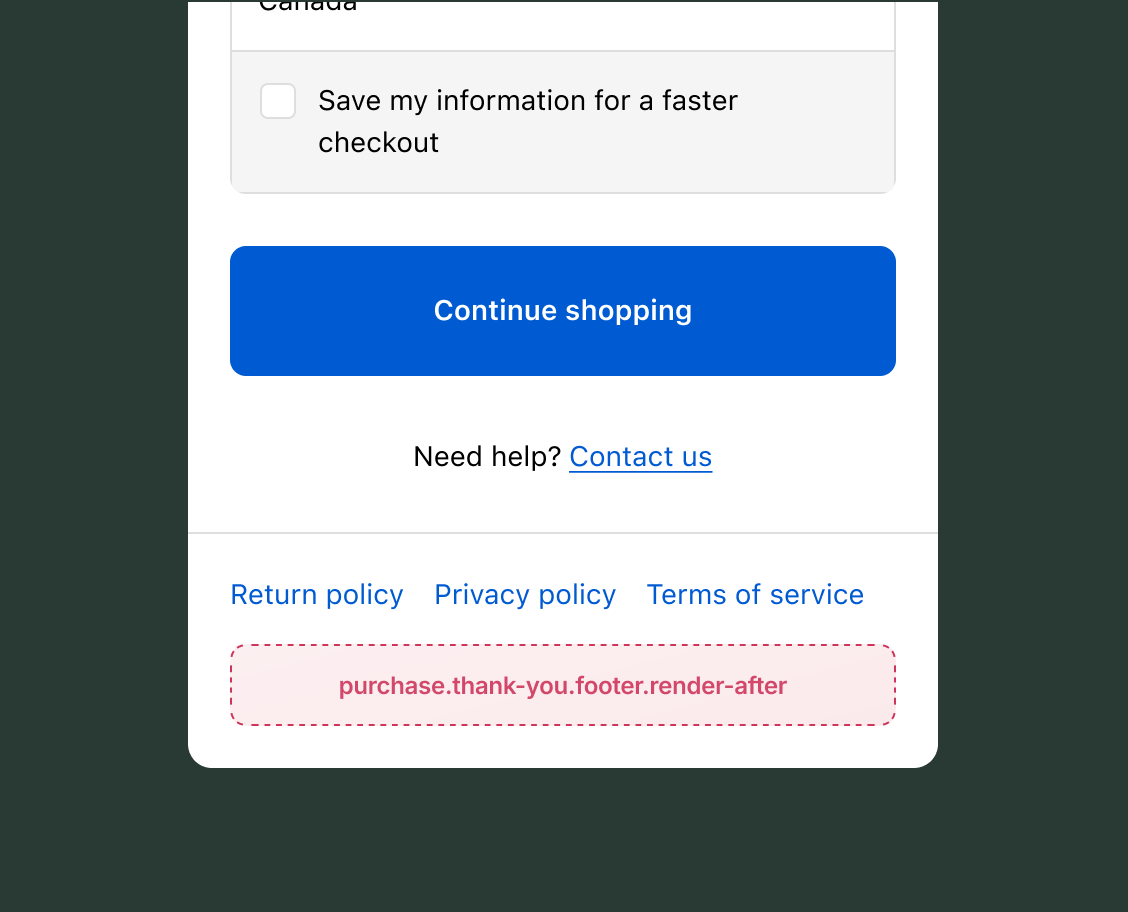
The footer section appears at the bottom of the Thank you page, providing a location for information that should be visible after purchase completion.
Use cases: Return policy information, customer support contact details, social media links, or additional legal disclaimers.
Anchor to HeaderHeader
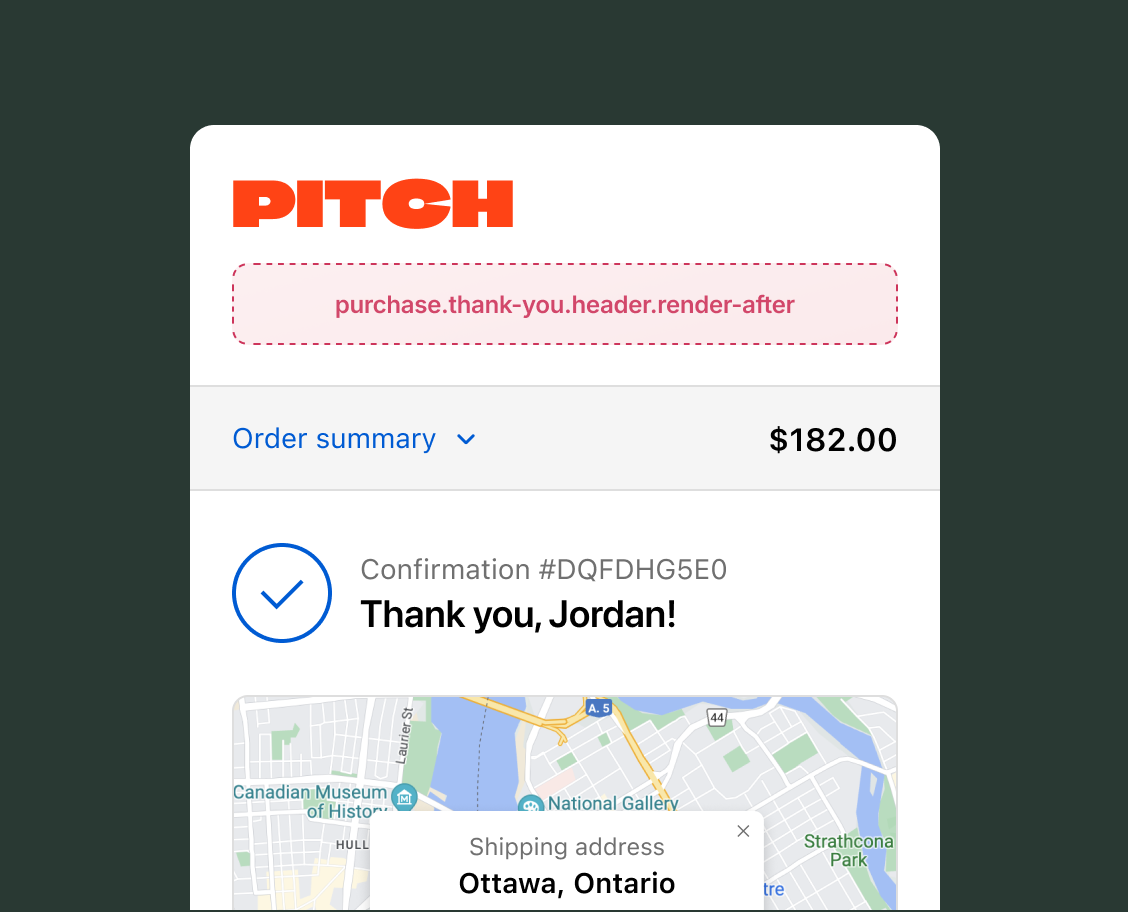
The header section appears at the top of the Thank you page, providing a prominent location for important messaging after purchase completion.
Use cases: Order tracking links, delivery estimates, thank you messages, special offers, or next steps instructions.
After header static
purchase.thank-you.header.render-after
A static target that renders below the header on the Thank you page.
Anchor to InformationInformation
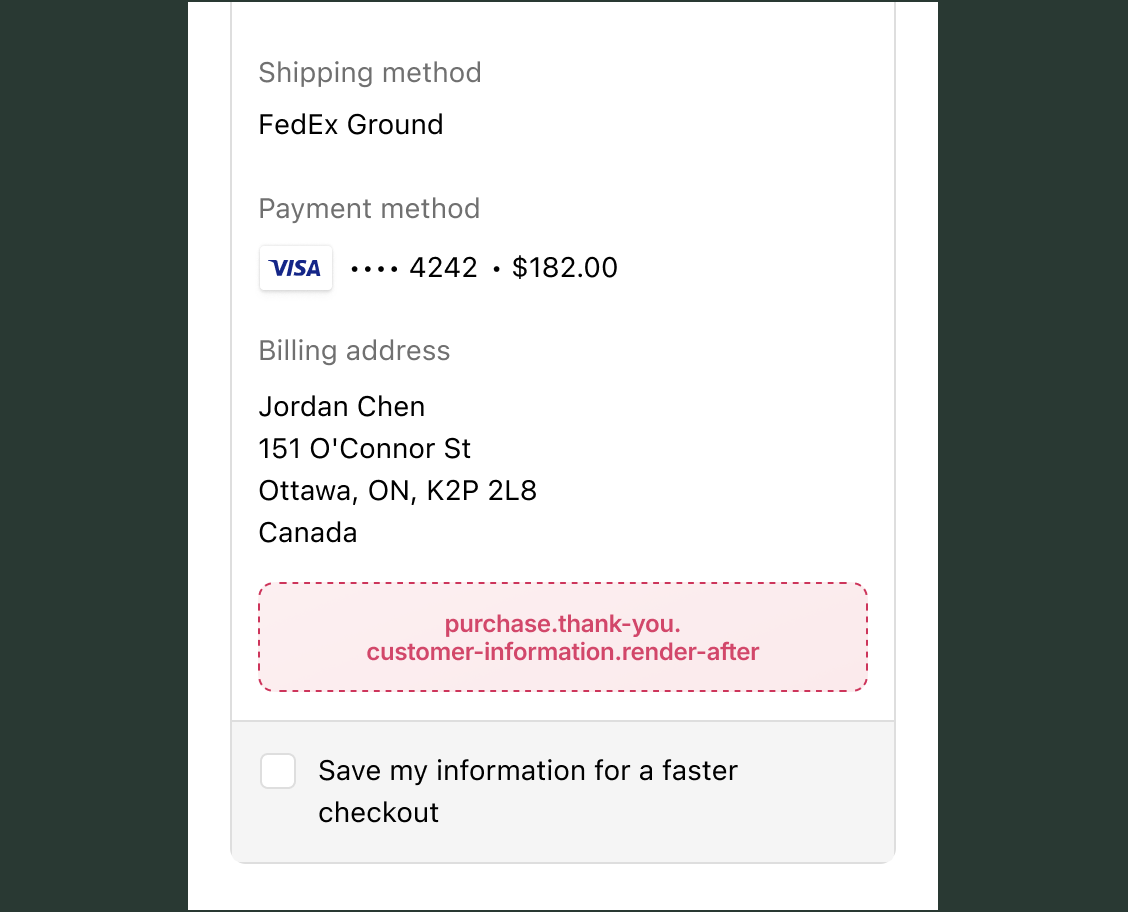
The information section displays the buyer's contact and delivery details on the Thank you page, confirming where the order will be sent and how the buyer can be reached.
Use cases: Referral program prompts, loyalty enrollment offers, order follow-up details, account creation, or post-purchase feedback collection.
After customer information static
purchase.thank-you.customer-information.render-after
A static target that renders after a purchase below the customer information on the Thank you page.
Anchor to Order summary and detailsOrder summary and details
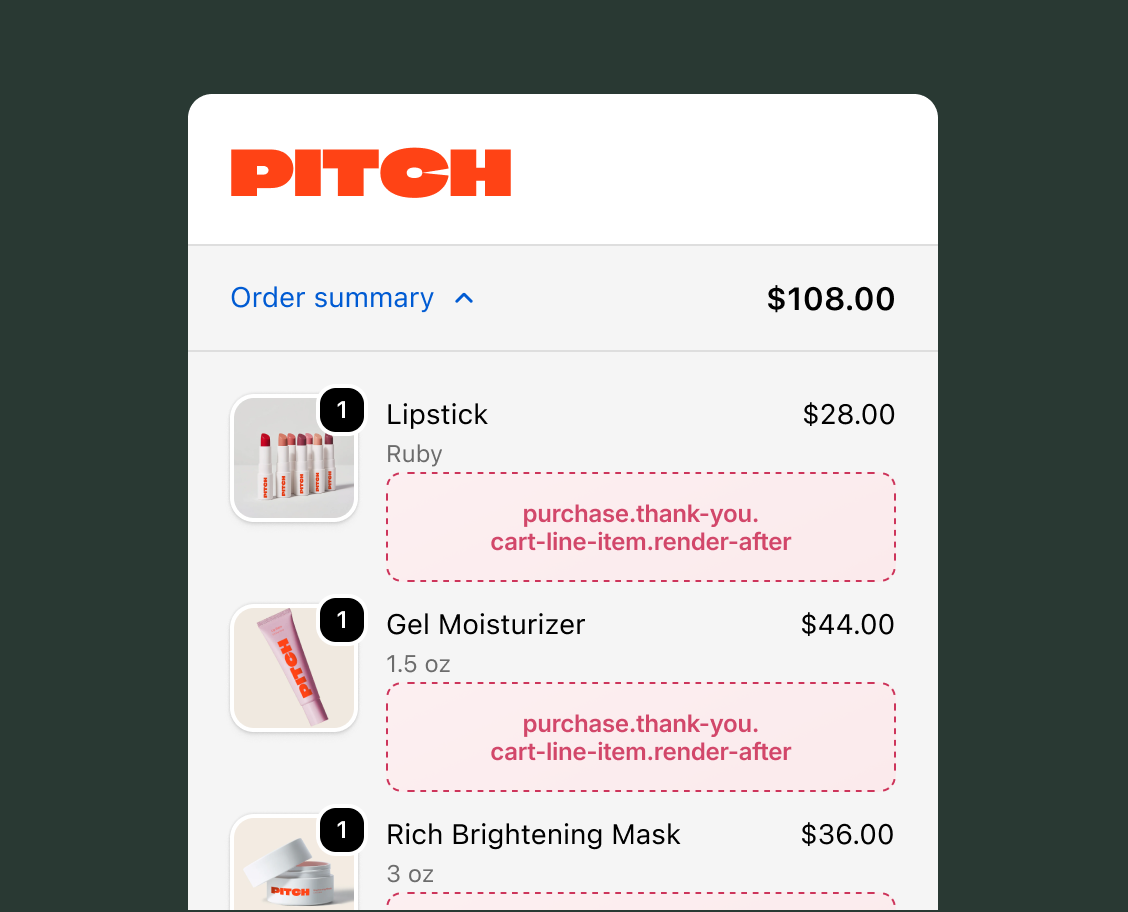
Order summary and details show the complete purchase information on the Thank you page, including line items with pricing and order details like shipping address, payment method, and delivery information.
Use cases: Product care instructions, warranty information, return policy details, cross-sell opportunities, or item-specific next steps.
View order summary and details targets →
After cart line item static
purchase.thank-you.cart-line-item.render-after
A static target that renders on every line item, inside the details under the line item properties element on the Thank you page.
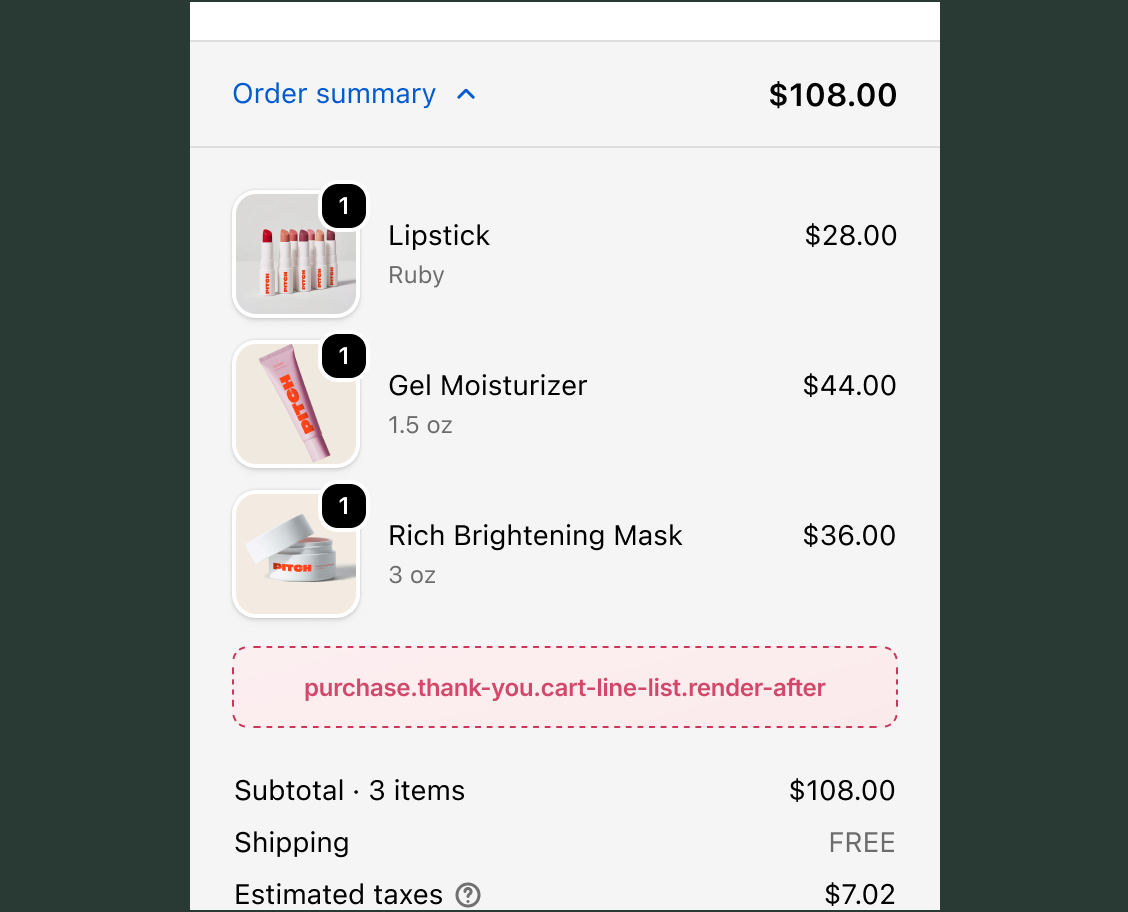
After cart line list static
purchase.thank-you.cart-line-list.render-after
A static target that renders after all line items on the Thank you page.
Anchor to Page layoutsPage layouts
Page layouts determine how checkout information is organized and presented to buyers. Different layouts affect how your extensions render and which steps buyers navigate through.
Three-page checkout layout
The three-page checkout layout is the default checkout experience. It separates the checkout process into distinct pages: information, shipping, and payment. Buyers progress through each page sequentially, completing one step before moving to the next.
Extensions render on the specific page corresponding to their target's location in the checkout flow.
One-page checkout layout
In one-page checkout, all checkout steps (information, shipping, and payment) are combined into a single page alongside the order summary. This layout presents the entire checkout flow on one screen, allowing buyers to see and complete all steps without page transitions.
Extensions render in their respective sections within the single-page layout, and buyers can scroll through all checkout sections at once.
Accelerated checkout page layout
Shop Pay provides an accelerated checkout experience by pre-filling buyer information from the buyer's Shop Pay account. This streamlined flow may combine or skip some checkout steps.