Navigation
Navigation enables merchants to move between sections of your app.
Navigation is how merchants move from task to task. A good navigation structure enables merchants to complete tasks easily and without friction. Build your app's navigation around what merchants need to do.
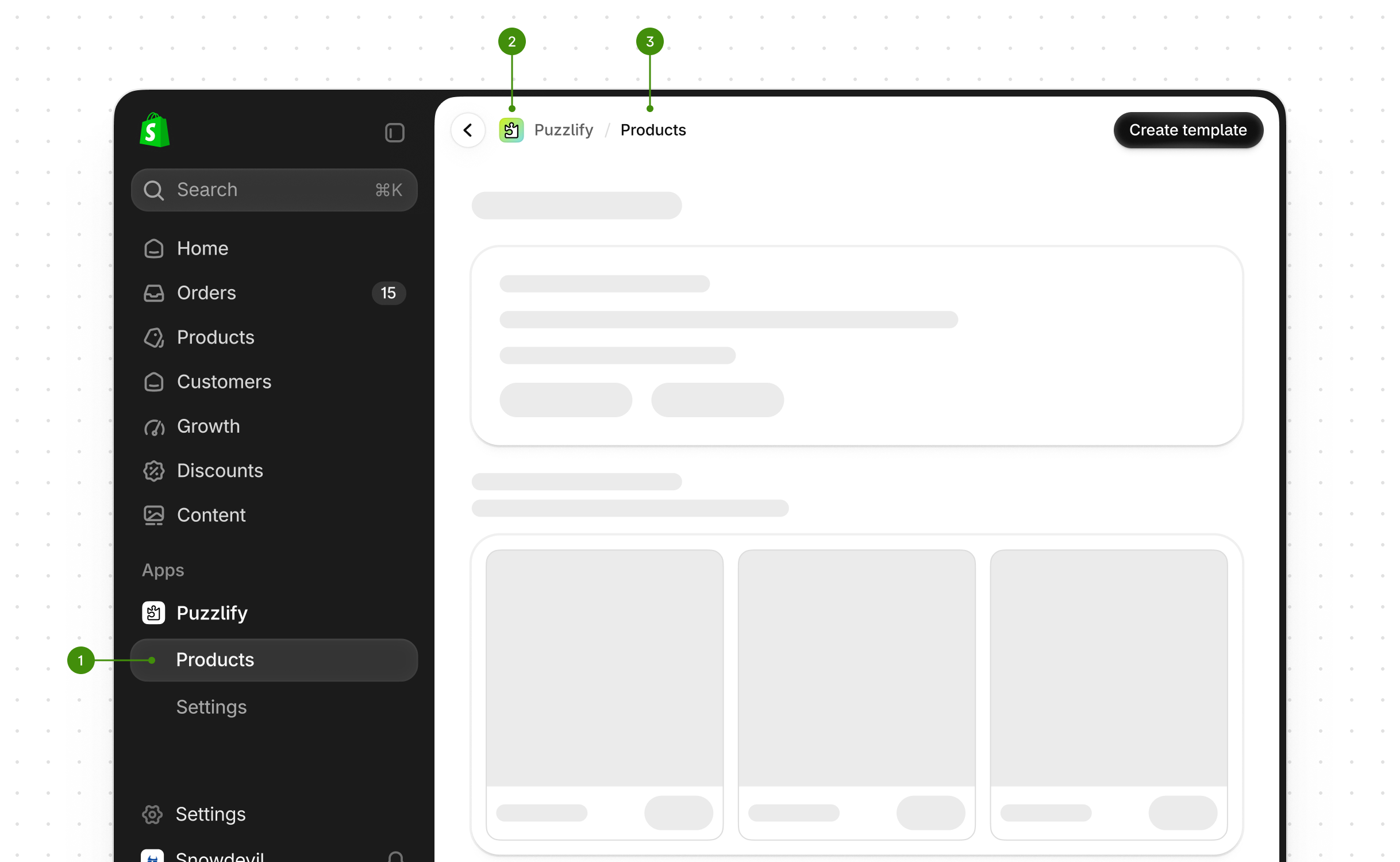
Navigation elements display in the following areas:
-
App nav
Moves merchants between your app's pages.
-
App header
Holds the app icon, name, page title, and actions.
-
Page title
Names the current page and describes its purpose.
Anchor to Information architectureInformation architecture
Information architecture (IA) is the practice of organizing sections so that they make sense as a whole.
Anchor to Why is IA important?Why is IA important?
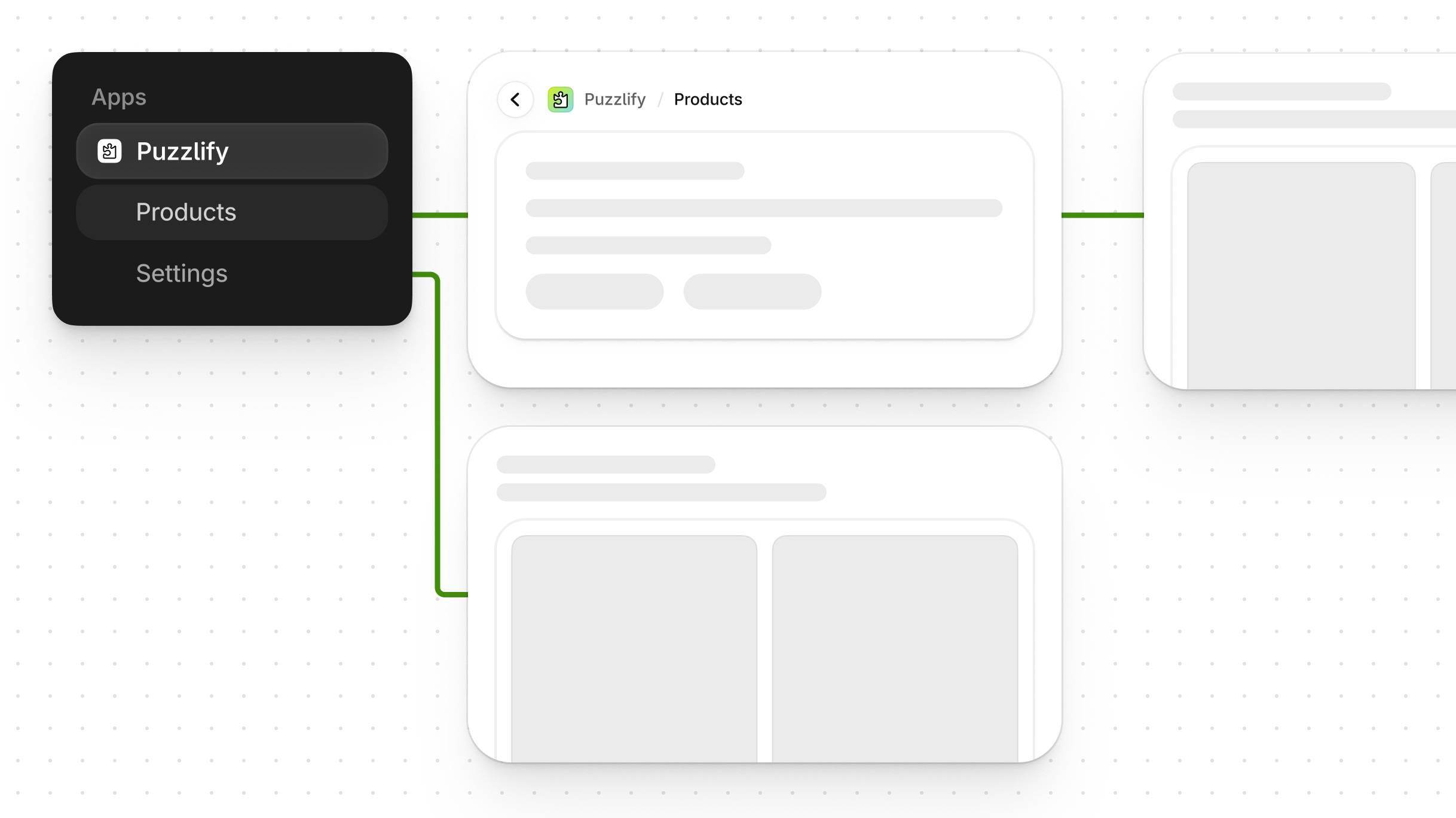
IA shows merchants where they currently are, and how to navigate the rest of the app. It should be obvious what previously happened and what will happen next.
Rely on the relationship between the app nav and app body components to guide merchants where they need to go.
Use the fewest possible categories to define what your app does.
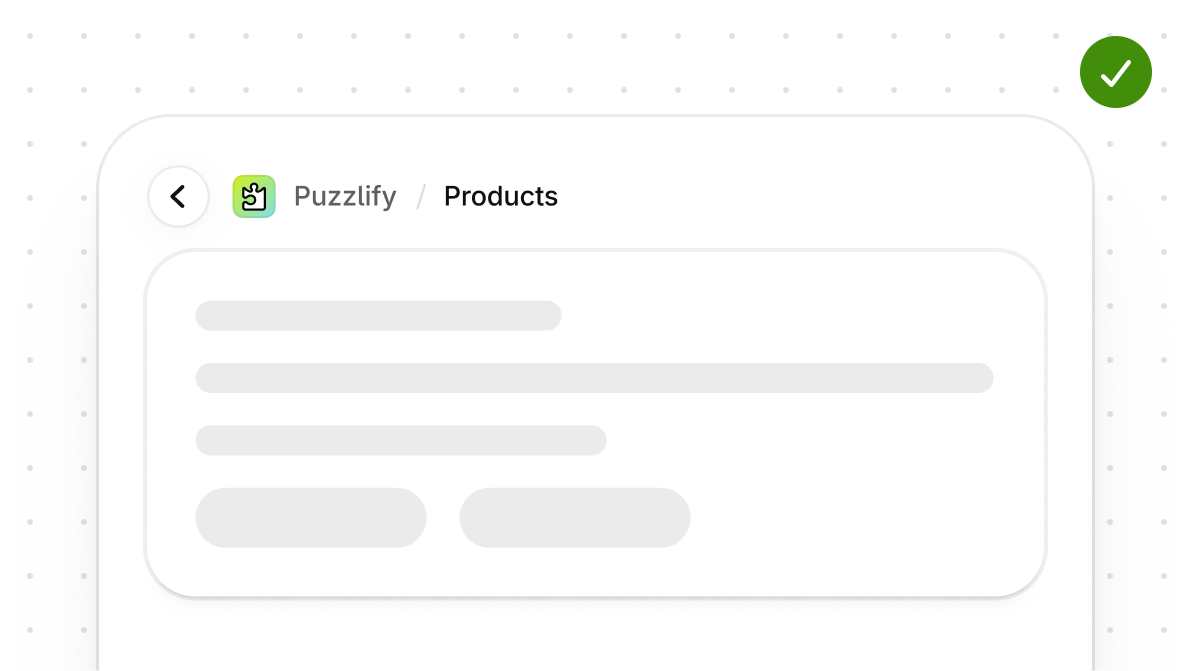
Merchants should be able to return to the previous page without using the browser button. To achieve this, your app can provide breadcrumbs or a Back button on the page.
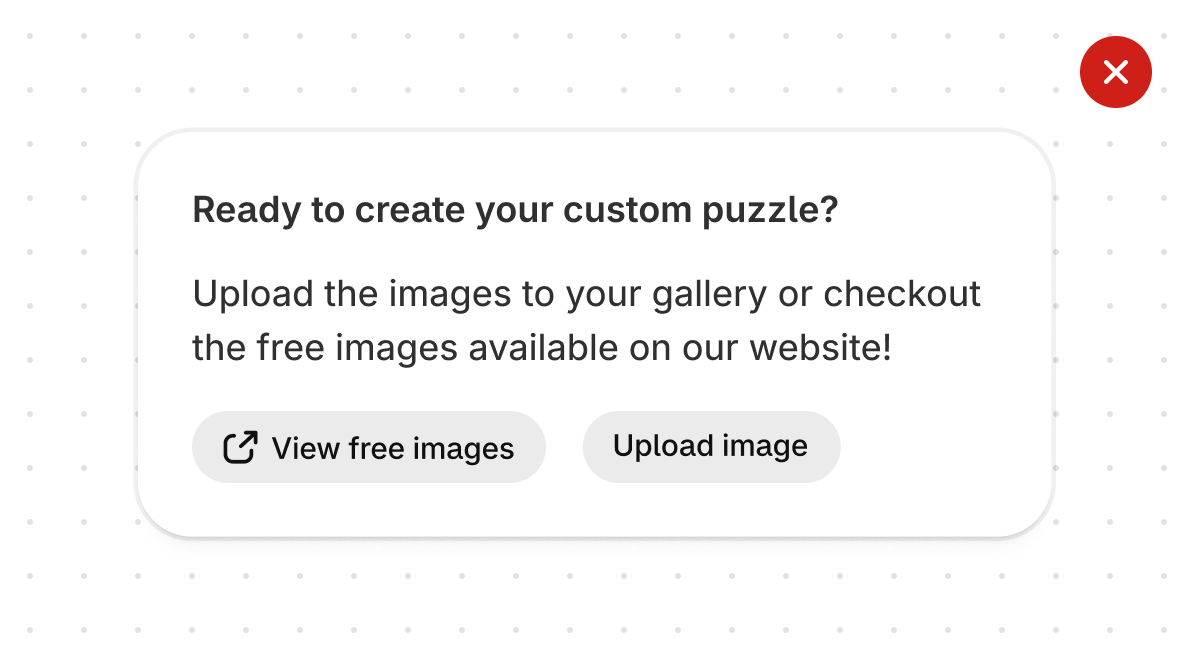
Don't send merchants outside of the Shopify admin for key actions or during primary workflows.
Anchor to App HomeApp Home
The app URL specified in the Dev Dashboard should point to your app homepage. This page is the default view when your app's name is selected in the Shopify admin.
If you're building an app that's made entirely of extensions, then a default App Home URL and homepage is provided.
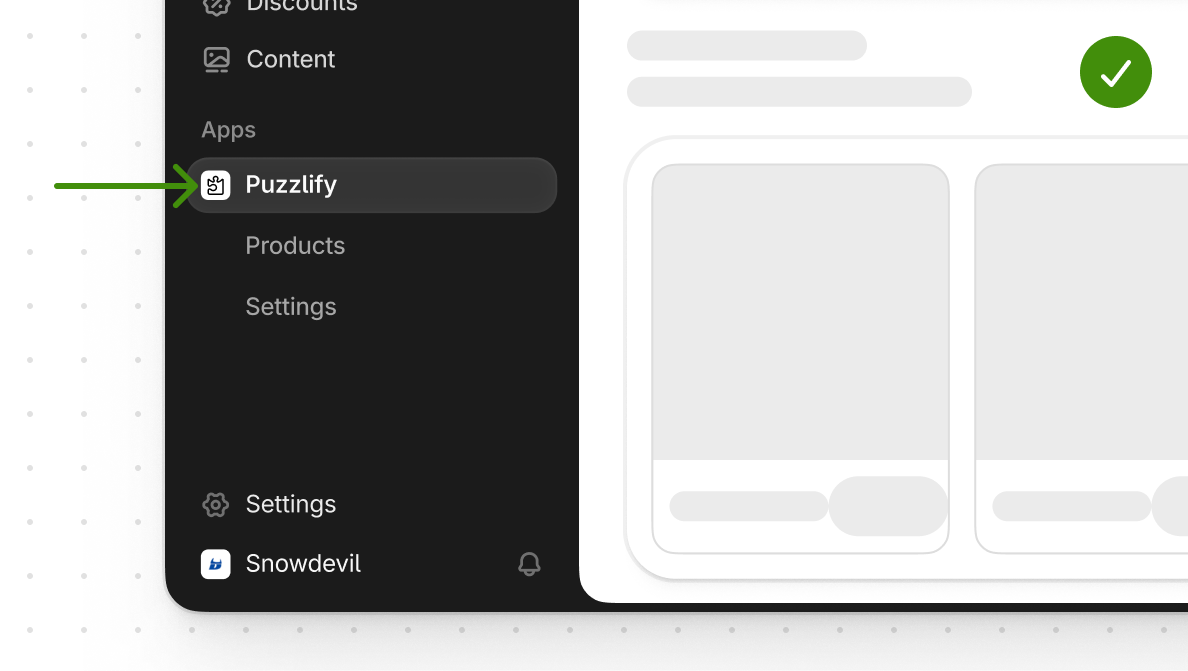
Use the app name to point at your app's homepage. This is controlled in the Dev Dashboard, under App > Versions > Create a version >App URL.
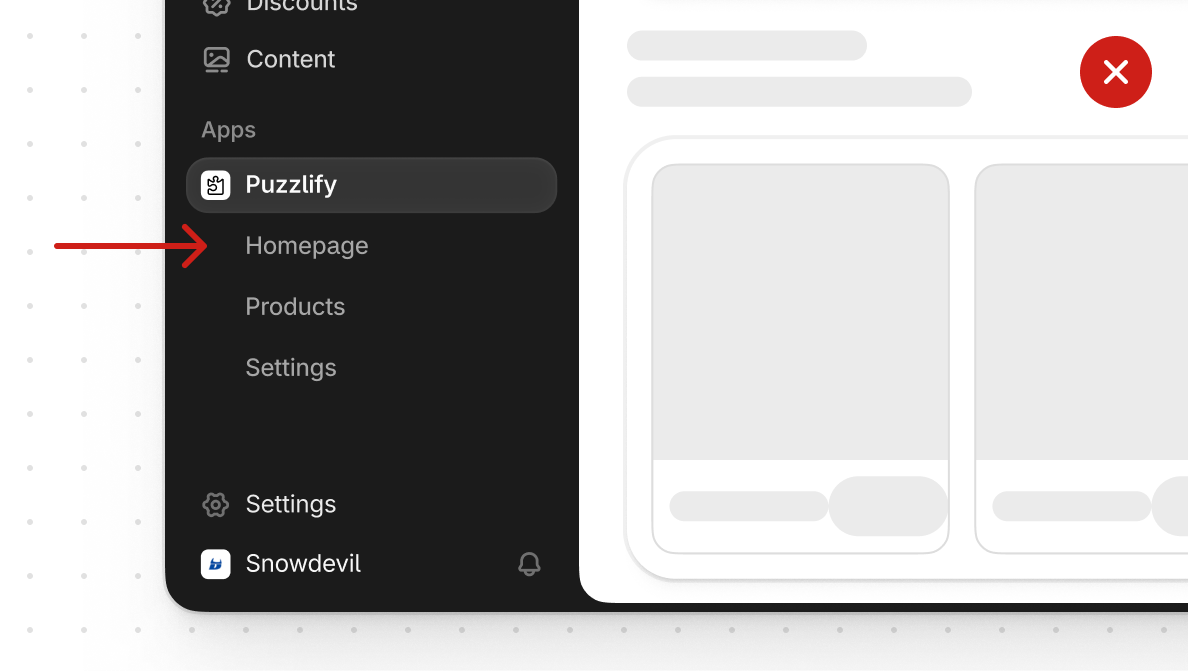
Avoid duplicating the app homepage's URL in your navigation.
The app nav gives merchants a way to move between pages of your app.
The app nav is located in the sidebar in the Shopify admin and in the header in Shopify mobile.
Use tabs sparingly for secondary navigation purposes when the app nav component isn't sufficient. Clicking a tab should only change the content below it, not above. Tabs should never wrap onto multiple lines. Navigating between tabs shouldn't cause the tabs to change position or move.
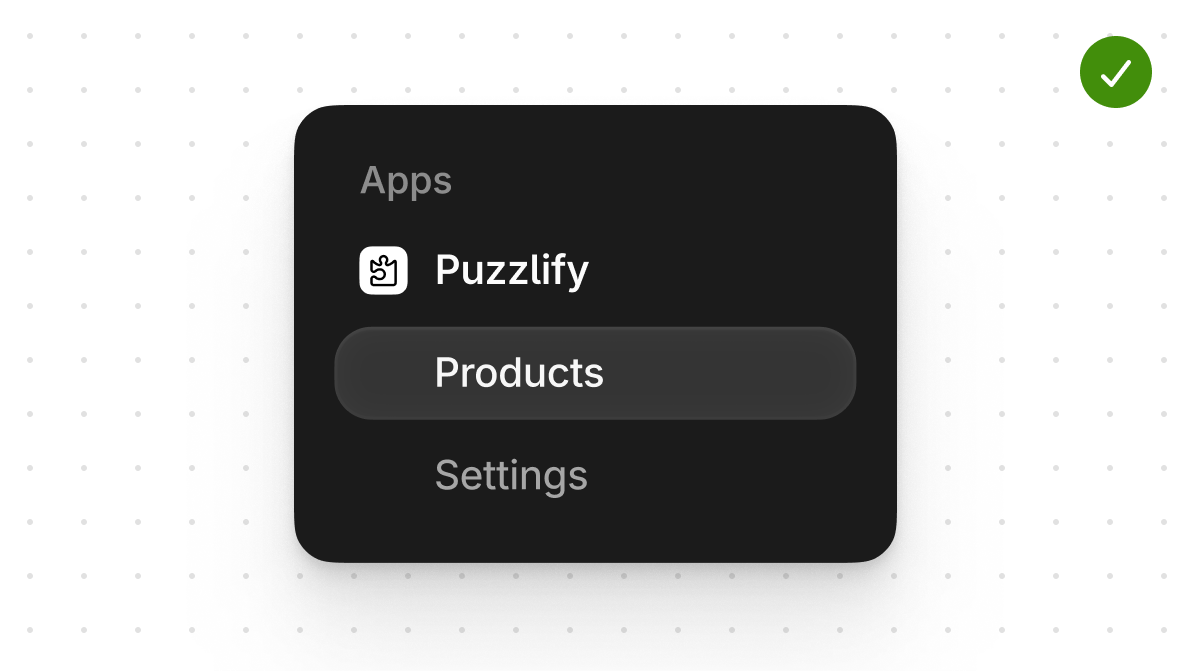
Make navigation items short and scannable. Use nouns instead of verbs to keep the navigation menu concise.
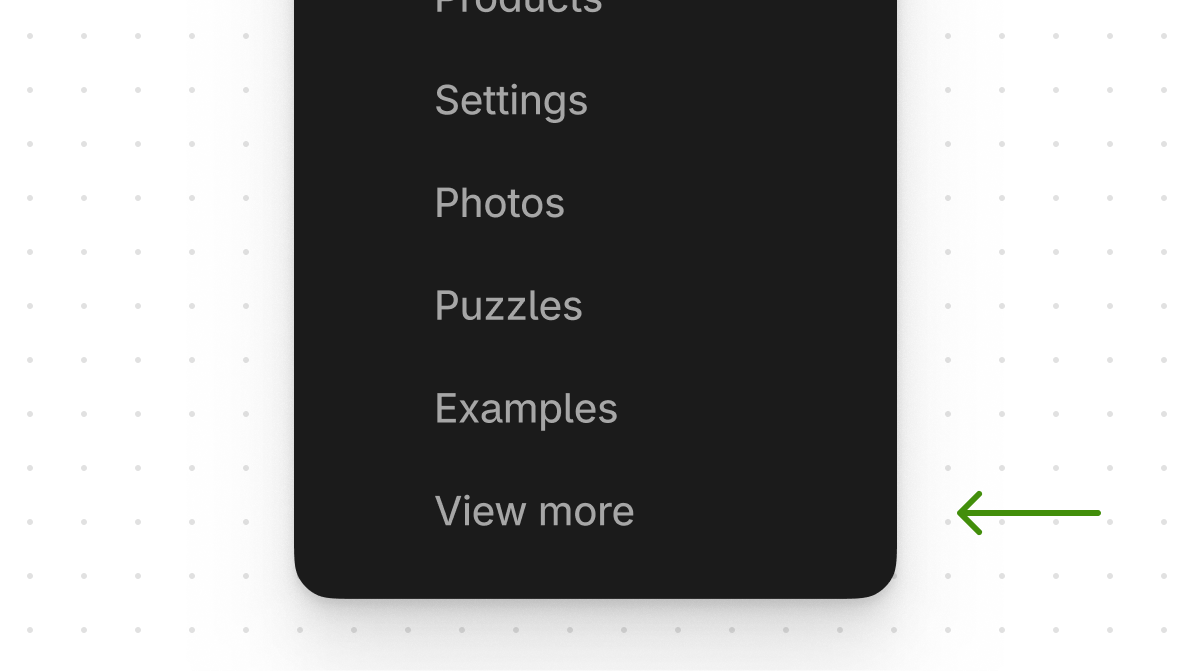
When you use more than seven items in the App nav web component, item seven and above are truncated into a View more button.

Avoid replicating the app nav content in the app body, as it results in unnecessary repetition.
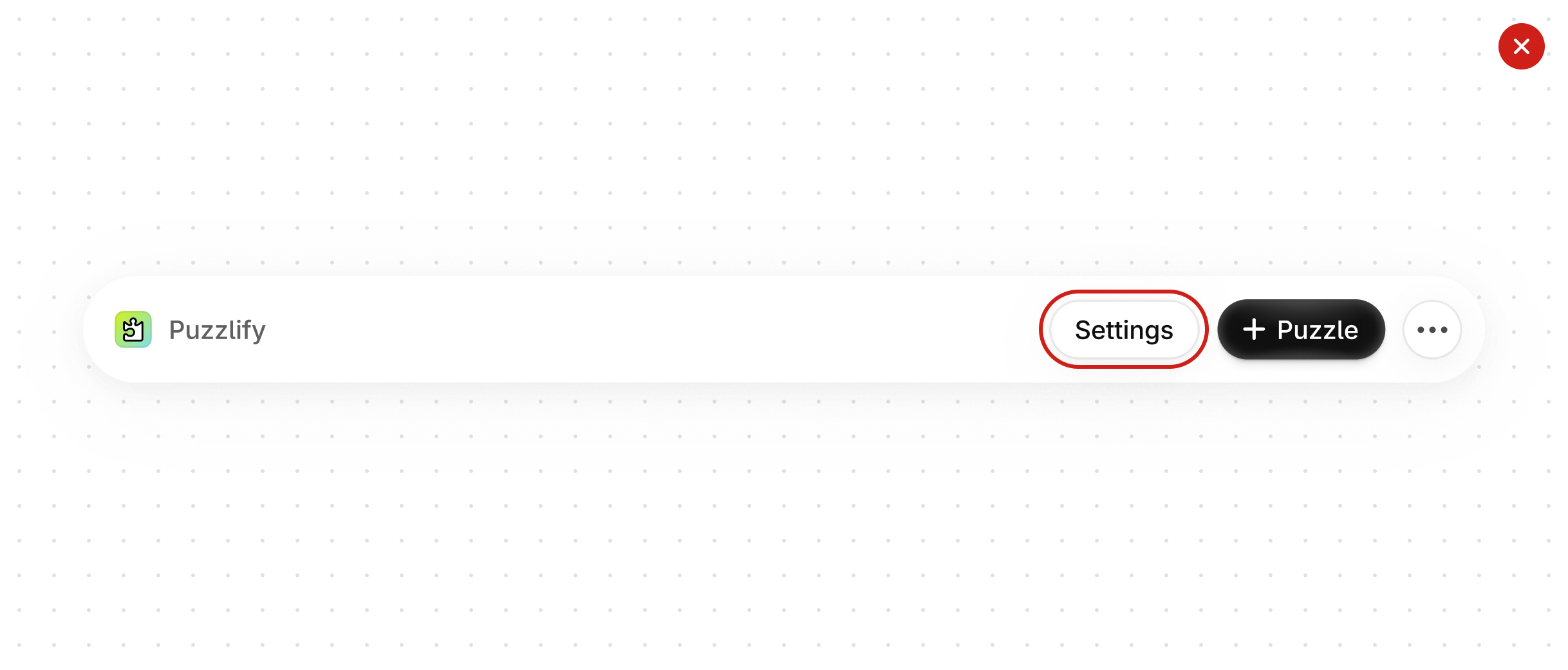
Avoid placing the main navigation in the page header. This can mislead merchants. The page header is reserved for in-page actions.
Anchor to App nameApp name
The app name represents a way for merchants to identify your app across multiple touchpoints in the Shopify admin.
The app name can be shorter than the Shopify App Store listing, so that it fits into the app nav.
Info
To change your app name, in the Dev Dashboard navigate to Versions and click Create a version.
Info:
To change your app name, in the Dev Dashboard navigate to Versions and click Create a version.

Keep app names short, with no more than 20 characters. Names beyond 20 characters will be truncated.
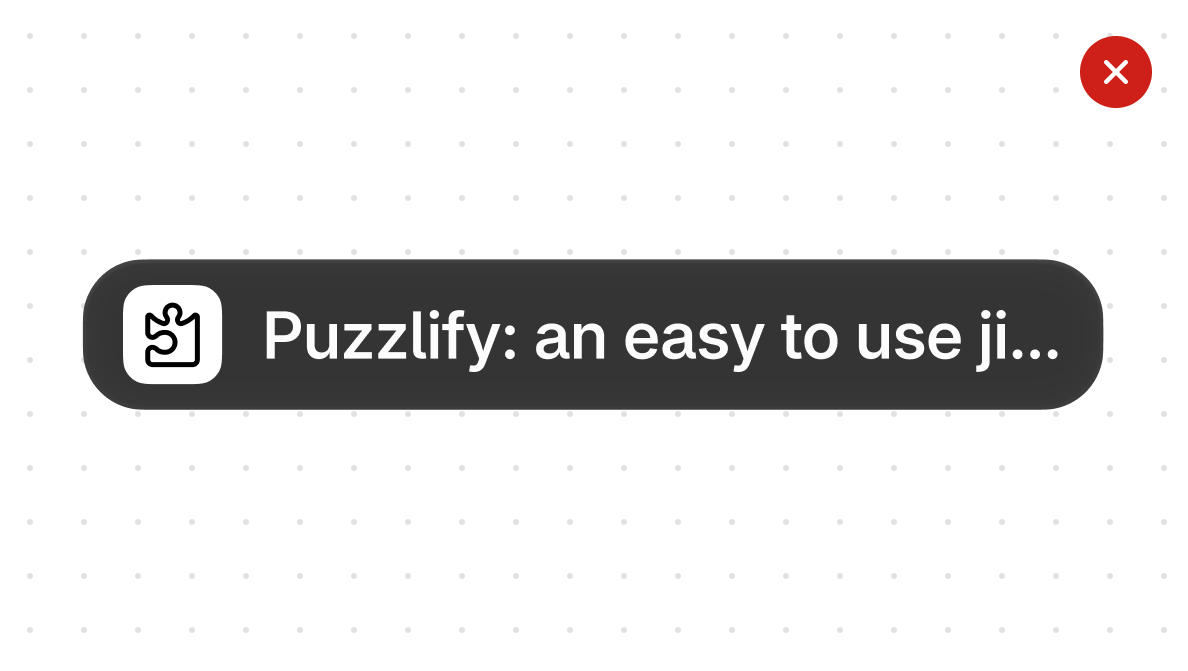
Avoid putting a description in the app name. Put the description in the Shopify App Store listing instead.
Submit a navigation icon that displays in the app nav. The navigation icon is gray when it's inactive and green when it's active.
To learn more about designing your navigation icon, refer to the visual design guidelines.
Info
To change your navigation icon, go to the app's Settings page in the Dev Dashboard.
Info:
To change your navigation icon, go to the app's Settings page in the Dev Dashboard.
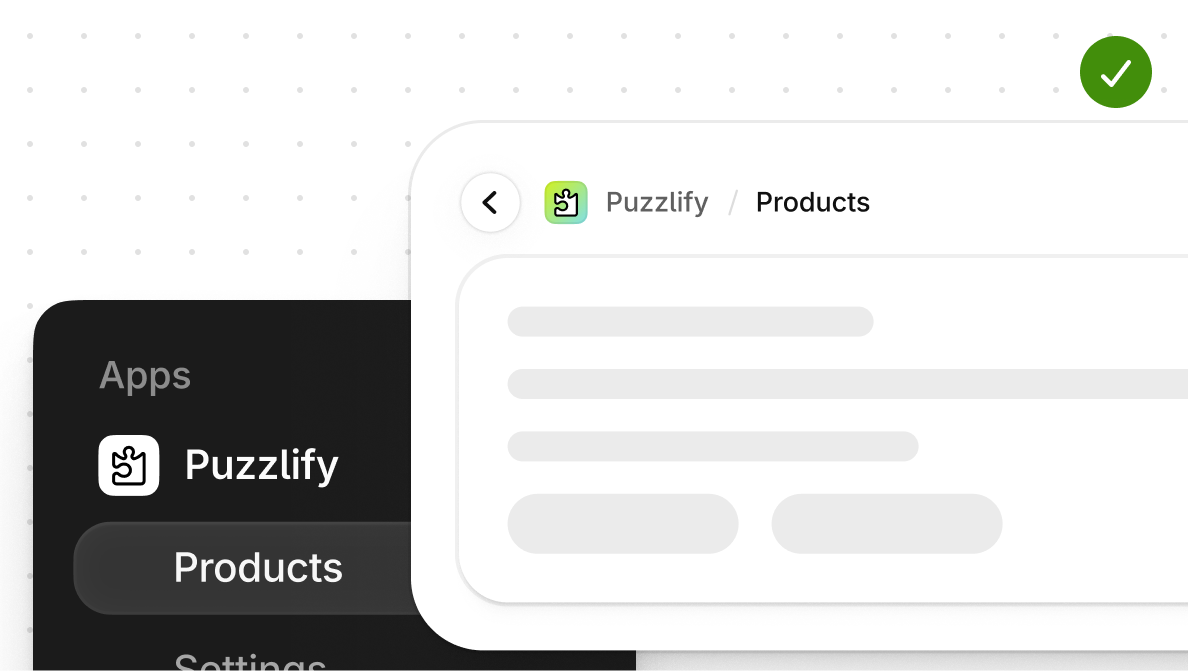
If you're using an SVG icon in the Shopify admin navigation, then it should look similar to your app's App Store icon. It's not mandatory to have an SVG icon.
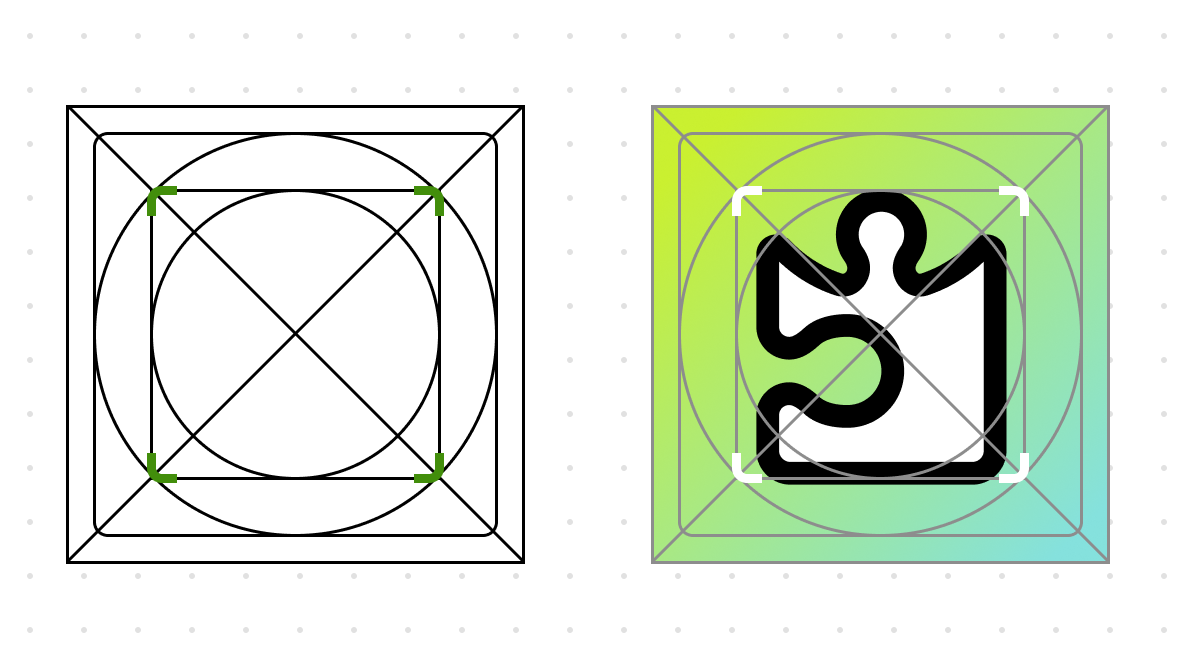
Navigation app icons are cropped with a 4px border radius. You don't need to submit your icon with rounded corners.
Anchor to App headerApp header
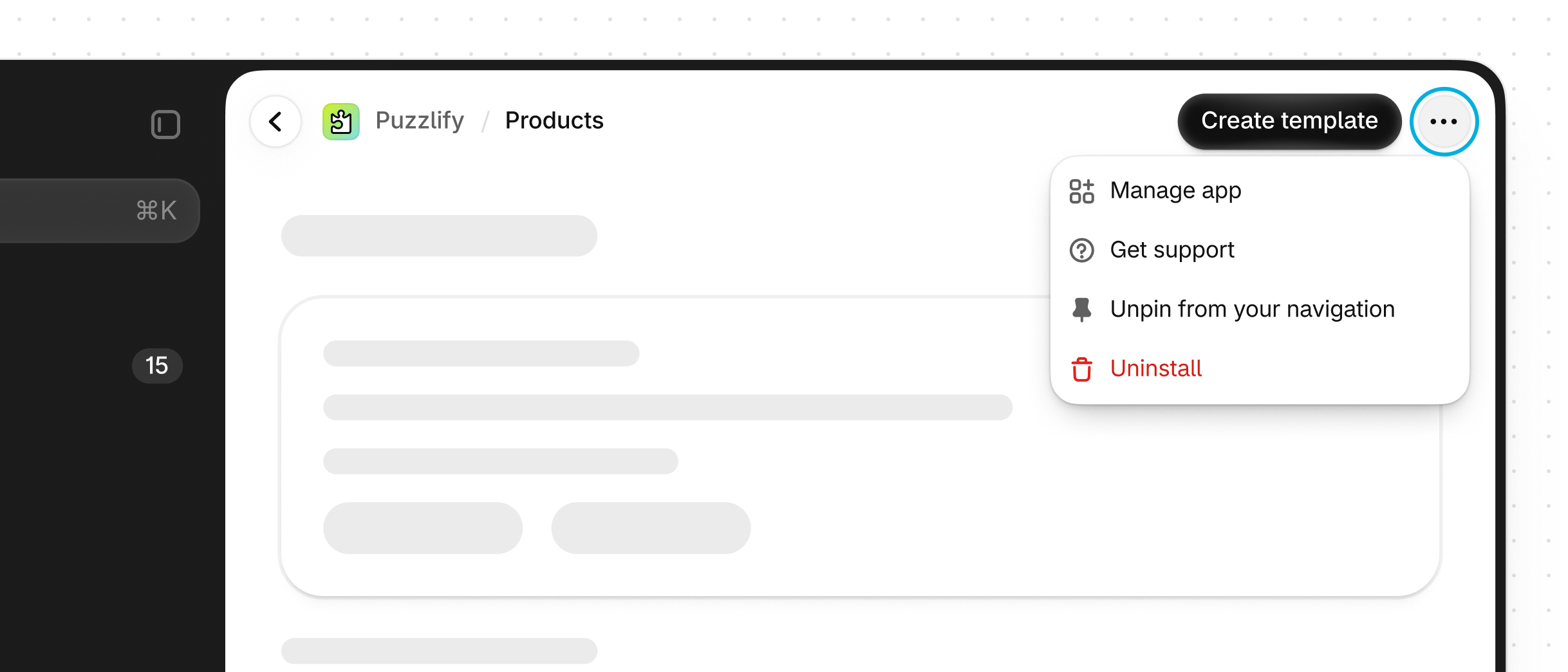
The app header contains main structural pieces for your app. It's the header that merchants will interact with throughout the entire app experience.
Refer to the App Bridge Title bar web component documentation for more information.
The app header contains the following elements:
-
App icon and name
Identify your app across the Shopify admin.
-
Page title
Names the current page and describes its purpose.
-
Actions
Primary and secondary buttons for page-specific tasks.
-
Overflow menu
Holds app-level actions and support information, such as Manage app and Get support.
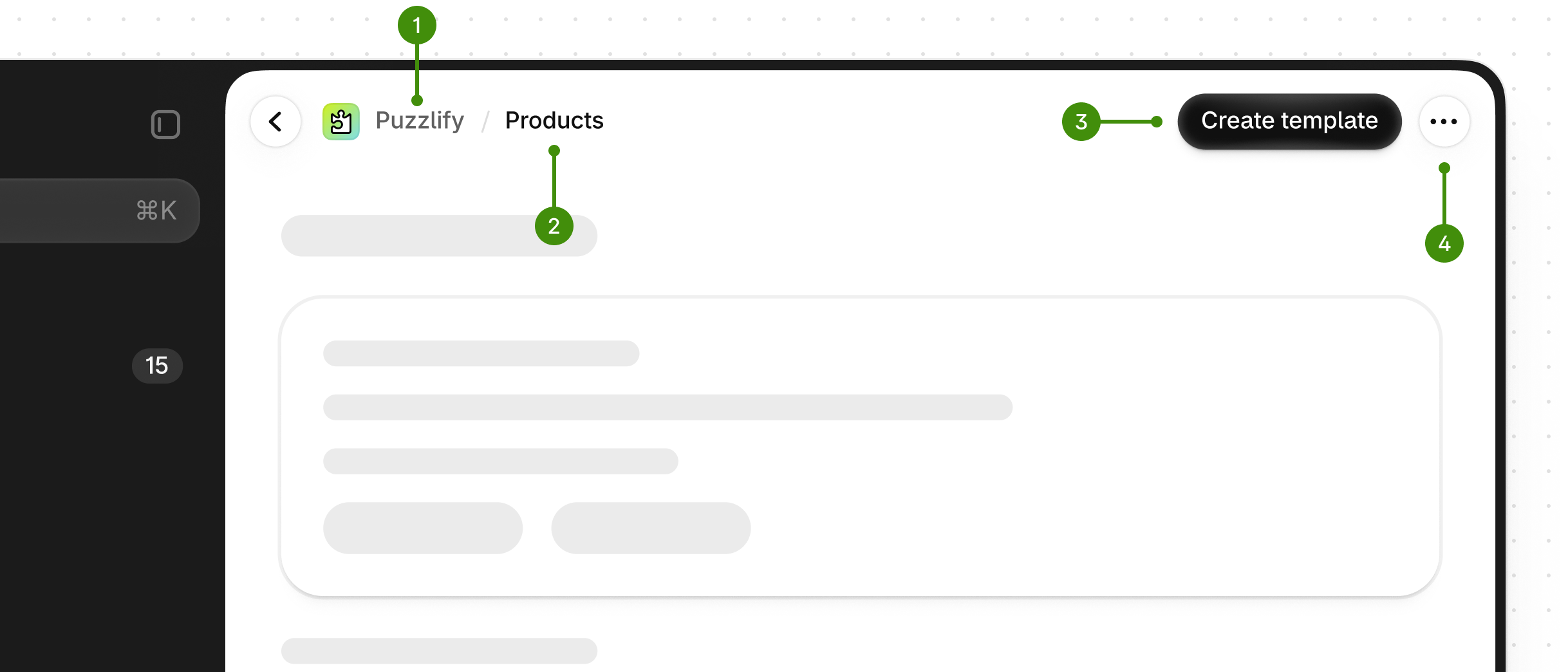
The overflow menu is reserved for app-level actions and support information.
The overflow menu includes the following content:
- Manage app
- Get support
- Unpin from your navigation
- Uninstall
At this time, the overflow menu isn't customizable.
Info
On mobile, the option to pin the app is collapsed into the overflow menu.
Info:
On mobile, the option to pin the app is collapsed into the overflow menu.
Anchor to Page titlePage title
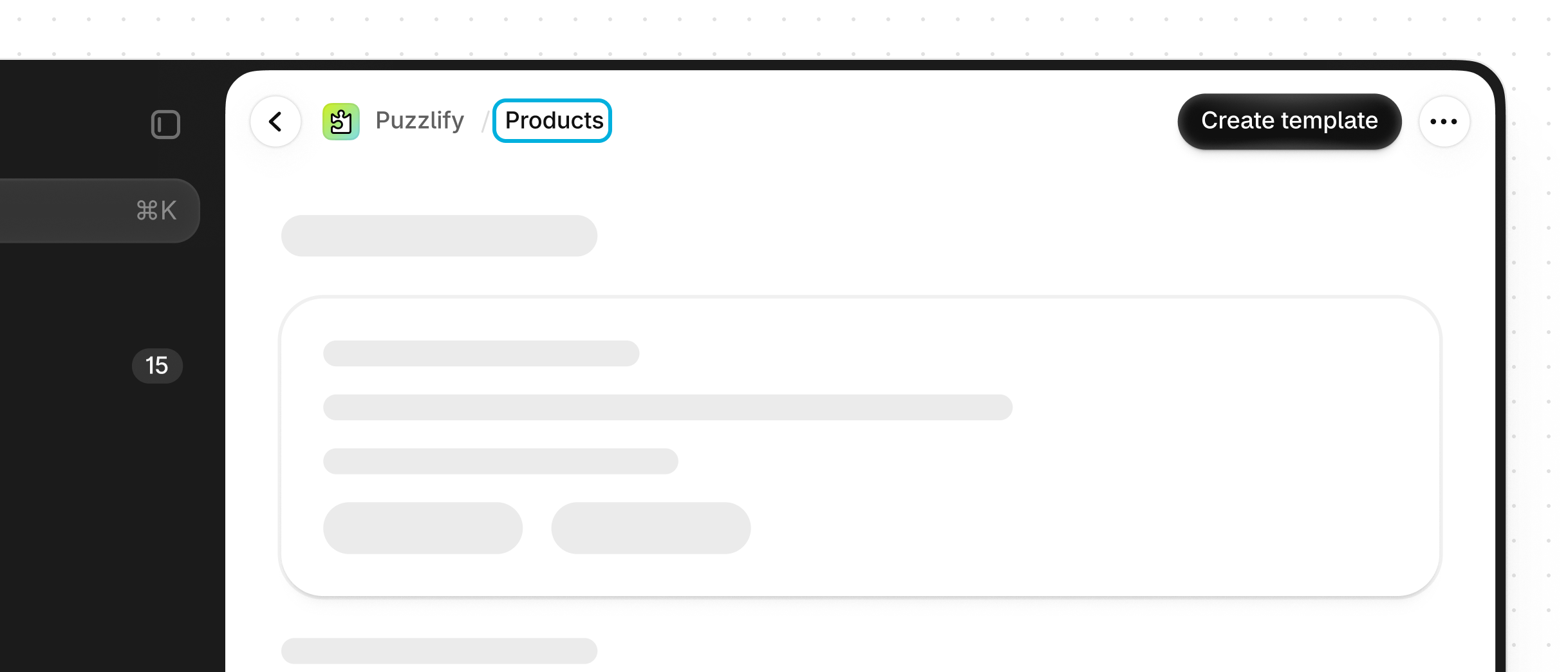
The page title should be short and describe the general purpose of the page.
Try to limit each page to a single purpose. Merchants prefer focusing their attention on specific tasks, and splitting their attention might damage the user experience.
Anchor to Primary and secondary actionsPrimary and secondary actions
The primary and secondary buttons in the App Bridge Title bar web component initiate a page-specific action.
Primary and secondary button labels should have the following attributes:
- Clarity and predictability: Merchants should be able to anticipate what will happen when they click a page action.
- Action-led: Button labels should always lead with a strong verb that encourages action. To provide enough context for merchants, use a
\{verb\}+\{noun\}format.
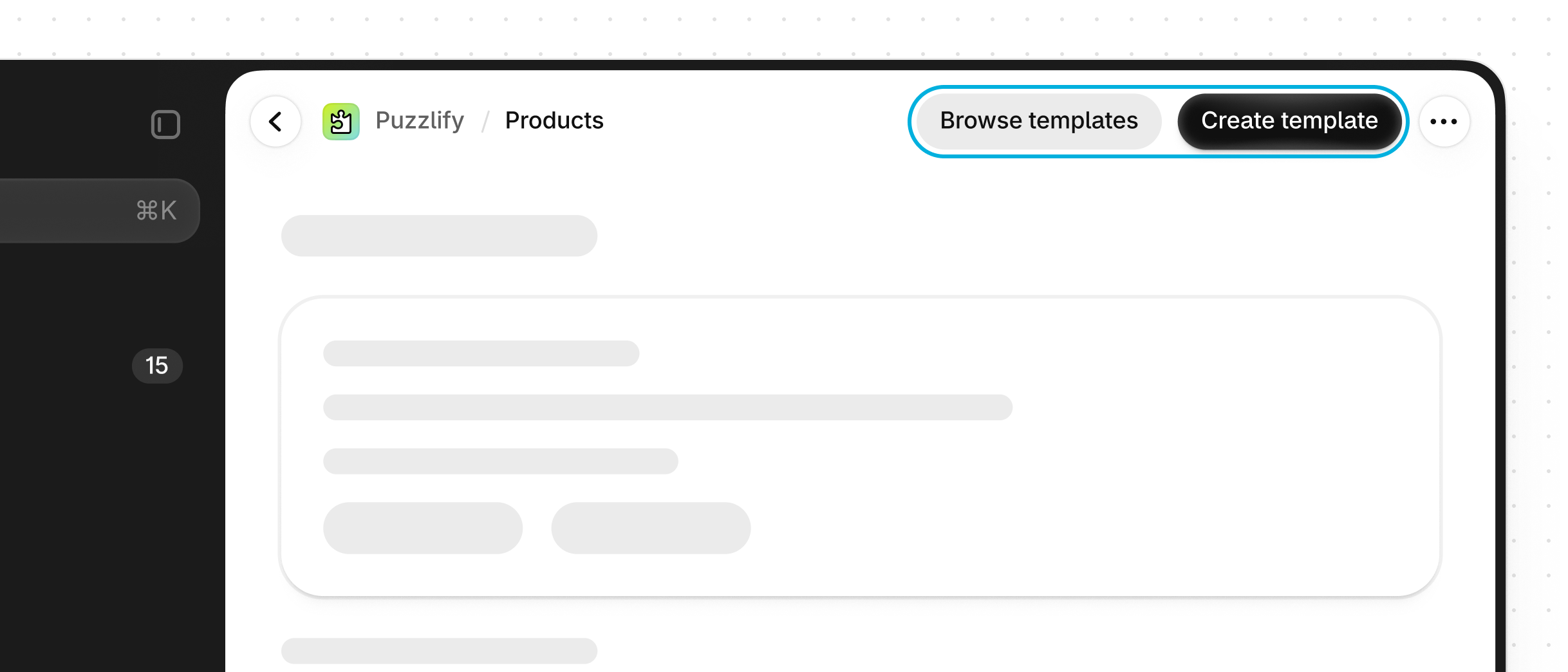
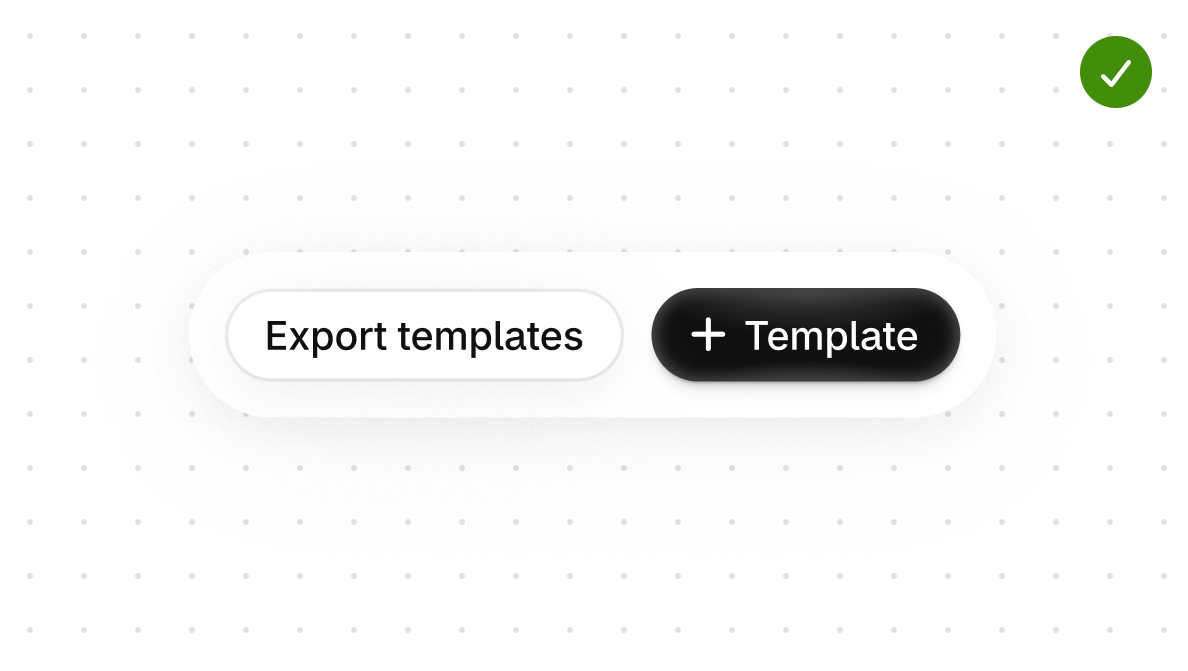
Offer merchants clear and predictable action labels.
Was this page helpful?