Manage Oxygen environments and variables
A Hydrogen storefront on Oxygen has one or more environments. Each environment has its own environment variables and, except preview, links to a branch in your app's Git repository and has its own URL. Every deployment belongs to one environment.
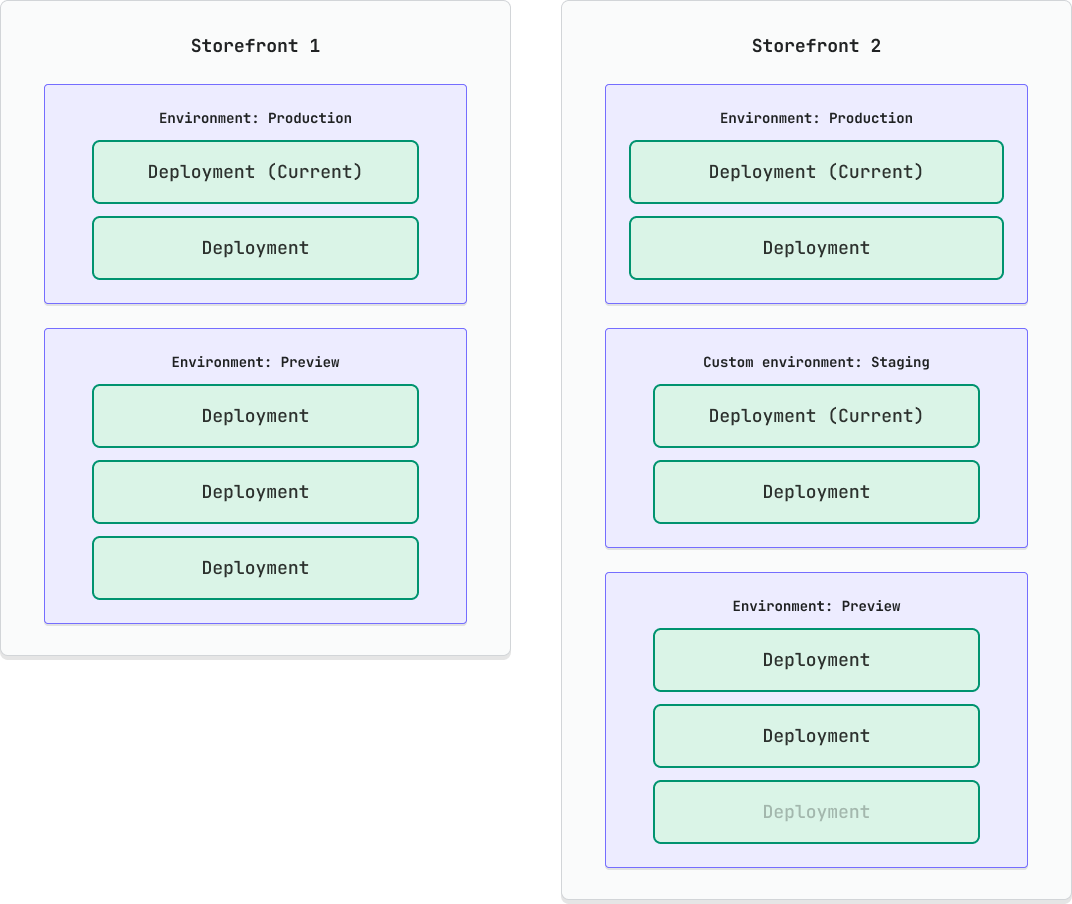
Anchor to How it worksHow it works
Oxygen assigns each deployment to an environment based on the branch that it was deployed from:
| Environment | Associated Git branch |
|---|---|
| Production | Your repository's default branch. You can edit the production environment to select a different branch. |
| Custom environments | Optional. Each custom environment links to its own branch. |
| Preview | All other branches. |
Each environment except preview has a generated URL that points to its most recent deployment. You can roll back an environment to point to an earlier deployment.
Oxygen passes the environment's variables to your Worker's env argument on every request. Deployments are immutable, so a deployment keeps the variable values that it had when it was deployed. If you change a variable, then redeploy the environments that use it.
Anchor to Manage environmentsManage environments
The production and preview environments are required, and you can't delete them. Create custom environments to test features or share work in progress without changing production.
Anchor to Create an environmentCreate an environment
- In your Hydrogen storefront, click Storefront settings.
- Click Environments and variables.
- Click Add environment.
- Select an existing repository branch to link to the environment, or create a new branch.
- Type a name for the environment. The branch name determines the environment URL.
- Select whether to make the environment public or private.
- Optional: Under Copy environment variables, select an existing environment to copy variables from.
- Click Save.
Anchor to Update an environmentUpdate an environment
- In your Hydrogen storefront, click Storefront settings.
- Click Environments and variables.
- Click the environment to edit.
- Change the production environment's branch or visibility, or a custom environment's name or visibility.
- Click Save.
Anchor to Delete a custom environmentDelete a custom environment
- In your Hydrogen storefront, click Storefront settings.
- Click Environments and variables.
- Click the environment to delete.
- Click Delete environment.
- Click Delete to confirm.
Anchor to Environment visibilityEnvironment visibility
Environments are private by default, which means that you need to be logged in to your store to view them. A public environment is visible to anyone who has its URL.
Private environment URLs load more slowly, because Oxygen verifies authentication on each request.
Anchor to Make an environment public or privateMake an environment public or private
- In your Hydrogen storefront, click Storefront settings.
- Click Environments and variables.
- Click the environment to edit.
- Under URL privacy, select Public or Private.
- Click Save.
Anchor to Public environment limitsPublic environment limits
The number of public environments that a store can have depends on its plan:
| Plan | Public environment limit |
|---|---|
| Starter | 1 |
| Basic | 1 |
| Grow | 1 |
| Advanced | 1 |
| Shopify Plus | 25 |
| Pause and build | 1 |
| Plus Partner Sandbox stores | 1 |
| Development stores | 0 |
| Trial plans | 0 |
Retail, nonprofit, and custom plans also include one public environment.
Anchor to Environment variablesEnvironment variables
Environment variables are key-value pairs. Each environment can have up to 110 variables, and a variable can have a different value in each environment.
Anchor to Variables that Shopify setsVariables that Shopify sets
When you create a storefront, Shopify adds the variables that your app needs to query your store. Some are read-only, so you can't edit them directly.
| Variable | Description | Read-only |
|---|---|---|
PUBLIC_STORE_DOMAIN | Your store's domain, such as example.myshopify.com. | Yes |
PRIVATE_STOREFRONT_API_TOKEN | Your private Storefront API access token, for server-side queries. You can rotate it. | Yes |
PUBLIC_STOREFRONT_ID | Your Hydrogen storefront's numeric ID. Hydrogen sends it with analytics events. | Yes |
PUBLIC_CUSTOMER_ACCOUNT_API_CLIENT_ID | Your Customer Account API client ID. | Yes |
SHOP_ID | Your store's numeric ID. The Customer Account API client uses it to build its endpoints. | Yes |
SESSION_SECRET | The secret that signs your session cookies. Use at least 32 random characters. | No |
Without PRIVATE_STOREFRONT_API_TOKEN, the React Router template reads from mock.shop. Set MOCK_SHOP=1 to force mock.shop in an environment that has a token.
Anchor to Read variables in your appRead variables in your app
Oxygen passes variables to your Worker as the env argument, not as process.env. The React Router template stores env in the router context in server.ts, so loaders, actions, and middleware read it from there:
Read environment variables
app/routes/example.tsxWhen you add a variable, also add it to the Env type in app/lib/env.ts. Read secrets in server code only, and don't return them from a loader.
To use your storefront's variables locally, run npx shopify hydrogen env pull. It writes them to your .env file, and MiniOxygen passes them to your Worker's env argument.
Anchor to Create a variableCreate a variable
- In your Hydrogen storefront, click Storefront settings.
- Click Environments and variables.
- Under Custom variables, click Add variable.
- Under Key, type a key, such as
EXAMPLE_API_TOKEN. - Under Value, type the value.
- Optional: To hide the value after you save it, check Make this value secret.
- Under Environments, select the environments that get the value.
- Click Save.
To set a different value for other environments, click Add another value.
Anchor to Edit a variableEdit a variable
- In your Hydrogen storefront, click Storefront settings.
- Click Environments and variables.
- Click the variable to edit.
- Change its key, values, or environments.
- Click Save.
After you save, the Shopify admin offers to redeploy the environments that use the variable. Existing deployments keep the old value until you redeploy.
Anchor to Delete a variableDelete a variable
Deleting a variable deletes its key and all its values.
- In your Hydrogen storefront, click Storefront settings.
- Click Environments and variables.
- Click the variable to delete.
- Click Delete variable.
- Click Delete to confirm.
Anchor to Rotate your private Storefront API tokenRotate your private Storefront API token
If your private Storefront API token is exposed, then rotate it:
- In your Hydrogen storefront, click Storefront settings.
- Click Storefront API.
- Under Rotate private access token, click Generate new token.
- Click Generate new token to confirm.
- Optional: Update any other apps that use the token.
- Deploy your storefront again. Oxygen doesn't redeploy environments when you rotate a token.
- Beside the Old token, click Revoke, and then click Delete token.


