Add a survey to Thank you and Order status pages
The Thank you and Order status pages are shown to customers at the end of checkout, and can be customized using checkout UI extensions.
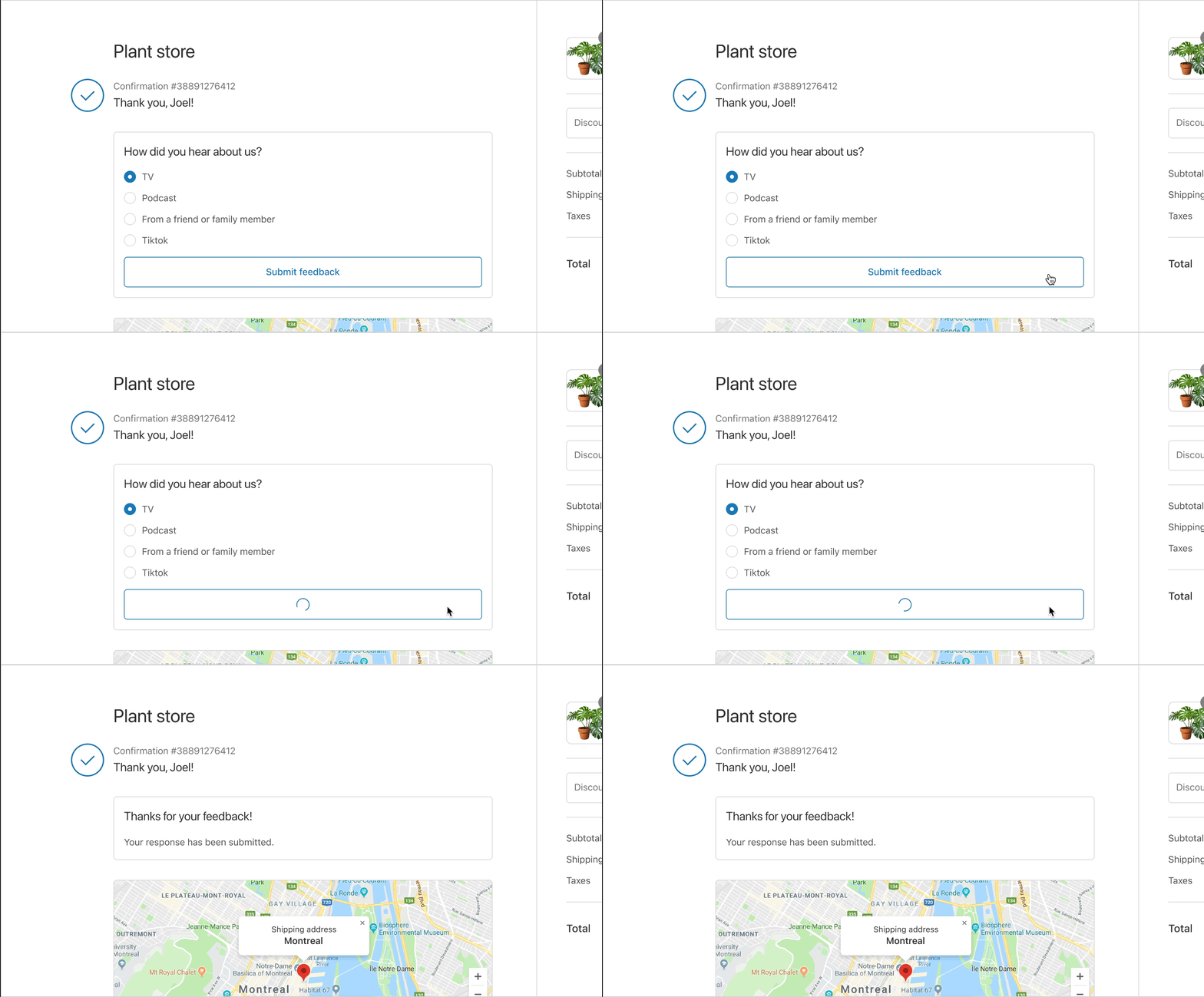
In this tutorial, you'll create a single extension that displays two different surveys depending where an app user places the extension in the checkout editor. You'll use both the purchase.thank-you.block.render and customer-account.order-status.block.render targets to build two surveys:
- A survey that asks the customer how they heard about the store.
- A survey that asks how the customer is enjoying their purchase after the order has been delivered.
Follow along with this tutorial to build a sample app, or clone the completed sample app. You can use this tutorial as an example to build other customizations, such as adding a form that customers can submit to subscribe to a newsletter.
Anchor to What you'll learnWhat you'll learn
In this tutorial, you'll learn how to do the following:
- Create a checkout UI extension that renders on the Thank you and Order status pages.
- Use multiple targets to display different interfaces to the customer.
- Set up the UI components for the post-checkout survey.
- Run the extension locally and test it on a dev store.
- Deploy your extension code to Shopify.
Requirements
-
You're a user with app development permissions.
-
You've created a new dev store with test data generated by Shopify. You can create one by running
shopify store create dev --with-demo-data. -
You've created an app that uses Shopify CLI 3.85.1 or higher.
Project
Anchor to Create a checkout UI extensionCreate a checkout UI extension
To create a checkout UI extension, you'll use Shopify CLI, which generates starter code for building your extension.
To create a checkout UI extension, you can use Shopify CLI, which generates starter code for building your extension and automates common development tasks.
-
Navigate to your app directory:
Terminal
cd <directory> -
Run the following command to create a new checkout UI extension:
Terminal
shopify app generate extension --template checkout_ui --name my-checkout-ui-extension -
Select
Checkout UI.You should now have a new extension directory in your app's directory. The extension directory includes the extension script at
src/Checkout.jsx. The following is an example directory structure:Checkout UI extension file structure
└── my-app└── extensions└── my-checkout-ui-extension├── src│ └── Checkout.jsx OR Checkout.js // The index page of the checkout UI extension├── locales│ ├── en.default.json // The default locale for the checkout UI extension│ └── fr.json // The locale file for non-regional French translations├── shopify.extension.toml // The config file for the checkout UI extension└── package.json -
Start your development server to build and preview your app:
Terminal
shopify app devRead more about the processes that are executed when you run
app dev. -
Press
pto open the Dev Console. -
In the extension list for your app, click on the preview link for your extension.
Anchor to Set up a target for your extensionSet up a target for your extension
Set up a target for your checkout UI extension. Targets control where your extension renders in the checkout flow.
Anchor to Reference the extension targets in your configuration fileReference the extension targets in your configuration file
You can define more than one target so that app users can add the extension to multiple locations in the checkout.
In your checkout UI extension's configuration file, for each of your targets, create an [[extensions.targeting]] section with the following information:
-
module: The path to the file that contains the extension code. -
target: An identifier that specifies where you're injecting code into Shopify.
shopify.extension.toml is the configuration file for your extension. It contains basic information and settings.
Whenever you edit your extension configuration file, you need to restart your server for the changes to take effect.
Terminal
Whenever you edit your extension configuration file, you need to restart your server for the changes to take effect.
Terminal
Anchor to Build the survey UIBuild the survey UI
Build a user interface using Polaris web components.
Anchor to Create a survey componentCreate a survey component
Create a function to set up web components that the two surveys share, including a button to submit feedback and a message that appears after the feedback is submitted.
Checkout UI extensions are limited to specific UI components exposed by the platform for security reasons. Web components allow you to create a UI that feels seamless within the checkout experience, and that inherits a merchant's brand settings.
Anchor to Create an attribution surveyCreate an attribution survey
Use the Survey component that you created, along with web components, to build an attribution survey interface.
This UI includes a choice list component to specify how the customer heard about the store.
This sample code simulates storing the survey response by logging to your console. In a production-ready application, you should store the survey response in a database, or in metafields.
This sample code also uses hard-coded survey questions and options. In a production-ready application, you should allow app users to customize the survey questions and answers with checkout UI extension settings.
Learn more about the UX guidelines for these pages.
Anchor to Create a product review surveyCreate a product review survey
Use the Survey component that you created, along with web components, to build a product review survey interface.
This UI includes a choice list component to specify how the customer is enjoying their purchase.
Anchor to Preview the extensionPreview the extension
Preview your extension to make sure that it works as expected.
Anchor to Start your serverStart your server
Run the Shopify CLI dev command to build your app and preview it on your development store.
-
In a terminal, navigate to your app directory.
-
Either start or restart your server to build and preview your app:
Terminal
shopify app dev -
Press
pto open the Dev Console. -
In the extension list for your app, click on the preview link for the custom Order status page extension.
The checkout opens.
This section describes how to solve some potential errors when you run dev for an app that contains a checkout UI extension.
Anchor to Property token errorProperty token error
If you receive the error ShopifyCLI:AdminAPI requires the property token to be set, then you'll need to use the --checkout-cart-url flag to direct Shopify CLI to open a checkout session for you.
Terminal
Anchor to Missing checkout linkMissing checkout link
If you don't receive the test checkout URL when you run dev, then verify the following:
-
You have a development store populated with products.
-
You're logged in to the correct Partners organization and development store. To verify, check your app info using the following command:
Terminal
shopify app info
Otherwise, you can manually create a checkout with the following steps:
-
From your development store's storefront, add some products to your cart.
-
From the cart, click Checkout.
-
From directory of the app that contains your extension, run
devto preview your app:Terminal
shopify app dev -
On the checkout page for your store, change the URL by appending the
?dev=https://{tunnel_url}/extensionsquery string and reload the page. Thetunnel_urlparameter allows your app to be accessed using a unique HTTPS URL.You should now see a rendered order note that corresponds to the code in your project template.
Anchor to Test the attribution surveyTest the attribution survey
- Complete the checkout by placing a test order.
When you visit the Thank you page, the attribution survey displays.
-
Refresh the page to access the product review survey on the Order status page.
-
Optional: To preview the dynamic extension in a different supported location, add the placement-reference URL query parameter.
To remain on the Thank you page through a page refresh, append the ?prevent_order_redirect=true parameter to the URL. This parameter persists in the local storage of your browser and prevents redirection to the Order status page. To re-enable redirection, either clear your local storage or add the ?prevent_order_redirect=false parameter to the URL and reload the page.
When you're ready to release your changes to users, you can create and release an app version. An app version is a snapshot of your app configuration and all extensions.
-
Navigate to your app directory.
-
Run the following command.
Optionally, you can provide a name or message for the version using the
--versionand--messageflags.Terminal
shopify app deploy
Releasing an app version replaces the current active version that's served to stores that have your app installed. It might take several minutes for app users to be upgraded to the new version.
If you want to create a version, but avoid releasing it to users, then run the deploy command with a --no-release flag.
You can release the unreleased app version using Shopify CLI's release command, or through the Dev Dashboard.
If you want to create a version, but avoid releasing it to users, then run the deploy command with a --no-release flag.
You can release the unreleased app version using Shopify CLI's release command, or through the Dev Dashboard.
Anchor to Post-checkout survey UX guidelinesPost-checkout survey UX guidelines
To help merchants gain customer trust and to provide a great post-checkout experience, follow these guidelines when designing a post-checkout survey app extension.
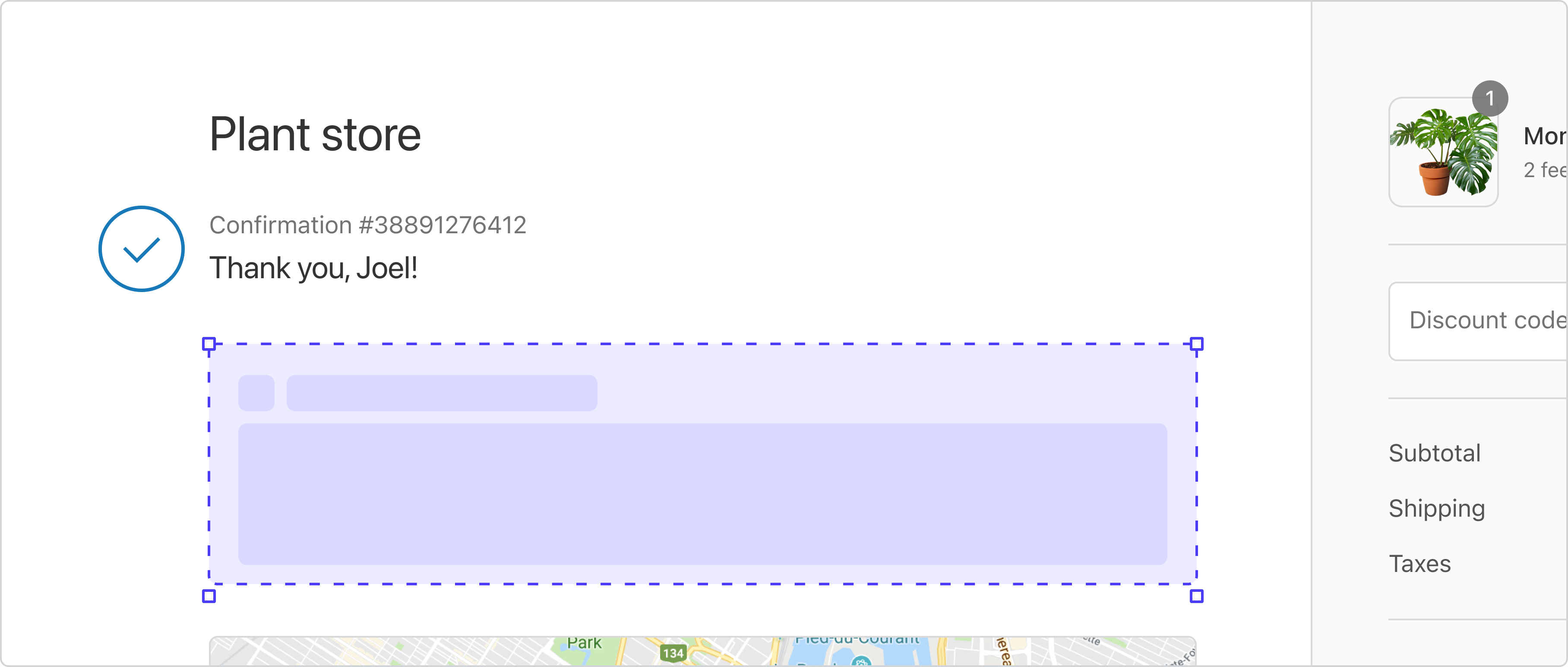
Anchor to Display only one survey per sessionDisplay only one survey per session
Limit content so that customers aren't overwhelmed with information after they've completed their order.
Anchor to Give merchants control over survey contentGive merchants control over survey content
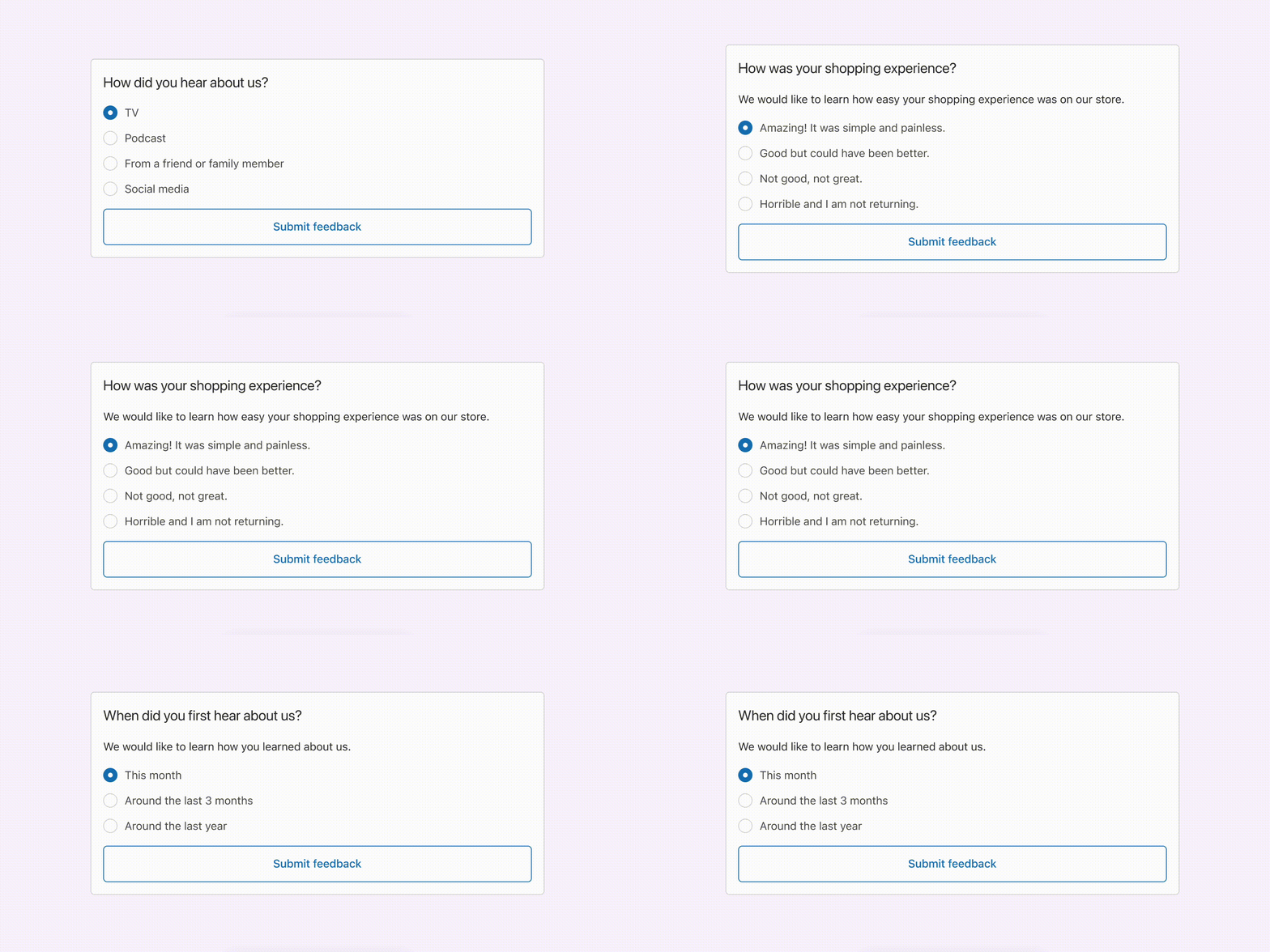
Merchants know their customers best and should have the flexibility to create surveys that relate to the shopping journey of their customers.
Anchor to Tutorial complete!Tutorial complete!
Nice work - what you just built could be used by Shopify merchants around the world! Keep the momentum going with these related tutorials and resources.
Anchor to Next stepsNext steps


Optimize your user experience by following our UX guidelines.
Localize your extension

Learn how to localize the text and number formats in your extension.
Explore the web component reference

Learn about all of the components that you can use in your checkout UI extension.
Explore the checkout UI targets referenceLearn about the targets offered in the checkout.