About products and collections
Products represent individual items for sale in a Shopify store, including all the information needed to display, sell, and fulfill those items. Collections are groupings of products that merchants create to organize their catalogs and make their stores easier to browse.
This guide introduces how to work with products and collections using the GraphQL Admin API.
Anchor to How it worksHow it works
The GraphQL Admin API supports two different workflows for managing products.
Choose your workflow based on your data source:
-
Shopify is your source of truth: Use targeted mutations to add and update products. This approach works well when you need to modify specific fields without affecting the rest of the product data.
-
An external system is your source of truth: Use the declarative sync mutation to replace complete product state in one operation. This approach is ideal for batch imports or scheduled syncs from systems like ERPs and PIMs.
Both workflows operate on the same product model, where products contain options (like color and size) and variants represent specific purchasable combinations.
You upload media files separately and you can reuse them across multiple products and variants. Use separate mutations to organize and reorder products in collections.
Anchor to Product modelProduct model
The GraphQL Admin API models products using a three-tier hierarchy:
- Product: The container for all product information (title, description, vendor). One product can have multiple options and variants.
- Options: Characteristics customers choose from, like color or size. Each option has a name and multiple values.
- Variants: Specific purchasable SKUs representing combinations of option values, like "Red / Small". Each variant has its own price, inventory, and barcode.
The following diagram shows how products, options, and variants relate to each other. Each variant represents a specific combination of option values, like "Red / Small".
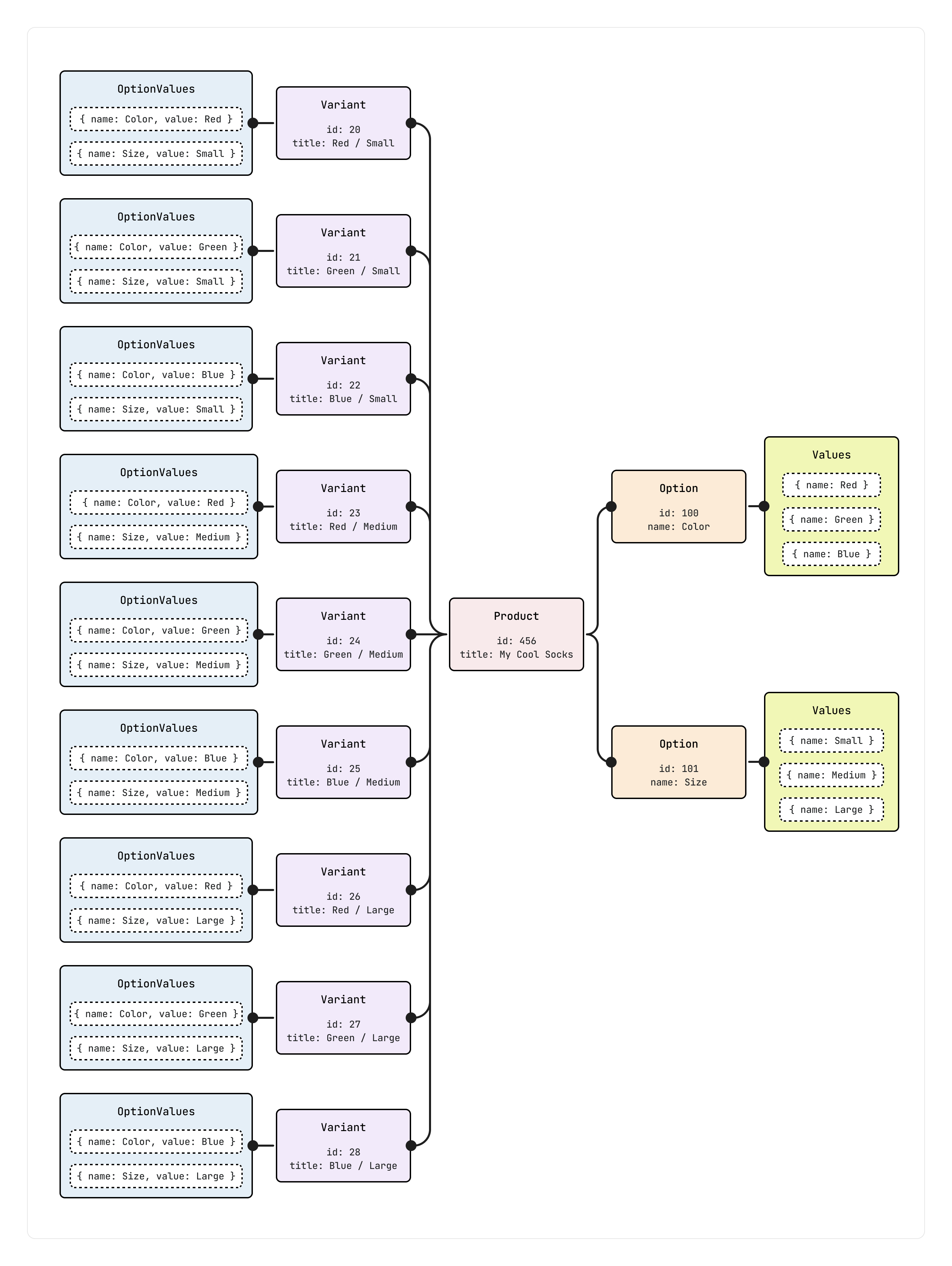
The following example shows the data structure:
Product data structure
Anchor to API operationsAPI operations
The following tables show the available mutations for each type of operation.
Anchor to Incremental update mutationsIncremental update mutations
Use these mutations to make targeted changes to products, options, variants, and collections:
| Operation | Mutations | What they do |
|---|---|---|
| Products | productCreate, productUpdate | Create products or modify specific fields. |
| Options | productOptionsCreate, productOptionUpdate, productOptionsReorder, productOptionsDelete | Add, modify, reorder, or remove options. |
| Variants | productVariantsBulkCreate, productVariantsBulkUpdate, productVariantsBulkDelete, productVariantsBulkReorder | Create, update, or reorder up to 2,048 variants at a time. Delete up to 250 variants at a time. |
| Collections | collectionCreate, collectionUpdate, collectionDelete, collectionReorderProducts | Create, update, or delete collections. Reorder up to 250 products at a time. |
Anchor to Database sync mutationDatabase sync mutation
Use this mutation to sync complete product state from external systems:
| Mutation | What it does |
|---|---|
productSet | Creates or updates entire product state. Replaces all data (not a merge). Supports async/sync modes. Exempt from variant limits. |
Anchor to Media mutationsMedia mutations
Use these mutations for managing files and media:
| Operation | Mutations | What they do |
|---|---|---|
| Files | fileCreate, fileUpdate, fileDelete | Upload files to Shopify's CDN, update properties, or delete files. |
| Product media | productSet, productCreate, productUpdate, productReorderMedia, fileUpdate | Associate files with products, reorder media, or remove media associations. |
| Variant media | productVariantAppendMedia, productVariantDetachMedia | Associate media with variants or remove associations. |
Anchor to Working with large product catalogsWorking with large product catalogs
When working with high-variant products, you need to account for pagination limits and batch creation constraints.
Anchor to Pagination when queryingPagination when querying
The GraphQL Admin API returns a maximum of 250 items for each page. However, when querying variants on a single product, you can request up to 2,048 variants in one request using the first argument on the variants connection.
If you're querying variants across multiple products, use cursor-based pagination to retrieve results across multiple pages.
To quickly check how many variants a product has, query the variantsCount field on the Product object.
To quickly check how many variants a product has, query the variantsCount field on the Product object.
Anchor to Batch creationBatch creation
The productVariantsBulkCreate mutation accepts up to 2,048 variants in a single operation—enough to create all variants for a product at once. If you're using the REMOVE_STANDALONE_VARIANT strategy, you can create all 2,048 variants. Otherwise, you can create up to 2,047 variants alongside the auto-created standalone variant.
Anchor to Bulk operationsBulk operations
For very large-scale operations (like importing thousands of products with variants), consider using bulk operations instead of individual mutations. Bulk operations let you queue large data sets for asynchronous processing, avoiding rate limits and pagination complexity.
Anchor to Get startedGet started
Follow these guides to start working with products and collections.


Anchor to Developer tools and resourcesDeveloper tools and resources
Explore these tools and resources to enhance your development workflow.


